How to unblock an administrator whose login is locked
Summary
Clear the login lock (the block CAMS puts on a sign-in after repeated failed attempts) so a locked-out administrator can sign in again. About 3 minutes · 7 steps. Also called: locked out, account locked, unlock admin, blocked login, too many wrong password attempts, cannot log in.
Ingia kwa barua pepe yako ili usome sehemu iliyobaki ya makala hii, ufuatilie uliyomaliza, na upate cheti chako.
IngiaPrerequisites
- A CAMS sign-in with the right permission for the path you use: Tenant.Admin.Update for Settings → Users, or Client.Edit for the Client shortcut. Without it, Unblock is not shown.
- Enough detail to find the administrator's row. The Settings → Users list has a search.
Step-by-step
Sign in to CAMS Admin. New to it? See How to sign in and navigate CAMS Admin.
In the left menu, click Settings, then Users. The User Management screen lists every administrator.
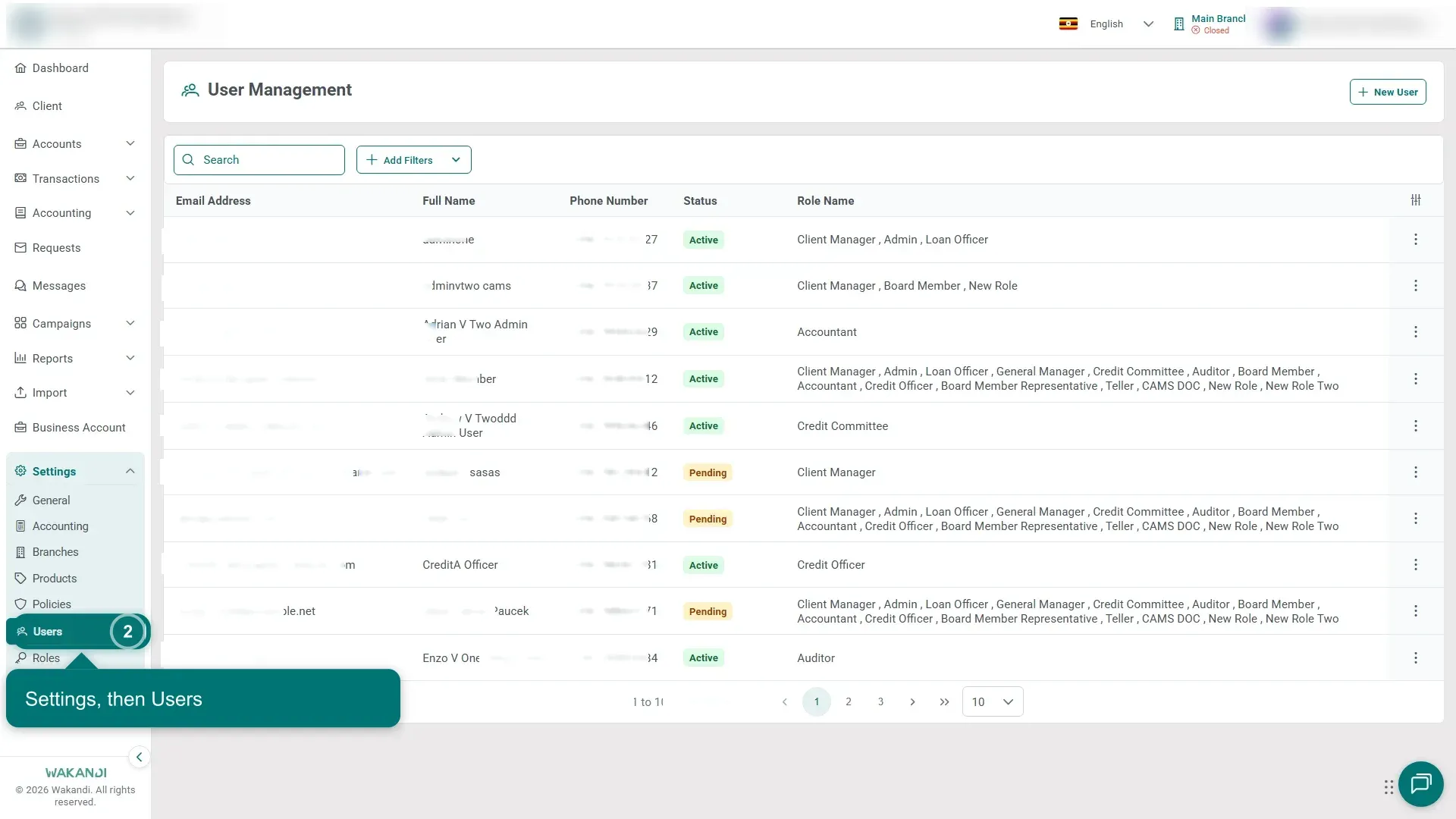
Kielelezo 1: The User Management screen under Settings, listing every administrator Search for the administrator, then open the three-dot (⋮) menu on the right of their row and click Edit. The menu holds Edit and Delete, and on a locked login Unblock as well.
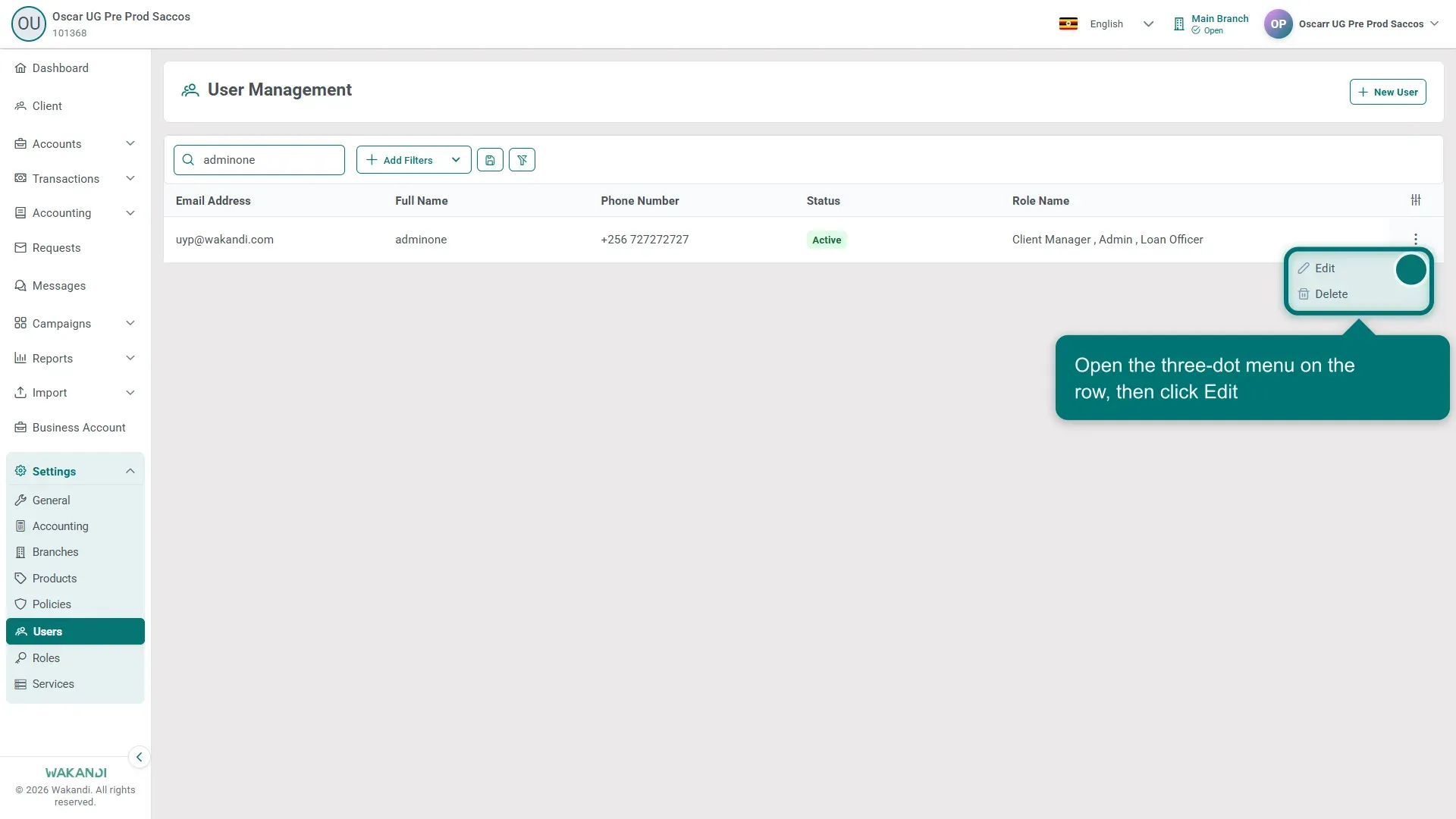
Kielelezo 2: The User Management list narrowed to one administrator, with the three-dot menu open on Edit and Delete At the top right of the Edit Users screen, click Unblock. The button appears only while the login is locked.
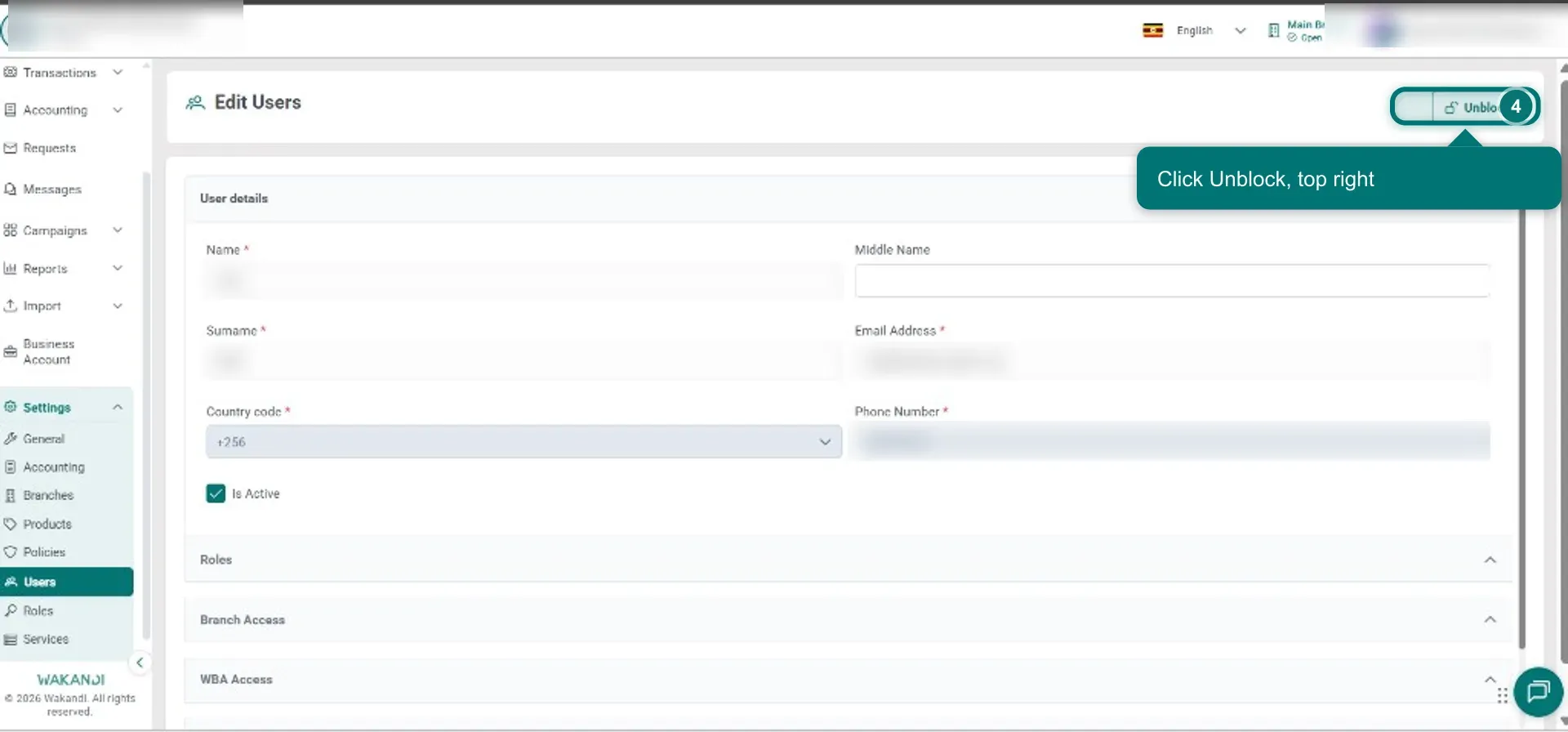
Kielelezo 3: The Edit Users screen with the Unblock button at the top right highlighted Confirm in the dialog. It asks Do you really want to unblock the administrator? The Unblock button then disappears, so the lock is cleared.
Shortcut, when the administrator is also a client: in the left menu click Client, search for them and click their row, then open the Users tab. That tab shows Full Name, Email Address, Country code, Phone Number and Role, so you can pick the right row. Open the three-dot (⋮) menu on it, click Unblock, then confirm. Here the dialog names the lock reason and asks Do you really want to unblock the user?
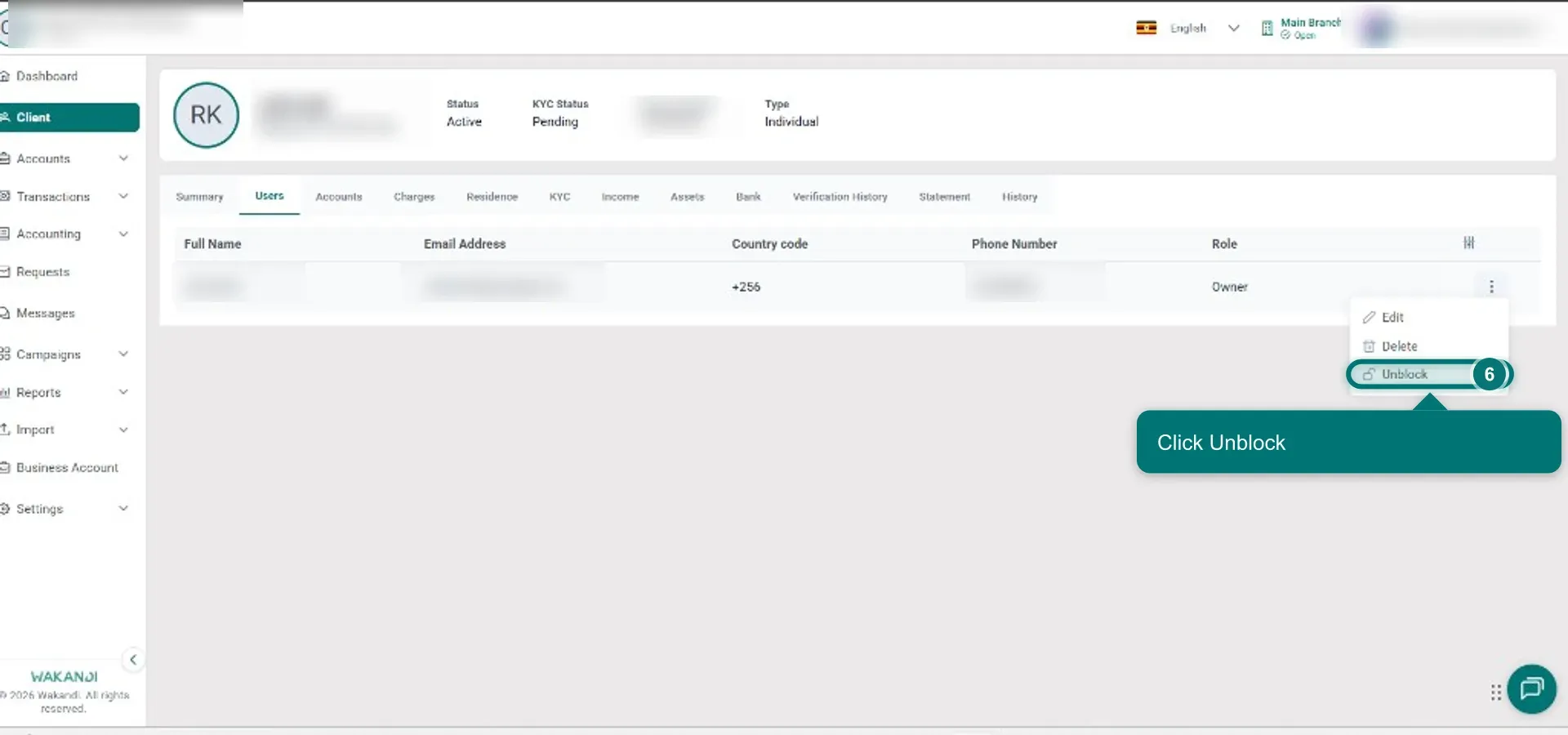
Kielelezo 4: The Users tab on a client's record with the three-dot menu open and Unblock highlighted Either way, ask the administrator to sign in with the same PIN or password as before. Unblock never changes them.
Note: Unblock clears the login lock and nothing else. It does not reset a PIN or password, does not change anyone's status, and does not activate or deactivate an account. It also clears the same lock in CAMS Admin V1, because both share one login. It never appears on a group's Users tab.
Common pitfalls & FAQ
What does the locked administrator see? On the sign-in screen: "Account has been locked due to invalid login attempts."
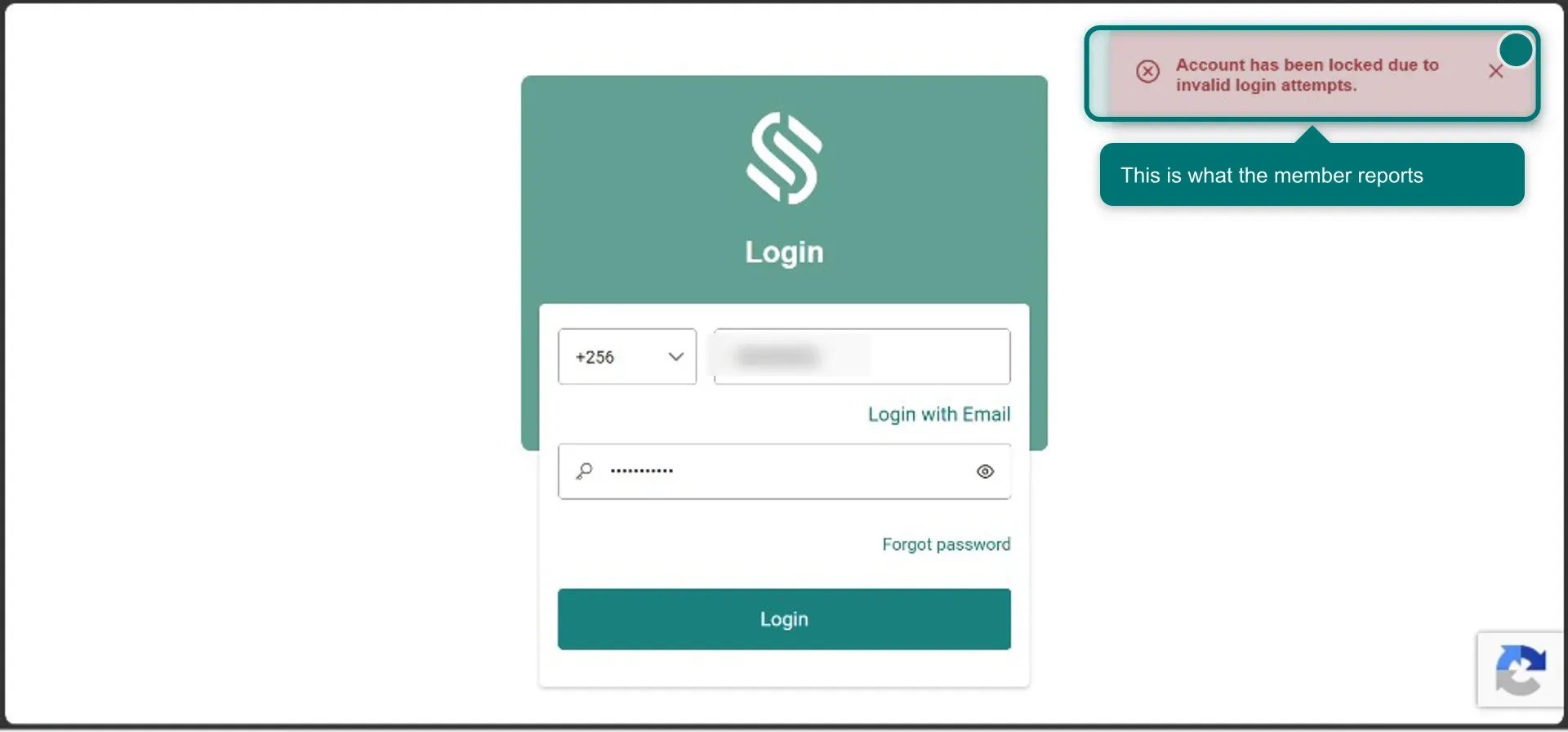
Kielelezo 5: The Wakandi sign-in screen with the red "Account has been locked due to invalid login attempts." banner There is no Unblock button on the edit screen. The login is not locked any more, or your role cannot update administrators. Ask a colleague with wider rights to check.
The three-dot menu on the Users tab shows only Edit and Delete. The login is not locked, your role cannot edit clients, or the client has exited. Use Settings → Users instead, which works for every administrator.
The administrator is not a client at all. Then only Settings → Users will do. The Client shortcut needs a client record.
They still cannot sign in after Unblock. The lock is gone, so check the PIN or password, the phone number or email on the record, and the connection. Repeated failures lock the login again.