Track and manage your campaigns
Summary
See the campaign turning into real numbers: what's been disbursed, what's been repaid, what it's earned so far — and catch a run that has stalled before it wastes reach you already paid for. Check performance, see how far each member has got, and pause, resume or cancel the run.
About 2 minutes · 8 steps. Also called: active campaigns, campaign analytics, campaign performance, member journey, pause campaign, cancel campaign.
Ingia kwa barua pepe yako ili usome sehemu iliyobaki ya makala hii, ufuatilie uliyomaliza, na upate cheti chako.
IngiaPrerequisites
- Your CAMS sign-in, with access to Campaigns.
- A launched campaign. If you have none, start one from Campaigns → Run Campaign.
Step-by-step
Sign in to CAMS.
In the left menu, click Campaigns, then Active Campaigns. The Running campaigns table lists your SACCO's launches, with Product, Status, Members, Start Date, End Date, Created and Targeted Loan Amount.
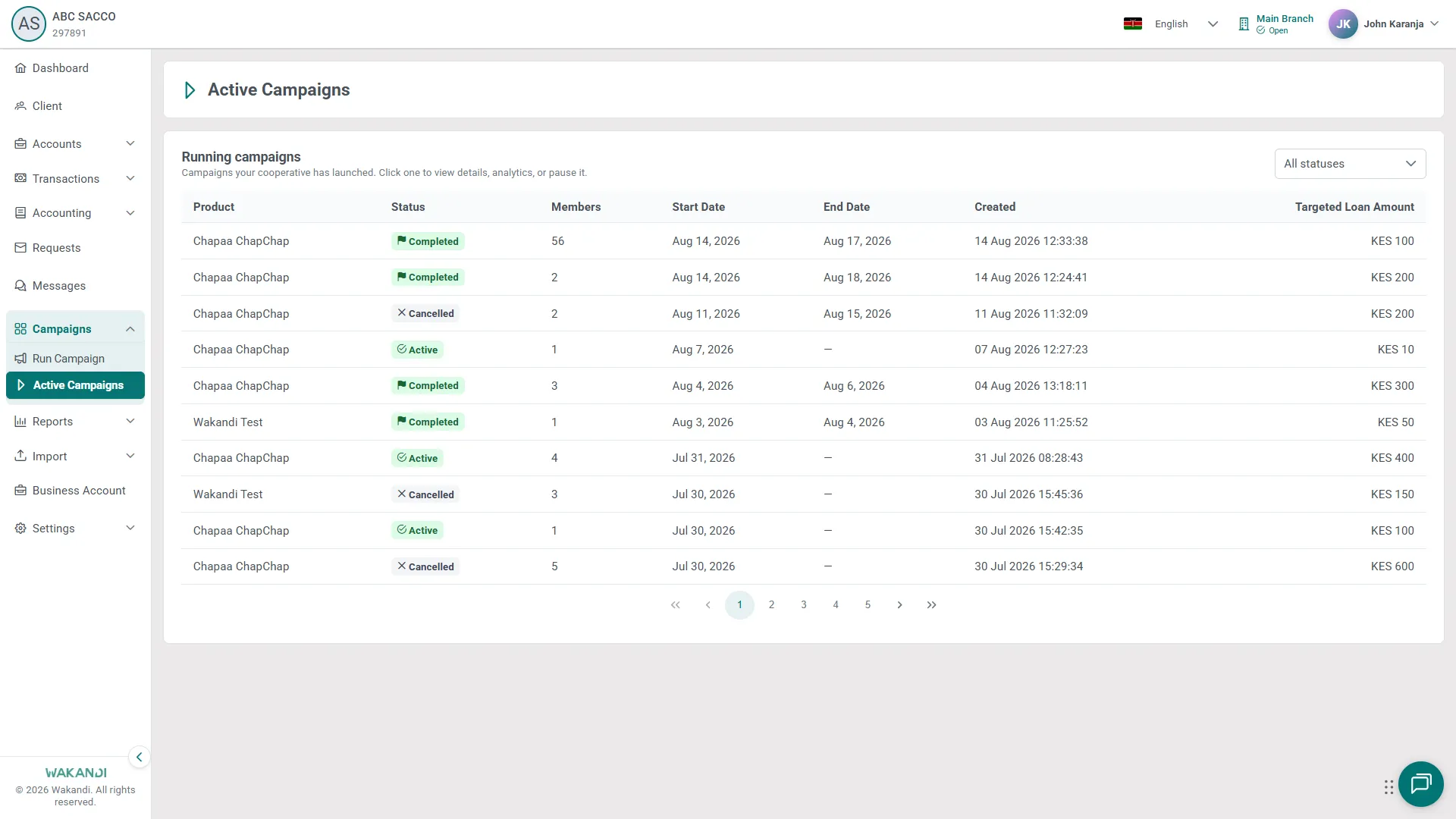
Use the status filter (it starts on All statuses) to show only running, paused, completed or cancelled runs.
Click the row of the campaign you want. It opens on the Analytics tab, with STATUS, START DATE, END DATE and MEMBERS in the header.
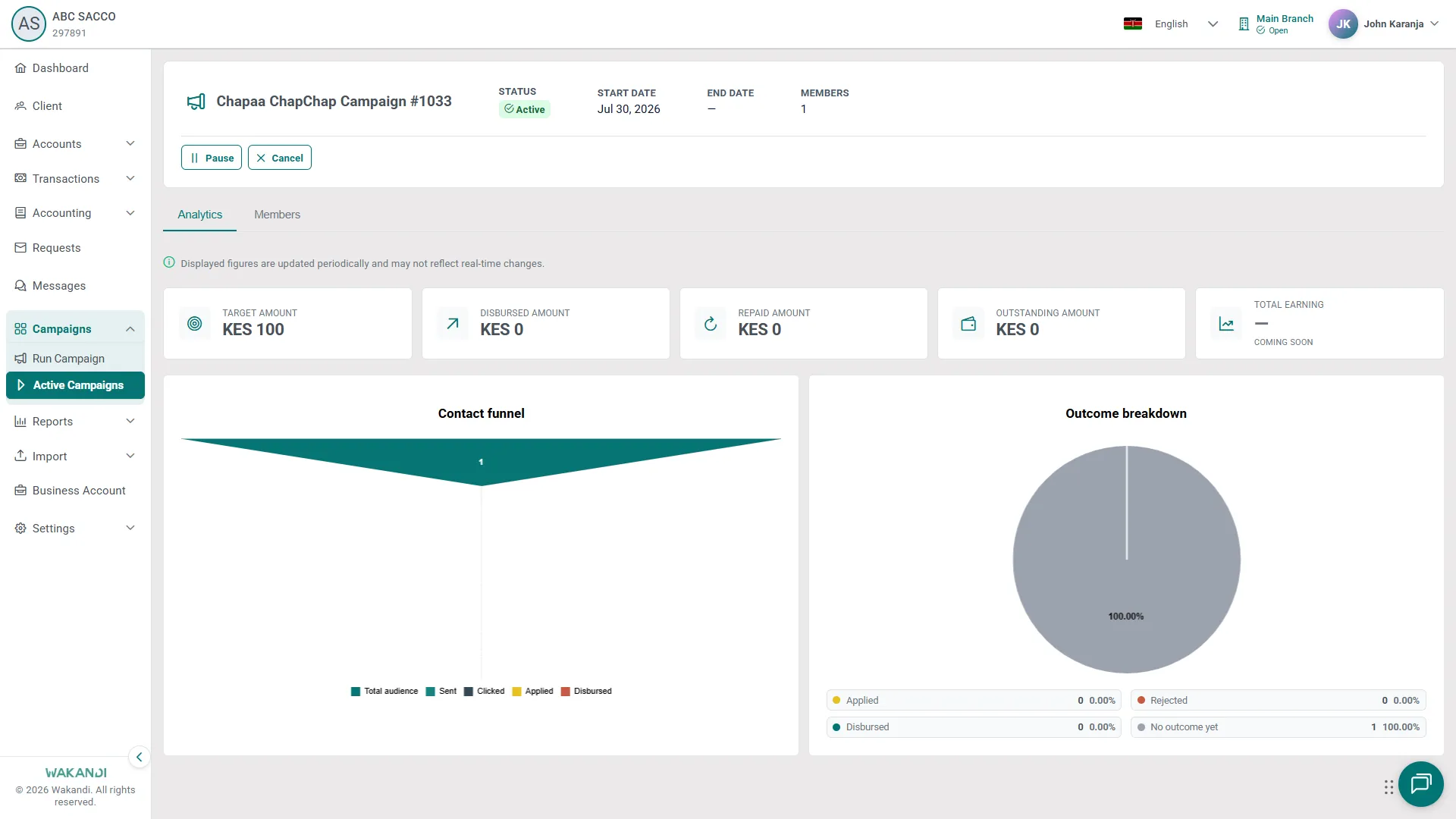
- Read the money tiles: Target Amount, Disbursed Amount, Repaid Amount, Outstanding Amount and Total Earning. The Contact funnel and Outcome breakdown charts count outcomes such as Applied, Rejected, Disbursed and No outcome yet.
Note: These figures update periodically, not live. Check again later if a number looks stale.
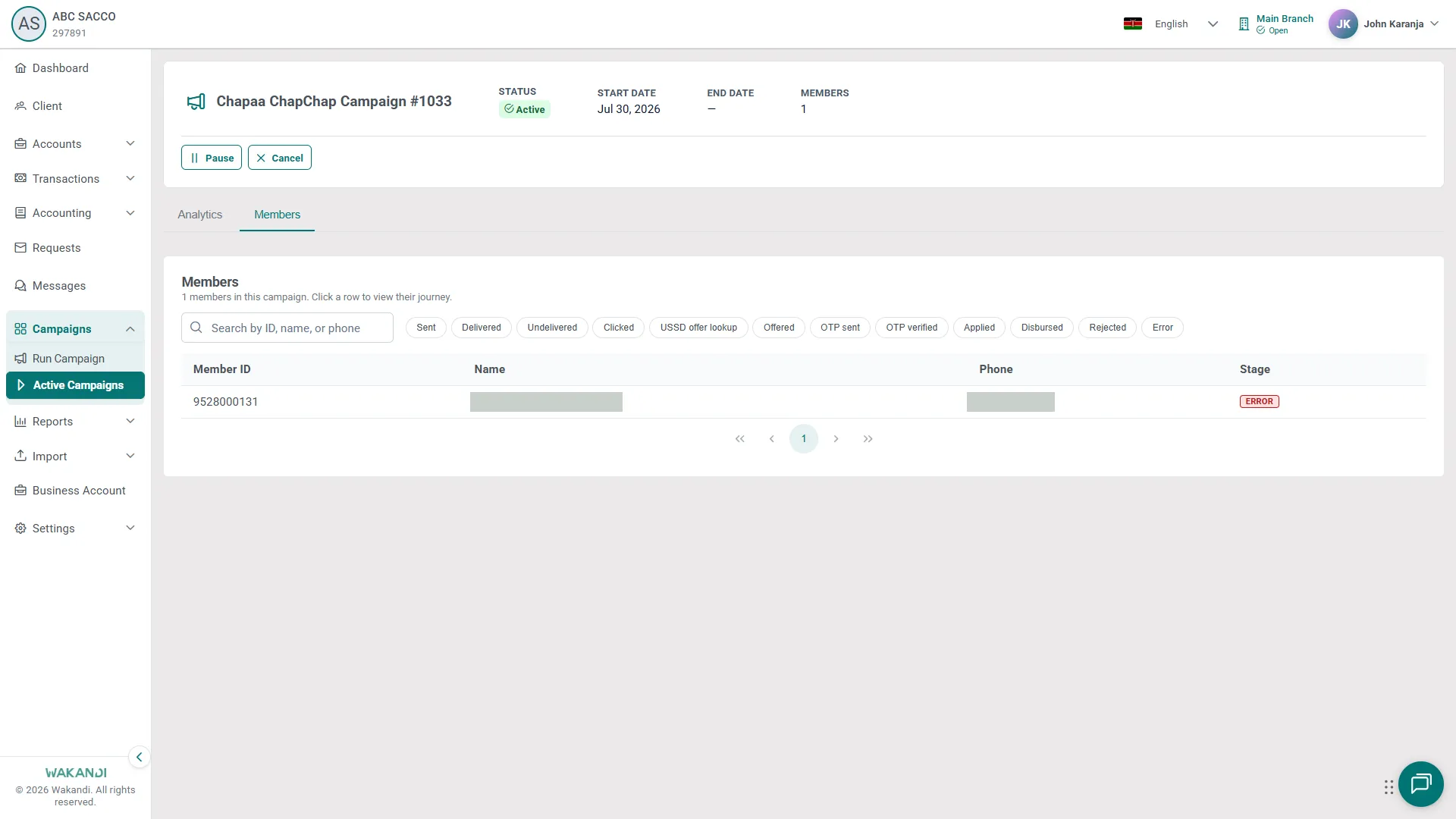
- Click the Members tab. It lists everyone in the run with Member ID, Name, Phone and Stage. Click a stage button such as Sent, Clicked, Offered, OTP sent, Applied or Disbursed to narrow the list, or use Search by ID, name, or phone.
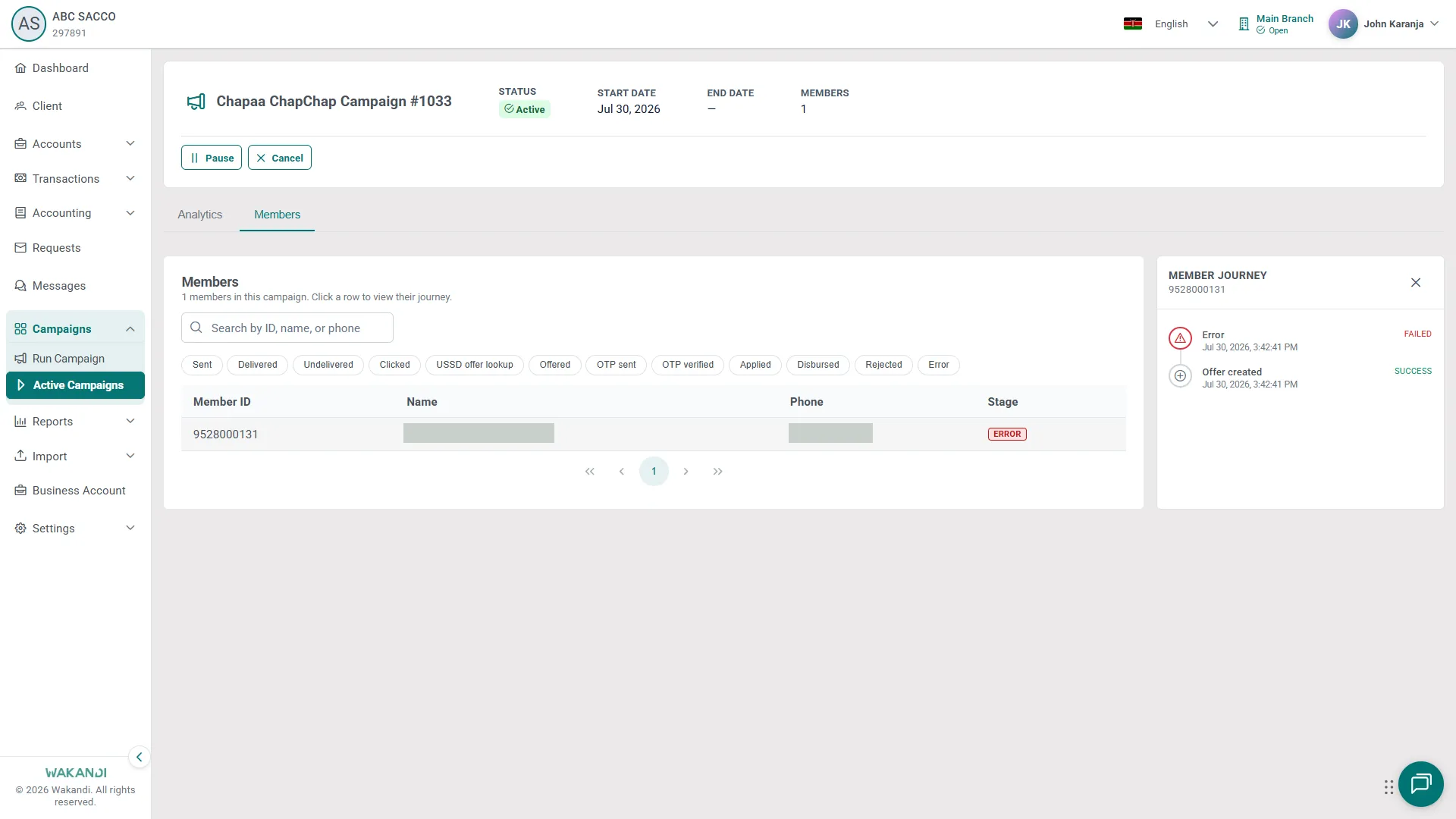
- Click a member's row. Their journey opens as campaign events in time order, so you see where they stopped. Close the panel to go back.
- Use the header actions to change the run. Pause stops sending for now and the status reads Paused; Resume sets it back to Active; Cancel ends the run.
Warning: Cancel cannot be undone. CAMS asks Cancel this campaign? first. Click Yes, cancel only if you are sure, or Keep running to back out. A cancelled run cannot be resumed.
Common pitfalls & FAQ
- The list is empty. Nothing has been launched yet. Go to Campaigns → Run Campaign.
- The list failed to load. Click Retry.
- End Date shows a dash. That run has no end date set.
- The numbers look low or zero. Analytics update periodically. Wait and reload. Total Earning reads Coming soon because that tile is not switched on yet.
- A warning says analytics are not available for this product code. The charts cover supported products only. Follow that run from the Members tab.
- I can't see Pause, Resume or Cancel. A button appears only when the status allows it, and a cancelled run shows none. Pause is temporary and you can resume it; Cancel ends the run for good.
- A member is stuck at Offered. They have the offer but have not acted. Later stages fill in as they respond.
- The member journey is empty. Only early events may be recorded, or it is still loading. Open the row again.