Check whether a member is dormant, and bring them back
Summary
Check whether a member is Dormant, see what put them there, and set them back to Active.
About 3 minutes · 6 steps. Also called: dormant member, inactive member, reactivate a member, activate a dormant account, why a member cannot get a quick loan.
Yingira ne email yo osobole okusoma ekisigadde ku kiwandiiko kino, olondoole by'omaze, era ofune satifikeeti yo.
YingiraPrerequisites
- A CAMS Admin sign-in that can open Client. To change a member's status you also need the right to edit a client; without it you can look but not activate.
- The member's Member Id or name.
- Before you activate anyone: approval under your institution's rules. Activation can apply the mandatory charges and accounts set in the member's membership policy.
Step-by-step
Sign in to CAMS Admin. New to it? See How to sign in and navigate CAMS Admin.
In the left menu, click Client. Wait until real rows and the "Showing … entries" line appear.
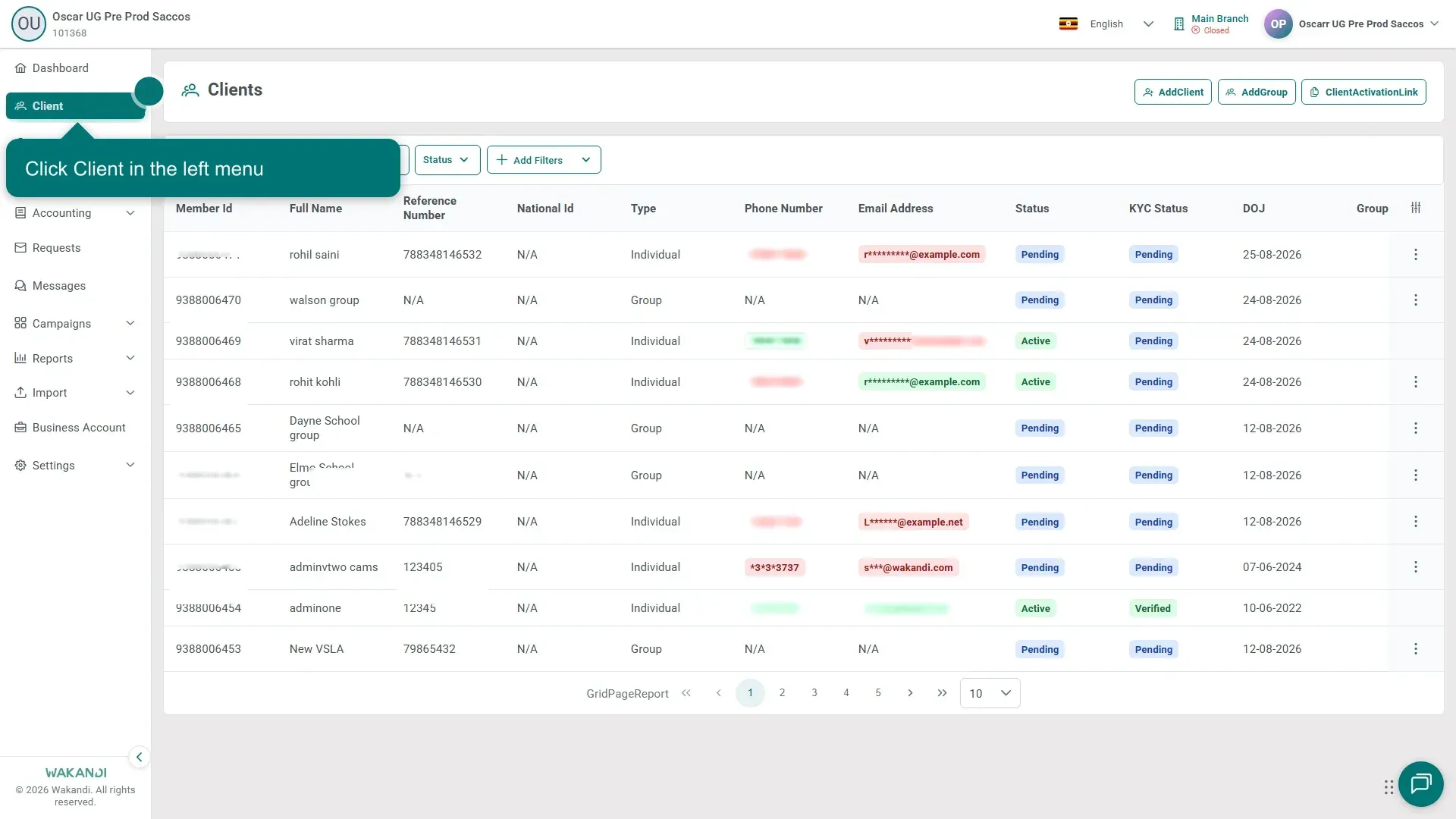
Ekifaananyi 1: The Clients screen, with Client highlighted in the left menu Set the Status filter to Dormant to list every dormant member, or type the Member Id into Search and press Enter to check one person.
Click the member's row. The profile opens on the Summary tab, and the header shows Status.
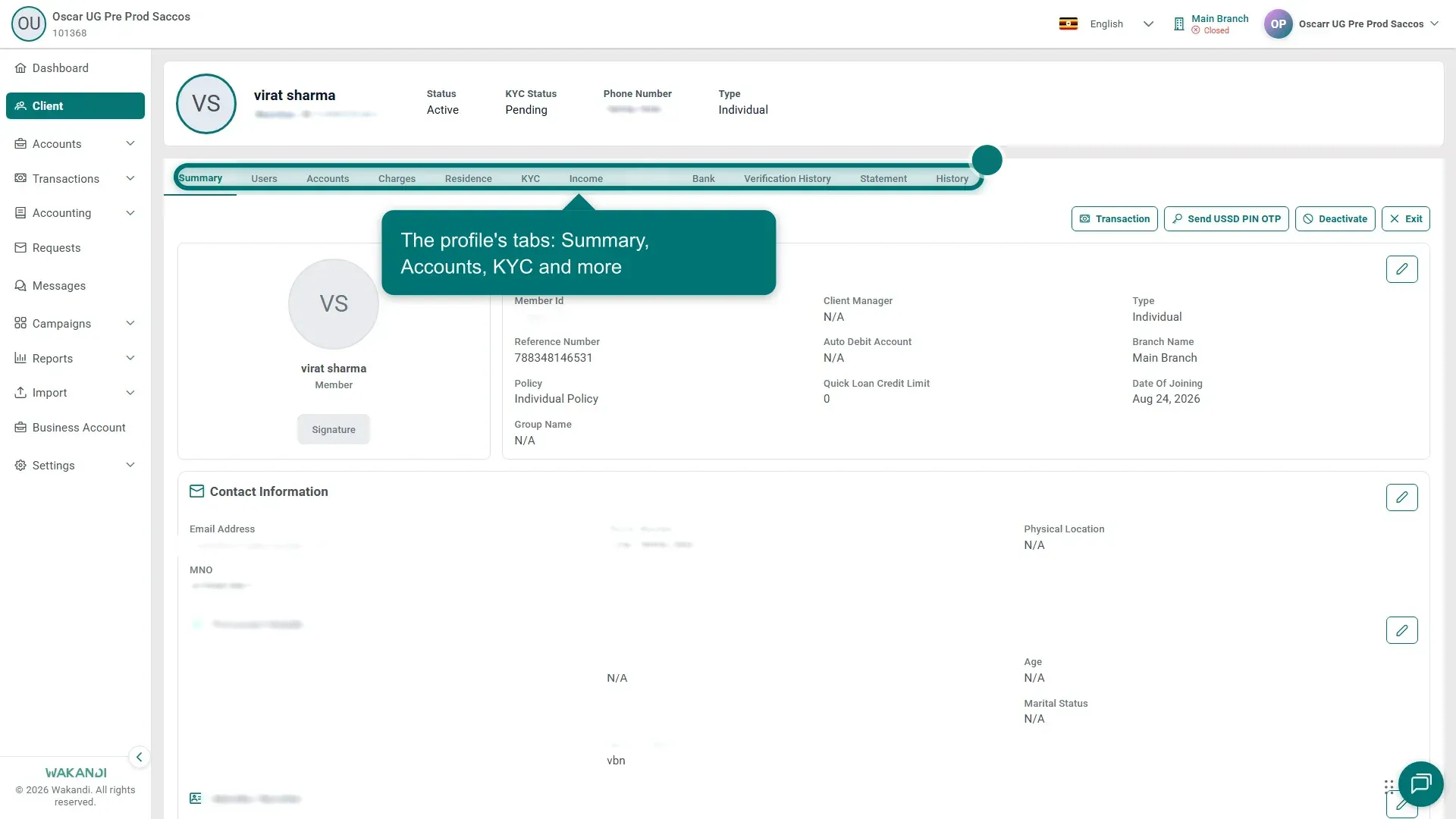
Ekifaananyi 2: The member profile open on the Summary tab, where the header shows Status Open the Accounts tab and check when the member last transacted. Dormancy is worked out from real activity, so this tells you whether the status is right or whether the member has been quiet for longer than you thought.
To bring the member back, use the activate action on the member's record. Then reopen the profile and confirm the header Status now reads Active.
Note: What makes a member dormant. The window comes from the member's membership policy, as a number of dormancy days. A background job marks an Active member Dormant when their last qualifying activity is older than that window. Qualifying activity is a loan repayment that has not been reversed, a savings or shares deposit or withdrawal, or a loan disbursement. If the member has never transacted, their registration date is used instead. Only Active members are marked Dormant this way, so a Pending or Exited member is left alone.
Warning: A dormant member is not eligible for a quick loan. If a member is turned down for a quick loan and you cannot see why, check their Status first.
Common pitfalls & FAQ
- A member who transacted last week shows as Dormant. Check the date of that transaction on the Accounts tab, then check the dormancy days on their membership policy. A recent loan disbursement also keeps a member Active. That was corrected in build 26.09.02: before it, a member could be marked dormant right after their loan was paid out.
- A dormant member was offered a quick loan anyway. That was a defect, corrected in build 26.09.02. If you still see it, report it with the member's Member Id and the date.
- Nobody in the register is ever marked Dormant. The dormancy days on the membership policy may be zero or empty, in which case nothing is marked. See How to create a membership policy.
- I cannot find how to activate the member. The action needs a role that can edit a client, so ask your supervisor to check your access first.
- Activation fails with an error. Try once more, then report it. Activating a Dormant member was rejected at some institutions until it was fixed: the member stayed Dormant and the screen showed a general error.
- Will activating a member charge them? It can. Activation applies the mandatory charges and accounts set in their membership policy, so check the policy before you activate a group of people.
- Does unblocking a locked login change dormancy? No, those are two different things. See How to unblock a member whose login is locked.