How to repay a loan using a blocked amount
Summary
Record a loan repayment paid from money that is blocked (held back and not available to spend) on the member's own account. About 3 minutes · 12 steps. Also called: reserve funds, blocked funds, reserved balance, pay a loan from savings, use blocked amount.
Yingira ne email yo osobole okusoma ekisigadde ku kiwandiiko kino, olondoole by'omaze, era ofune satifikeeti yo.
YingiraPrerequisites
- Your CAMS sign-in with teller access.
- The member's loan account, so you can find it.
- One of the member's accounts already holds a blocked amount. To look first, open Accounts > Savings and open the account. Balance Summary on its Details tab shows Available Balance, Reserved Balance and Total Balance. Treat that as a first look only. The figure this repayment uses is the one the tick box shows at step 9. If the member has no held-back money at all, record a normal repayment instead: How to record a loan repayment.
Step-by-step
Sign in to CAMS Admin. New to it? Start with How to sign in and navigate CAMS Admin.
In the left menu, click Transactions, then Teller. The Teller Transaction page opens.
Open the New Transaction tab. The wizard starts at Client Transaction.
At Choose Type, click the Loan Repayment tile. The Enter Transaction Details step loads.
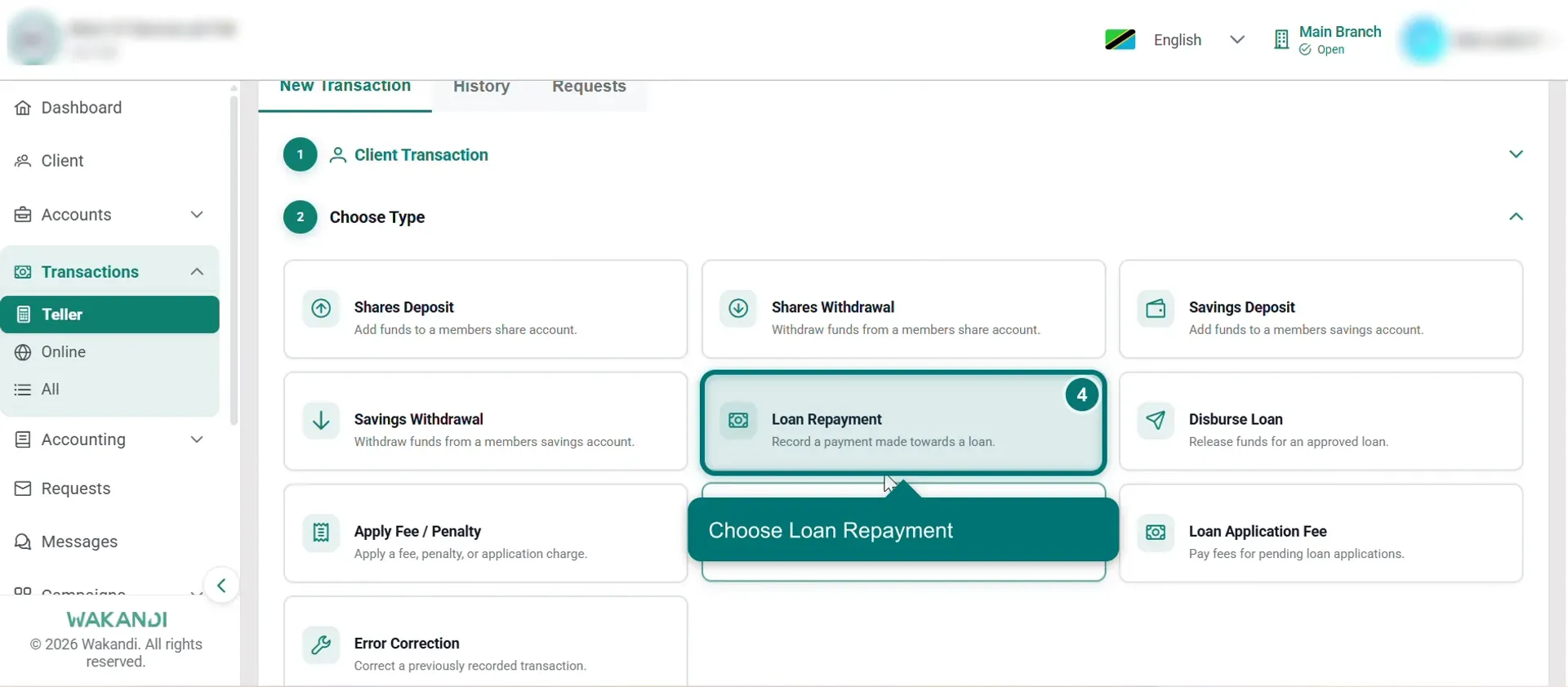
Ekifaananyi 1: The Choose Type step of a teller transaction with the Loan Repayment tile highlighted In Search Account, find and select the member's loan account. Their details load below.
Scroll to Loan Information and read Current Outstanding, which is the amount due right now.
Under Transaction Details, open Transaction Mode and choose Transfer. The options are Cash, Transfer, Bank and MNO.
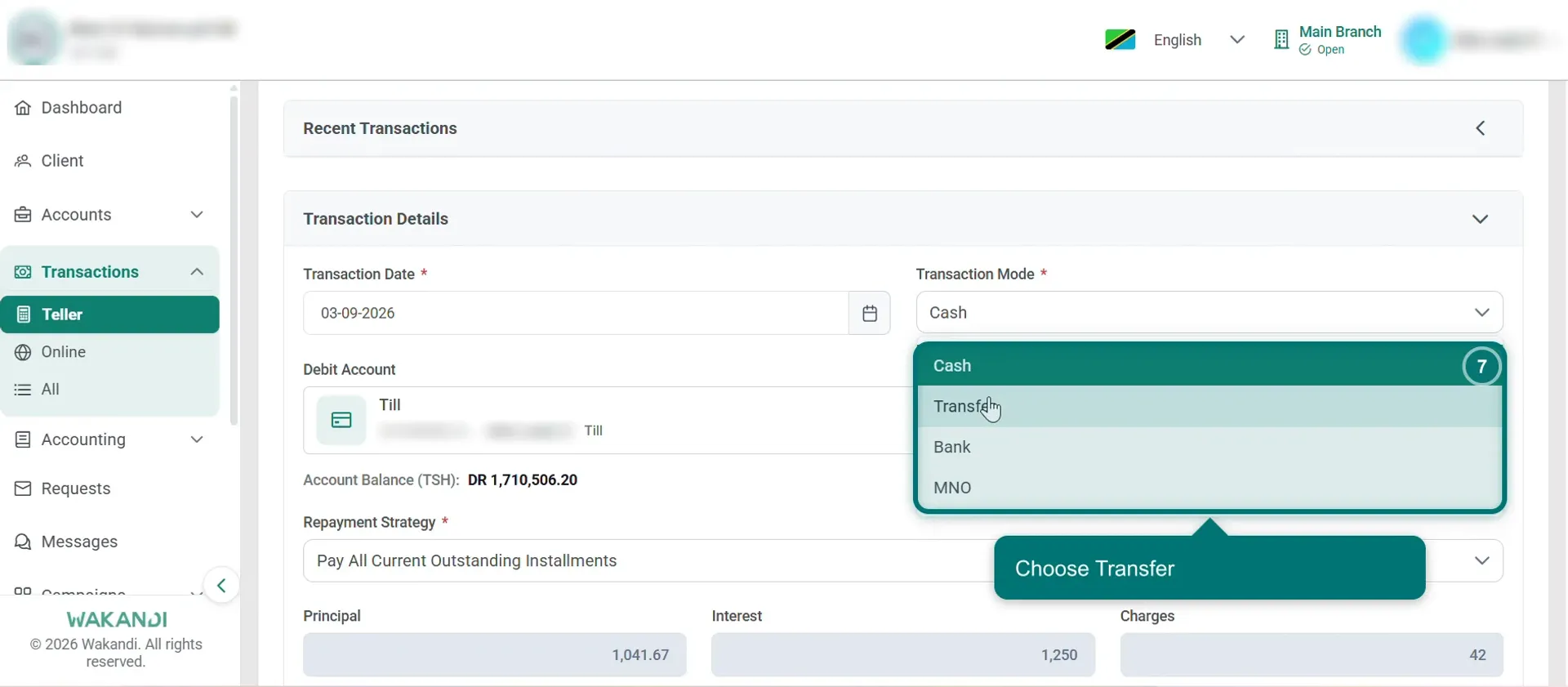
Ekifaananyi 2: The Transaction Mode list open, showing Cash, Transfer, Bank and MNO A tick box now appears, reading Use Blocked Amount (Block Amount : 0.00). Tick it. The figure stays at zero until you choose the account in the next step.
In Debit Account, find and select the member's account that holds the blocked money. The tick box now shows that account's blocked balance, and the account's own balance appears underneath.
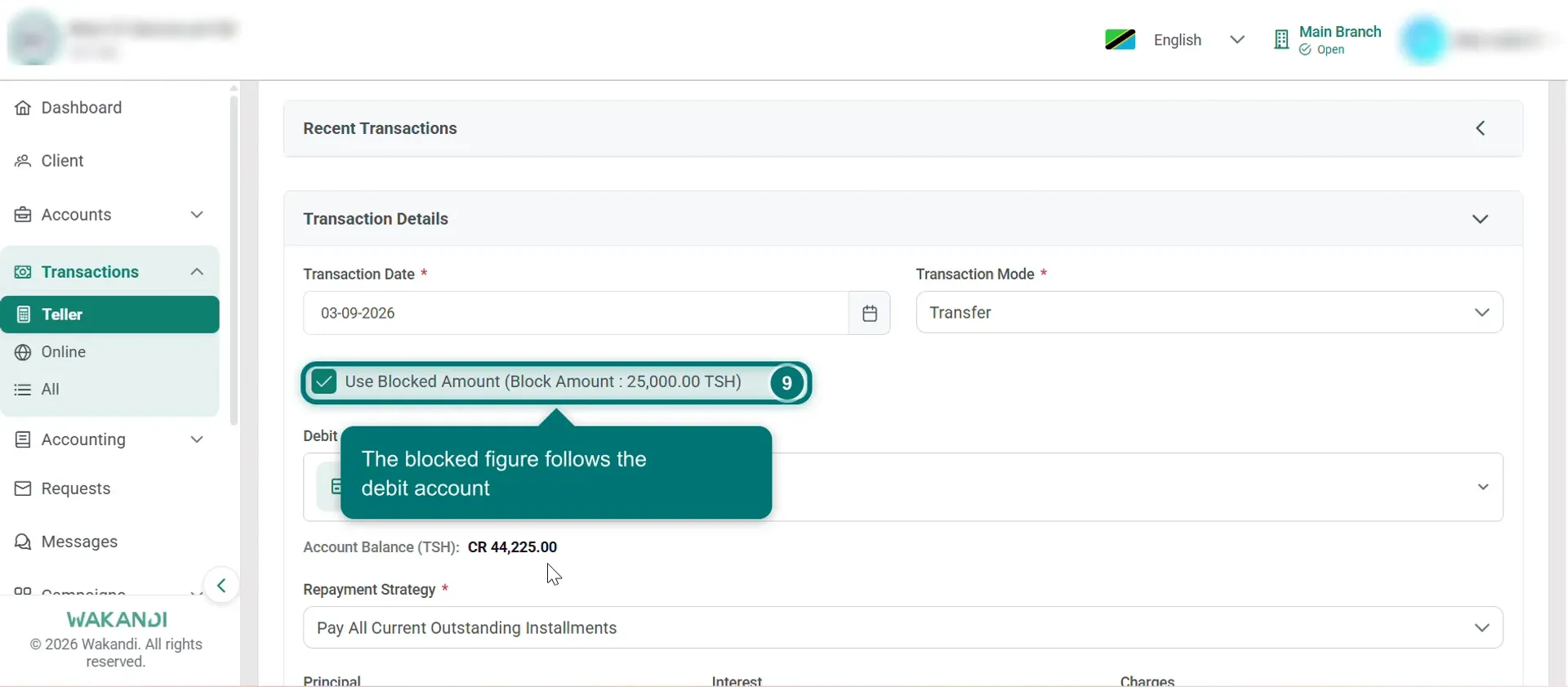
Ekifaananyi 3: Transfer mode with Use Blocked Amount ticked, showing the blocked figure and the member's account as the Debit Account Scroll down. CAMS has filled Amount with what is due, split into Principal, Interest and Charges, which you cannot edit. Add a Narration if you want a note on the record.
Click Submit. A green Success message appears with a Transaction Receipt you can Print. The receipt shows Transaction Mode : Transfer.
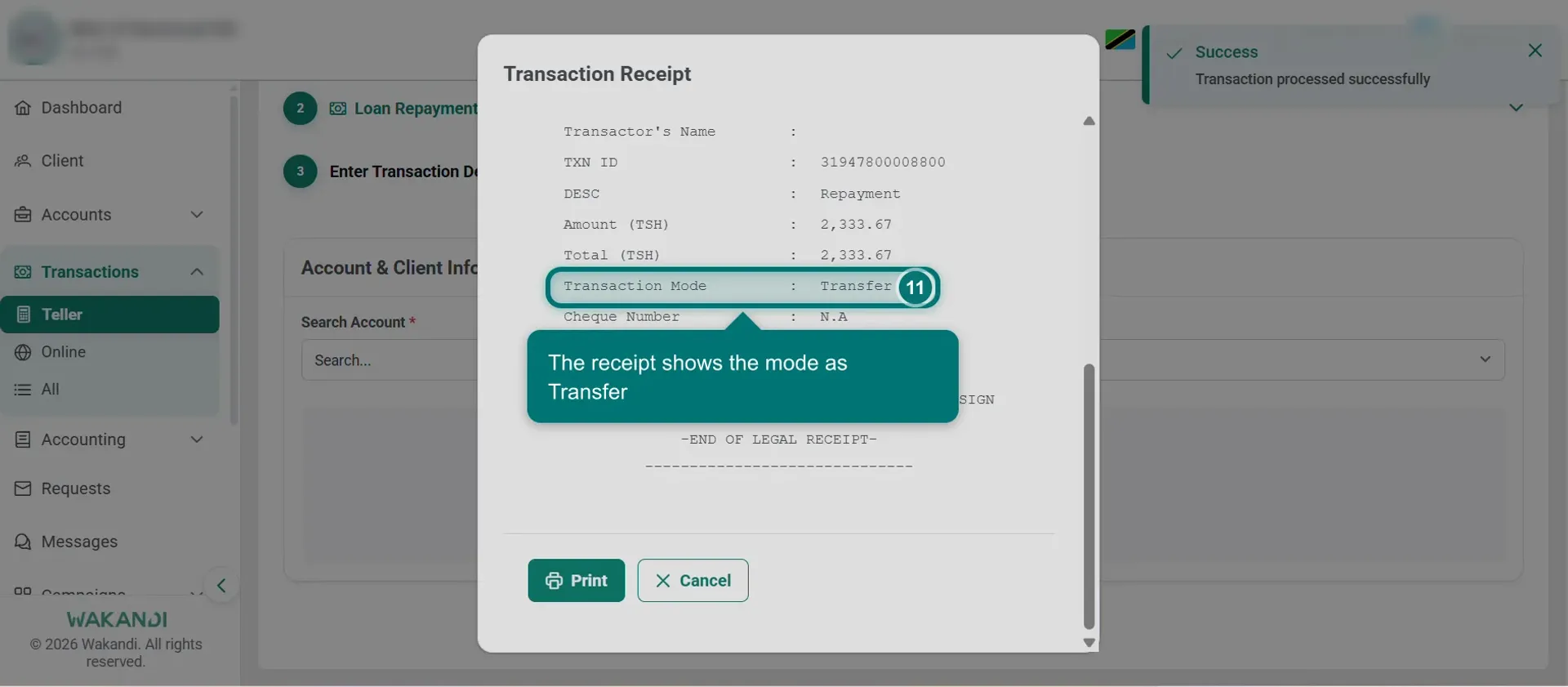
Ekifaananyi 4: The Success message and the Transaction Receipt showing the transaction mode as Transfer Check it reached the loan. In the left menu, click Accounts, then Loans, open the loan and click Repayments. Your payment is listed with its Date and Total, split across Loan Amount, Interest Amount and Charges. Anything extra shows under Over Paid.
Common pitfalls & FAQ
- I don't see the Use Blocked Amount tick box. It appears only after Transaction Mode is set to Transfer. In Cash mode it stays hidden.
- The Block Amount shows 0.00. The figure follows whatever is chosen in Debit Account. Pick the member's account that holds the blocked money and it updates. To hunt for the right account, check each savings account's Details tab: Balance Summary there shows a Reserved Balance. If no account of theirs holds held-back money, this method does not apply.
- What is a blocked amount? Money sitting on a member's account that is held back, so it cannot be withdrawn or spent as usual. How it came to be blocked is set elsewhere and is outside this article.
- How is this different from a normal repayment? Only where the money comes from. Everything else, including how you check it afterwards, matches How to record a loan repayment.