Run a loan campaign (activate a loan offer)
QuickLoan
Somo 2 kati ya 6
Summary
Every day this campaign isn't live is a day a member with an urgent need borrows from a faster fintech lender instead of their own SACCO. Launch a ready-made loan offer to members you choose, then activate it so they start receiving it.
About 3 minutes · 7 steps. Also called: campaign, loan offer, QuickLoan campaign, member targeting, crafting offers, activate campaign.
Endelea kusoma — ni bure
Ingia kwa barua pepe yako ili usome sehemu iliyobaki ya makala hii, ufuatilie uliyomaliza, na upate cheti chako.
IngiaPrerequisites
- Your CAMS sign-in, with access to Campaigns. Wakandi ops publish recommended campaigns for your cooperative.
- A loan product set up as a Credit Product Policy (CPP).
- The start date, and your total lending budget.
Step-by-step
- Sign in to CAMS.
- In the left menu, click Campaigns, then Run Campaign. Recommended campaigns appear as a grid of cards.
- Click a card, for example Activate QuickLoan. The wizard opens with four steps: Select Members, Product and Budget, Messaging, Review & Activate.
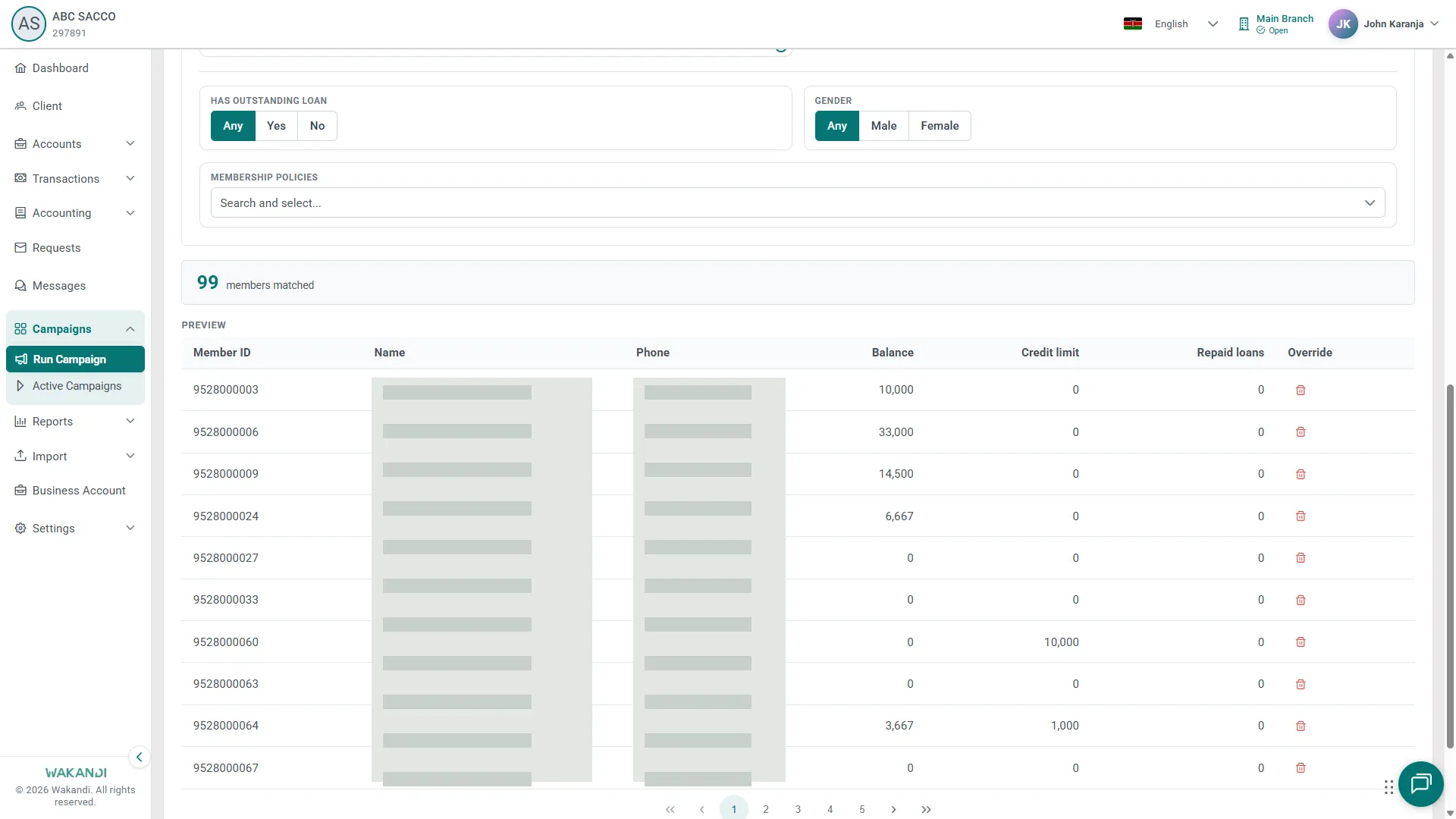
- On Select Members, turn on a quick filter, or set criteria. These cover savings balance, share balance, membership duration, repaid loans, age, credit limit, days in arrear, outstanding loan and gender. Watch the Members matched count and tighten it if too high, then click Next.
- On Product and Budget, pick the Credit Product Policy (CPP) and check its interest rate, tenure and min/max loan. Set the Savings Multiplier (each member's credit limit is their savings times this number) and How much you want to lend out?. Expected earnings is an estimate. Tick Interest Upfront if you deduct interest at disbursement, then click Next.

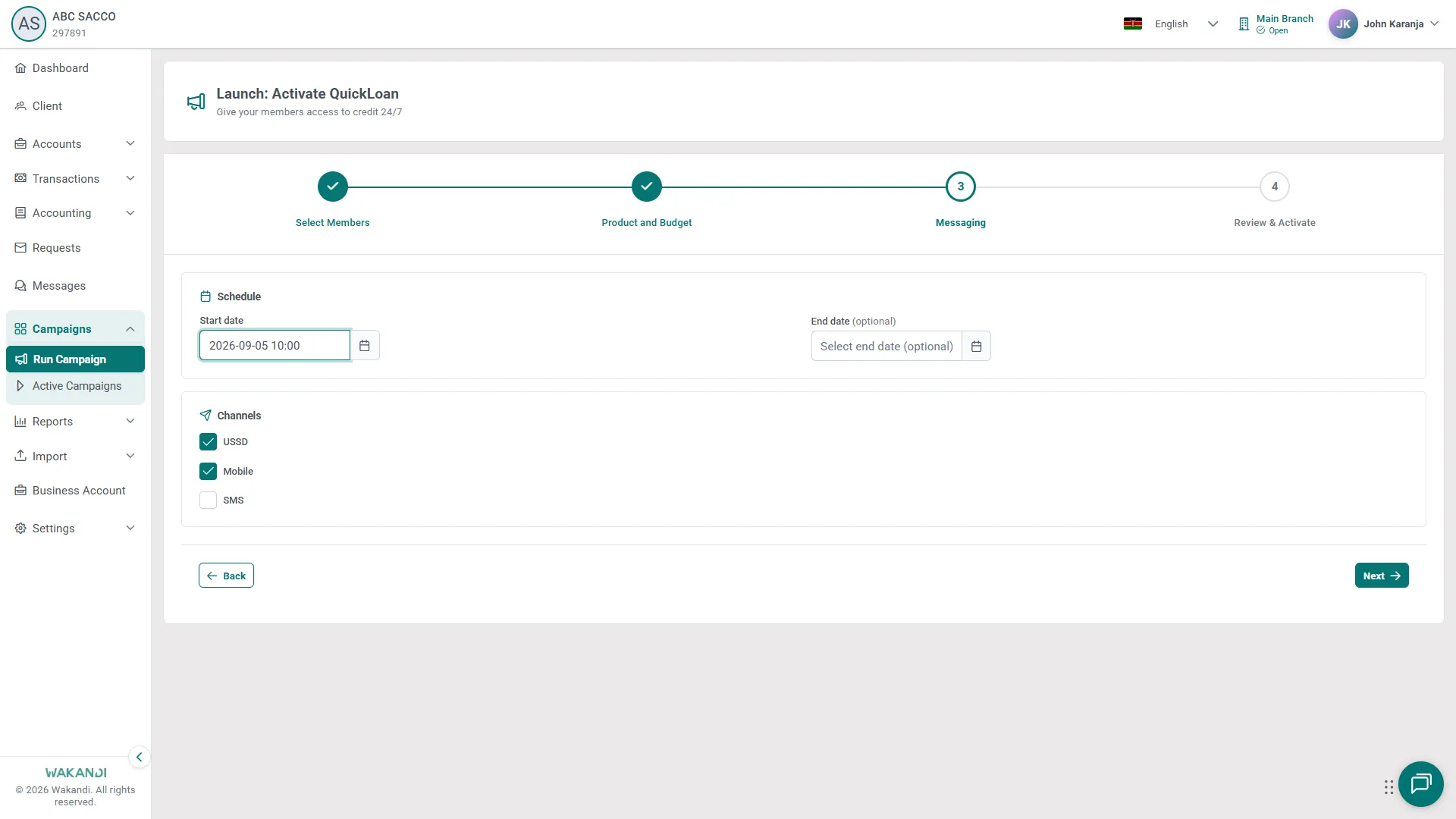
- On Messaging, pick a Start date and an optional End date, check the channels (USSD, Mobile, SMS), then click Next.
- On Review & Activate, check Members targeted, the dates and the schedule preview, then click Activate campaign.
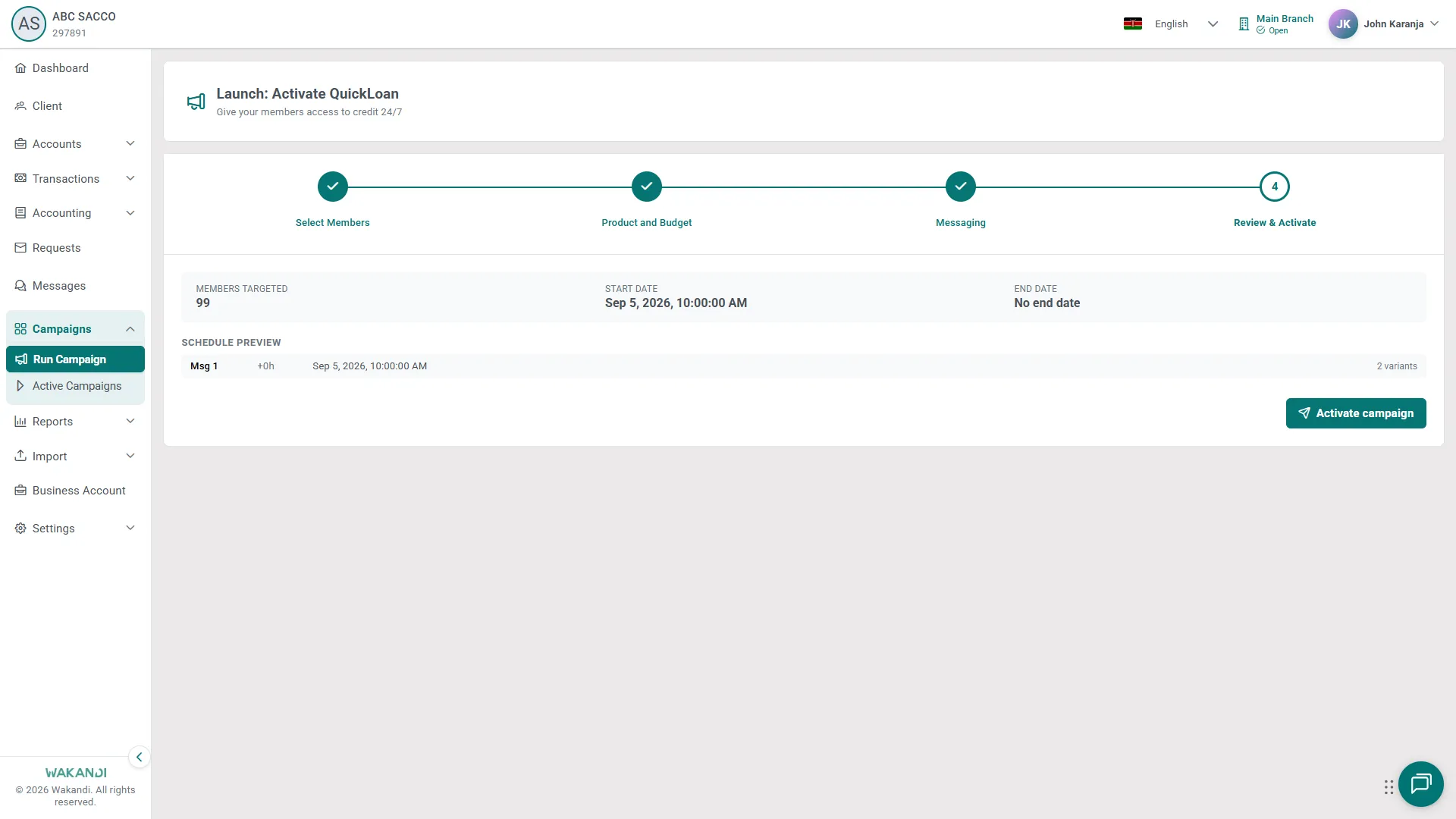
Note: Let the activation progress dialog finish, and don't click Activate campaign twice. Members receive the offer on the chosen channels from the start date, and your run appears under Campaigns → Active Campaigns. See Track and manage your campaigns.
Common pitfalls & FAQ
- The gallery is empty or won't load. Click Retry. If there are still no cards, Wakandi ops have not published one yet.
- A card says Not eligible. Your cooperative can't run it. Pick another card, or ask an administrator about the eligibility rules.
- Next is greyed out. The step isn't valid. Select Members needs at least one match, Product and Budget needs a policy and an amount, and Messaging needs a Start date. An end date must fall after the start date.
- The CPP search finds nothing. Try another search word, or check the product setup under Settings.
- I can't untick USSD or Mobile. They are usually locked on for Quick Loan campaigns. SMS is the one you choose.
- There's no "QuickLoan" product to pick. QuickLoan is the campaign. Back it with one of your own loan products, listed as Credit Product Policies.
- My settings disappeared. Leaving the page discards an unfinished form. Start again from the card on Run Campaign.
- The stepper skipped Product and Budget. Some products don't need it and go straight to Messaging.