How to top up the Wakandi Business Account
Summary
Put money into your SACCO's Wakandi Business Account so CAMS can keep covering the services you use. About 4 minutes · 8 steps. Also called: add funds, fund wallet, load fees wallet, recharge business account.
Sign in with your email to read the rest of this article, track what you have finished, and earn your certificate.
Sign inPrerequisites
- A CAMS sign-in whose role can open Business Account.
- The amount to add, and the payer's name or phone number.
- A payment provider to pay from (for example AIRTEL).
Step-by-step
Sign in to CAMS Admin.
In the left menu, click Business Account. The page header shows your Fees Wallet balance, the Due Amount, and the account Status.
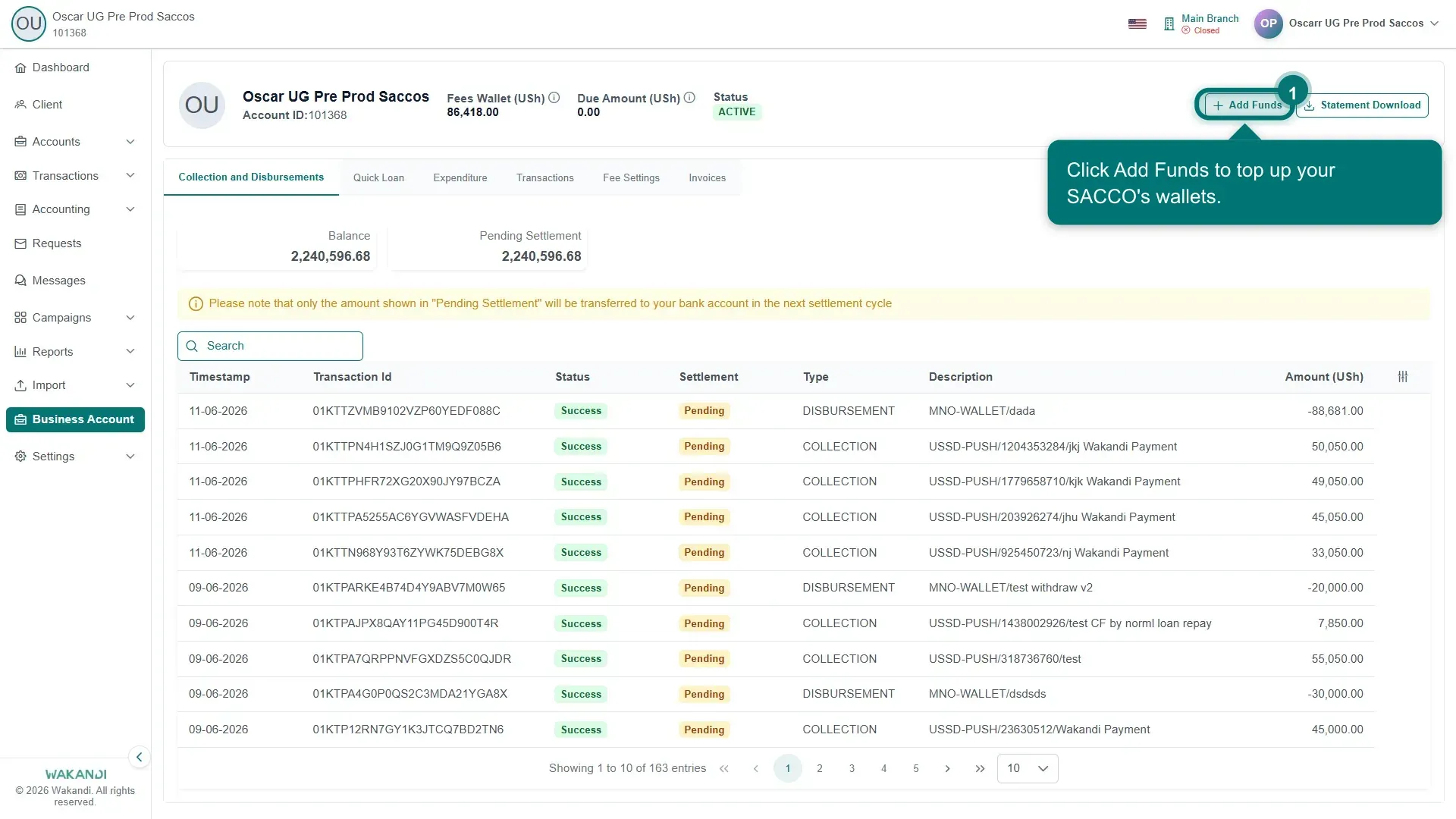
Figure 1: The Business Account page header showing the Fees Wallet balance, Due Amount, ACTIVE status, and the Add Funds button In the header, click Add Funds and wait until the form fields appear.
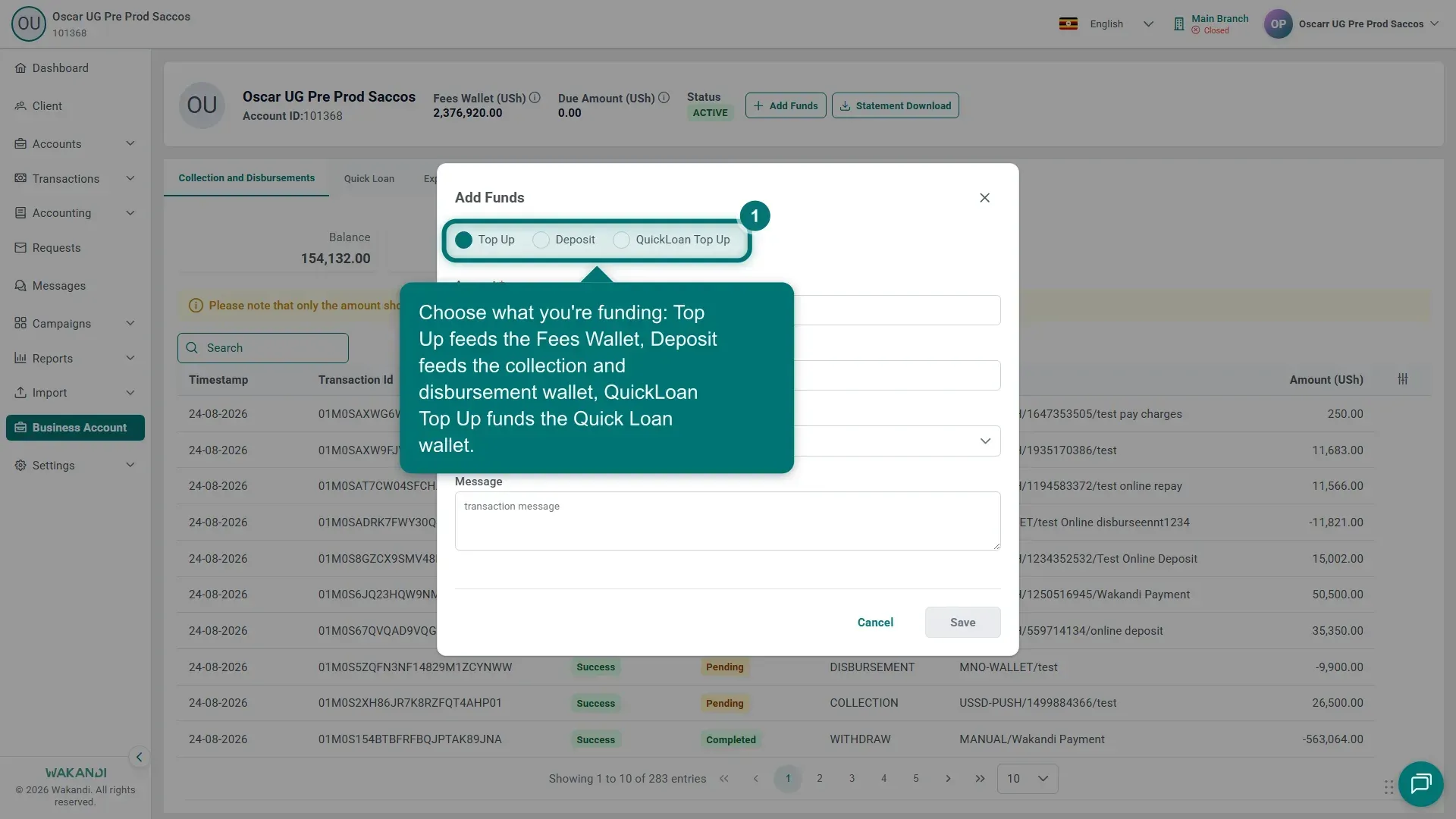
Figure 2: The Add Funds dialog with the Top Up, Deposit and QuickLoan Top Up choices highlighted Choose what you are funding. Top Up feeds the Fees Wallet, which pays platform charges such as subscription, active user, message and service fees. Deposit feeds the collection and disbursement wallet, used for member money and payouts. QuickLoan Top Up funds the Quick Loan wallet.
Enter the Amount.
Enter the Payer, the name or phone number the money comes from.
Open Provider and pick the payment provider. A Message is an optional note on the record.
Click Save. Then confirm the money arrived: read Fees Wallet in the header, or open the tab that matches what you funded — Collection and Disbursements, Quick Loan or Transactions. A closed dialog is not proof the money landed, so allow a short time for processing.
Note: The dialog's buttons are Save and Cancel. Older guides that say Submit and Back describe the previous portal.
Common pitfalls & FAQ
- Save stays greyed out. Amount, Payer and Provider are required. Save turns on once all three are filled.
- A service charge still failed after I added money. Charges come out of the Fees Wallet. If you chose Deposit, that balance did not change, so add the funds again with Top Up.
- I want to see what a charge was for. Open the Expenditure tab. It lists fee rows with Type, Client/Member, Description and Amount; charges usually show as negative amounts.
- What actually reaches my bank? On the Collection and Disbursements and Quick Loan tabs, only the amount under Pending Settlement moves to your bank in the next settlement cycle.