Approve a member's KYC documents
Summary
Approve a member's KYC documents on the KYC tab, so their KYC Status moves away from Pending. About 4 minutes · 8 steps. Also called: KYC approval, clear KYC, know your customer sign-off.
Sign in with your email to read the rest of this article, track what you have finished, and earn your certificate.
Sign inPrerequisites
- Your CAMS sign-in, with permission to approve KYC. If your role doesn't include approval, a supervisor does step 7.
- The member's documents, already uploaded or ready to upload.
- Your institution's list of required documents. That list comes from your own policy, not from CAMS.
Step-by-step
Sign in to CAMS.
In the left menu, click Client, search for the member and click their row (How to find a member shows the search).
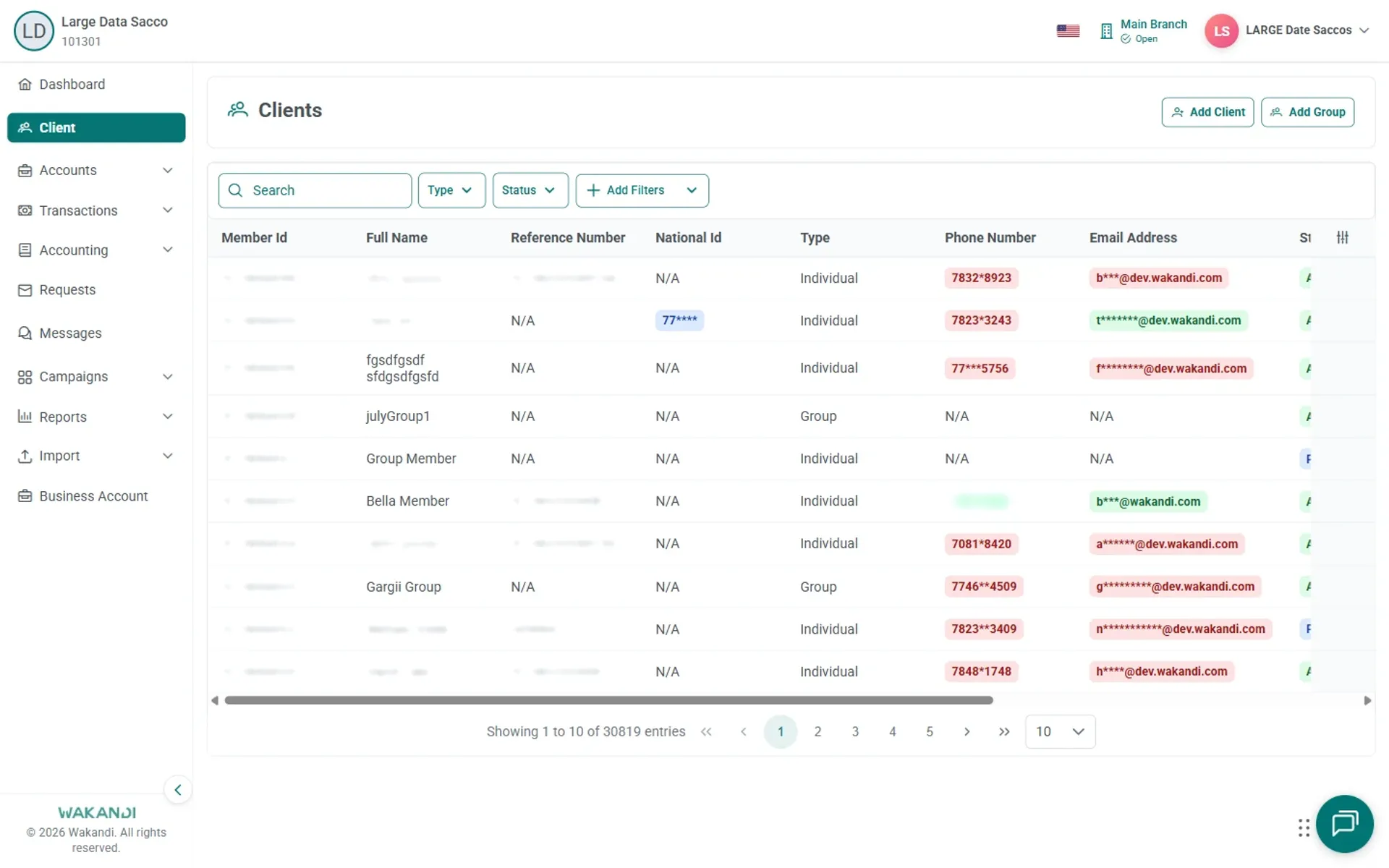
Figure 1: Clients list with the search box, Type and Status filters, and member rows to click On the Summary tab, confirm Member ID, Full Name and KYC Status in the header. If the member is wrong, click Exit and search again.
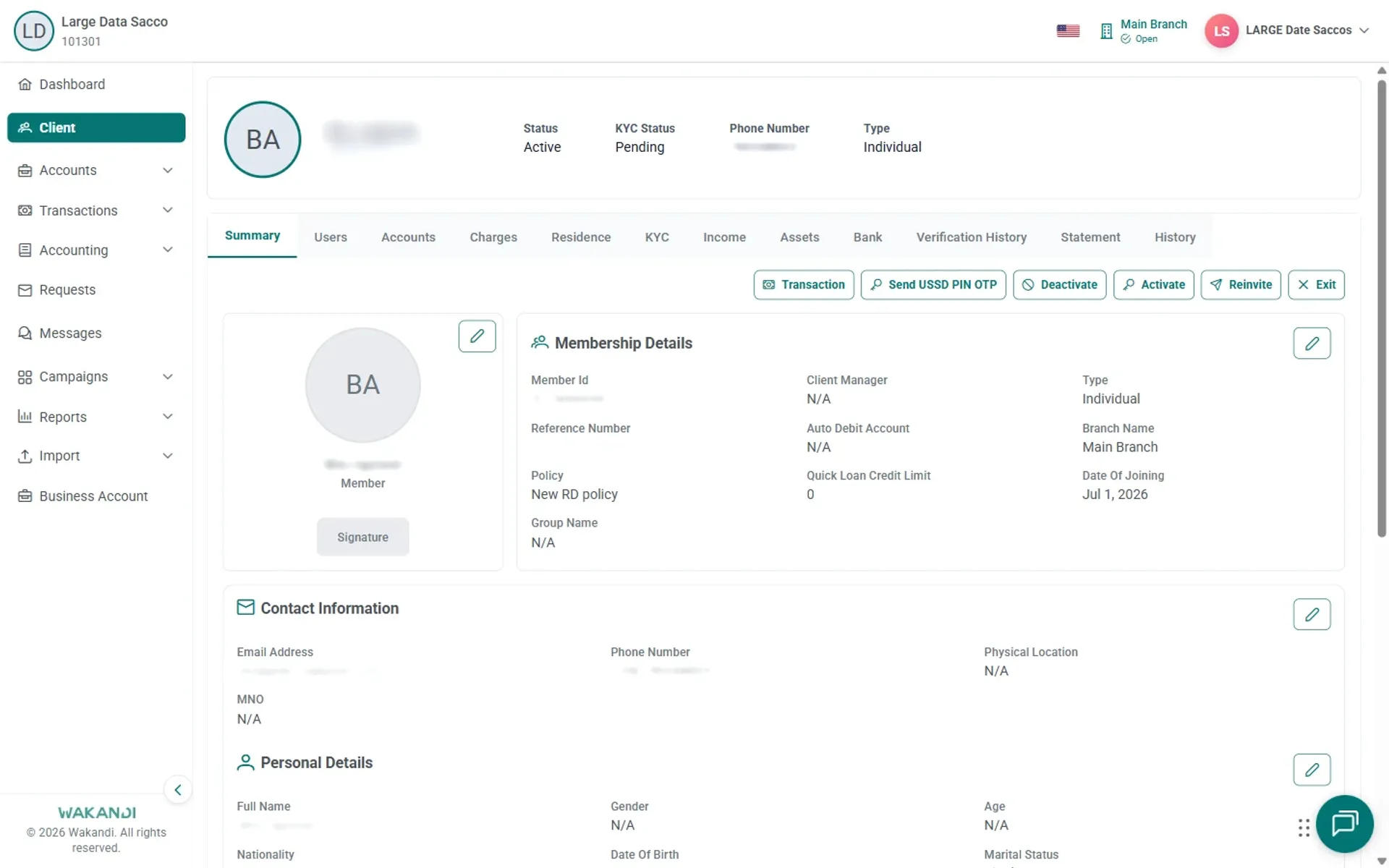
Figure 2: Member Summary tab with header showing Member ID, Full Name, KYC Status Pending, and the Exit button Click the KYC tab and wait for the document list. A "No data available" message means nothing is on file yet.
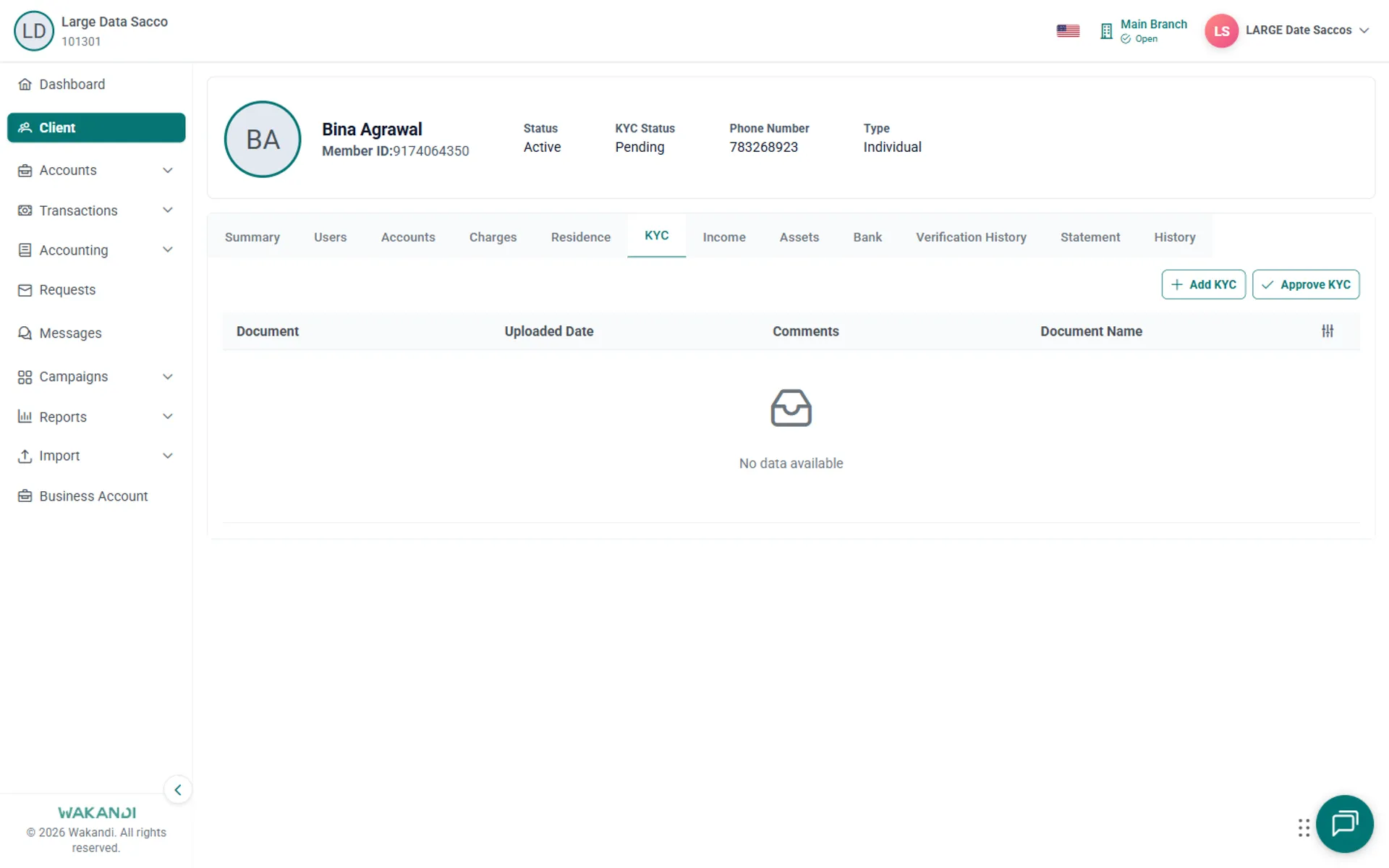
Figure 3: KYC tab open with an empty document table reading No data available, beside Add KYC and Approve KYC Read each row — Document, Uploaded Date, Comments and Document Name — and check every document is readable and matches the identity details on Summary.
If a document is missing, click Add KYC, select the type, fill in what the form asks for, add Comments, and save. Confirm it appears with an Uploaded Date.
When the required documents are all present and correct, click Approve KYC and confirm the prompt.
Check the header again. KYC Status should no longer read Pending; the exact new label depends on your configuration.
Warning: No reversal step is documented, so check everything before you click Approve KYC — and never approve an empty list.
Common pitfalls & FAQ
- Approve KYC is disabled, or it fails. You may not have approval permission, or a required document is still missing. Check with your supervisor.
- The document doesn't match the name on Summary. Don't approve. Get the identity details corrected, or ask the member for a better document.
- An identity check failed earlier. Open the Verification History tab, read the Error column, correct the data behind it, then retry.
- Who reads my comments? Auditors and the next reviewer — keep them factual.