Where to see and update the transaction security PIN
Summary
Send a member a one-time code so they can set or reset the transaction PIN used for USSD and mobile transactions. About 3 minutes · 5 steps. Also called: reset member PIN, forgot PIN, USSD PIN, send OTP, security PIN.
Sign in with your email to read the rest of this article, track what you have finished, and earn your certificate.
Sign inPrerequisites
- Your CAMS sign-in, with a role that can open member profiles.
- The member's name or Member Id.
- The member reachable on their phone, because the code goes there.
Step-by-step
Sign in to CAMS Admin.
In the left menu, click Client, then find the member and open their row (see How to find a member). The profile opens on the Summary tab.
In the profile header, check the Member ID and the Phone Number. The one-time code goes to this number, so confirm both before you send anything.
Click Send USSD PIN OTP, then follow any confirmation message shown.
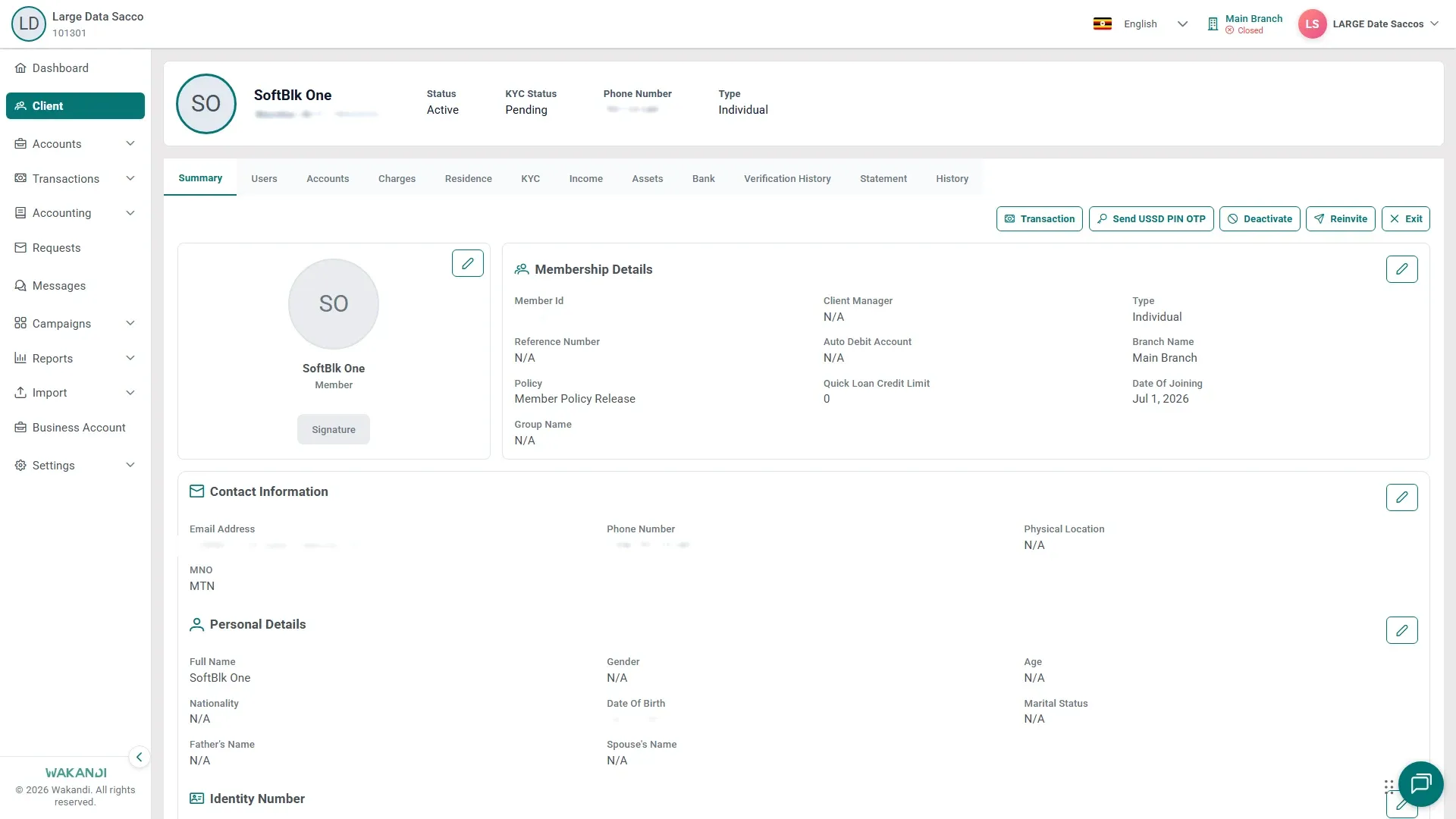
Figure 1: The member Summary tab with the Send USSD PIN OTP button, used to set or reset the transaction PIN Tell the member to watch their phone. They use the code once, to set a new PIN or replace a forgotten one.
Note: Let the profile header finish loading before you click an action button. A click during loading can do nothing.
Common pitfalls & FAQ
- Can I see the member's current PIN? No. CAMS never shows the PIN to staff, and no other header button changes it — sending the code is the only route.
- The member did not get the code. Check the Phone Number in Contact Information. If it is wrong, correct it first — see Change a member's phone number or mobile network operator. Delays on the network can also hold the message for a short while.
- The number looks right, but login still fails. Open the Users tab. The phone and email there should match what the member uses for USSD or the app. If the member never got their invitation, Reinvite in the profile header sends it again.
- Where are the organisation-wide PIN settings? Under Settings → General → Security. The controls there vary by institution.