Record a member's income, bank, assets and mobile money
Member Management
Lesson 6 of 11
Summary
Record what a member earns and owns: income, bank account, assets and their mobile money operator. About 3 minutes · 6 steps. Also called: income details, bank account, mobile money, MNO, member assets.
Keep reading — it's free
Sign in with your email to read the rest of this article, track what you have finished, and earn your certificate.
Sign inPrerequisites
- A CAMS sign-in with rights to edit a member.
- The member's income, bank, asset and mobile money details.
Step-by-step
- Sign in to CAMS Admin.
- In the left menu, click Client and open the member's profile. The detail tabs sit under the header; Add a member's KYC documents and address shows the row.
- Click the Income tab, then Add Income. Fill in Company Name, Company Address, Monthly Income and Contract Type. For a business owner, also fill in Business Address, TIN Number and the other business fields. Save, and a new row appears.
- Click the Bank tab, then Add Bank. Enter Bank Name, Account Number, BIC/Swift Code and Branch Address, then save.
Warning: Check the Account Number against the member's bank document before you save. Wrong digits can send money to the wrong place.
Click the Assets tab, then Add Asset. Enter Type, Value and Location, and note in Comments / Notes how the value was checked, then save.
For mobile money, return to the Summary tab. In Contact Information, click the pencil icon, set the MNO field (the member's mobile money operator), and save.
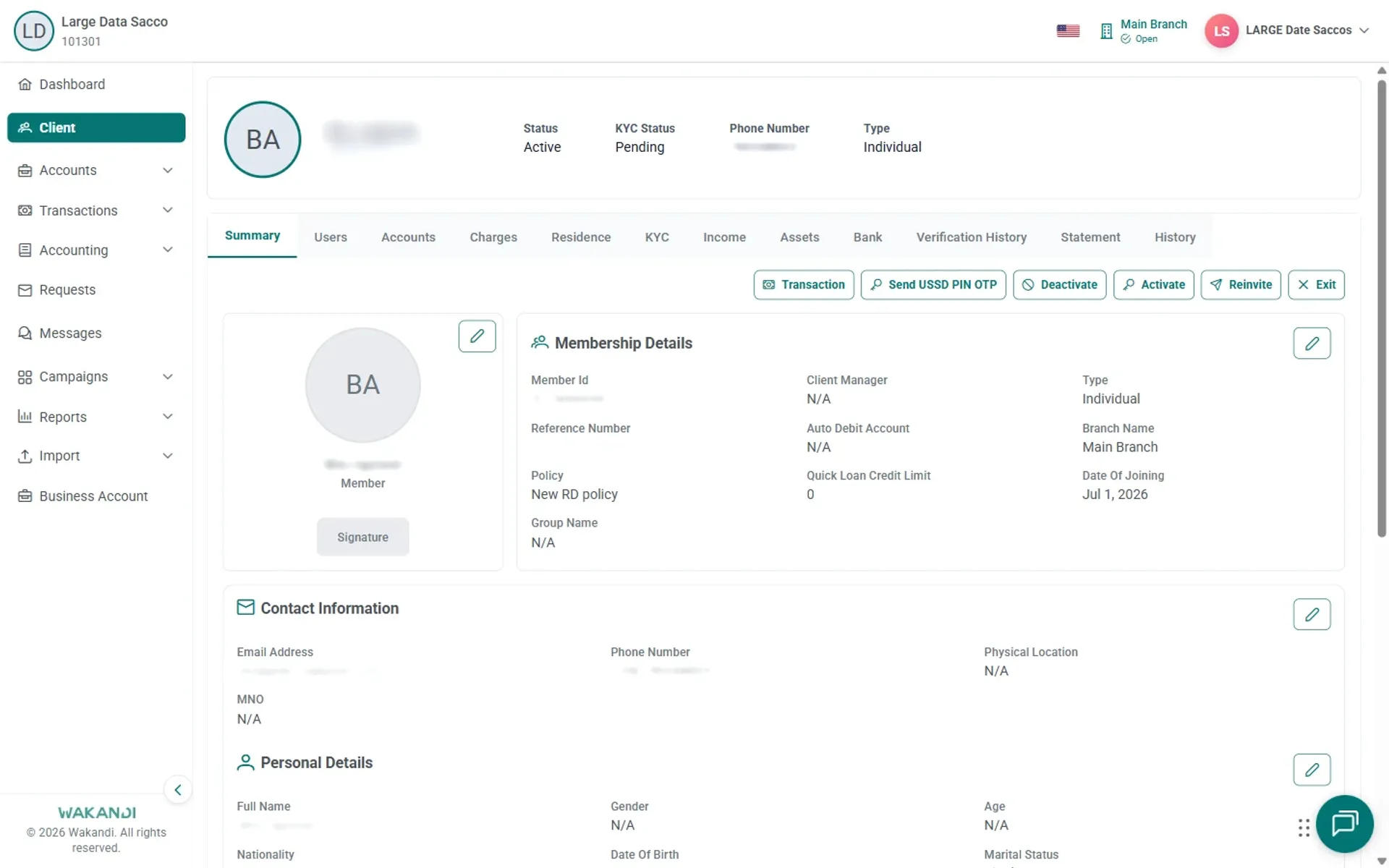
Figure 1: The Summary tab scrolled to Contact Information, showing the Phone Number and MNO fields with the section's edit pencil
Common pitfalls & FAQ
- Where are the mobile-money details? In Contact Information on the Summary tab, as the MNO field. The Bank tab holds bank accounts only; older versions used one combined tab, so old notes mislead.
- My changes did not stay. Each tab saves separately. Save on the tab you are working on before moving to the next one.
- There is no pencil on Contact Information. Your role does not allow that edit. Ask a colleague with client-edit rights.