Change a member's phone number or mobile network operator
Summary
Change the phone number or mobile network operator on a member's record, then confirm the change took effect. About 4 minutes · 8 steps. Also called: mobile money details, MNO change, update member phone.
Sign in with your email to read the rest of this article, track what you have finished, and earn your certificate.
Sign inPrerequisites
- Your CAMS sign-in, with permission to edit a client. The pencil icon appears only when your role allows updates.
- The member's Member Id, and proof of who you are speaking to.
- An approver available, if your SACCO uses maker checker (a second person approves changes).
Step-by-step
Sign in to CAMS.
In the left menu, click Client, search by Member Id and click the member's row.
On Summary, confirm Member ID, Full Name, Phone Number and Status in the header.
Scroll to Contact Information and click the pencil icon on that section.
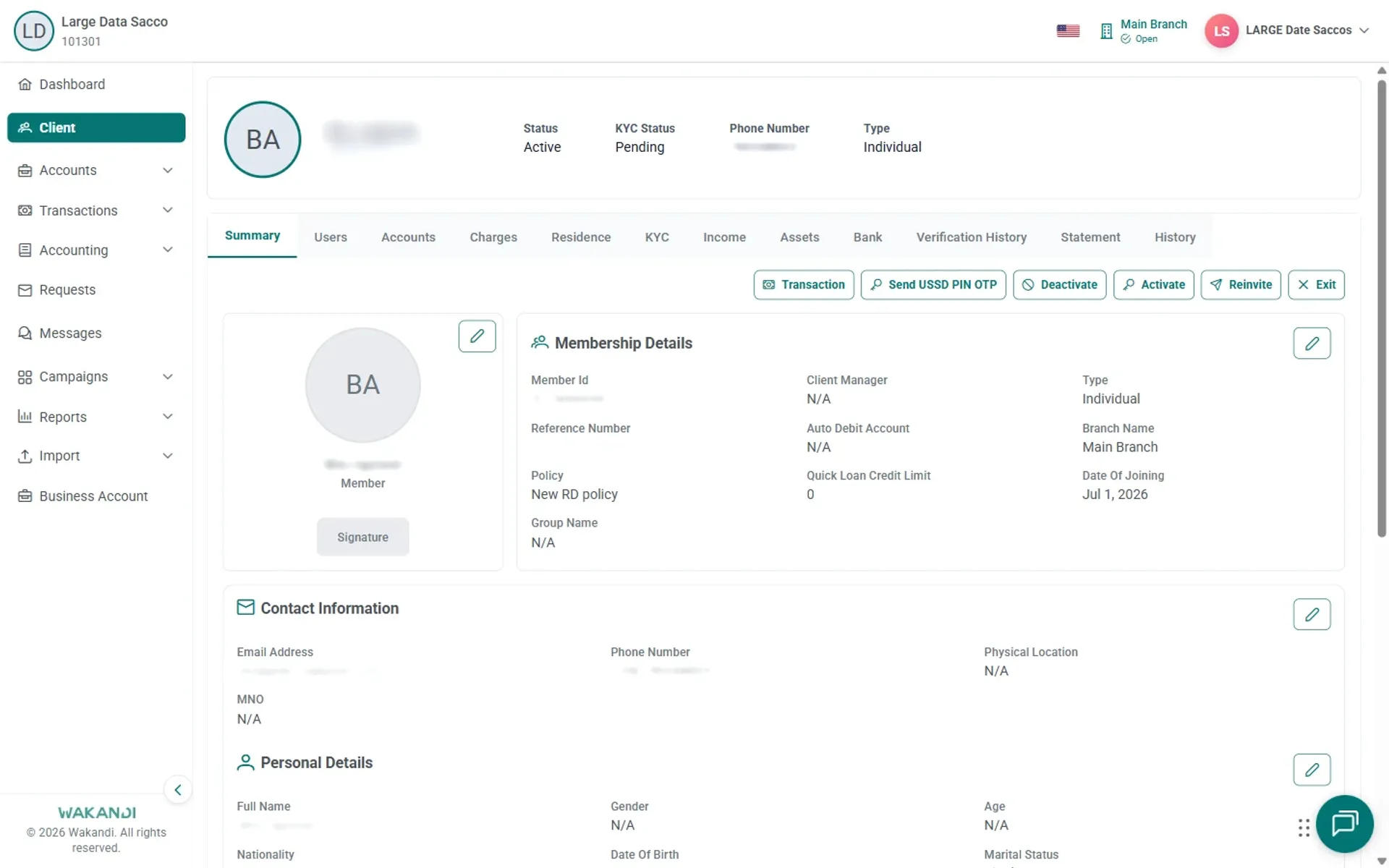
Figure 1: Member Summary scrolled to Contact Information showing Phone Number and MNO with the section edit pencil Enter the new Phone Number, and the new MNO if the mobile network changed. Save using the control shown on screen.
Where maker checker applies, the edit becomes a request. The approver opens Requests, then Active Requests, clicks View Details, compares PREVIOUS VALUE with NEW VALUE, then clicks Approve or Reject.
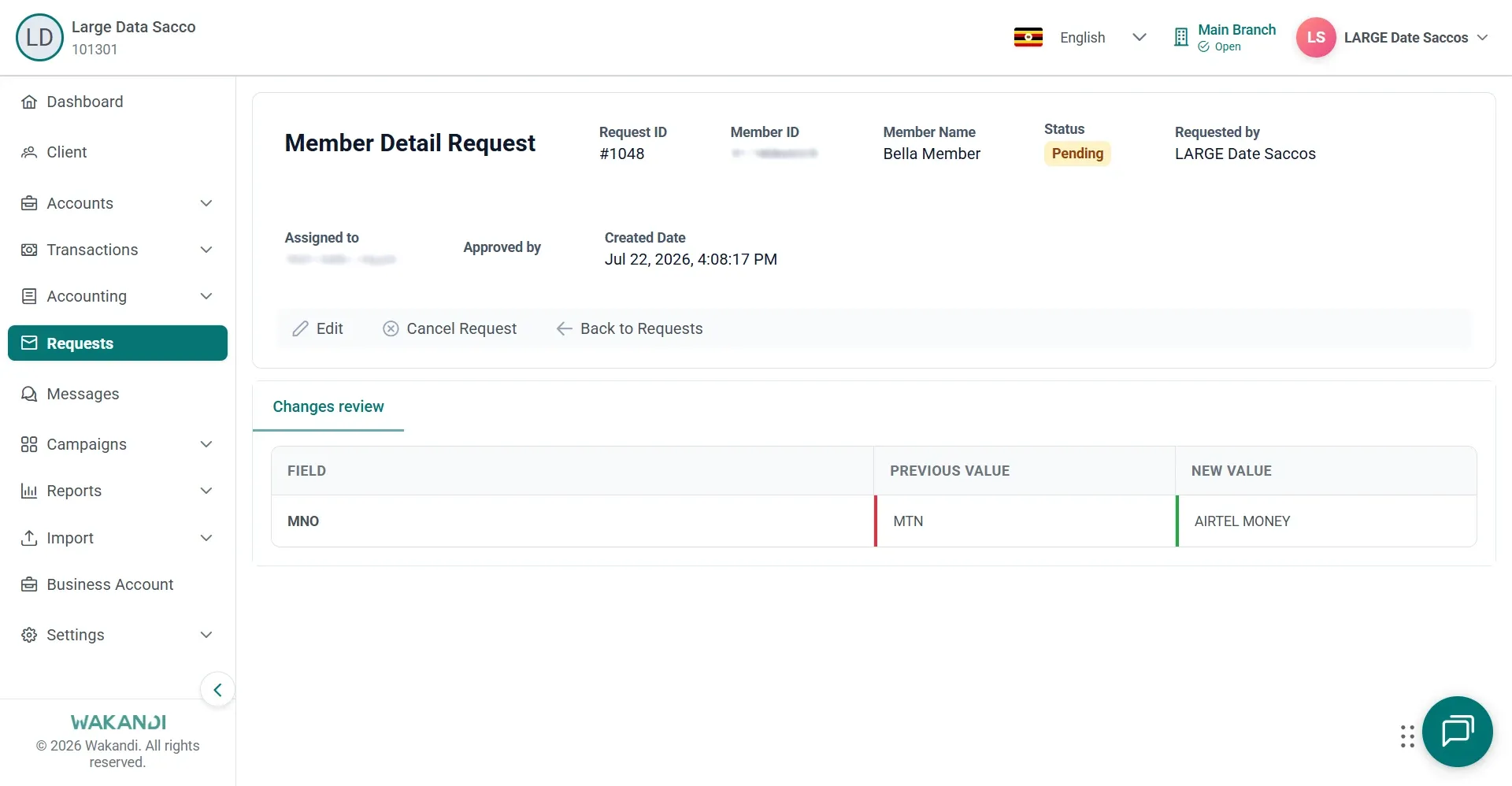
Figure 2: Pending Member Detail request on Changes review, comparing previous MNO value MTN with new value AIRTEL MONEY Reopen Summary and confirm the new values in Contact Information and the header.
Click the Users tab and find the Owner row. Its Country code and Phone Number are what the member uses for USSD or app sign-in; if the old number still shows there, correct it too.
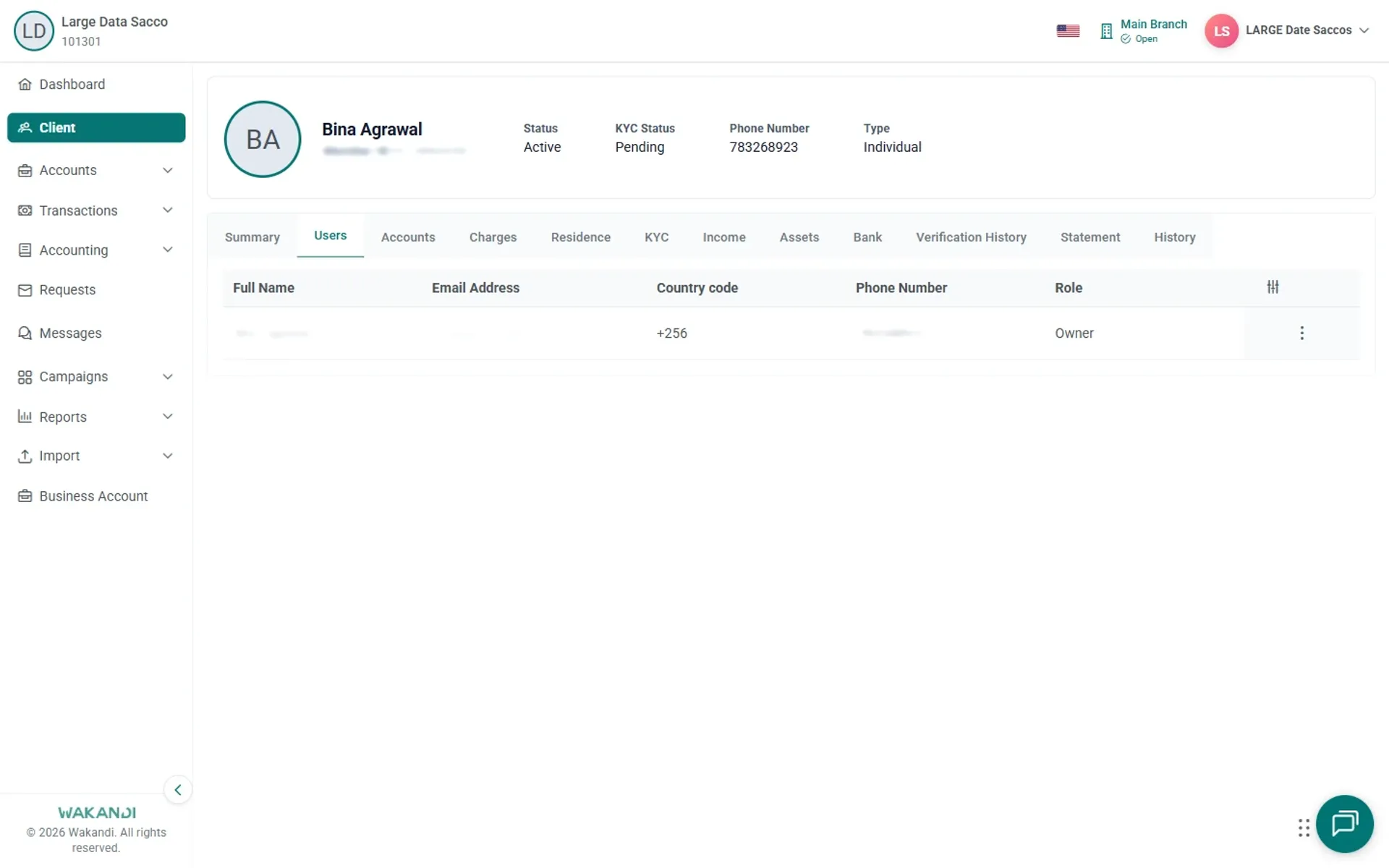
Figure 3: Users tab showing the Owner row with country code and phone number used for USSD or app login
Warning: One wrong digit locks the member out of their own account. Read the number back to the member before you save — and approvers, read every row, because one request can change several fields.
Common pitfalls & FAQ
- The number hasn't changed on Summary. The edit may be waiting for approval. Open Requests, then Active Requests, and look for a pending Member Detail row.
- The member never receives the OTP. Confirm the number in the header first, then click Send USSD PIN OTP on Summary. If they never completed an earlier invite, use Reinvite.
- There is no pencil icon. Your role doesn't allow that edit. Pass the task to a colleague who has the right.
- Proving it happened. The History tab records Update entries with the date, time and the person.