Set the permissions on a staff role
Summary
You will open a staff role in CAMS and change exactly which permissions it grants.
About 5 minutes - 8 steps. Also called: role permissions, edit a role, change staff access rights, Role Management.
Sign in with your email to read the rest of this article, track what you have finished, and earn your certificate.
Sign inPrerequisites
- A CAMS sign-in with settings permissions. Settings items appear only when your own role has the matching permission.
- A written agreement on what this role should be allowed to do. Bring the list with you.
- A non-production or test user who holds the role, so you can check the result afterwards.
Step-by-step
Sign in to the Wakandi Admin Portal.
In the left sidebar, expand Settings, then click Roles. Wait until the Role Management list has finished loading.
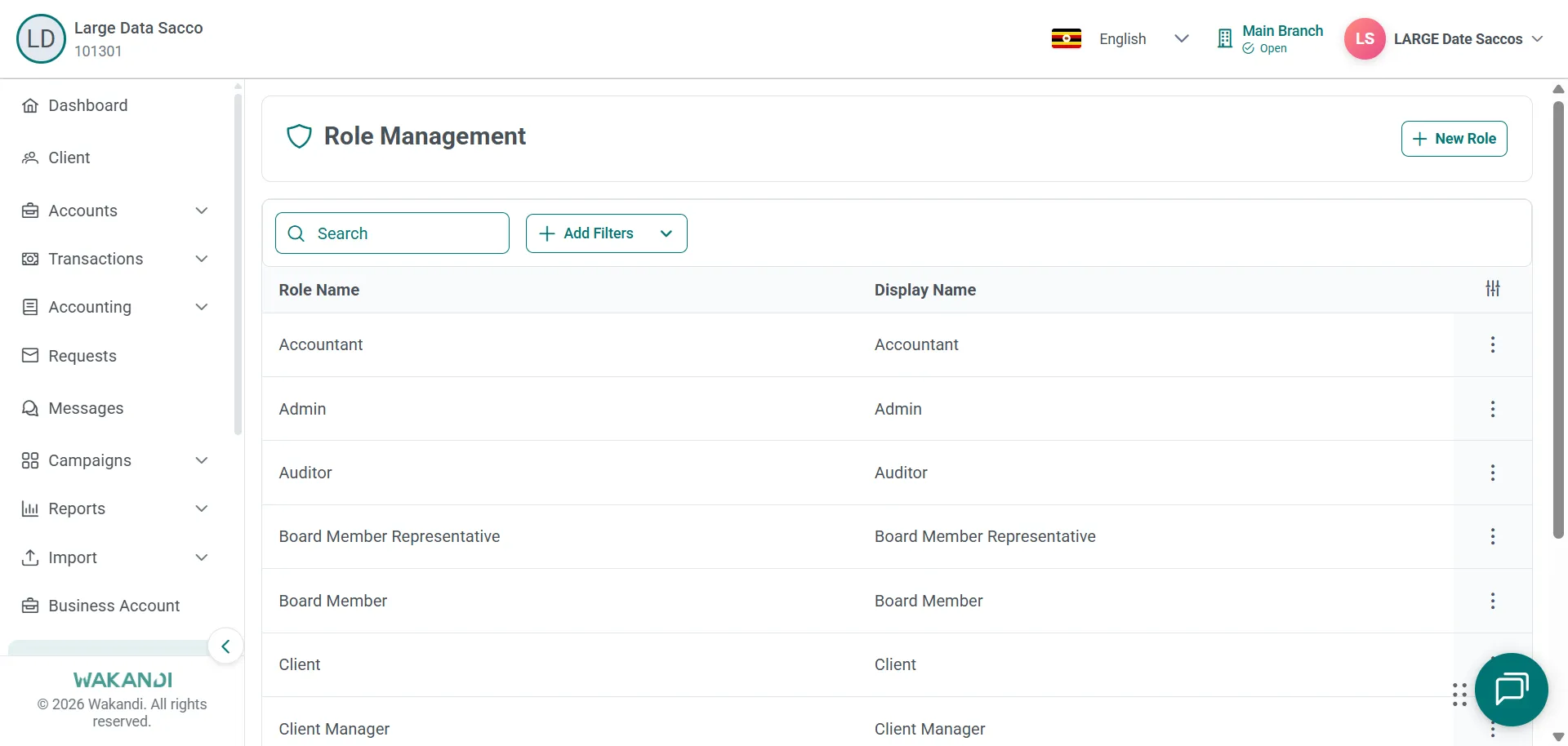
Figure 1: Role Management list showing Accountant, Admin, Auditor and other roles above a search box Use the search on the role list to find the role you need.
Open the row action menu for that role and choose Edit, or the equivalent permission action shown on your screen.
Read the current permissions before you change anything. You will see the role identity fields, and the permission groups or checklists your product provides.
Turn on or off only the permissions that were agreed. Leave every other setting as you found it.
Click Save.
Ask a user with that role to sign out and sign back in. Then confirm they can do the agreed work, and nothing beyond it.
Common pitfalls & FAQ
- The change has not taken effect. Permissions do not always refresh straight away. The user must sign out and sign back in before you judge the result.
- A colleague can no longer see a button. Buttons appear only when the role carries the matching permission. Approve on a request, for example, shows only for a user with approval permission, commonly the current assignee.
- How do I give this role to a user? Roles are assigned on the user, not on the role. Open Settings > Users and use Edit on that person's row. New staff receive a role on the New User form.
- Should I grant extra permissions in case they are needed? No. Broad grants raise your risk. Keep each role focused, and write down why a permission was added so an audit can follow it later.
- I removed a permission and someone is locked out. Restore it first. Removing a right a person needs daily stops their work. Agree any further change with their manager.
- No existing role fits the job. Prefer a small set of well-named roles over many near-duplicates, and test the change with a non-production user before rolling it out widely.