Importing transactions from a file
Summary
Import a file of transactions and follow the batch from spreadsheet rows to posted entries.
About 4 minutes · 8 steps. Also called: bulk upload, batch upload, spreadsheet import.
Sign in with your email to read the rest of this article, track what you have finished, and earn your certificate.
Sign inPrerequisites
- A CAMS sign-in with permission to import.
- Your transactions in a
.csv,.xlsxor.xlsfile, up to 5 MB. - A matching product and transaction type on every row: Saving and Share take Deposit or Withdraw, Loan takes Repayment, and MemberCharge takes FeeAndPenalties. Fee and penalty rows need enough detail to identify the member.
- The cash or bank ledger the money moves through.
Step-by-step
Sign in to CAMS Admin.
In the left menu, expand Import and click Transaction, then click Upload Transaction. No file yet? Click Transaction Template first and fill that workbook.
In the Import Transactions Data dialog, click Select File, choose your file, and pick the Assigned To User to follow the batch up.
Open Accounts (DR/CR) and select that ledger as the control account: the cash or bank side of every transaction in the file. Click Upload.
The batch appears in the Transaction Import list; click it to open Transaction Import Details.
Review the rows on the Imported Data tab: member name, account number, product, type, amount and date.
Click Submit in the header to process the import, or Archive when your procedure says it should not go ahead. Both need import edit or accountant permission; neither appears while the status is In Progress or Deleted.
On Result, open the import's details. Every row carries a status (New, Error, Success, Pending, Deleted) and each posted transaction a Transaction Number. To see them in the books, expand Accounting and click Entries.
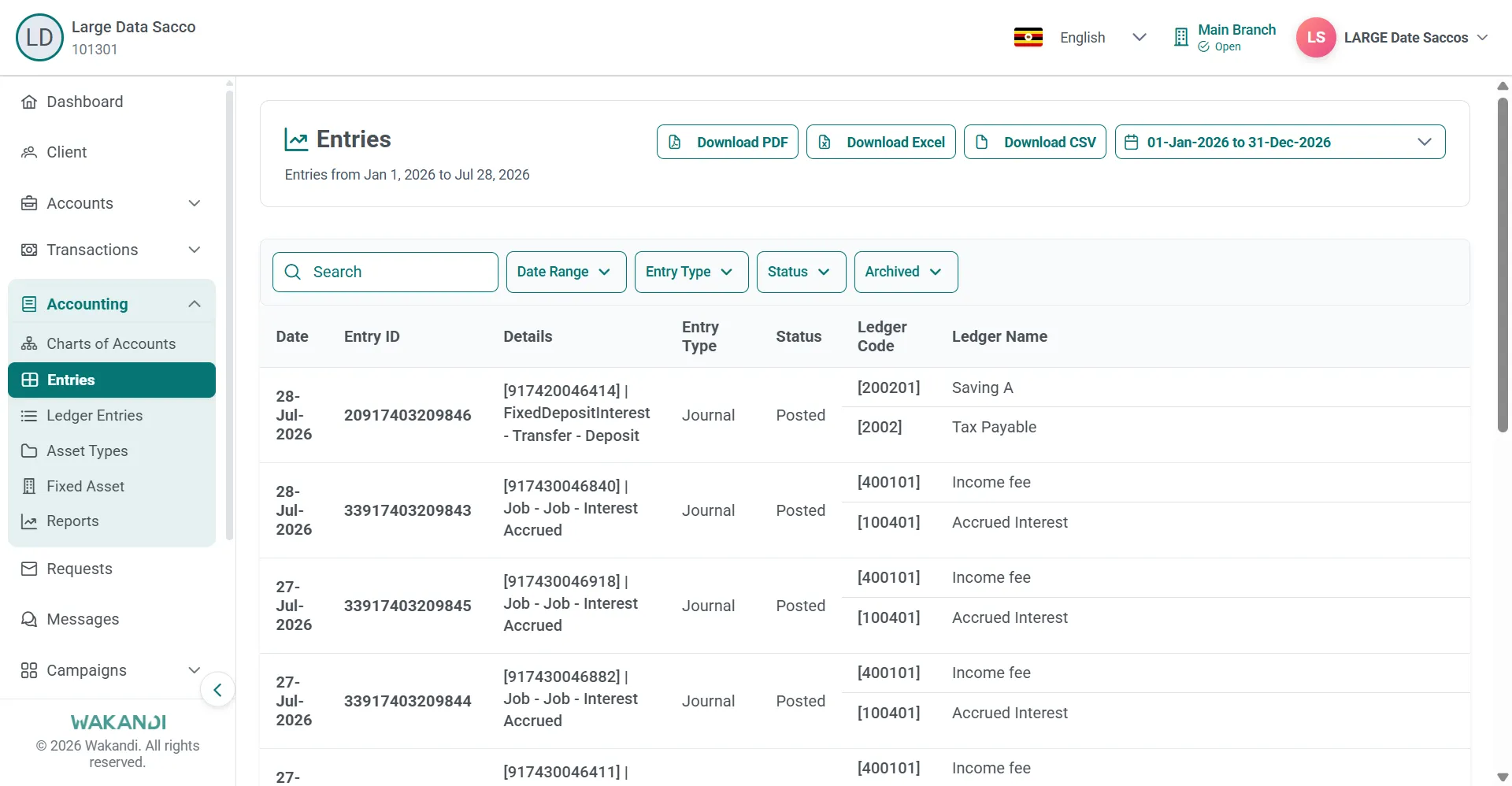
Figure 1: The Entries page with Date Range, Entry Type and Status filters over the posted entries
Note: Each row posts against the member's product account and the ledger you picked. A deposit changes the savings balance; a repayment updates the loan installment.
Common pitfalls & FAQ
- Import Data is not available, or rows show Error or Pending. Work through the Validation Issues panel, then choose Submit on the file. Only the rows that still need work load; they cannot be deleted yet, and show Success once fixed. A dash in Column Name means the whole row is the problem; clicking it takes you to the row number.
- The transactions are not in the books. Check that the financial year covering those dates is open (see the financial year lesson). Ask support if they stay unposted.
- I picked the wrong control account. Edit the ledger on the file in the Transaction Import list. In New or Error, only the import rows change. On a posted batch, the entries move to the new ledger and post again. You confirm a warning first, because the old entries may already be reconciled.
- Does the system read my original spreadsheet? No. What you see in the preview, edits included, is what gets imported.