Set how surplus is distributed before you run the Owner's Equity report
Summary
Set the percentages that decide how surplus is shared between your equity funds, before you run the Owner's Equity report. About 5 minutes, 9 steps. Also called: equity distribution, surplus allocation, reserve percentages.
Sign in with your email to read the rest of this article, track what you have finished, and earn your certificate.
Sign inPrerequisites
- Your Wakandi Admin Portal sign-in, with access to Accounting.
- The distribution percentages your board has approved, written down in front of you.
- Authorisation to change them. Change values only when you have it.
Step-by-step
Sign in to the Wakandi Admin Portal.
In the header, open the branch control and select All Branches. Report settings buttons stay hidden while one branch is selected.
In the left menu, expand Accounting and click Reports. The Accounting Reports cards load.
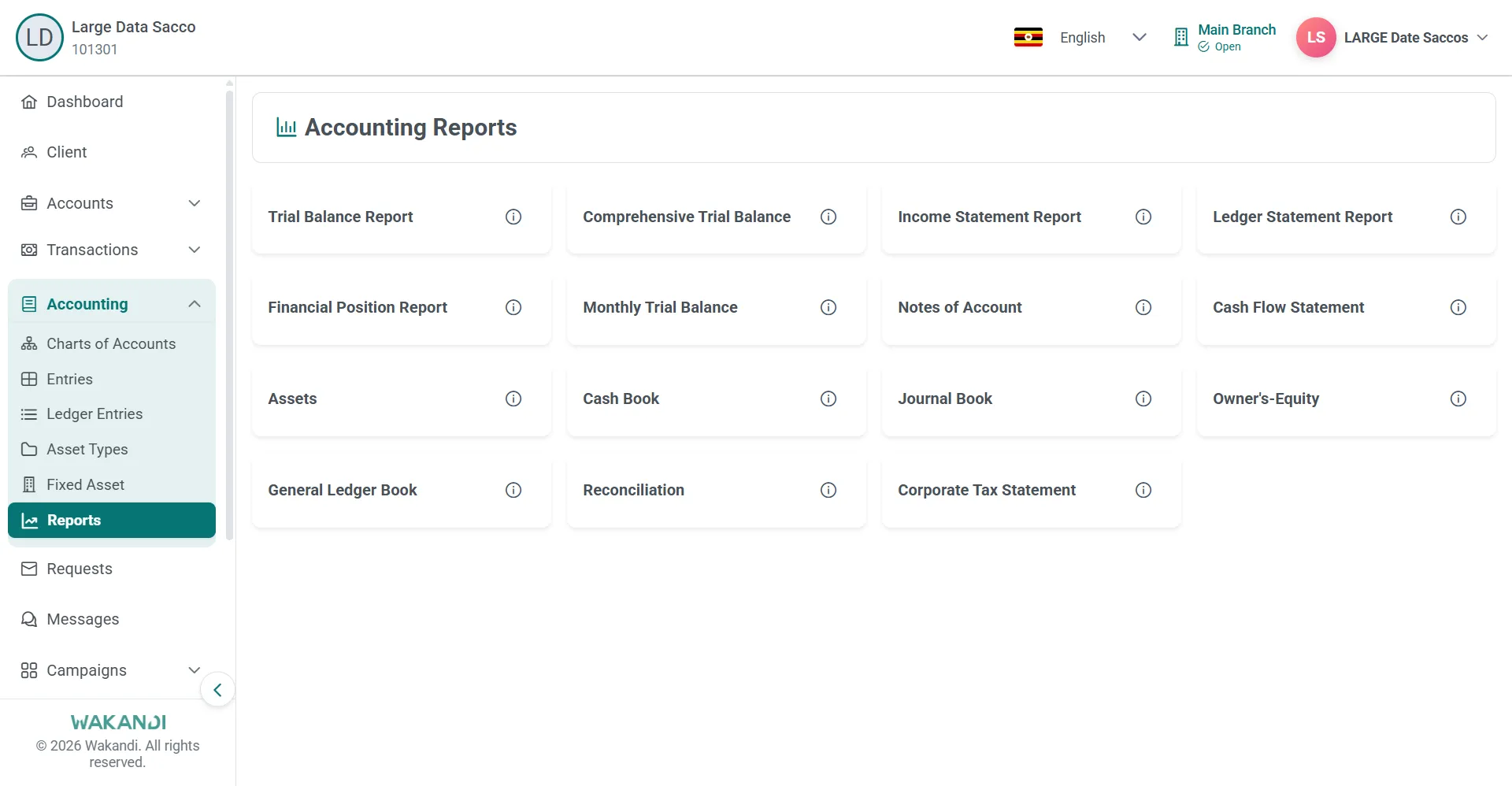
Figure 1: Accounting Reports page showing the report cards, with Owner's-Equity in the third row Click Owner's-Equity. Wait for the report to finish loading.
Click Equity Distribution Settings. The Owner Equity Setting screen opens.
Read the percentage shown against each fund: Statutory Reserve Fund, Share Transfer Fund, Bad and Doubtful Debt Provision and Surplus/(Loss) Retained Earnings.
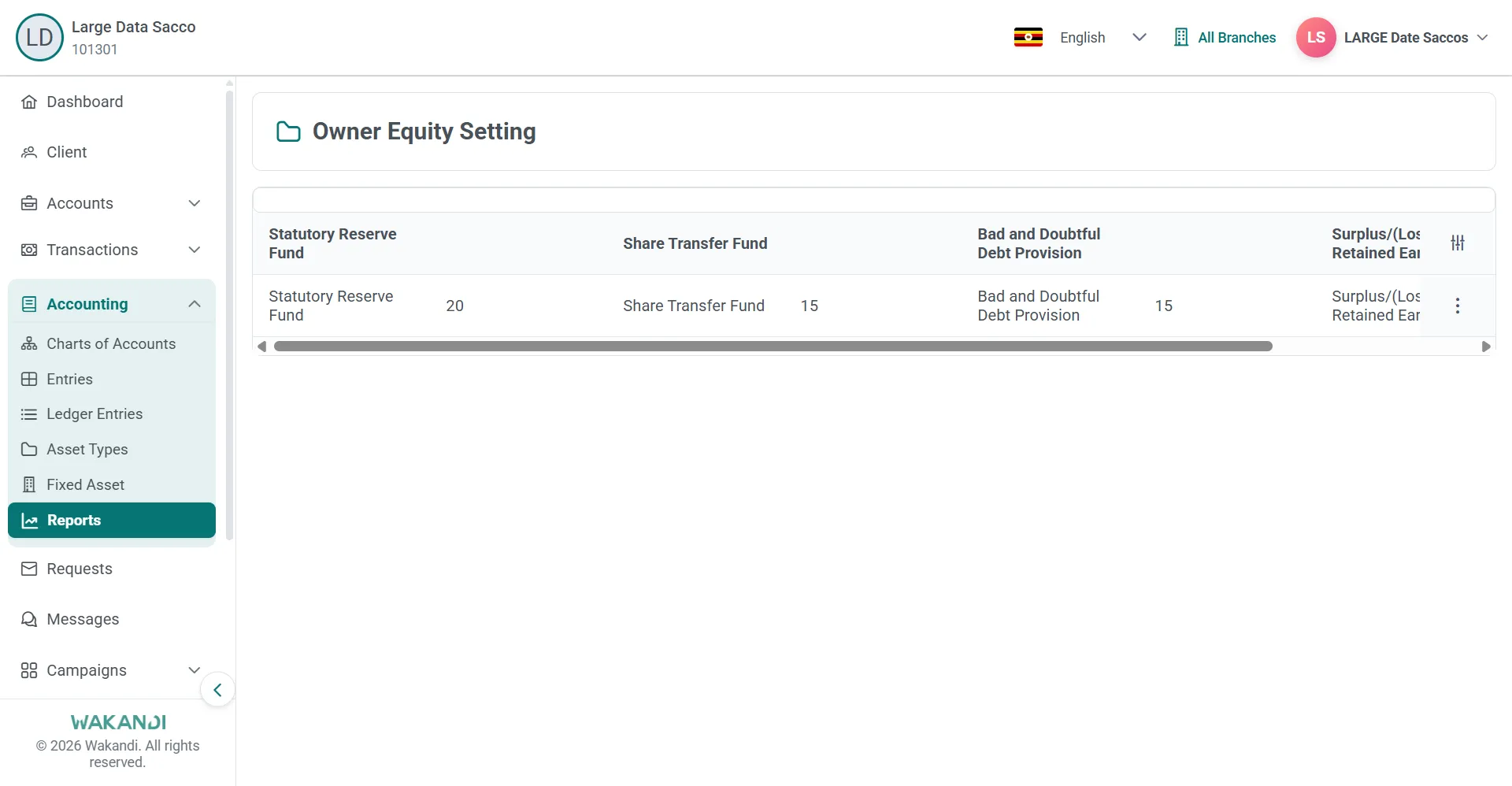
Figure 2: Owner Equity Setting screen listing the four equity funds with their distribution percentages Change a percentage only where your approved policy says so. The example setup totals 100 percent across the four funds, so keep your own set consistent.
Save your changes if the screen offers a save action.
Go back to Owner's-Equity for the same period and check the statement reflects the new distribution.
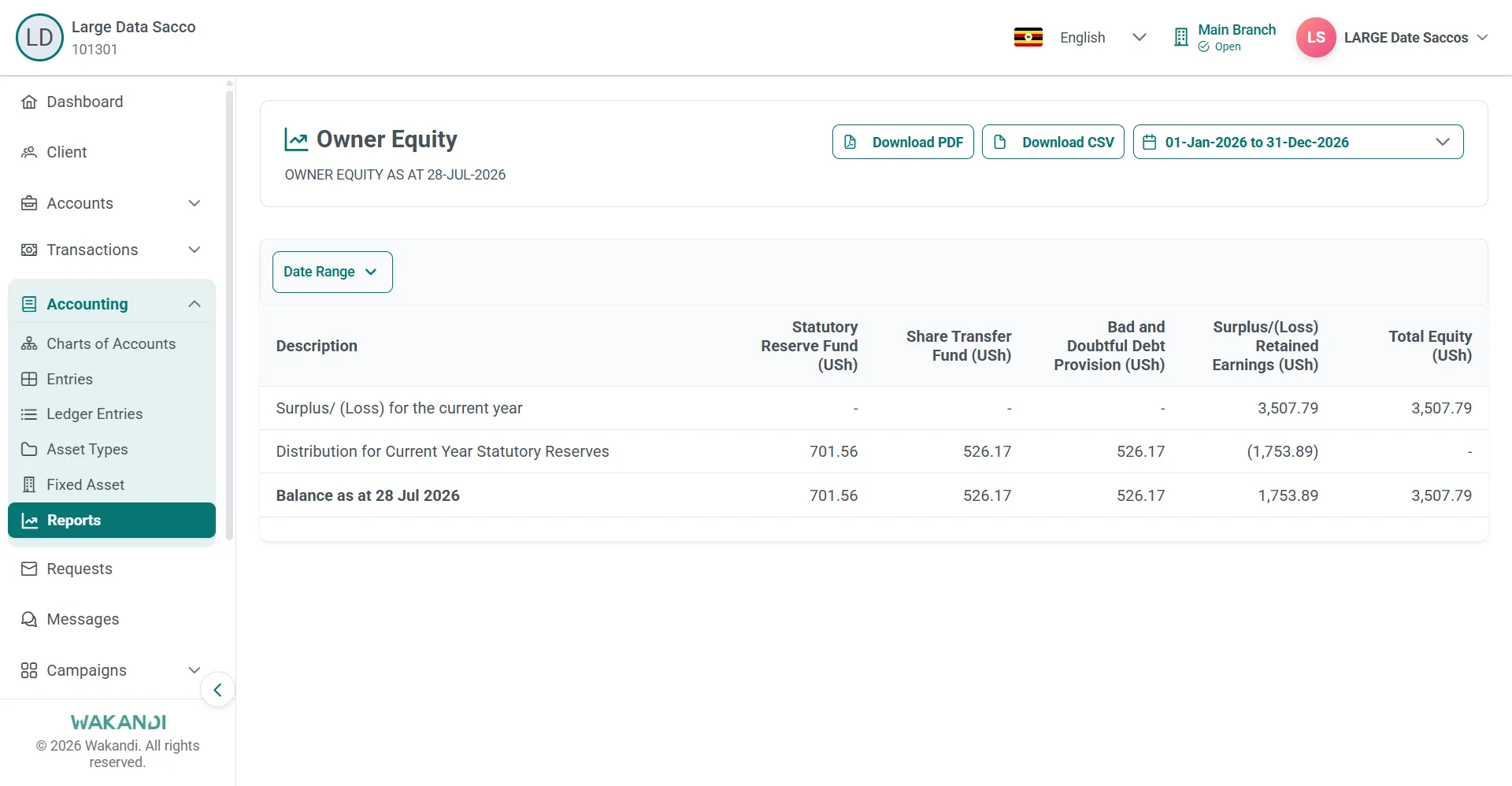
Figure 3: Owner Equity statement with the current-year distribution row split across the reserve funds
Warning: These percentages decide how surplus is allocated on the equity report. Change them carefully, and only when you are authorised.
Common pitfalls & FAQ
- I cannot see the Equity Distribution Settings button. Switch the header branch control to All Branches. Several report settings buttons appear only in the all-branch view.
- The report shows no figures. Widen the date range, or check that ledgers and entries exist for that period.
- I need to correct one line, not the policy. Use Edit Owner Equity on the same report. Distribution settings hold policy percentages. Edit Owner Equity maintains the equity lines for one period.
- Nothing looks different on the report. Re-open Owner's-Equity for the same period after you save. The report has to be reloaded before it shows the new distribution.
- I cannot find a save action. Do not assume your figures were kept. Re-open Equity Distribution Settings and read the values back before you rely on the report.