Correct a transaction you posted in error
Summary
Correct a client transaction you posted by mistake, then prove the correction afterwards.
About 4 minutes · 8 steps. Also called: error correction, reverse a transaction, undo a wrong posting.
Sign in with your email to read the rest of this article, track what you have finished, and earn your certificate.
Sign inPrerequisites
- Your till showing Open in the header.
- The member account number, plus the date, type and amount of the entry you got wrong.
- Your Sacco's policy on correcting posted entries. It decides whether you may do this yourself.
Step-by-step
Sign in to CAMS.
In the left menu, expand Transactions and click Teller.
Click the History tab. Set Start Date and End Date around the time you posted, and check Viewing Teller shows your own till.
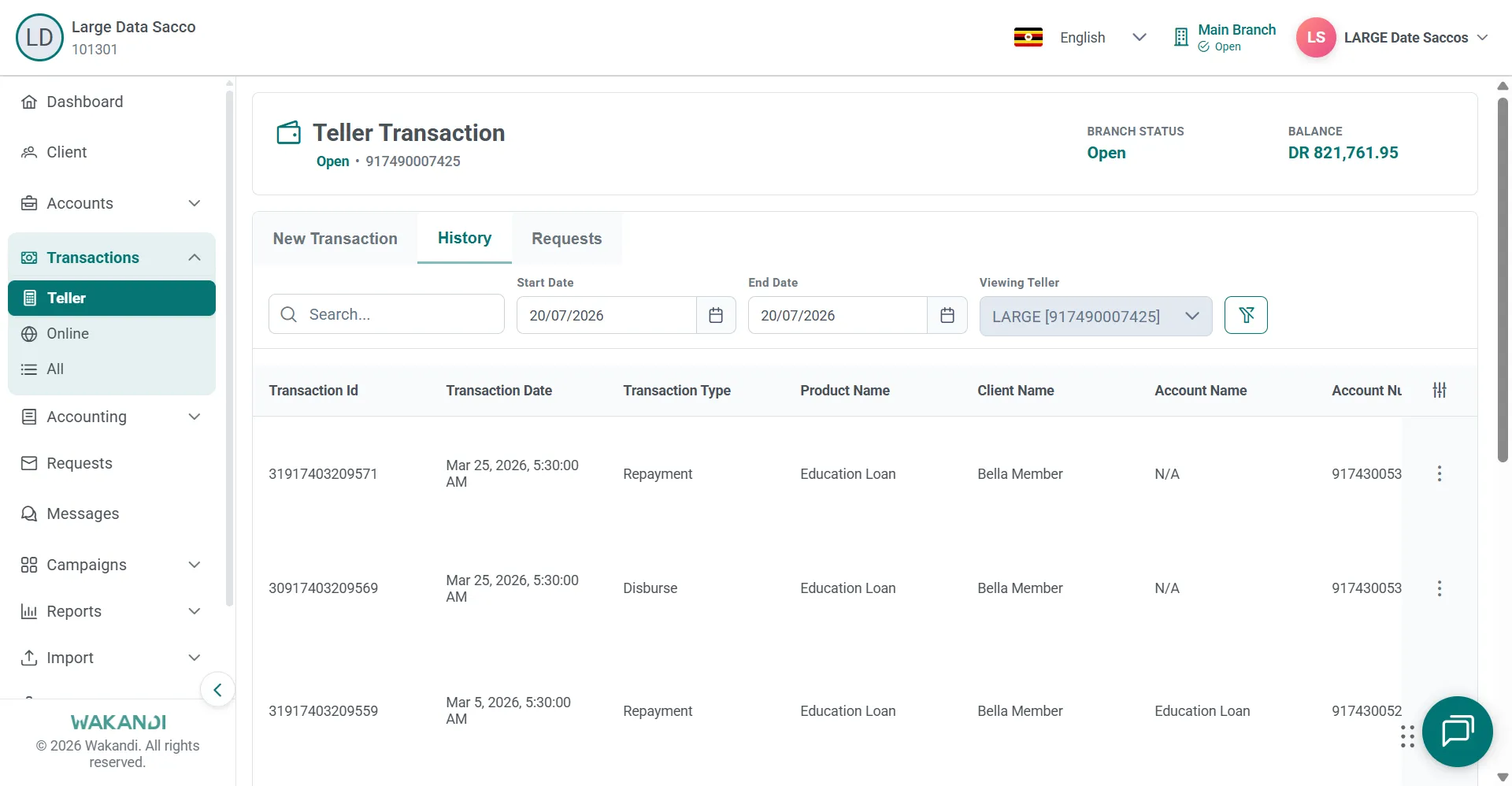
Figure 1: Teller History tab listing posted transactions with Transaction Id, date, type and account number columns Find the wrong row. Note its Transaction Id, Transaction Type, Account Number and the Debit (USh) or Credit (USh) amount.
Click the New Transaction tab, then Client Transaction.
On Choose Type, click Error Correction.

Figure 2: Client Transaction Choose Type cards, with Error Correction highlighted Select the Account Type, then find and select the member account in Search Account. The correction fields appear once the account is selected.
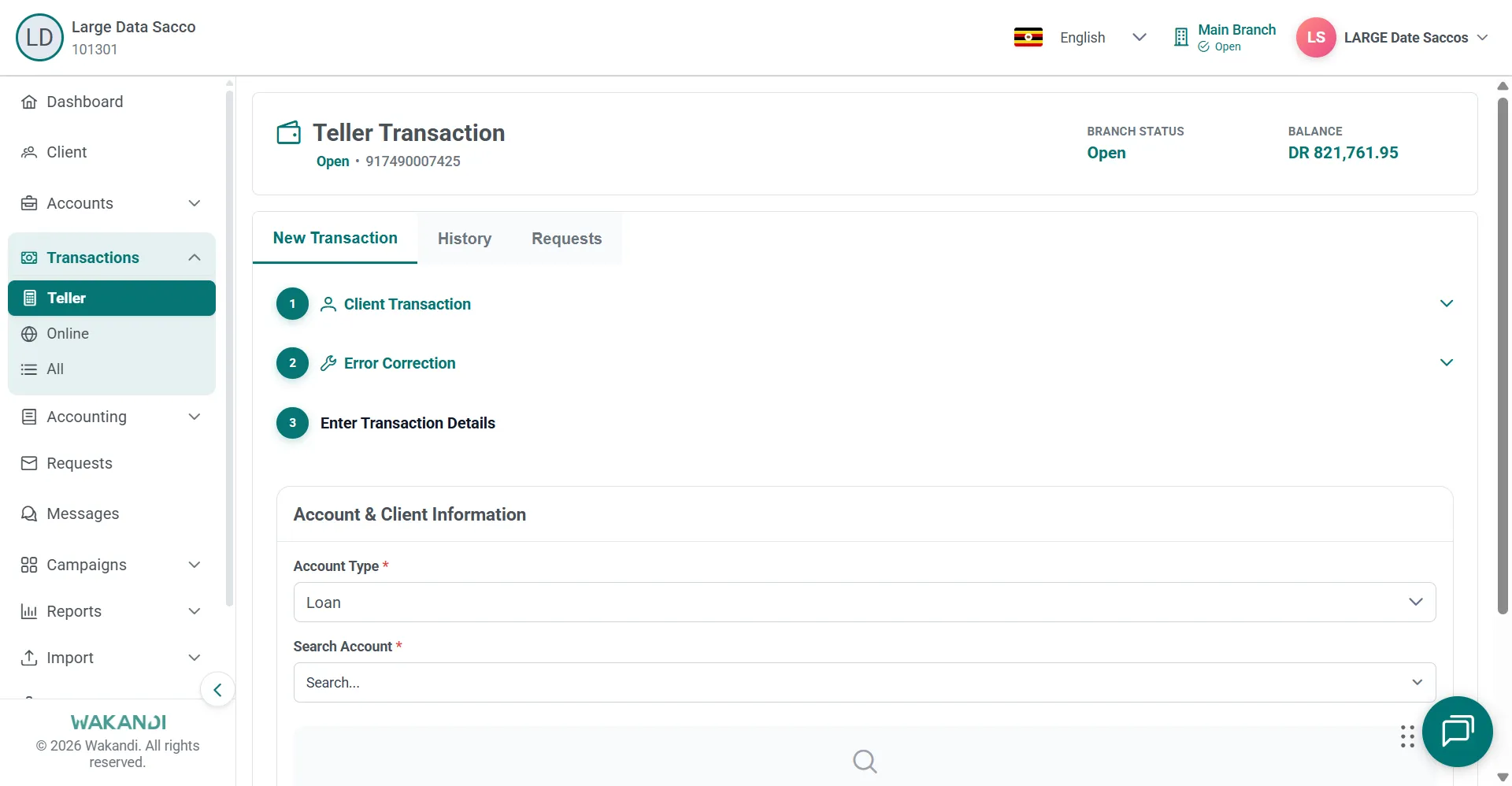
Figure 3: Error Correction details form with Account Type set to Loan and an empty Search Account field Complete the correction details, compare them with your note from step 4, then submit. Return to History to verify the result.
Common pitfalls & FAQ
- Nothing appears in History after I submit. The correction may need approval first. Open the Requests tab and look for a Pending row; Current Assignee shows who decides it.
- The wrong entry was a fee or a penalty. Use Reverse Fee/Penalty instead. It sits on the same Choose Type list.
- The wrong entry was an internal ledger entry, not a member one. That route is General Ledger → Reverse General ledger entry. See Making general ledger transactions as a teller.
- How do I prove the correction later? Run the Reversed Transaction Report. See Review the day's transactions before you close.