Making general ledger transactions as a teller
Summary
Post a general ledger entry from the teller screen, for money not tied to a member account.
About 4 minutes · 8 steps. Also called: GL transaction, journal entry, ledger posting, contra.
Sign in with your email to read the rest of this article, track what you have finished, and earn your certificate.
Sign inPrerequisites
- Your till showing Open in the header.
- The ledger accounts, the amount, the payer or payee, and a short description.
Step-by-step
Sign in to CAMS.
In the left menu, expand Transactions and click Teller.
Click the New Transaction tab and wait for the Choose Category cards.
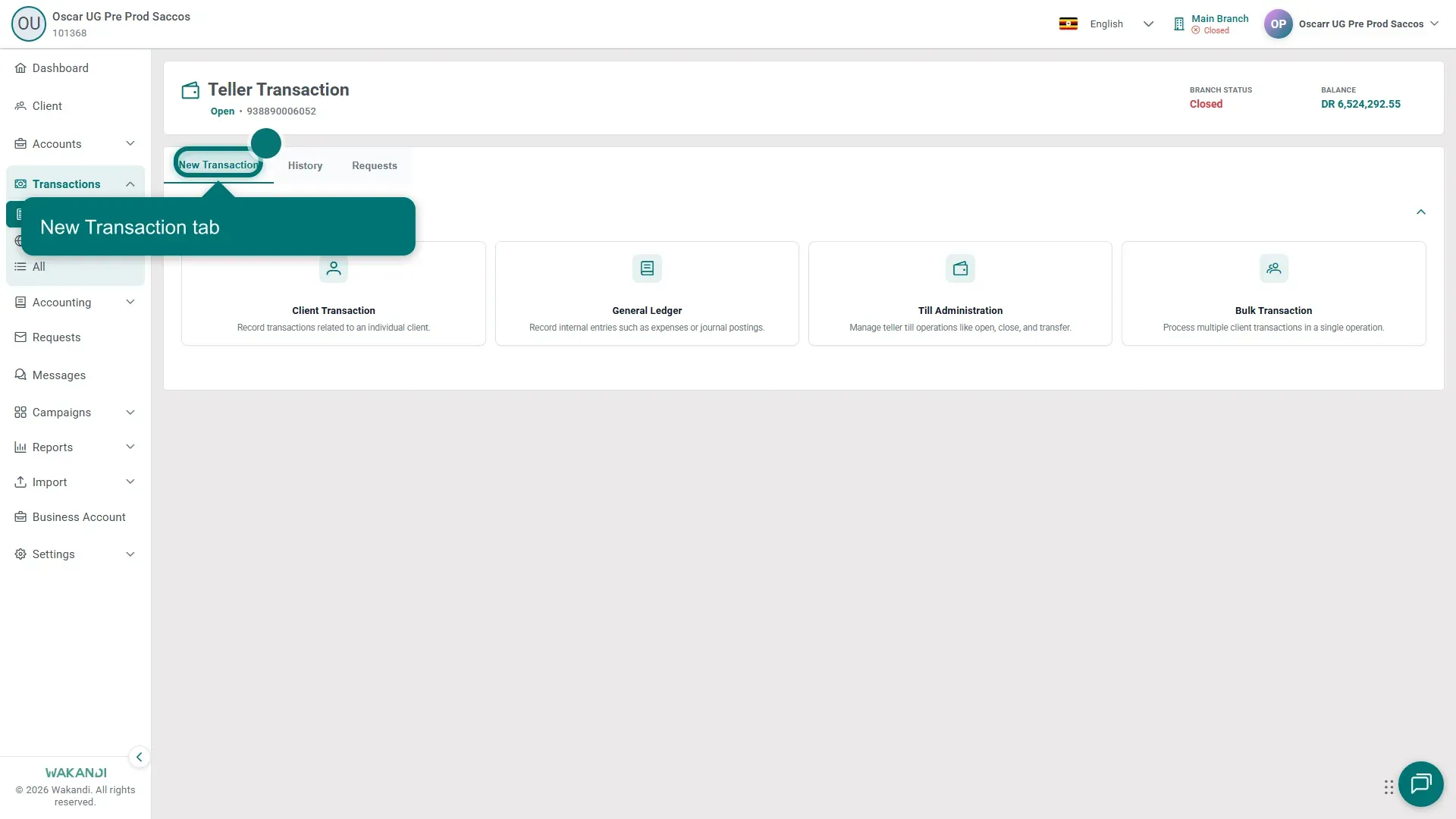
Figure 1: The Teller Transaction page with the New Transaction tab highlighted Click General Ledger.
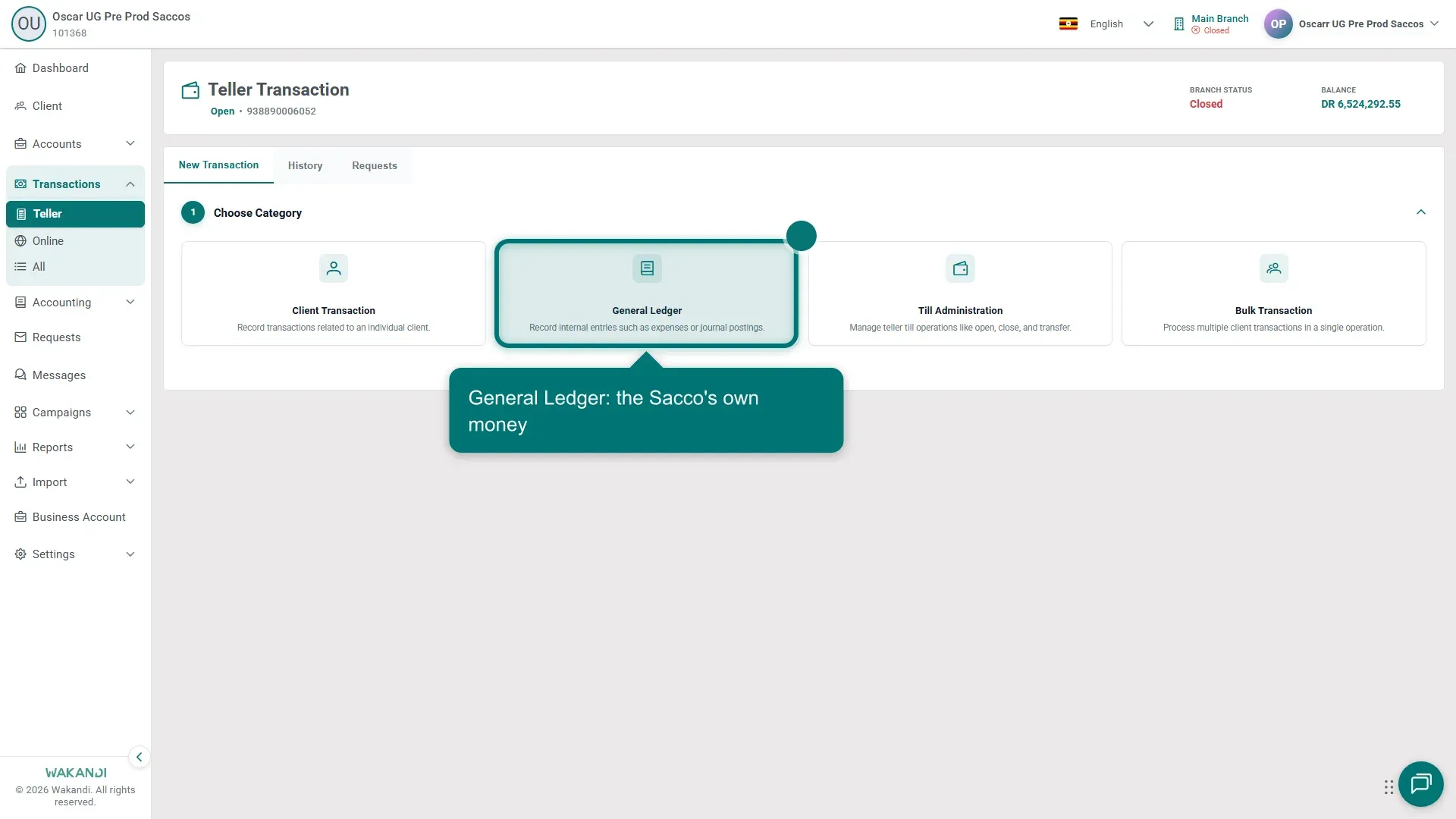
Figure 2: The Choose Category cards with General Ledger highlighted On Choose Type, click your posting type:
- Record Receipt — cash or income in.
- Other Income — income from another ledger account.
- Record Payment — a general payment out.
- Record Expense — a business cost. See Posting an expense transaction.
- Pay Corporate Tax — asks only for the ledgers, date and tax amount.
- Journal Entry — manual debit and credit lines.
- Bank/Cash Transfer (Contra) — funds between cash and bank accounts.
- Reverse General ledger entry — undo a mistaken entry.
On Enter Transaction Details, type the Description / Comment and set the Transaction Date. Starred fields are required.
Choose the accounts and enter the Amount. Receipts use Received Into (Bank/Cash Account) and Account (Credit) rows; payments use Payment From (Bank/Cash Account) and Account (Debit) rows. A contra moves money between From Account (Bank/Cash) and To Account (Bank/Cash). Click + Add Payment Row or + Add Journal Line for a second line. Add Cheque #, Reference and Received From or Paid To where your branch records them, repeating the name in Description / Comment. Check the Total Amount, or that Total Debit matches Total Credit on a journal.
Warning: Read the accounts and amounts once more before you submit. A posted entry hits the books straight away, and the fix is a reversal, not a second entry.
- Click Submit, then open the History tab to check the Status.
Common pitfalls & FAQ
- General Ledger or Client Transaction? Anything belonging to a member goes through Client Transaction — see Take a savings deposit or withdrawal at the counter.
- How do I load cash into my till? Not from here. That is Till Administration — see Open your till, top it up, and close it.
- I posted the wrong entry. Click Reverse General ledger entry, search by description or set the date range, click Apply Filters, pick the row, and submit.