Add a charge to a member and follow up what they owe
Summary
Raise a charge against a member's own record, then check what that member still owes. About 5 minutes - 7 steps. Also called: member charge, registration fee, Add Charge, outstanding fees.
Sign in with your email to read the rest of this article, track what you have finished, and earn your certificate.
Sign inPrerequisites
- A Wakandi Admin Portal sign-in. Add Charge appears on the client Charges tab when your role allows it.
- The member's Member Id.
- The charge type, amount and due date your fee schedule allows. Membership and joining fee rules sit under Settings, then Policies, then Membership Policy.
Step-by-step
Sign in to the Wakandi Admin Portal.
In the left sidebar, click Client. Wait for the client list to load.
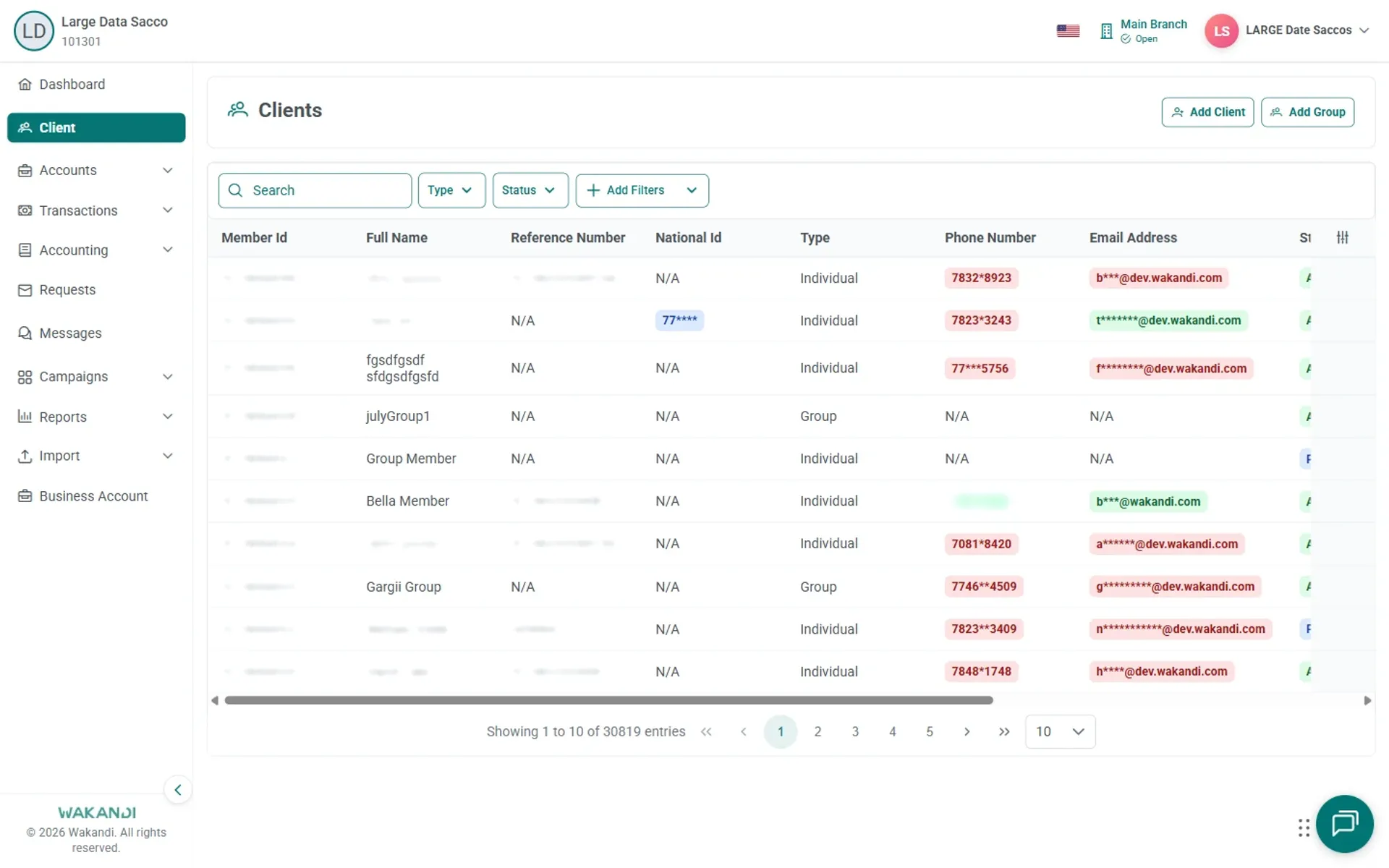
Figure 1: Clients list loaded with search box, type and status filters, and member rows showing Member Id Click in Search, type the Member Id and press Enter. Click the correct row and wait for the profile to load.
Click the Charges tab. Wait for the list to finish loading.
Read what is already there. Each row shows Charges Type, Creation Date, Due Date, Outstanding Days, Amount (USh), Outstanding Amount (USh) and Status. The currency label follows your organisation's setup.
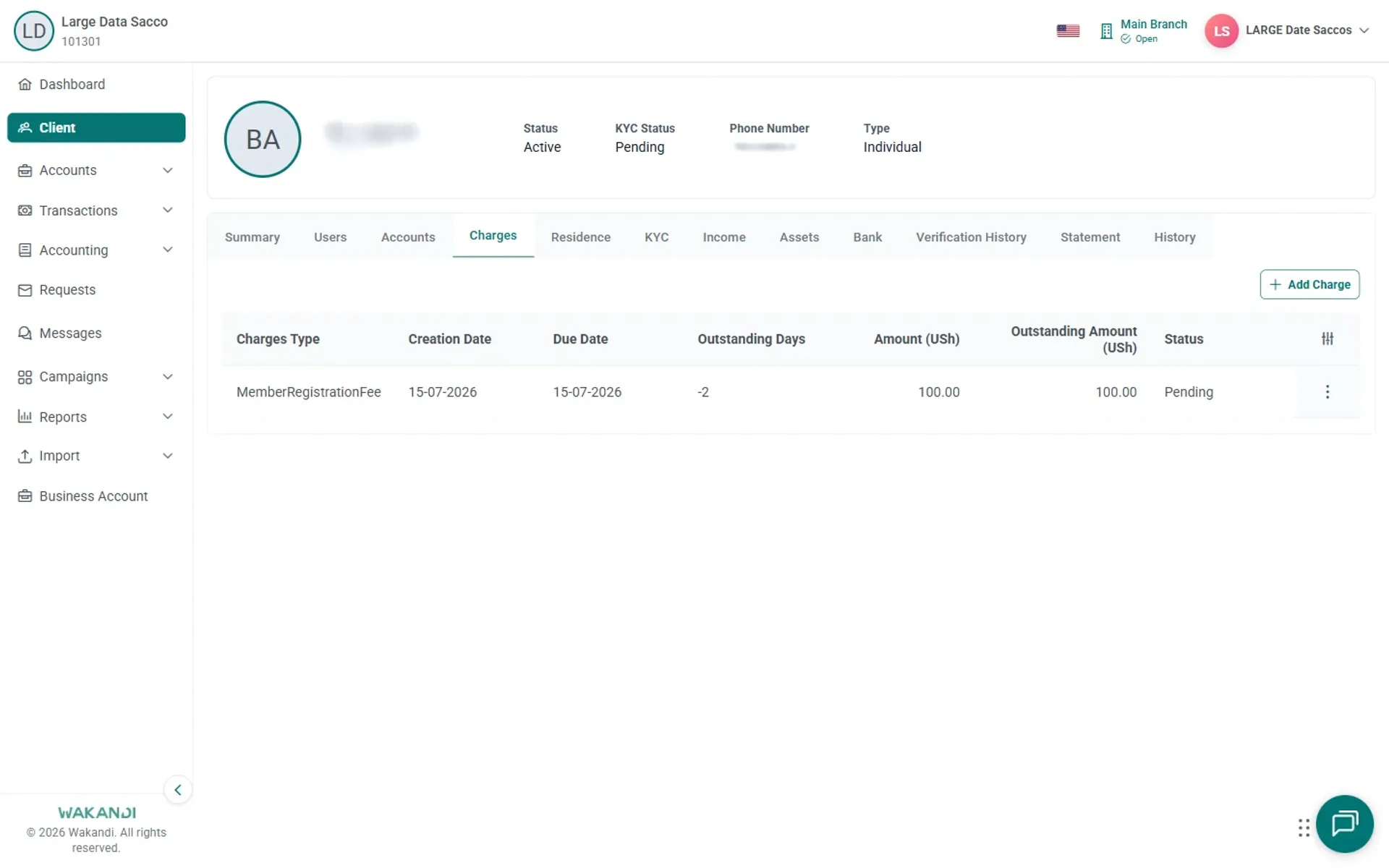
Figure 2: Member Charges tab with a registration fee row showing due date, amounts, Pending status and Add Charge If the charge you are about to raise is already listed, stop. If it is not, click Add Charge. Select the charge type, then enter the amount, the due date and any other required fields. Submit the form.
Confirm the new row appears in the list. A new charge often shows as Pending until it is paid.
Common pitfalls & FAQ
- How do I collect the payment? Payment posting depends on your setup. One route is Transactions, then Teller, then New Transaction, then Client Transaction, then Apply Fee / Penalty. Search for the account, enter the details and submit.
- The member says they already paid. Read the Charges tab before you add anything. Compare Amount (USh) with Outstanding Amount (USh). A second charge asks the member to pay twice.
- A registration fee still shows Pending. The fee is not paid yet. Do not activate related services first if your policy requires payment up front.
- Outstanding Days shows a negative number. That can mean the due date has not arrived yet. Read it together with Due Date.
- The tab says no data is available. This member has no charges recorded. Check you opened the right member.
- Is this the same as a loan charge? No. Charges on a loan sit on that loan's own Charges tab under Accounts, then Loans.
- Who created this charge? Open the client History tab. It lists Create and Update events, including Client Charge, with the date, time and user.
- My fee posting needs approval. Track it under Requests.