Apply or reverse a fee or penalty at the counter
Summary
Charge a fee or penalty to a member at the teller counter — and reverse one that was applied wrongly.
About 4 minutes · 6 steps. Also called: pay fee, apply penalty, fee reversal, waive charge.
Sign in with your email to read the rest of this article, track what you have finished, and earn your certificate.
Sign inPrerequisites
- Your CAMS sign-in mapped to your own teller till, with the till open.
- The member's name, Member Id or account number.
- For a reversal: which charge is being reversed, and why — your institution may require an approval.
Step-by-step
Sign in to CAMS. In the left menu, expand Transactions and click Teller.
Click New Transaction, then choose Client Transaction.
Pick Apply Fee / Penalty to charge, or Reverse Fee/Penalty to undo a charge.
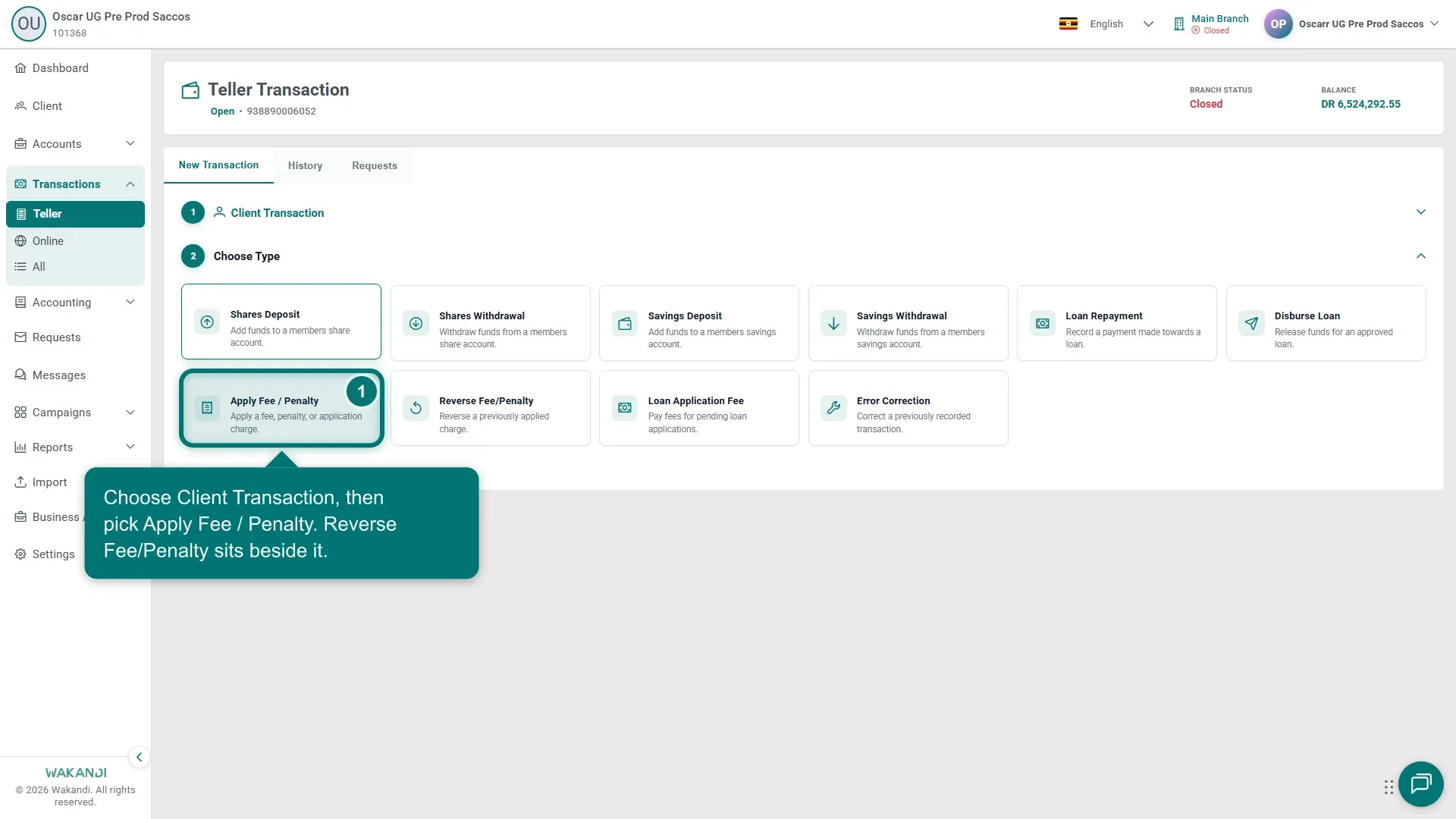
Figure 1: Teller Choose Type step with Apply Fee / Penalty and Reverse Fee/Penalty tiles In Search Account, find the member's account and select it. Check the client details that load.
Applying: choose the charge type, enter the amount and a clear narration, and submit. Reversing: tick the charge in the Select Fee to Reverse list, then submit.
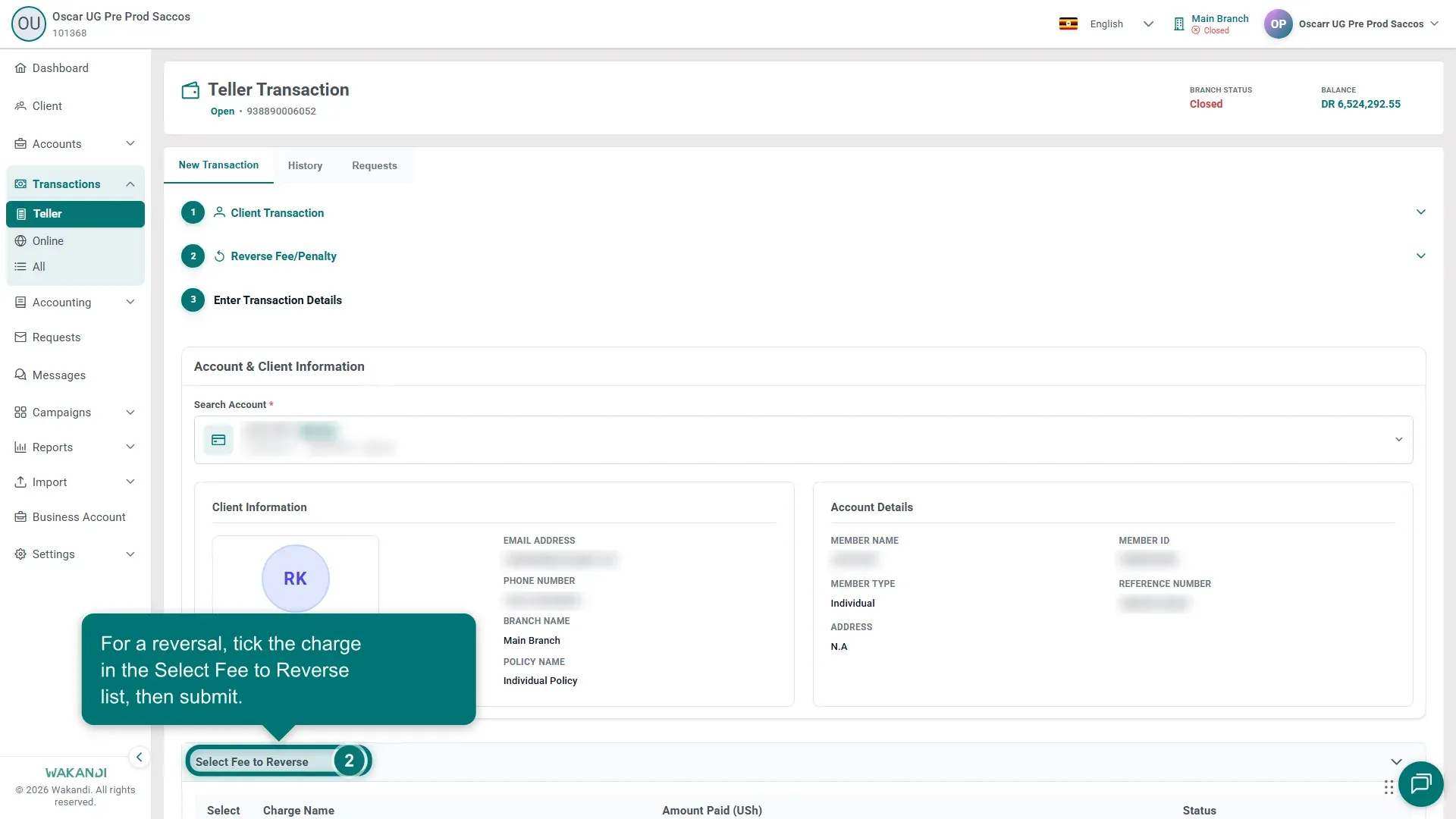
Figure 2: Select Fee to Reverse list on the Reverse Fee/Penalty step Confirm the posting on the History tab.
Common pitfalls & FAQ
- "No applicable fees or penalties found." Only charges that were applied to this member appear in the reverse list. Check you have the right member and account.
- Which fees exist? Fee types and amounts come from your fee setup — see How to add fees and penalties.
- Charges raised on the member's profile (like a registration fee) are collected differently — see Add a charge to a member and follow up what they owe.
- A reversal may need a second pair of eyes. With maker-checker on, it waits on the Requests tab until approved.