Apply or reverse a fee or penalty at the counter
Summary
Charge a fee or penalty to a member at the teller counter — and reverse one that was applied wrongly.
About 4 minutes · 6 steps. Also called: pay fee, apply penalty, fee reversal, waive charge.
Yingira ne email yo osobole okusoma ekisigadde ku kiwandiiko kino, olondoole by'omaze, era ofune satifikeeti yo.
YingiraPrerequisites
- Your CAMS sign-in mapped to your own teller till, with the till open.
- The member's name, Member Id or account number.
- For a reversal: which charge is being reversed, and why — your institution may require an approval.
Step-by-step
Sign in to CAMS. In the left menu, expand Transactions and click Teller.
Click New Transaction, then choose Client Transaction.
Pick Apply Fee / Penalty to charge, or Reverse Fee/Penalty to undo a charge.
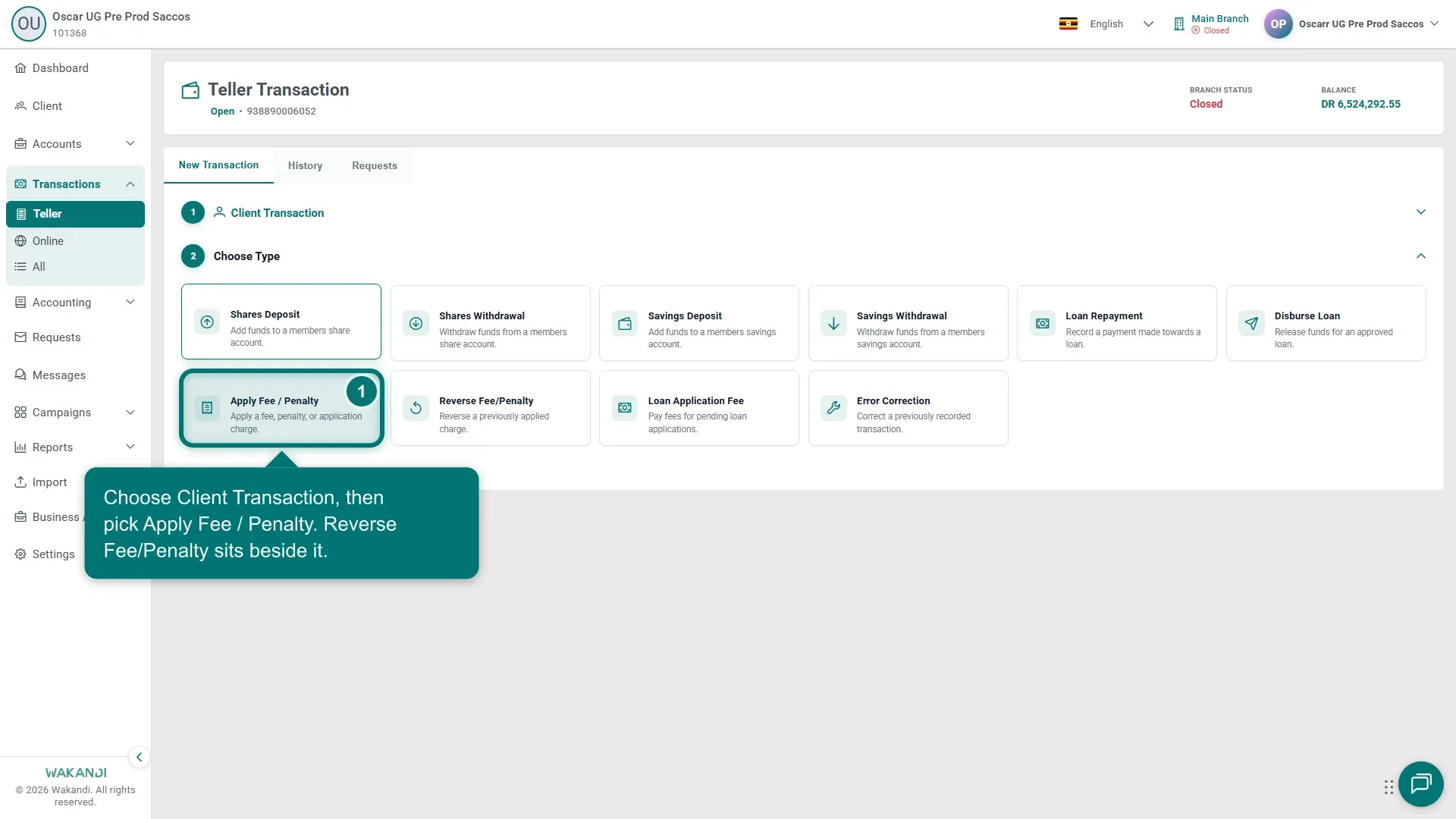
Ekifaananyi 1: Teller Choose Type step with Apply Fee / Penalty and Reverse Fee/Penalty tiles In Search Account, find the member's account and select it. Check the client details that load.
Applying: choose the charge type, enter the amount and a clear narration, and submit. Reversing: tick the charge in the Select Fee to Reverse list, then submit.
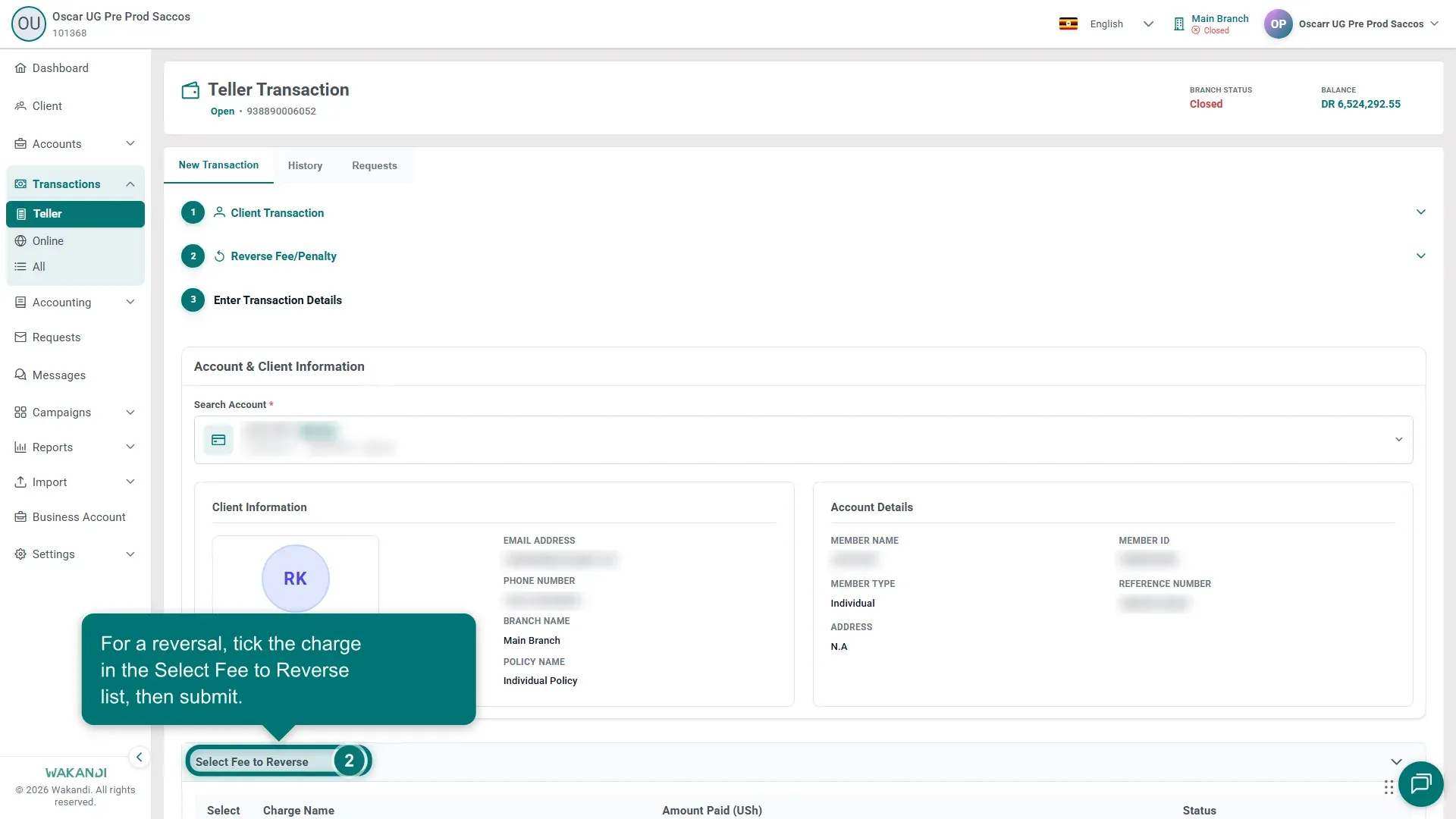
Ekifaananyi 2: Select Fee to Reverse list on the Reverse Fee/Penalty step Confirm the posting on the History tab.
Common pitfalls & FAQ
- "No applicable fees or penalties found." Only charges that were applied to this member appear in the reverse list. Check you have the right member and account.
- Which fees exist? Fee types and amounts come from your fee setup — see How to add fees and penalties.
- Charges raised on the member's profile (like a registration fee) are collected differently — see Add a charge to a member and follow up what they owe.
- A reversal may need a second pair of eyes. With maker-checker on, it waits on the Requests tab until approved.