How to add fees and penalties
CAMS Administration
Lesson 3 of 8
Summary
Set up the fees and penalties your products charge, each posting to the right general ledger code.
About 3 minutes · 6 steps. Also called: charges, loan fees, late payment penalty, fines, product charges.
Keep reading — it's free
Sign in with your email to read the rest of this article, track what you have finished, and earn your certificate.
Sign inPrerequisites
- A CAMS sign-in whose role can open Settings.
- The general ledger (GL) code each charge should post to.
- The amount or percentage to charge.
Step-by-step
- Sign in to CAMS Admin.
- In the left menu, click Settings, then Products. The Product Setup page opens.
- Click the Fee & Penalties tab. You see every fee and penalty rule your products and transactions can use.
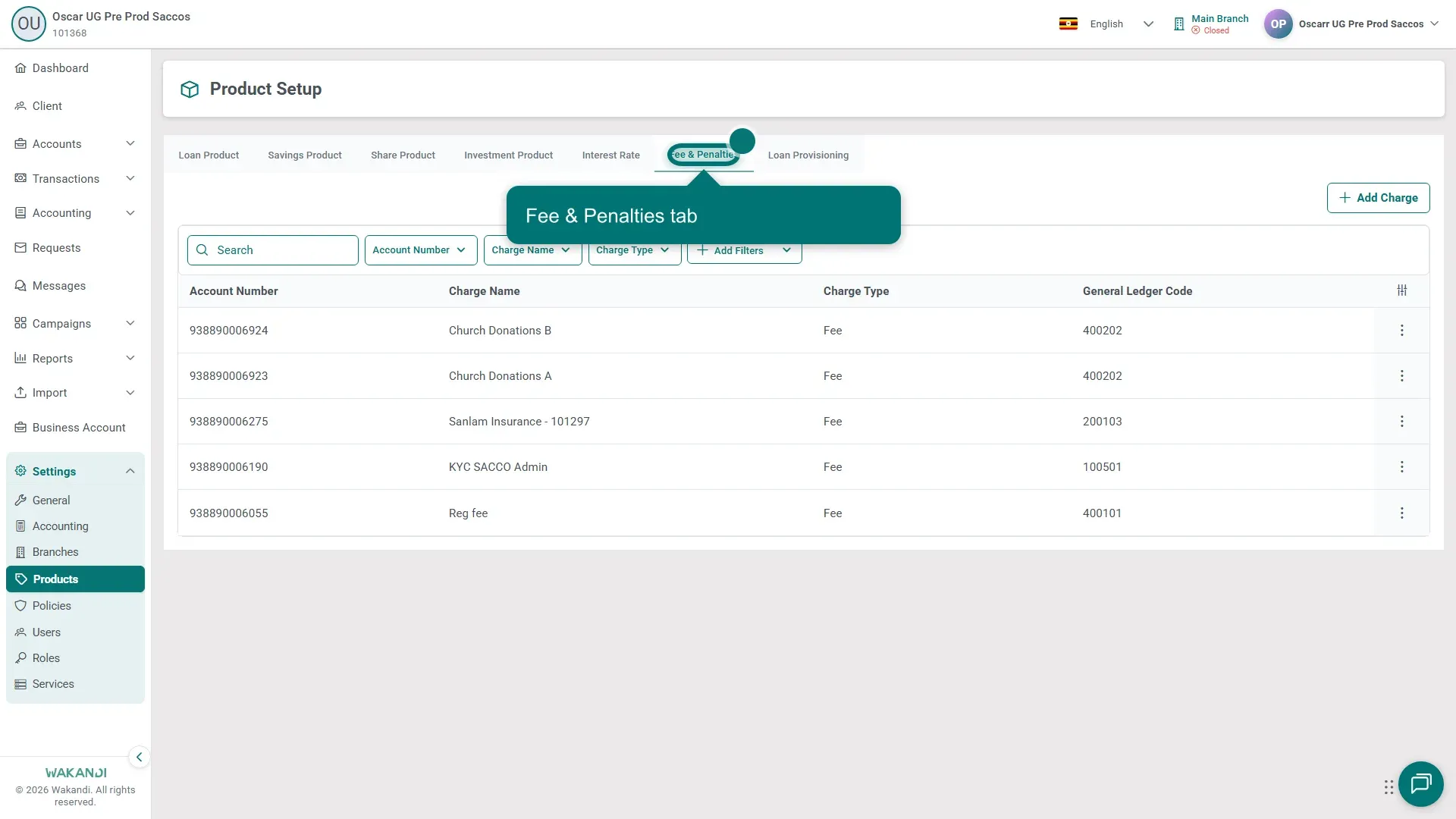
- Search the list first. If the charge already exists, open its row menu and pick edit rather than adding a duplicate.
- Click Add new. Name the charge, say when it applies, and pick its GL code. Set an amount for a flat charge, or a percentage when it should grow with the loan or balance.
- Save. The new row appears in the list, ready for products to point at.
Warning: Editing a fee that live products already use changes how those products behave. Check the linked products afterwards.
Common pitfalls & FAQ
- Do I set fees on each product, or here? Define the charge once here; your products then point at it, which keeps them consistent.
- What is the difference between a fee and a penalty? A fee is a normal charge, such as a loan application fee. A penalty is a charge for a problem, usually a late repayment.
- My fee never reached accounting. Check the charge has a GL code. Without one, the posting has nowhere to land in the chart of accounts.
- I need to charge one member, not everyone. That is a teller job: Transactions → Teller → New Transaction → Client Transaction → Apply Fee / Penalty. To undo one, use Reverse Fee/Penalty.