How to add a branch
Summary
Create a new branch in CAMS and confirm it appears in the branch list.
About 4 minutes - 10 steps.
Also called: branches, new office, branch code, Settings Branches.
Sign in with your email to read the rest of this article, track what you have finished, and earn your certificate.
Sign inPrerequisites
- A Wakandi Admin Portal sign-in with settings permission. Settings items appear only when your role has the matching permission.
- The branch name and branch code your organisation has agreed.
- The branch address and contact details.
Step-by-step
Open the Wakandi Admin Portal and sign in.
In the left sidebar, expand Settings.
Click Branches. Wait until the branch list finishes loading.
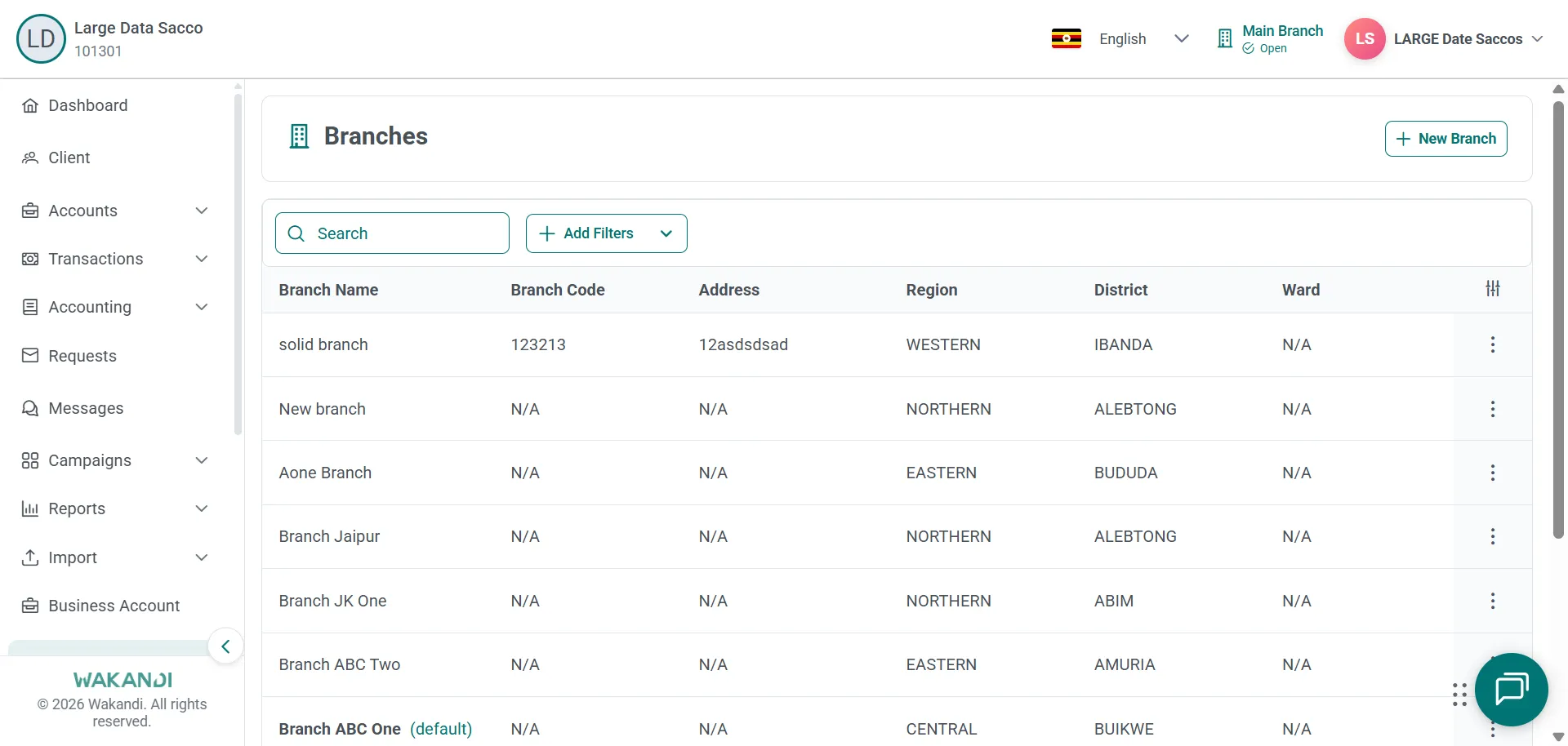
Figure 1: Branches list showing branch name, code, address, region and district columns with search box Search the list to check the branch is not there already.
Click the add action to open Add Branch. Wait until the form finishes loading.
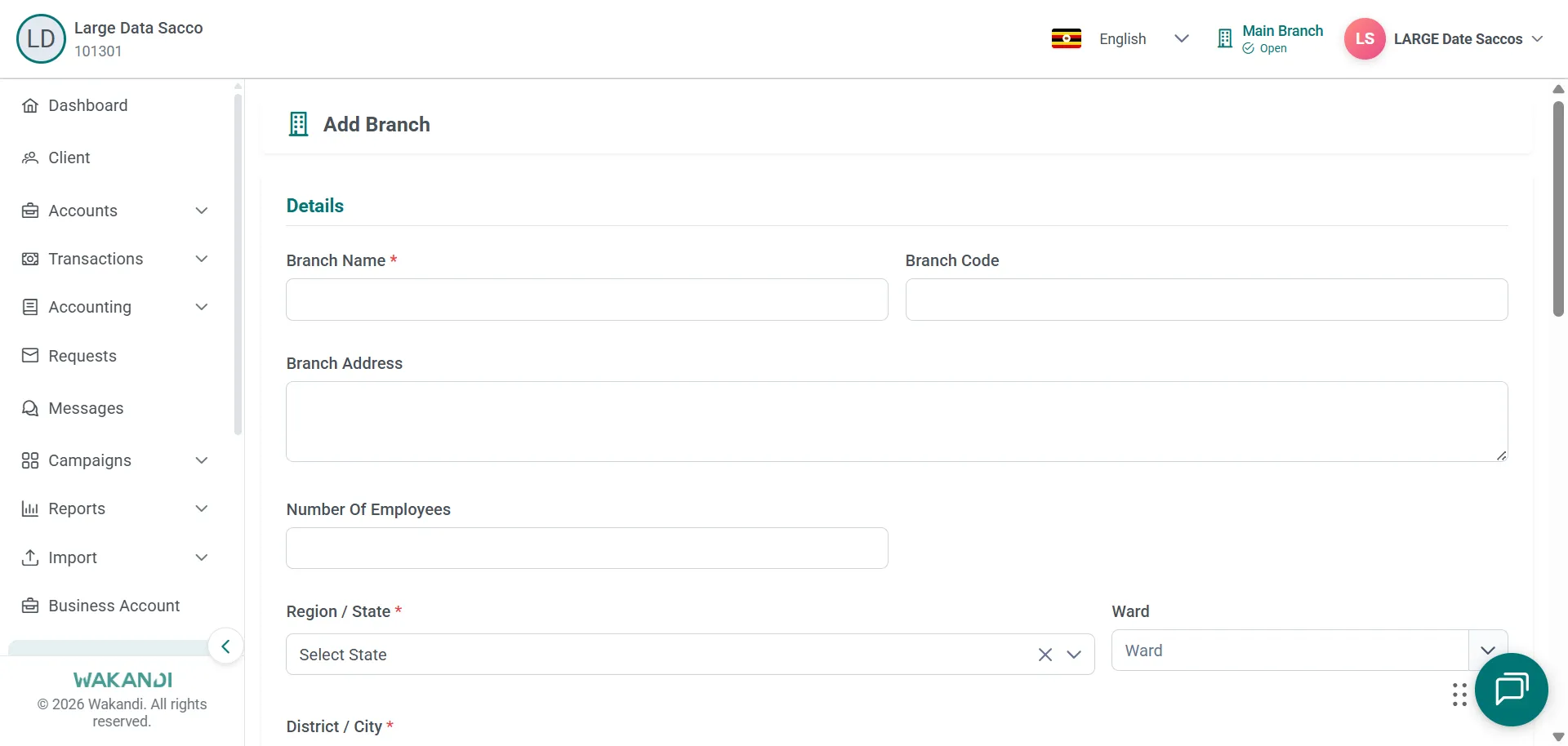
Figure 2: Blank Add Branch form with Branch Name, Branch Code, address and region fields Enter the branch name and the other identity fields the form asks for.
Complete the address and contact details.
Set the status options to match your process.
Click Save.
Return to Branches and confirm the new row is listed.
Common pitfalls & FAQ
- I cannot see Branches in the sidebar. Settings items appear only when your role has the matching permission. Ask an administrator to review your role.
- Can I reuse a branch code? No. Do not create duplicate branch codes. Pick a code that no other branch uses.
- Two branches have almost the same name. Give each branch a unique name that staff recognise at a glance. Branch changes can affect reporting filters and teller branch selection.
- How do I correct or rename a branch? Open Settings then Branches. Open the branch from the list, or use Edit in the row menu. Update only the fields that need correcting, save, then confirm the list shows the new values.
- Will a rename confuse my team? Renaming a branch can affect how staff search historical reports. Tell your team the old and new names before you save.
- I opened Add Branch by mistake. Use cancel to leave the form without saving.