Transactions and Fees in CAMS
Summary
In CAMS Transactions you post till transactions, charge fees and penalties, and look up recorded transactions. About 3 minutes · 9 steps. Also called: teller, till, cash transactions, charges, payments, postings.
Keep reading — it's free
Sign in with your email to read the rest of this article, track what you have finished, and earn your certificate.
Sign inPrerequisites
- CAMS sign-in with Transactions menu access.
- An open till, for member cash.
- The member's name or account number.
Step-by-step
- Sign in to CAMS.
- In the left menu, click Transactions. It expands to Teller, Online, All.

Figure 1: The Teller Transaction page with Transactions highlighted in the left menu - Click Teller. The Teller Transaction header shows if the till is open, its account number, Branch Status, Balance.
- When the header loads, pick a tab: New Transaction, History, Requests.
Warning: Don't post member cash while the till is closed. If the header doesn't show Open, open it first from New Transaction → Till Administration → Till Opening.
- New Transaction → Choose Category. Four cards: Client Transaction (one member), General Ledger (internal receipts, payments, expenses, journals), Till Administration (till opening, closing, top-up, pick-up, balance), Bulk Transaction (many at once).
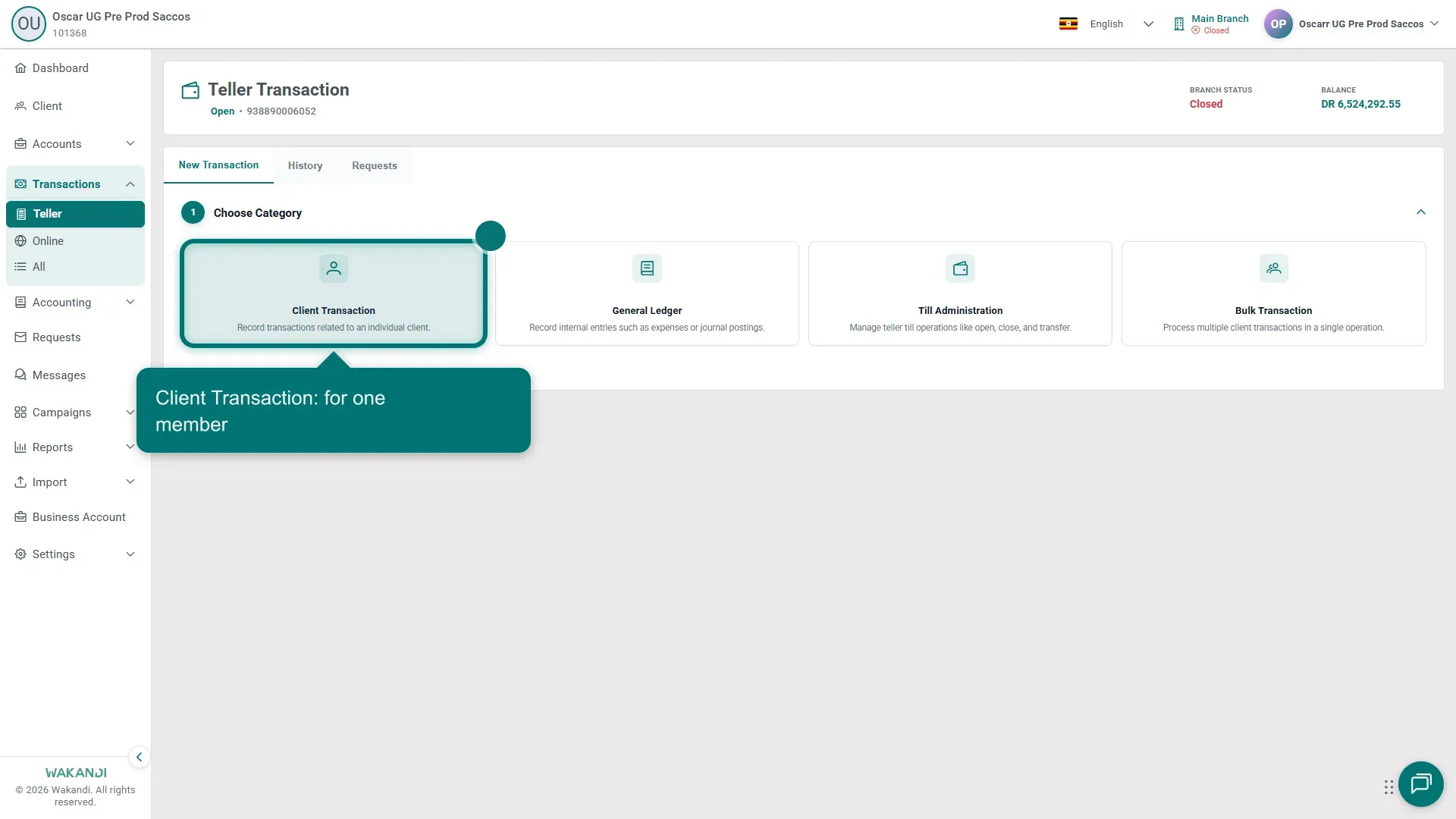
Figure 2: The Choose Category cards with Client Transaction highlighted - Client Transaction → Choose Type. Shares Deposit, Shares Withdrawal, Savings Deposit, Savings Withdrawal, Loan Repayment, Disburse Loan, Apply Fee / Penalty, Reverse Fee/Penalty, Loan Application Fee, Error Correction.
- The three fee types. Apply Fee / Penalty charges a member account. Reverse Fee/Penalty undoes an earlier charge. Loan Application Fee collects a pending application's fee. Each opens Enter Transaction Details → Search Account. Pick it, enter details, check the amount, click Submit.
- History tab. Set Start Date and End Date; check Viewing Teller is your till. Rows show Transaction Type, Client Name, Account Number, debit and credit amounts, Status. Finished postings read Posted.
- Requests tab. Approvals appear as Pending or Approved, with Requester, Current Assignee, Approved by. Click a row for Request Detail, check accounts and amounts, then approve, reject, edit or cancel.
Note: All is the whole institution's register, filtered by Date and Transaction Status, plus Add Filters. Online lists online payments with Payment Provider, Status and Reconciled. Spreadsheet batches sit under Import → Transaction.
Common pitfalls & FAQ
- My posting isn't in History. Check Requests; it stays pending until approved. Statuses: created (captured, not yet in the accounting books), approved, completed, failed (resubmit), undone (reversed).
- Banner on All: transactions weren't posted to accounting. A Resubmit button appears. Ask a supervisor before resubmitting a large batch, then re-check statuses.
- Where do fee names come from? Settings → Products → Fee & Penalties. Search there before adding duplicates.
- What does a member owe? Open Client → member → Charges tab: Charges Type, Due Date, Amount, Outstanding Amount, Status. Loan charges sit on the loan's Charges tab under Accounts → Loans.
- An online payment shows Failed. Copy the TransactionReferenceID and External Id for support or the provider. Investigate before retrying the same member and amount.
- I posted the wrong thing. Use Reverse Fee/Penalty for a charge, Error Correction for other client postings if policy allows. Reversals appear in Reports → Transactions → Reversed Transaction Report.
- Monthly fee totals? Run Reports → Transactions → Fees Income Report, set dates, Submit, Download as Excel, CSV or PDF.