Set a tax rate on a loan or member charge
Summary
Set up a tax rate, put it on a loan or member charge, choose whether the tax sits inside the amount or on top of it, and read the split back on the member's charge.
About 6 minutes · 9 steps.
Also called: VAT on fees, excise duty on charges, tax inclusive, tax exclusive, tax on loan fees.
Sign in with your email to read the rest of this article, track what you have finished, and earn your certificate.
Sign inPrerequisites
- A CAMS Admin sign-in that can open Settings → Accounting and edit a product's fees.
- The tax your institution must charge, its rate, and the ledger it should post to. Your accountant has these.
- Whether the law treats that tax as already inside your published fee or as an amount added on top. This decides one setting below, and it is the setting people get wrong.
Step-by-step
Set up the tax rate
Sign in to CAMS Admin.
Open Settings, then Accounting, then the Tax Rates tab.
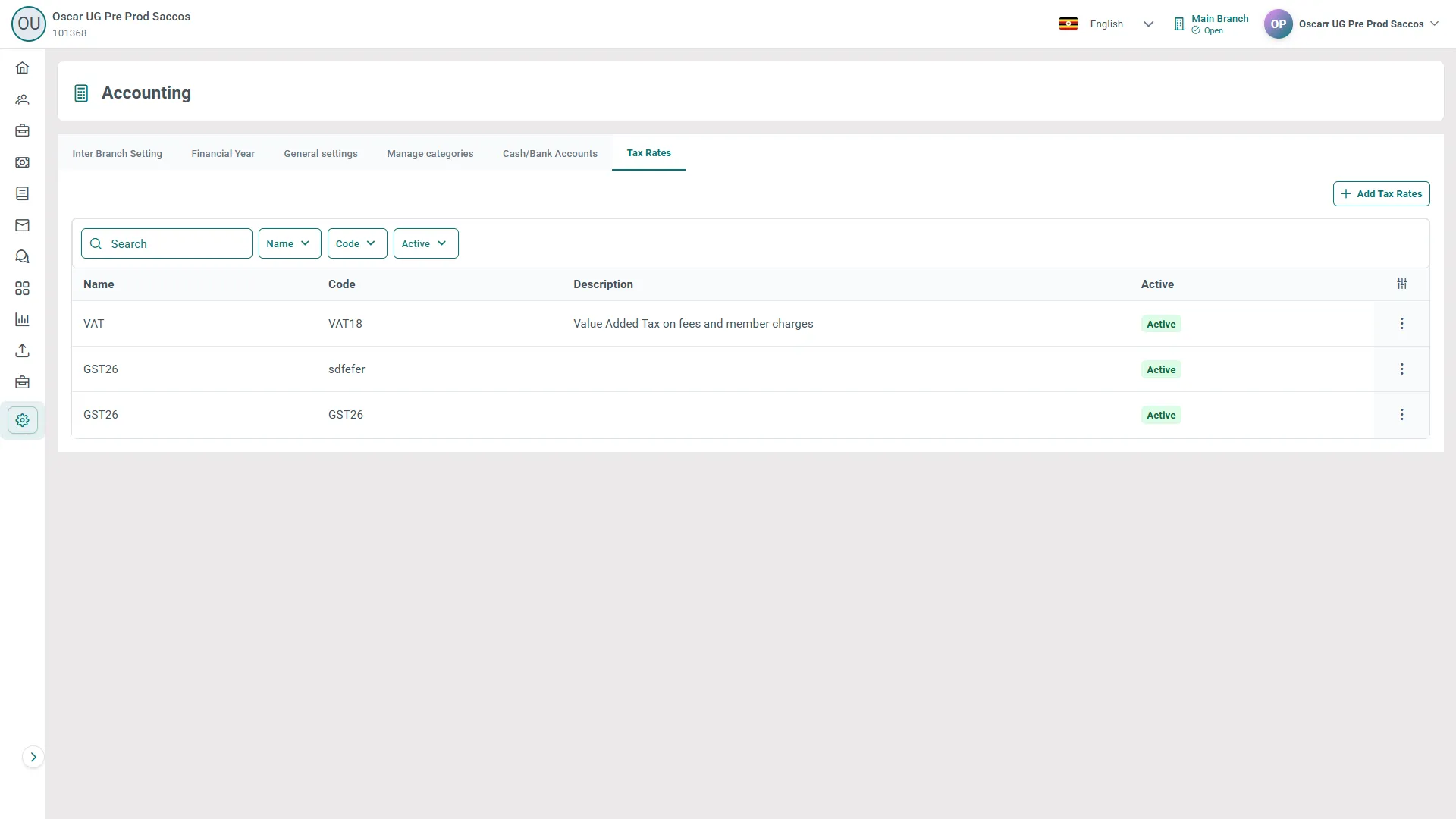
Figure 1: Tax Rates tab under Settings, Accounting, listing each rate by Name, Code, Description and Active status, with the Add Tax Rates button above the table Click Add Tax Rates. Give the rate a Name and a Code, and a Description if it helps the next person. Leave Active ticked.
Under Tax Components, click Add Tax Component and fill in the component's Name, Code, Rate (%) and the Ledger Code the tax posts to. Most institutions need one component. Add a second only where two taxes genuinely apply to the same charge.
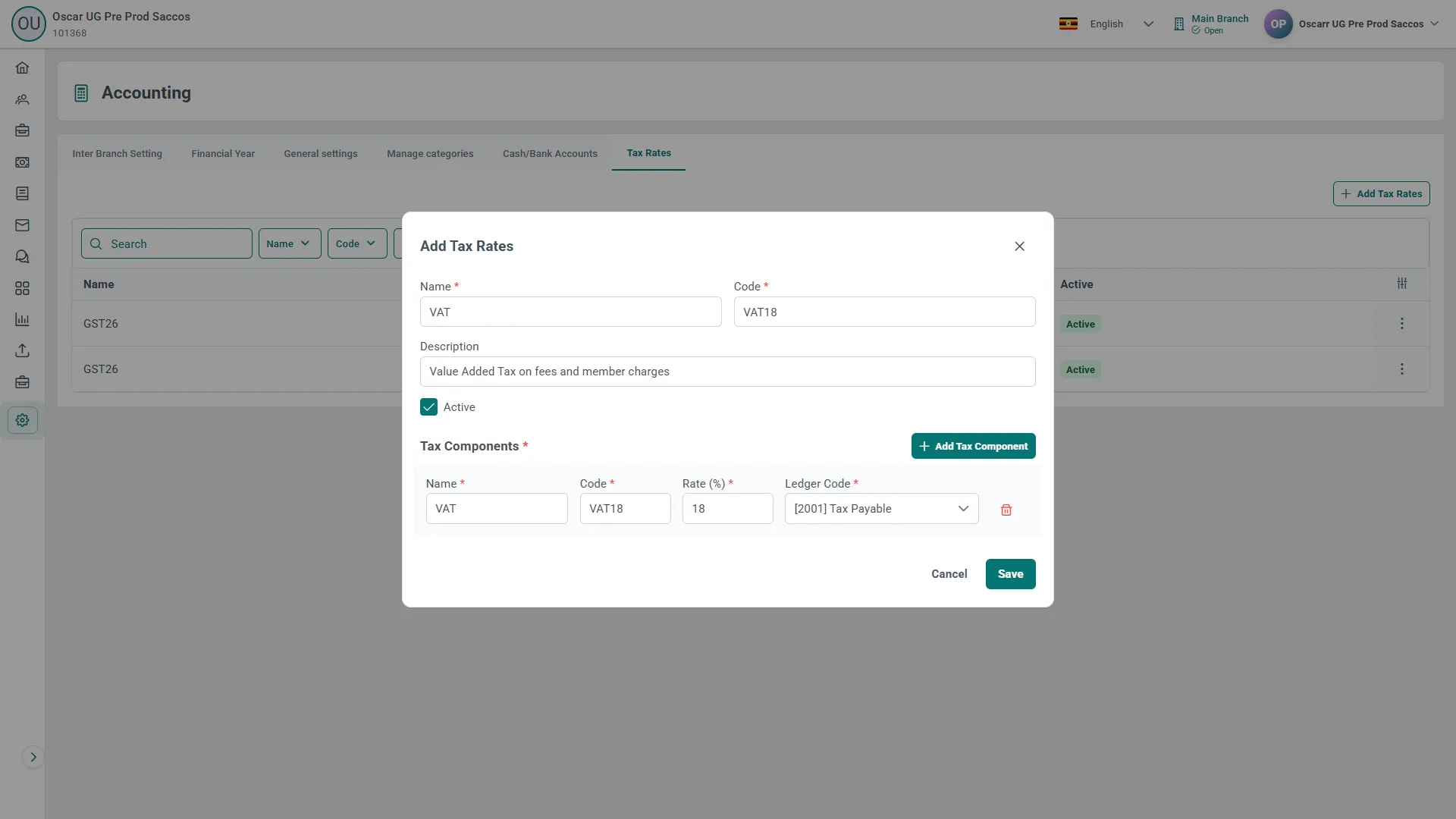
Figure 2: Add Tax Rates dialog filled in with name VAT, code VAT18, and one tax component at 18 percent posting to ledger 2001 Tax Payable Click Save, and check the rate shows as Active in the list. An inactive rate applies no tax at all, and CAMS will not warn you when a charge is raised without it.
Put the rate on a charge
Open Settings, then Products, and open the Fee & Penalties tab. Open the fee or penalty you want to tax, or click Add Charge to create one.
In Tax Rates, pick the rate you created.
A Tax Calculation setting appears once a rate is chosen. Set it to Inclusive or Exclusive:
- Inclusive means the amount you entered already includes the tax. Enter 118 against an 18% rate and the fee is 100, the tax is 18, and the member pays 118.
- Exclusive means the tax is added on top. Enter 100 against an 18% rate and the fee is 100, the tax is 18, and the member pays 118.
- Inclusive is what CAMS selects for you when you first pick a rate. Change it if your fee is published before tax. The information icon beside the label repeats both examples while you decide.
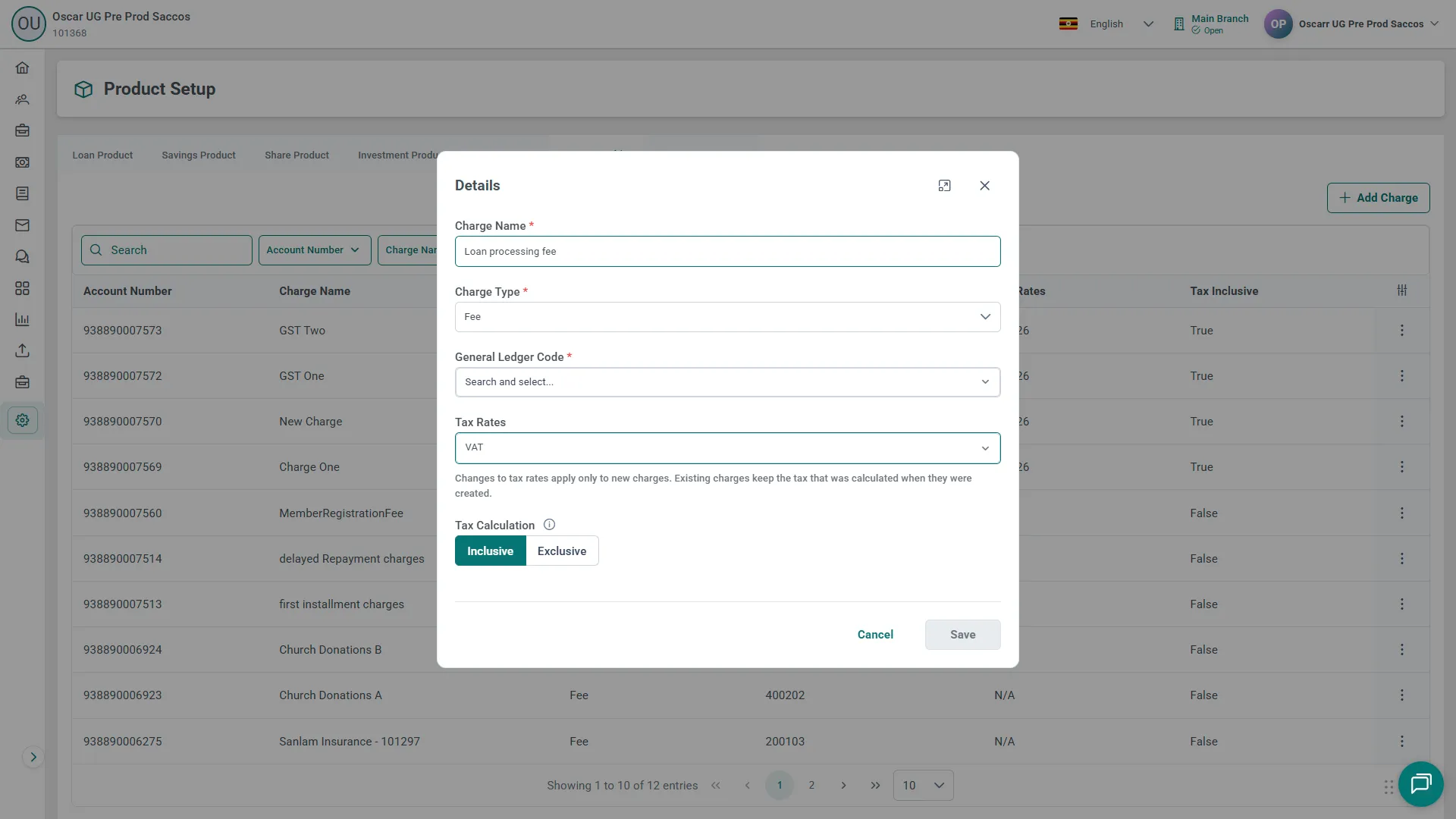
Figure 3: Charge form showing Tax Rates set to VAT, and the Tax Calculation setting below it with Inclusive selected and Exclusive beside it Click Save. To see the result, open a member, go to the Charges tab and open a charge. The details show the fee and the tax on separate lines.
Common pitfalls & FAQ
- No tax appears on a new charge. Check the tax rate is active. An inactive rate applies no tax, silently.
- The Tax Calculation setting is not on the form. It appears only after you pick a tax rate. Choose the rate first.
- Inclusive and Exclusive both ended at 118 in the example above. The difference is what you type in. Inclusive treats your figure as the full amount the member pays and works the fee out underneath it. Exclusive treats your figure as the fee and adds tax to it. Get this the wrong way round on a live product and every charge is out by the tax.
- CAMS refuses to save the rate. Inclusive tax components cannot add up to 100% or more, because no fee would be left underneath the tax. Check your rates.
- Charges raised before you set the rate have no tax line. CAMS says so on the form itself: changes to tax rates apply only to new charges, and existing charges keep the tax that was calculated when they were created. You should not edit old charges to look otherwise.
- The ledger shows fee and tax separately. That is deliberate. Fee income and tax collected post to separate entries, so you can report what you owe the revenue authority without unpicking your fee income.
- Different charges can carry different tax. Each fee or penalty carries its own tax rate. A product with several charges can tax them differently, or leave some untaxed.