Print a statement for a member who asks
Summary
Produce a dated statement for a member standing at your counter, and print or download it there and then. About 3–4 minutes · 7 steps. Also called: member statement, account statement, bank letter, proof of savings.
Sign in with your email to read the rest of this article, track what you have finished, and earn your certificate.
Sign inPrerequisites
- A CAMS sign-in that can open Client and view member profiles.
- The member's name or Member Id.
- The period they need, as a start date and an end date. Ask, because a bank or an employer usually names one.
Step-by-step
Sign in to CAMS.
In the left menu, click Client. Wait until the list shows real rows.
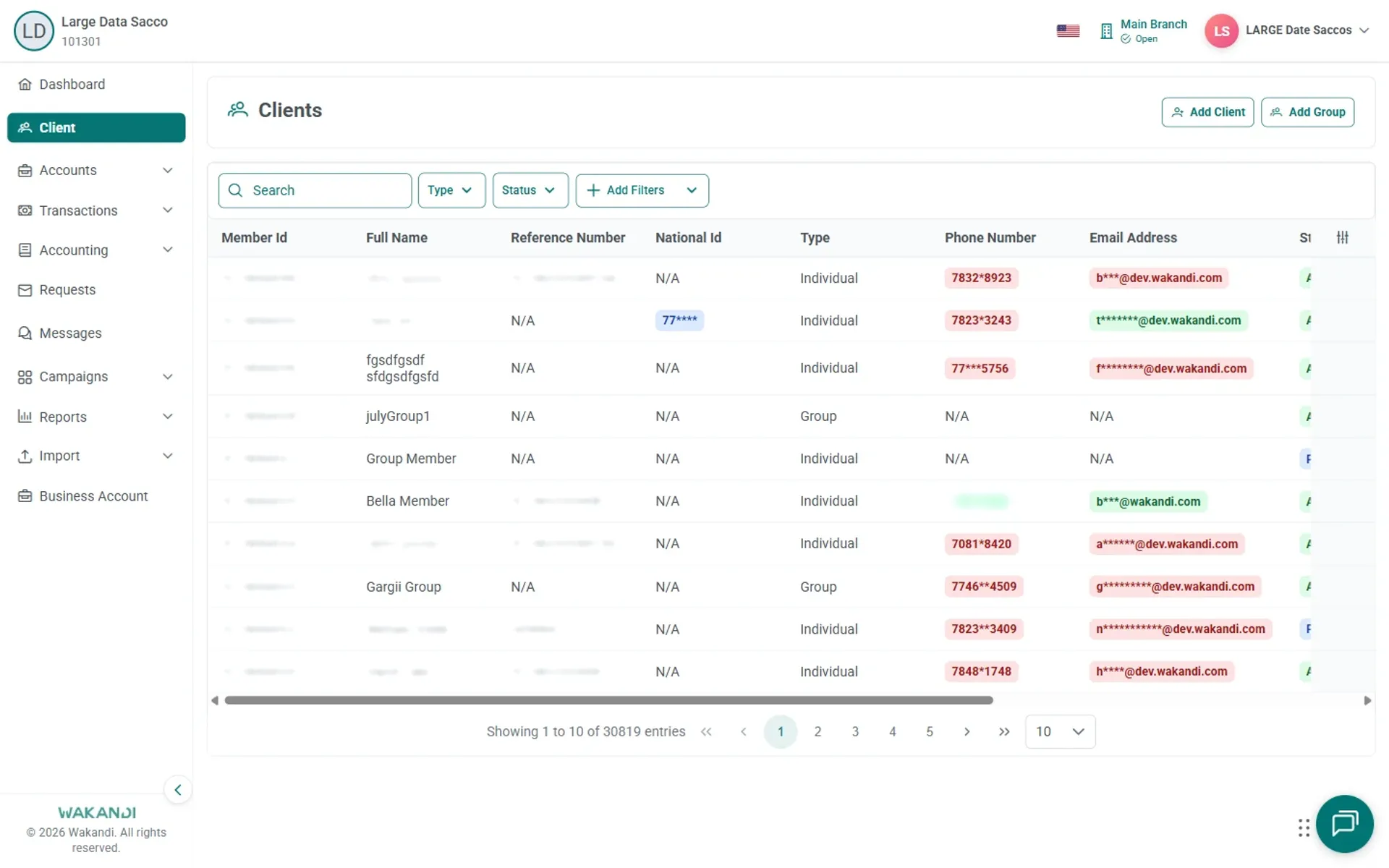
Figure 1: Clients list loaded with search box, Type and Status filters, and member rows showing Member Id Click in Search, type the Member Id and press Enter. The Id matches more reliably than a name.
Click the member's row to open their profile.
Read the profile header and confirm the name and Member Id are the right ones. Two members can share a name, so check before you print, and again before you hand the paper over.
Click the Statement tab. Set Start Date to the first day of the period and End Date to the last day, then click Submit.
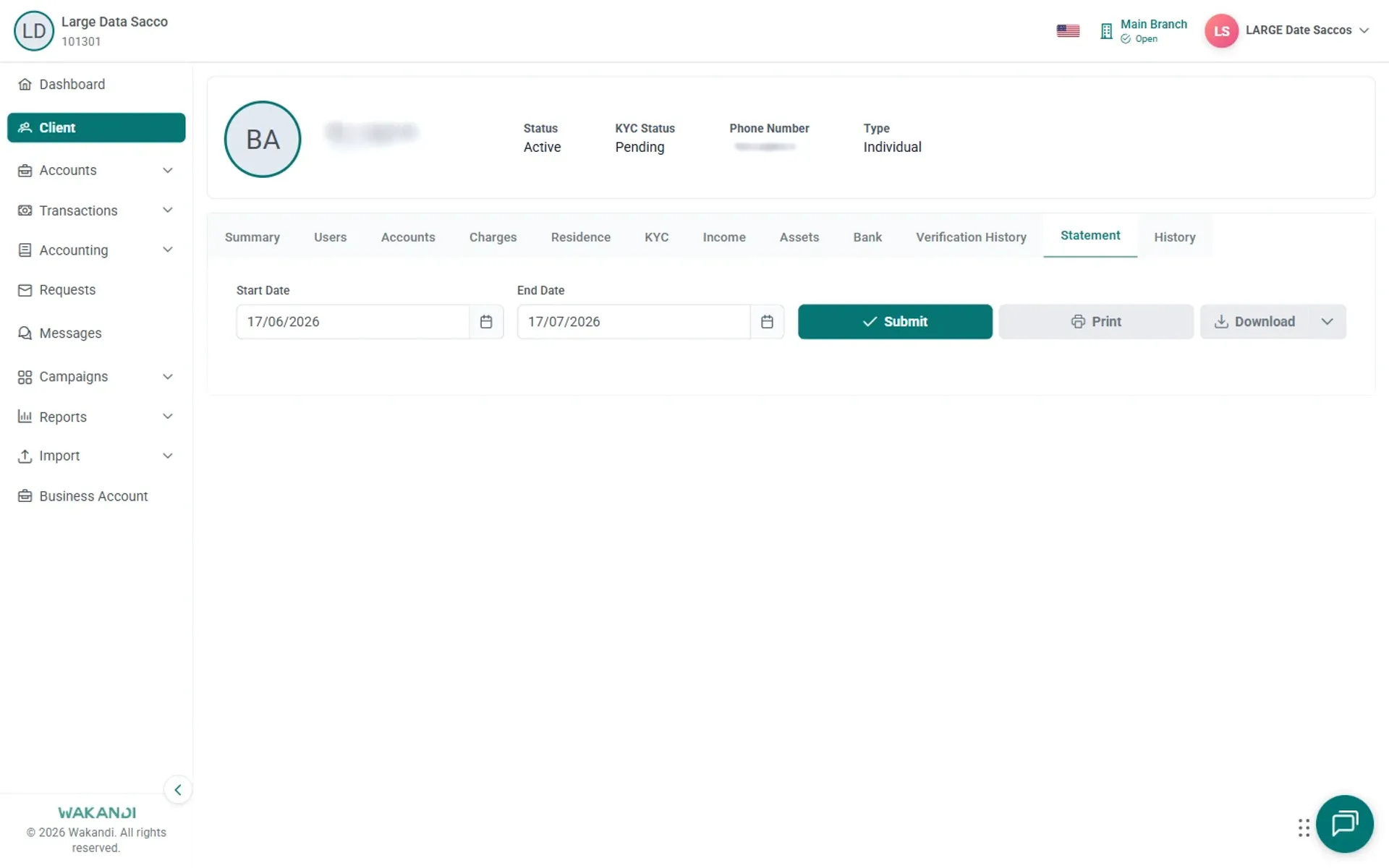
Figure 2: Member profile Statement tab with Start Date and End Date set beside Submit, Print and Download Click Print for a paper copy, or Download and pick a format if a menu appears.
Common pitfalls & FAQ
- The member wants one account only. Open Reports > Statement and use the Account Statement Report card: one account, one period.
- They want every account on one report. The Member Statement Report card in the same place covers all the member's accounts for a period.
- The statement comes back empty. Check that End Date is on or after Start Date, then click Submit again.
- Nothing happens for a while. A long date range takes time to build. Let the screen settle before clicking Print again.