Where to add savings and share accounts for a member
Summary
Open a savings account and a share account for a member from their profile. About 3 minutes · 6 steps. Also called: open member account, add saving, add share, link account to member.
Sign in with your email to read the rest of this article, track what you have finished, and earn your certificate.
Sign inPrerequisites
- Your CAMS sign-in, with access to Client.
- The member already registered, with Status Active unless your policy allows otherwise.
- A savings product and a share product under Settings → Products. The product carries the interest rate and the general ledger links.
Step-by-step
Sign in to CAMS.
In the left menu, click Client, find the member and click their row (How to find a member shows the search).
Click the Accounts tab on the profile.

Figure 1: The member profile tab bar, with the Accounts tab Wait until the Savings and Shares groups load. Above them sit New loan application, Add saving and Add share.
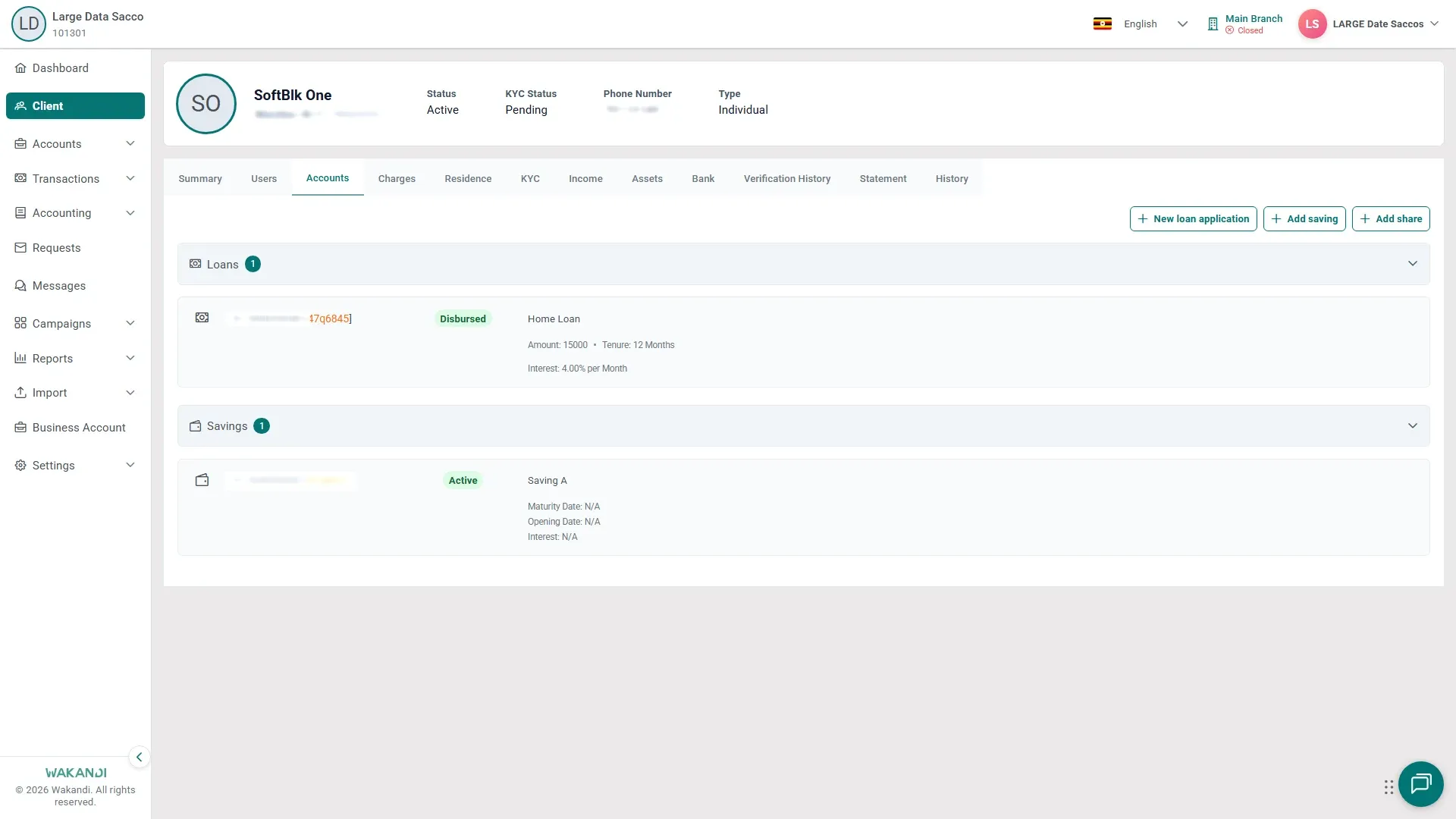
Figure 2: The Accounts tab on a member profile, with the Add saving and Add share buttons above the Savings and Shares groups Click Add saving, pick the savings product, fill in the fields and submit. A member can hold several savings accounts when the product allows it.
Back on the Accounts tab, click Add share, pick the share product, complete the steps on screen and submit. Both accounts now appear under Savings and Shares with account number, product name and status.
Note: You can also start from the register: Accounts → Savings → New saving, or Shares → New share, and pick the member inside the form.
Common pitfalls & FAQ
- The product list is empty. Create the product first under Settings → Products, on the Savings Product or Share Product tab, then return to the member.
- What's the difference? A savings account holds member deposits and earns interest. A share account holds member ownership — its summary shows Amount Per Share and Total Shares.
- The new account is not in the list. The Savings and Shares groups may still be loading. Reopen the Accounts tab, or search for it under Accounts → Savings or Shares, before you add it again.
- Wrong interest rate, or N/A dates. The rate comes from the product, not the member. Maturity Date, Opening Date or Interest can read N/A when the product is new or the field does not apply. Check or edit the product under Settings → Products, or pick a different product.
- I added the account but cannot deposit. Open Accounts → Savings, click the account, and use Online Deposit on the Details tab. A FixedDeposits account doesn't behave like a regular Saving account.