How to create a membership policy
Summary
Create a membership policy in Settings, so staff can assign it when they onboard a new member. About 4 minutes · 7 steps. Also called: joining fee policy, member policy, membership rules.
Sign in with your email to read the rest of this article, track what you have finished, and earn your certificate.
Sign inPrerequisites
- A CAMS sign-in that can open Settings → Policies. If the menu item is missing, an administrator grants access under Settings → Roles.
- The policy name, joining fee and eligibility rules approved by your SACCO.
Step-by-step
Sign in to CAMS Admin.
In the left menu, expand Settings and click Policies. The page opens on the first policy tab.
Click the Membership Policy tab.
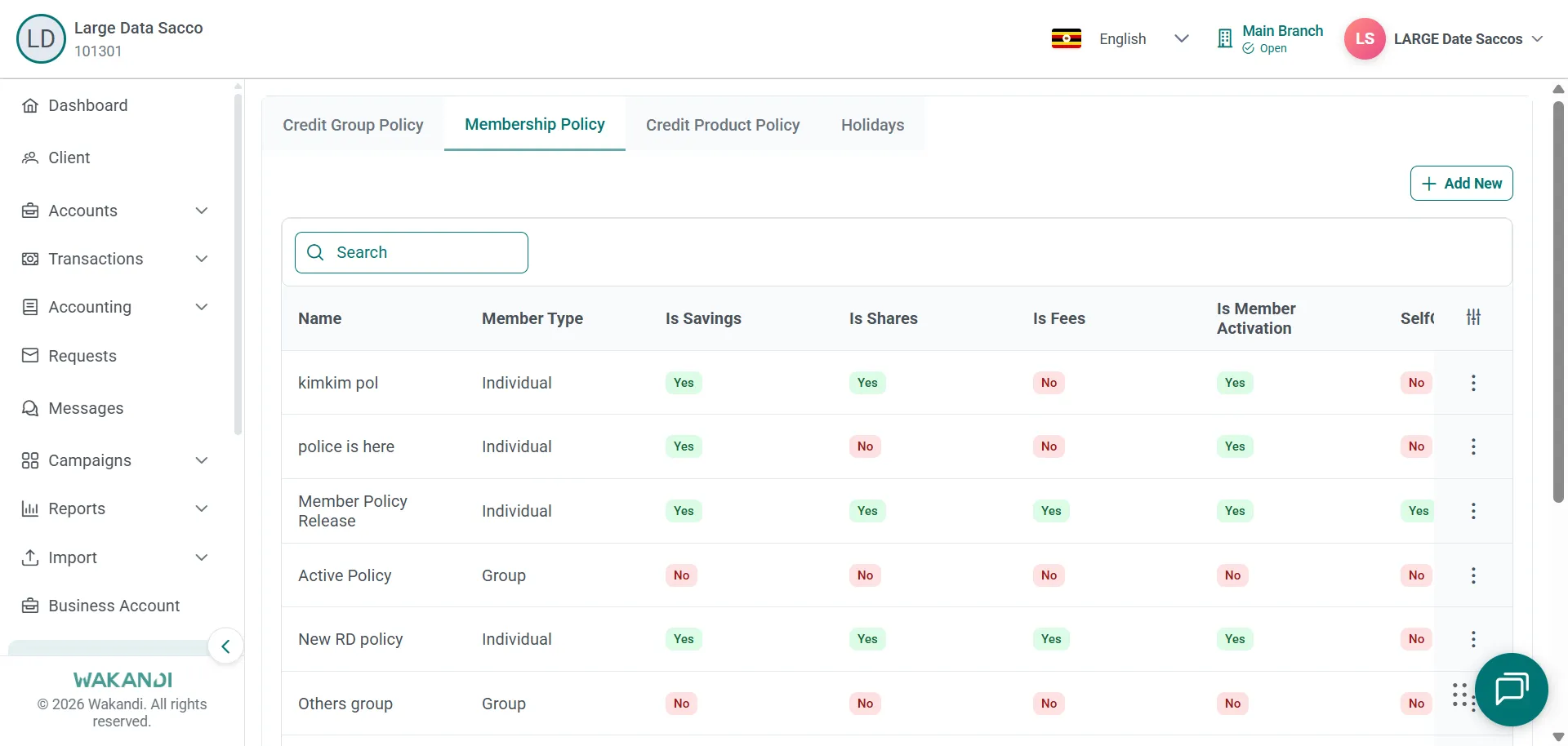
Figure 1: Policies page on the Membership Policy tab listing policies with member type, savings, shares and fees Search the list for a policy that already covers what you need. A near-duplicate confuses staff at onboarding.
Open the closest match and read its details page: fees, eligibility and the related rules.
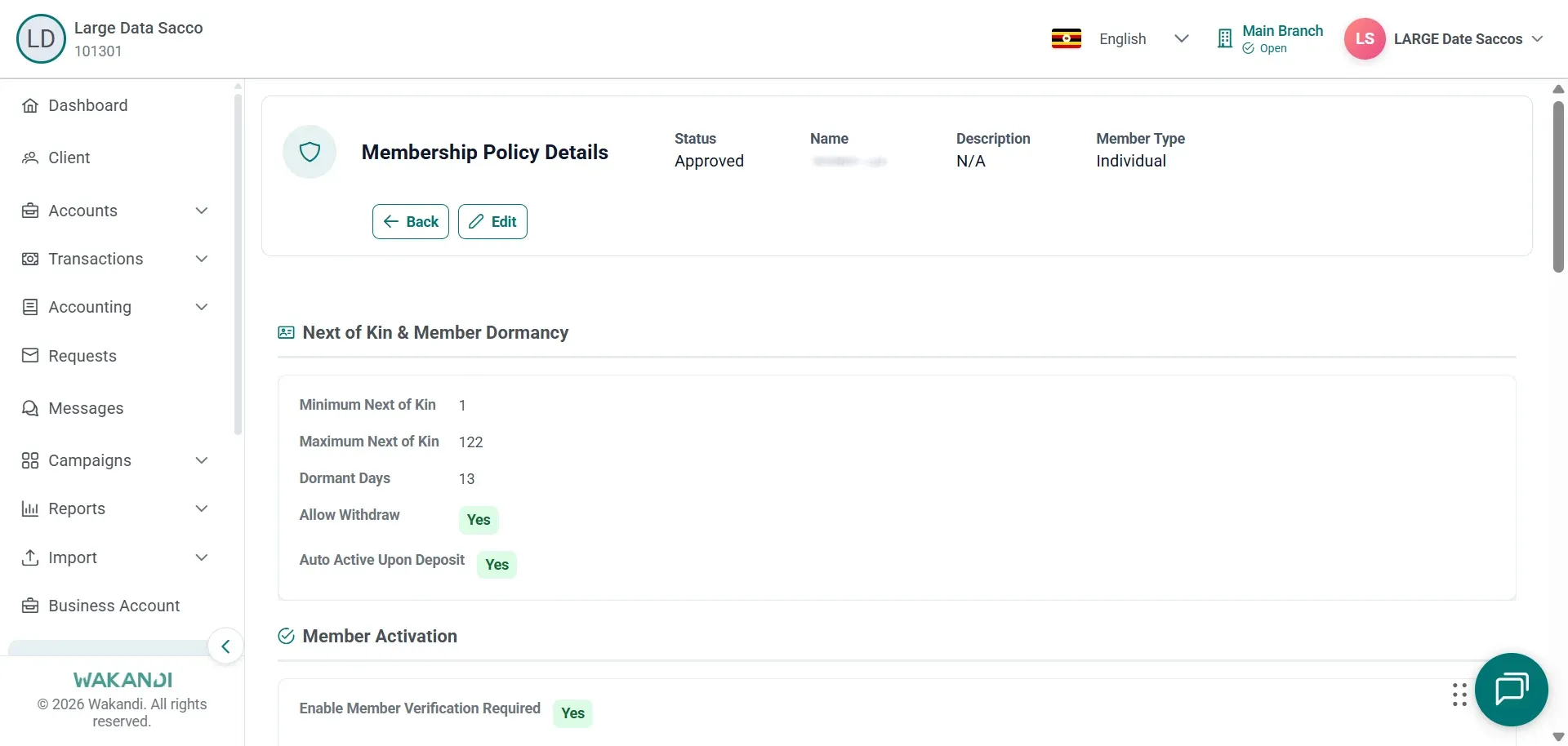
Figure 2: Membership Policy Details for an approved policy showing next of kin, dormancy and activation rules If nothing fits, click create. Enter the policy name, then complete every mandatory fee and eligibility section the form shows.
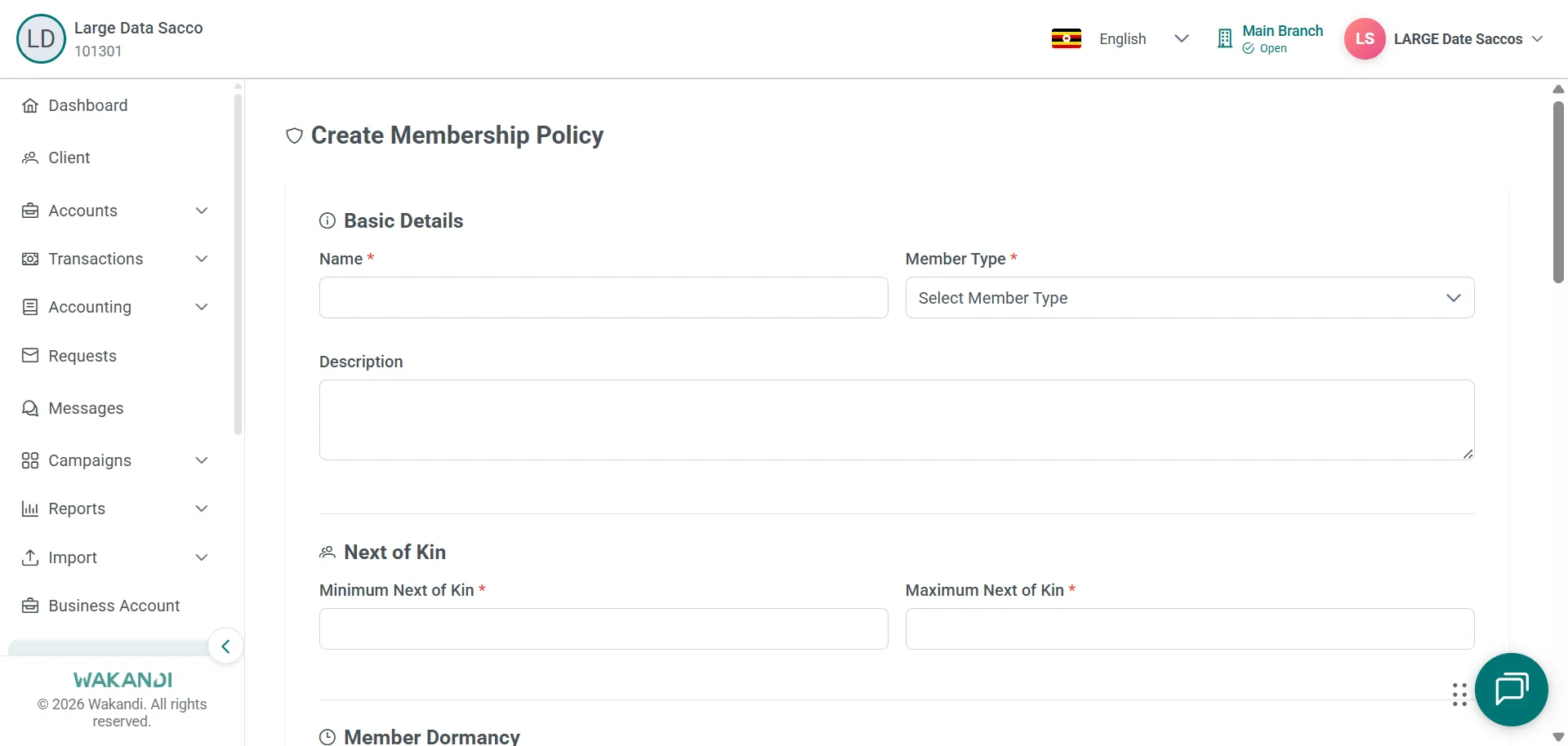
Figure 3: Create Membership Policy form showing Basic Details name and member type fields and Next of Kin Click Save, then confirm the new policy appears in the Membership Policy list.
Common pitfalls & FAQ
- The policy is not there when I onboard a member. Return to Settings → Policies → Membership Policy and confirm it saved. A member's Summary tab shows the chosen Policy under Membership Details.
- Can I edit a policy that is already in use? Only when the business rules change. Changes can reach new applications immediately, so tell the branches before you save.
- The joining fee is wrong. Open the policy's details page, correct the rules and save. Then agree with your accountant how to treat members already registered under it.
- Which tab am I on? The Policies page has four tabs: Credit Group Policy, Membership Policy, Credit Product Policy and Holidays. Membership policies live on the second.