How to add a new member (detailed)
Summary
Create a member record with the full set of personal details in one pass, then confirm it saved. About 4 minutes · 7 steps. Also called: register a member, create a client, member enrollment, add SACCO member.
Sign in with your email to read the rest of this article, track what you have finished, and earn your certificate.
Sign inPrerequisites
- A CAMS sign-in with rights to add clients.
- The correct Policy and Branch Name for the member.
- The member's personal details to hand.
Step-by-step
Sign in to CAMS Admin. If you are not sure how, see How to sign in and navigate CAMS Admin.
In the left menu, click Client. The Clients list opens; wait until rows appear.
At the top right, click Add Client. The Create New Client form opens. For a shorter first pass, see How to add a new member.
Fill in every field marked with an asterisk (*): Policy, Date Of Joining, Branch Name, First Name, Last Name, and the Country code with the phone number.
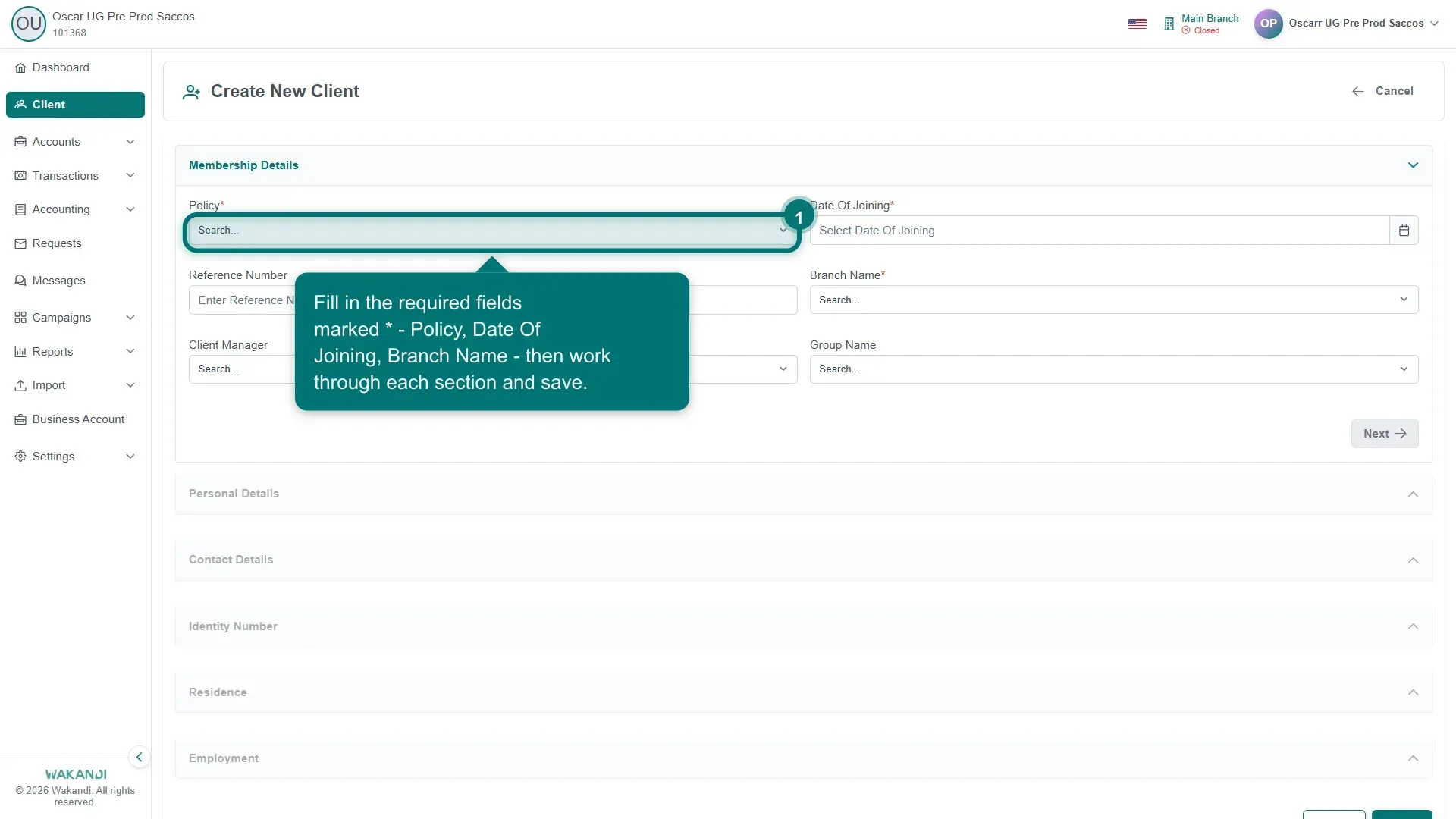
Figure 1: The Create New Client form, with an asterisk beside each required field Add the optional details while the member is with you. The form takes Reference Number, Client Manager, Group Name, Middle Name, Date Of Birth, Age, Gender, Marital Status, Nationality, Father's Name, Spouse's Name and Number Of Dependents.
Check your entries, then save the form. You return to the Clients list with the new member in it.
Note: A missing row is usually hidden by a Type, Status or Add Filters filter. Clear them, or search by Member Id — see How to find a member.
- Open the new member's row. The profile opens on the Summary tab; every section there has a pencil icon, so anything you skipped can be added later.
Everything about a member hangs off this profile: the header shows who they are, and the tabs under it hold accounts, documents and history. The rest of this course follows those tabs. First savings and share accounts and the transaction PIN, then documents, address, income and bank details. After that: policies, bulk import, ID verification, KYC approval and phone changes.
Common pitfalls & FAQ
- Which fields are required? Only those marked with an asterisk. The rest can wait for the pencil icons.
- The form will not save. A required field is blank or wrong. Go back over every asterisk field, including the Country code.
- Add Client or Add Group? Add Client registers one person. Add Group creates a group record.
- Can I add savings or a loan here? No. Save the member first, then use their Accounts tab — see Where to add savings and share accounts for a member.