How to add a new member
Summary
Add a new individual member (client) to your SACCO, from the Clients screen to a saved record. About 4 minutes · 8 steps. Also called: add a member, register a new client, create client.
Sign in with your email to read the rest of this article, track what you have finished, and earn your certificate.
Sign inPrerequisites
- Your CAMS sign-in, with permission to create clients.
- A membership policy under Settings → Policies → Membership Policy.
- The member's details to hand: full name, phone number, email address and joining date. A reference number and an ID document help but aren't required.
Step-by-step
Sign in to CAMS.
In the left menu, click Client. The Clients screen lists your existing members.
At the top right, click Add Client. The Create New Client form opens. (Add Group starts a group record instead.)
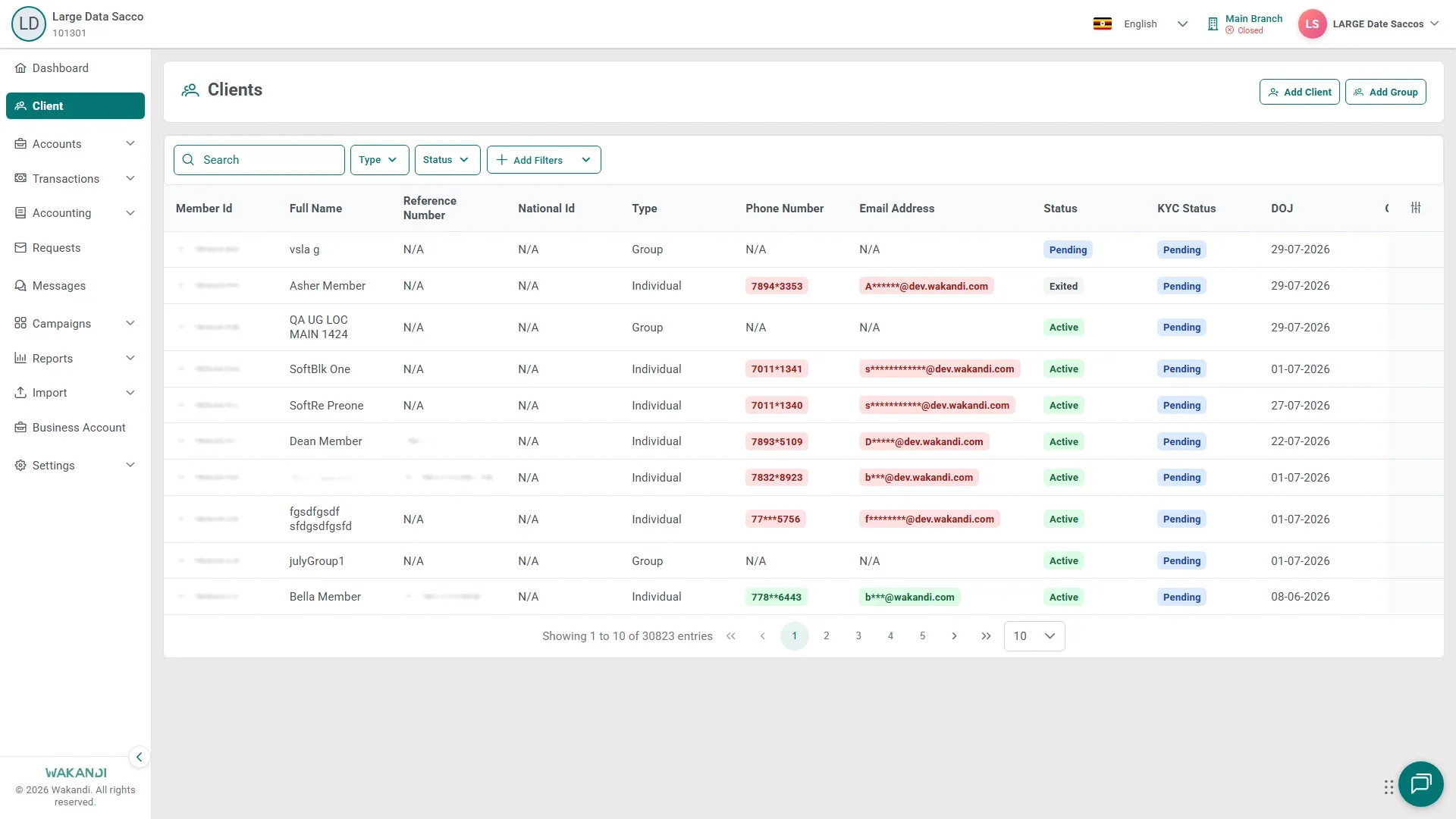
Figure 1: The Clients screen with the Add Client button highlighted, top right Fill in Membership Details. The fields marked with a red asterisk (*) are required: Policy, Date Of Joining and Branch Name. Reference Number is your own optional reference. Click Next.
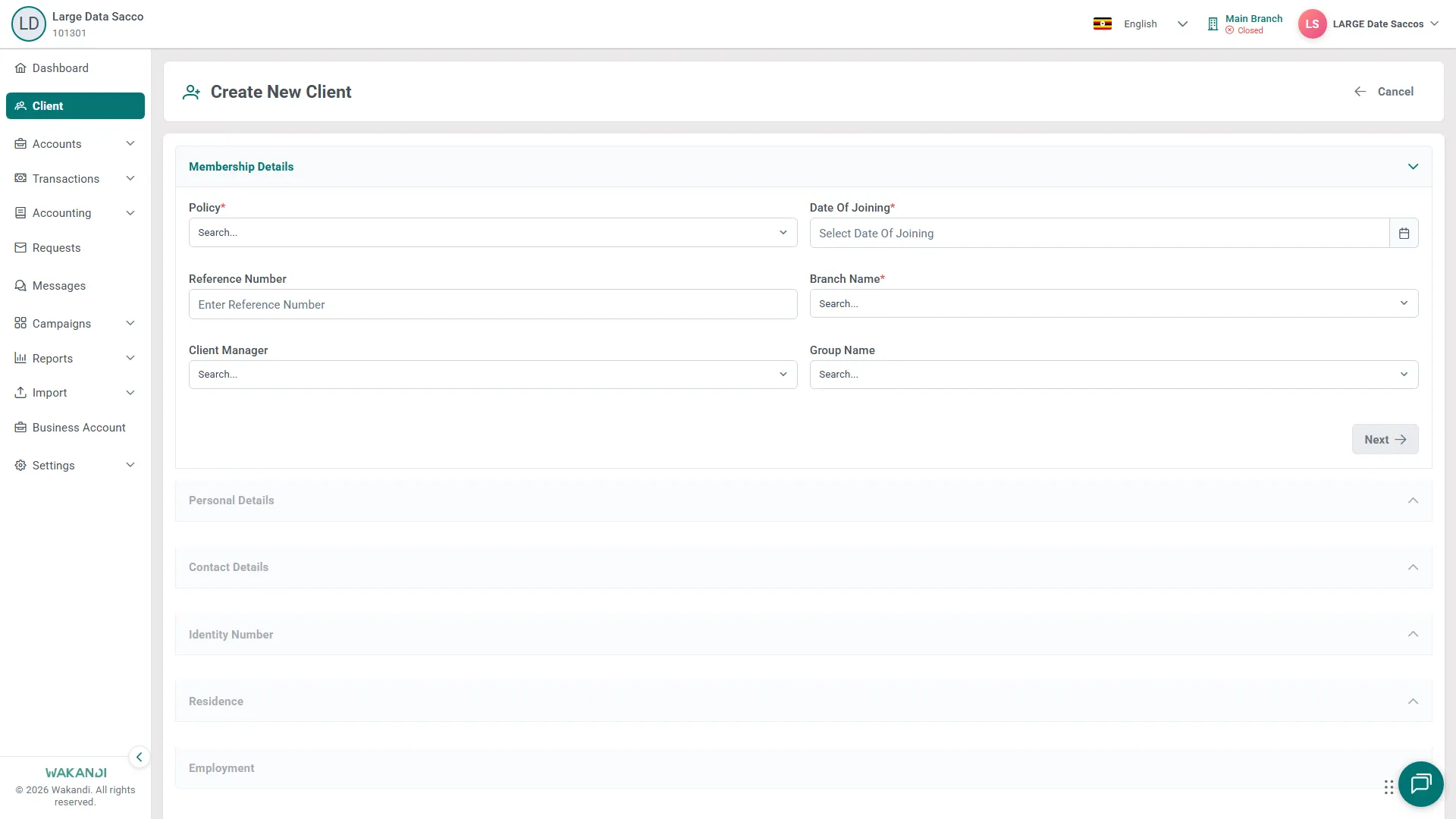
Figure 2: The Create New Client form open on Membership Details, with the Personal Details, Contact Details and optional sections below it Fill in Personal Details — name, gender, date of birth and similar — then click Next.
Fill in Contact Details: the Phone Number and Email Address the member will sign in with on the app or by USSD. Add at least one, then click Next.
The last three sections — Identity Number, Residence and Employment — are optional. A national ID here helps with the KYC check later.
Click Create at the bottom right. You return to the Clients list with the new member in it.
Note: A new member starts with Status and KYC Status Pending — that's normal. When your process allows, open their row, click Activate on the Summary tab, then approve their documents: Approve a member's KYC documents.
Common pitfalls & FAQ
- I can't see the Add Client button. Your role may not allow creating members. Ask an administrator.
- The Next button is greyed out. A required field (marked *) is still empty. In Membership Details, check Policy, Date Of Joining and Branch Name.
- A dropdown looks empty. Start typing in its Search… box to load the options, such as the policy or the branch.
- I can't find the member afterwards. Search the Clients list by name or Member Id. A new member is Pending, so clear the Status filter before you create them again.
- I have many members to add. Use Import → Member in the left menu instead of adding them one by one.