Run an MSP return and pick the right form variant
Summary
Pick the MSP card that matches the return your institution files, generate it for a period, and save it.
About 5 minutes - 8 steps. Also called: MSP01, MSP03 MFI, MSP returns, microfinance regulatory return.
Sign in with your email to read the rest of this article, track what you have finished, and earn your certificate.
Sign inPrerequisites
- A CAMS sign-in for the Wakandi Admin Portal, with Reports and MSP in your left sidebar.
- The exact name of the return your institution files. Your last accepted return or your compliance lead is the safest source.
- The financial year and quarter you are filing for.
Step-by-step
Sign in to the Wakandi Admin Portal.
In the left sidebar, expand Reports, then click MSP. Wait until all report cards finish loading.
Read the card titles. The hub carries MSP01 to MSP10, plus MSP03 MFI Report, MSP03 Type 1 Report, MSP03 Type 2 Report, MSP04 MFI Report and MSP05 MFI Report.
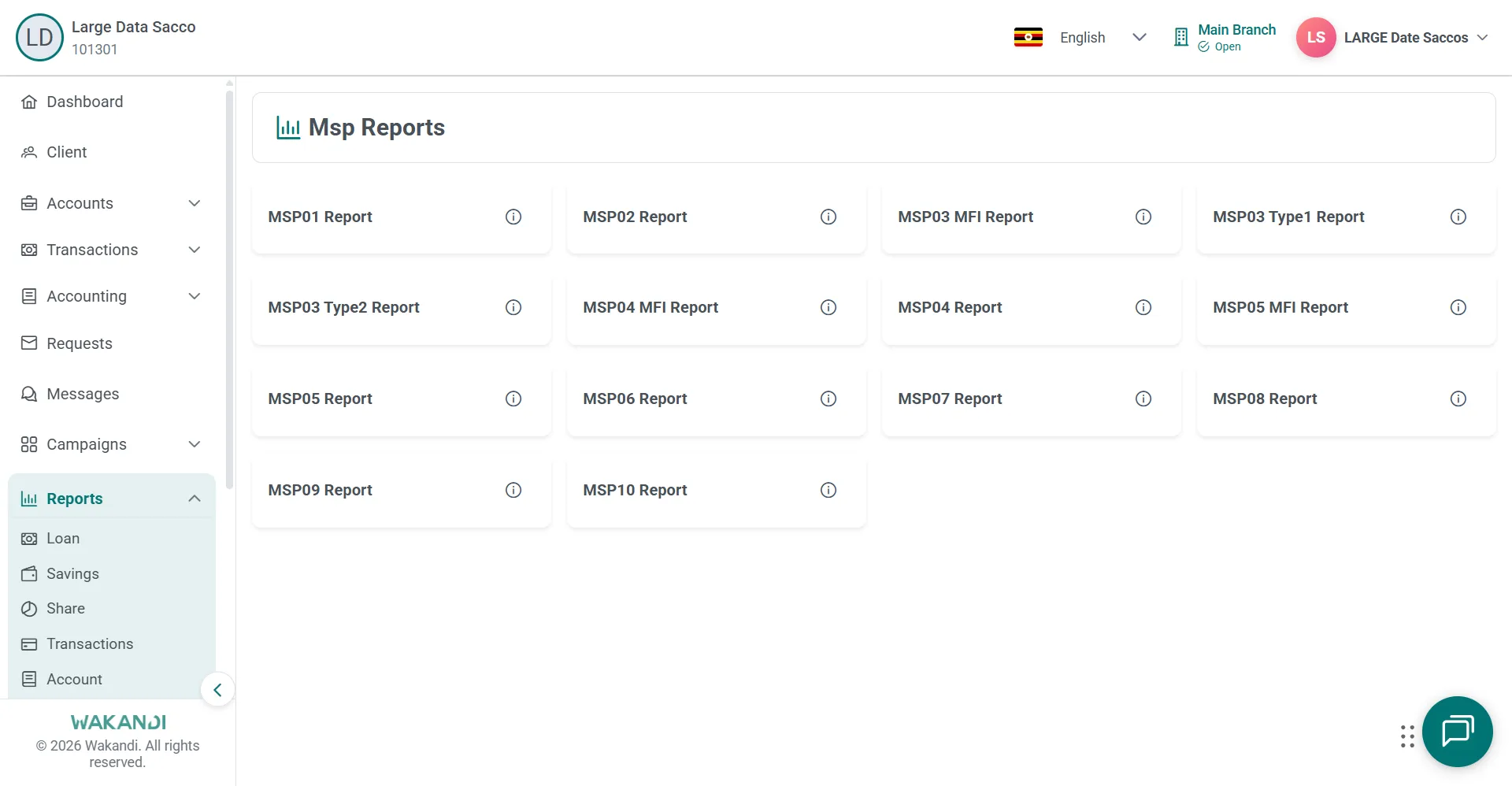
Figure 1: Msp Reports hub showing MSP01 to MSP10 cards alongside the MFI, Type1 and Type2 variants Match a card title to your return, word for word. Near-identical titles produce different layouts, so MSP03 Type 1 Report and MSP03 MFI Report are not interchangeable.
Click that card. Wait until the form body has fully loaded and the spinner has gone.
Select the period filters for the return, such as financial year and quarter. Labels vary by form.
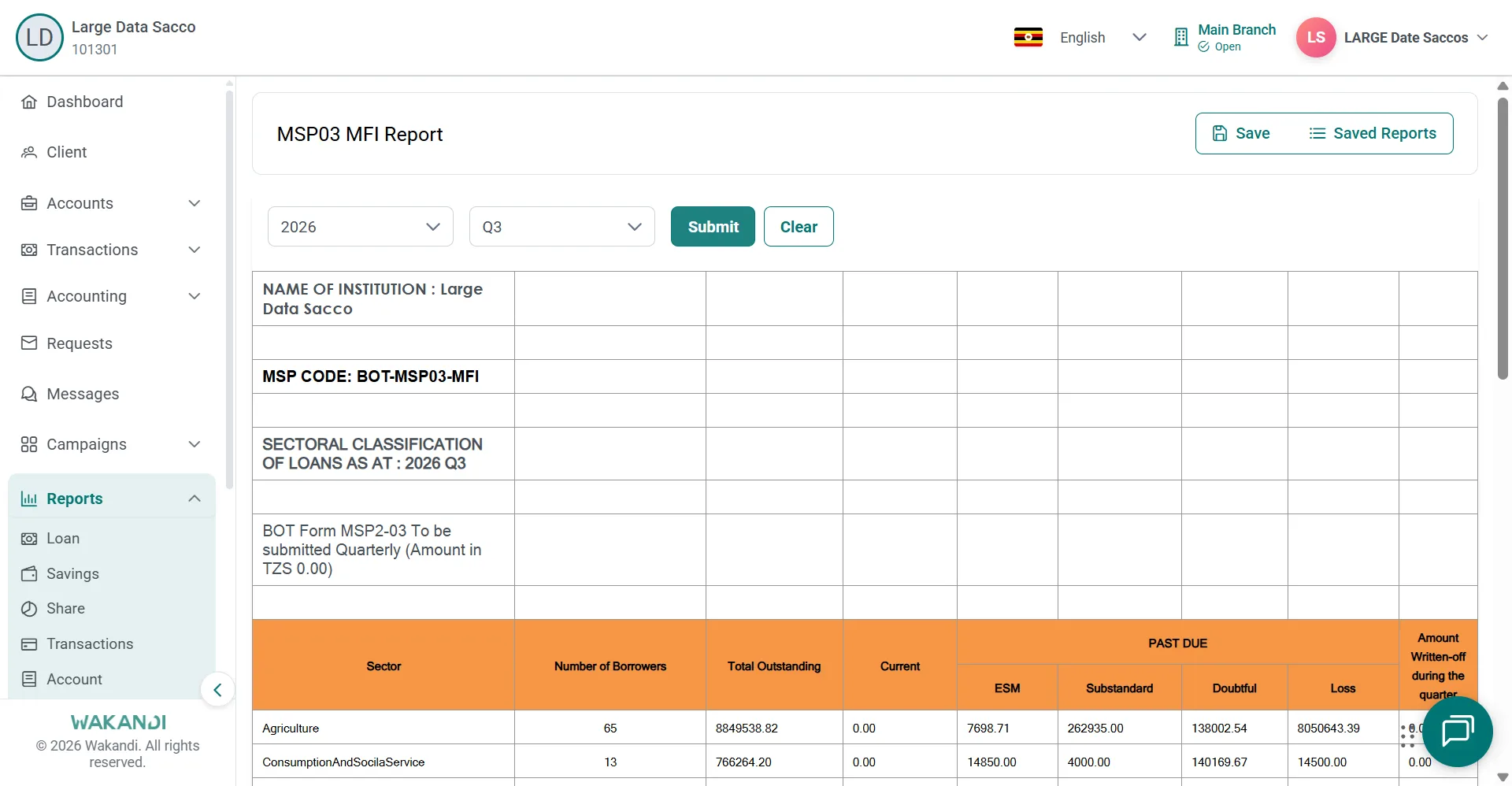
Figure 2: MSP03 MFI Report with financial year and quarter selectors above the sectoral loan classification table Read the form sections and the calculated amounts on screen.
When the figures are right for the period, click Save in the report toolbar. Check that the save succeeds, then click Saved Reports to see the stored snapshot.
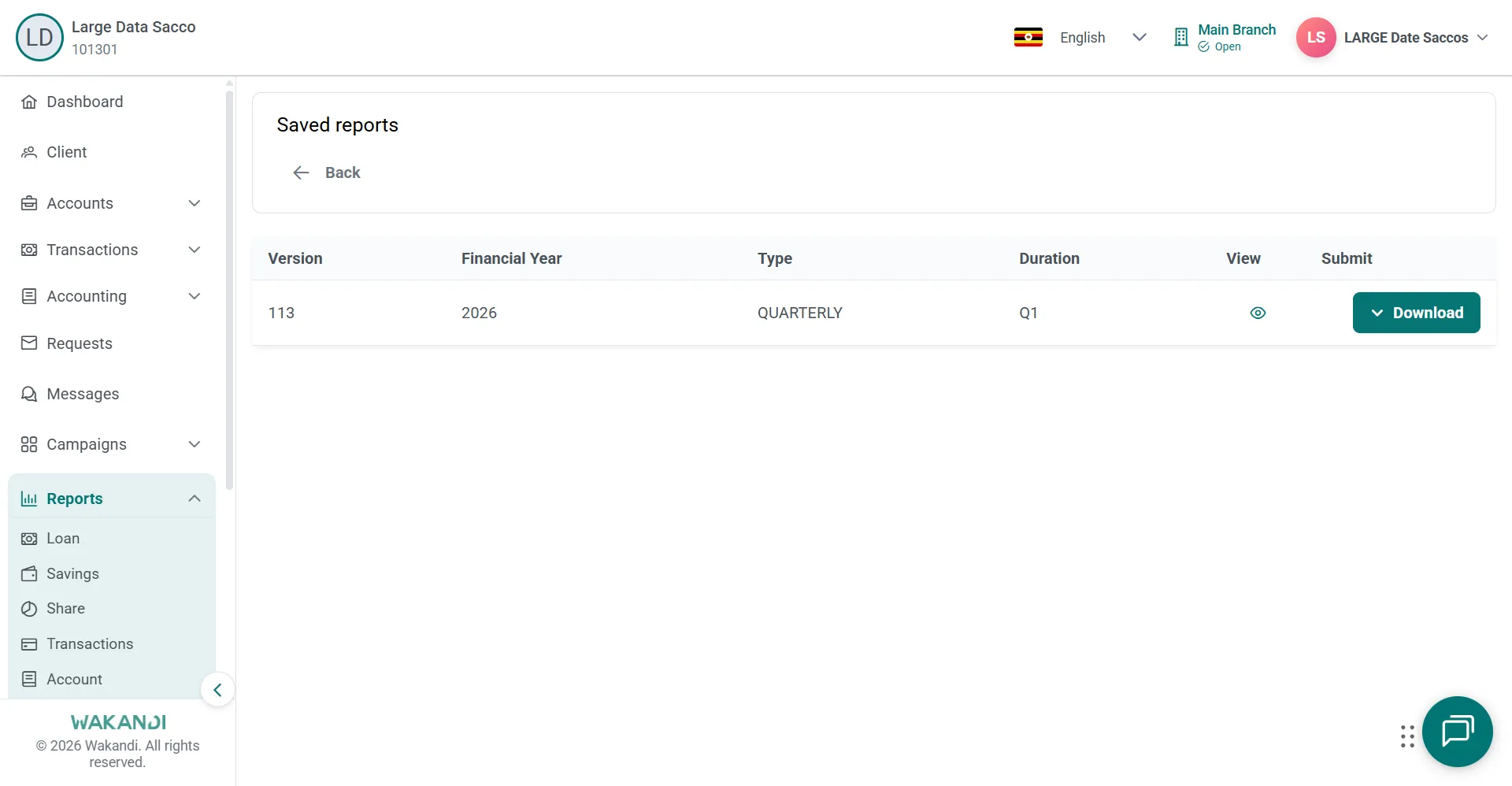
Figure 3: Saved reports list showing one stored quarterly version for 2026 with View and Download actions
Common pitfalls & FAQ
- Which variant does my institution file? CAMS will not choose for you, and the titles look alike. Confirm with your compliance lead before you generate.
- MSP09 and MSP10 carry a long title on the report itself. The hub cards keep their short codes, but when you view, preview or download these two the heading is the full regulatory name: "Loans disbursed during the quarter ended" for MSP09, and "Geographical distribution of branches, employees and loans by age for quarter ended" for MSP10, each followed by the quarter you selected. Match the card by its code, and expect the long name on the output.
- I cannot find Submit. MSP forms are script forms. They generate from the period filters, and you store them with Save. Submit belongs to the grid reports, such as those under Loan and Transactions.
- I saved against the wrong period. Saved snapshots are period-specific. Set the period first, then save. Repeated saves leave near-identical copies in Saved Reports.
- I need to change a figure. Some forms show Edit Report in the toolbar. Use it only where your own process allows a change, then save again if that process wants a fresh snapshot.
- Can I download the form? Use Download or browser print where the toolbar offers them. Follow your organisation's approved format for the submission itself.
- I opened the wrong card. Use the sidebar to go back to Reports and MSP, then open the exact card you need.