How to trace a transaction and see which rules ran
Summary
Find one transaction and see exactly which rules were run against it and which ones matched.
About 3 minutes · 5 steps. Also called: check a payment, why was this flagged, transaction history.
Sign in with your email to read the rest of this article, track what you have finished, and earn your certificate.
Sign inPrerequisites
- A sign-in for Wakandi AML Risk Monitoring.
- The transaction number, the member number, or the date and amount.
Step-by-step
Open Wakandi AML Risk Monitoring and sign in.
In the top menu, click Transactions.
Fill in what you know, then click Apply filters. You can search by date range, amount range, reference, customer, type, status and channel.
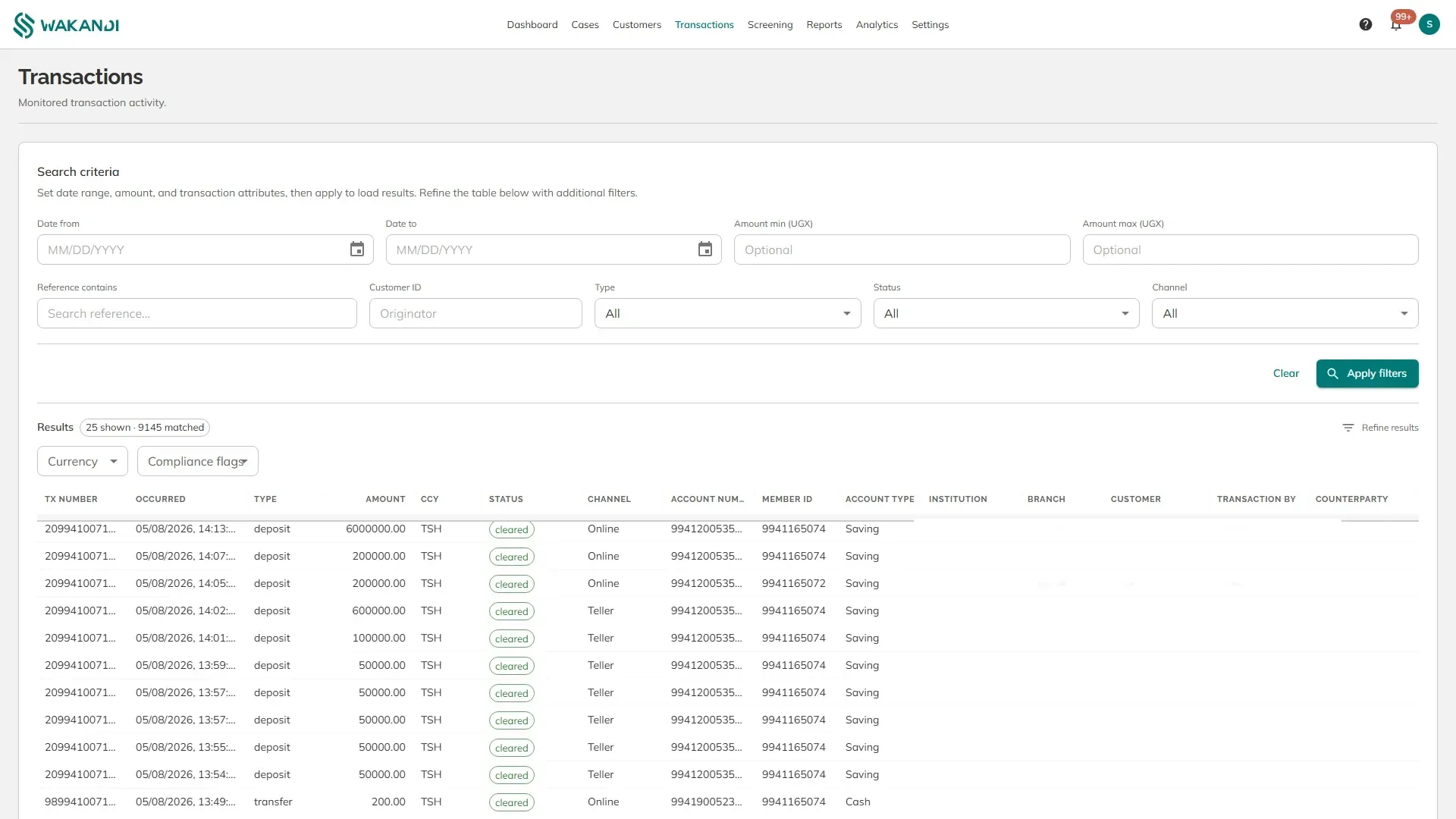
Figure 1: The Transactions screen with the search criteria above the results Narrow further if you need to. Refine results above the table filters the rows you already have by currency and by compliance flag.
Click the transaction. It opens on its own page.
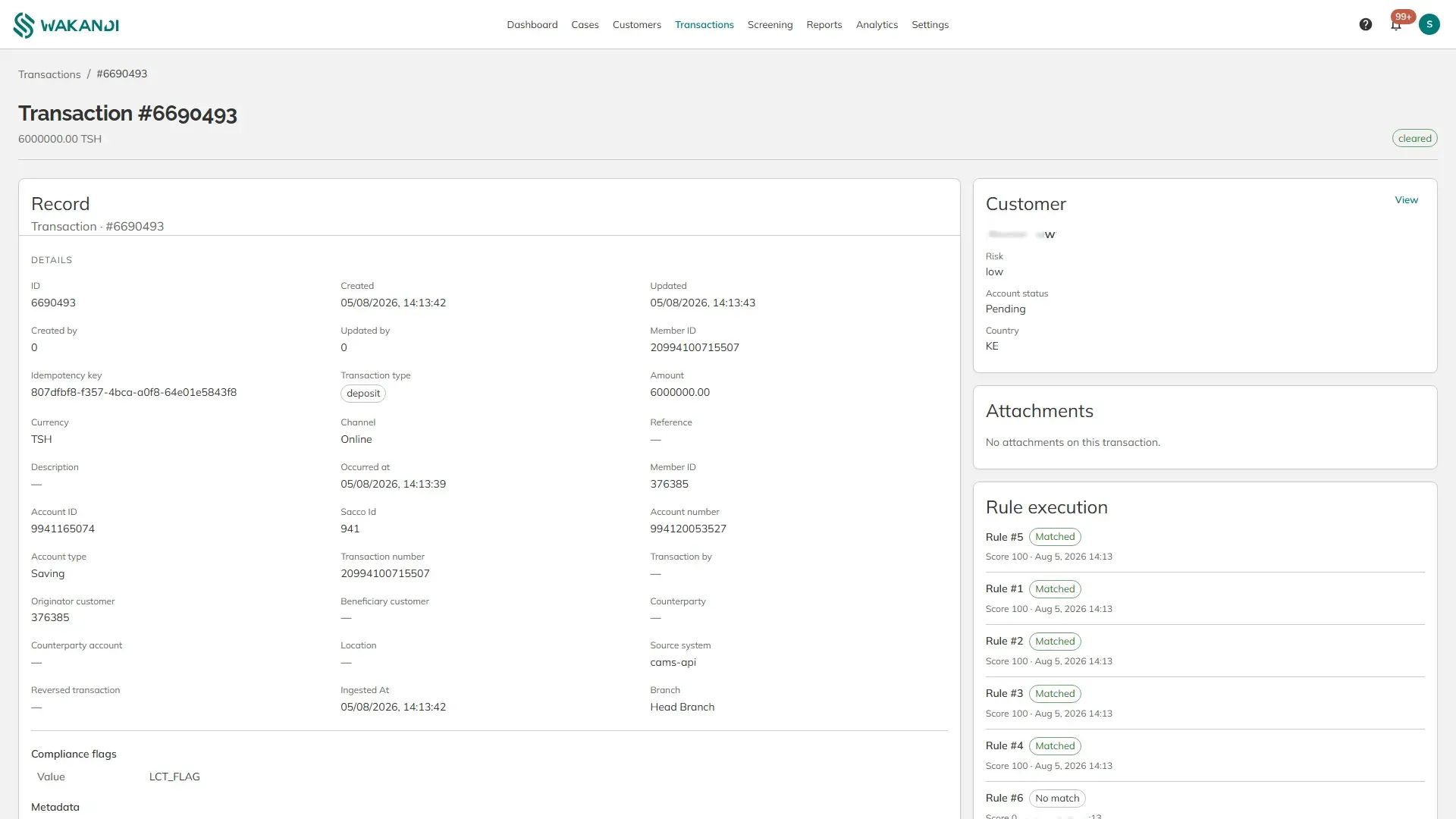
Figure 2: A transaction record with its compliance flags and the rule execution list
Then, the parts worth reading:
Compliance flags. What the transaction was marked with, such as LCT_FLAG for a large cash transaction.
Rule execution. The most useful block on the screen. Every rule that ran against this transaction is listed with Matched or No match and the score it gave. This is how you answer "was this checked?" — a rule that ran and did not match is different from a rule that never ran.
Source system. Where the transaction came from. Transactions monitored here arrive from CAMS, so this reads cams-api.
Channel. How it was made, such as Teller or Online. Your LCT channels setting decides which of these count towards the reporting threshold.
The Customer card on the right links to the member's AML profile. Click View to open it.
Note: Amounts are shown in the currency the transaction was made in, which is not always your operating currency. Check the CCY column before comparing an amount to a threshold.
Common pitfalls & FAQ
- No results at all. The screen loads nothing until you click Apply filters. An empty table usually means the search has not run yet.
- A rule is missing from Rule execution. It was switched off when the transaction was monitored. Check the On column in Settings, Rules.
- The transaction is here but has no case. It matched no rule, or the rule that matched is not set to create a case. Both are normal.
- I can't find a transaction I can see in CAMS. Only transactions that have reached AML monitoring appear. Very recent ones can take a short time to arrive.