Customer baselines: how normal is worked out
Summary
See what the system treats as normal for one member, and why that decides whether their activity is flagged. About 4 minutes · 4 steps. Also called: normal behaviour, member profile, why wasn't this flagged.
Sign in with your email to read the rest of this article, track what you have finished, and earn your certificate.
Sign inPrerequisites
- A sign-in for Wakandi AML Risk Monitoring with an administrator role.
Step-by-step
- Open Wakandi AML Risk Monitoring and sign in.
- In the top menu, click Settings.
- Click the Baselines tab.
- Type a member's name in Search customer name, then click Apply filters. You'll see their baseline row.
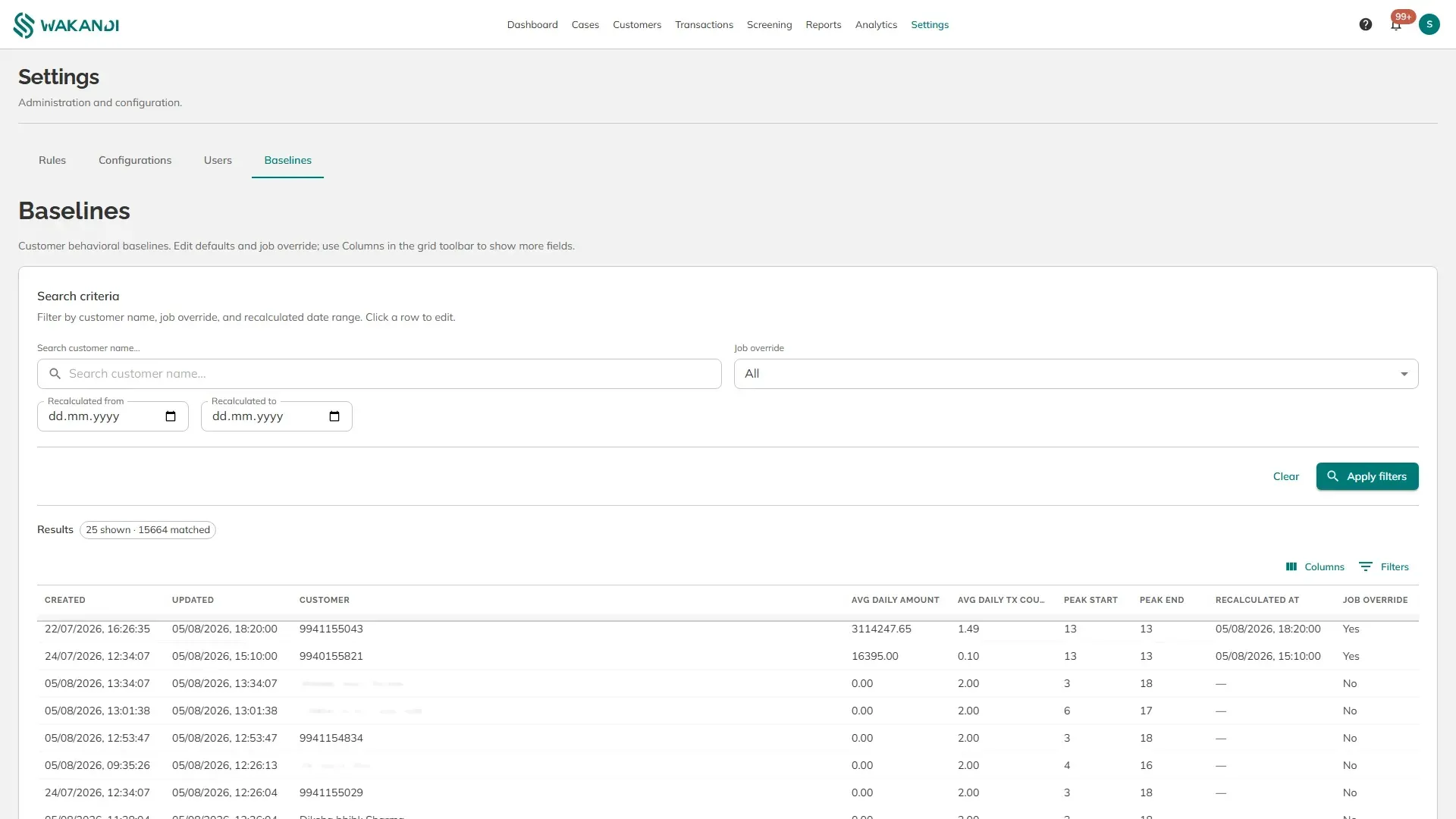
What each column means:
- Avg daily amount — how much this member usually moves in a day. Baseline Amount Deviation compares against it.
- Avg daily tx count — how many transactions they usually make in a day. Unusual Frequency multiplies this by your set figure to decide when today is unusual.
- Peak start and Peak end — the hours of the day this member normally transacts, as whole hours on a 24-hour clock. Off Peak Activity uses them.
- Recalculated at — when these figures were last worked out. A dash means never.
- Job override — Yes means someone has fixed this member's figures by hand, so the nightly recalculation leaves them alone.
Baselines are built from the member's own history, so four of the eleven rules are measured against that member rather than against a fixed amount. A trader moving large sums every day does not get flagged for doing exactly that, while the same amount from a member who normally saves small amounts does.
Click a row to edit the figures or set the override.
Note: A new member has no history, so their averages start at zero and their peak hours are wide. Their behaviour-based rules stay quiet until enough activity builds up. That is expected, not a gap.
Common pitfalls & FAQ
- The member's averages are all zero. They are new, or their transactions have not been through a recalculation yet. Check Recalculated at.
- Some rows show a member number instead of a name. The baseline exists but the customer record has not been matched to it yet. The figures still apply.
- Why wasn't this large transaction flagged? If it sits inside this member's normal range and under your LCT threshold, no rule matched. Check their baseline before assuming a fault.
- Can I stop the nightly recalculation for one member? Yes. Open their row and set Job override to Yes, then set the figures you want.