Reconcile Business Account collections against your bank
Summary
Read your Business Account tabs in the right order, so you can explain the gap between the wallet balance and the money in your bank.
About 6 minutes - 8 steps. Also called: WBA, pending settlement, wallet reconciliation, business account statement.
Sign in with your email to read the rest of this article, track what you have finished, and earn your certificate.
Sign inPrerequisites
- A Wakandi Admin Portal sign-in that shows Business Account in the left sidebar.
- The bank statement for the period you are reconciling.
Step-by-step
Open the Wakandi Admin Portal and sign in.
In the left sidebar, click Business Account. Wait until the account header and the first tab finish loading.
Read the header figures: Fees Wallet, Due Amount and Status.
Stay on Collection and Disbursements, the default tab. Read Balance and Pending Settlement, then read the information note on the tab. Only the Pending Settlement amount goes to your bank in the next settlement cycle.
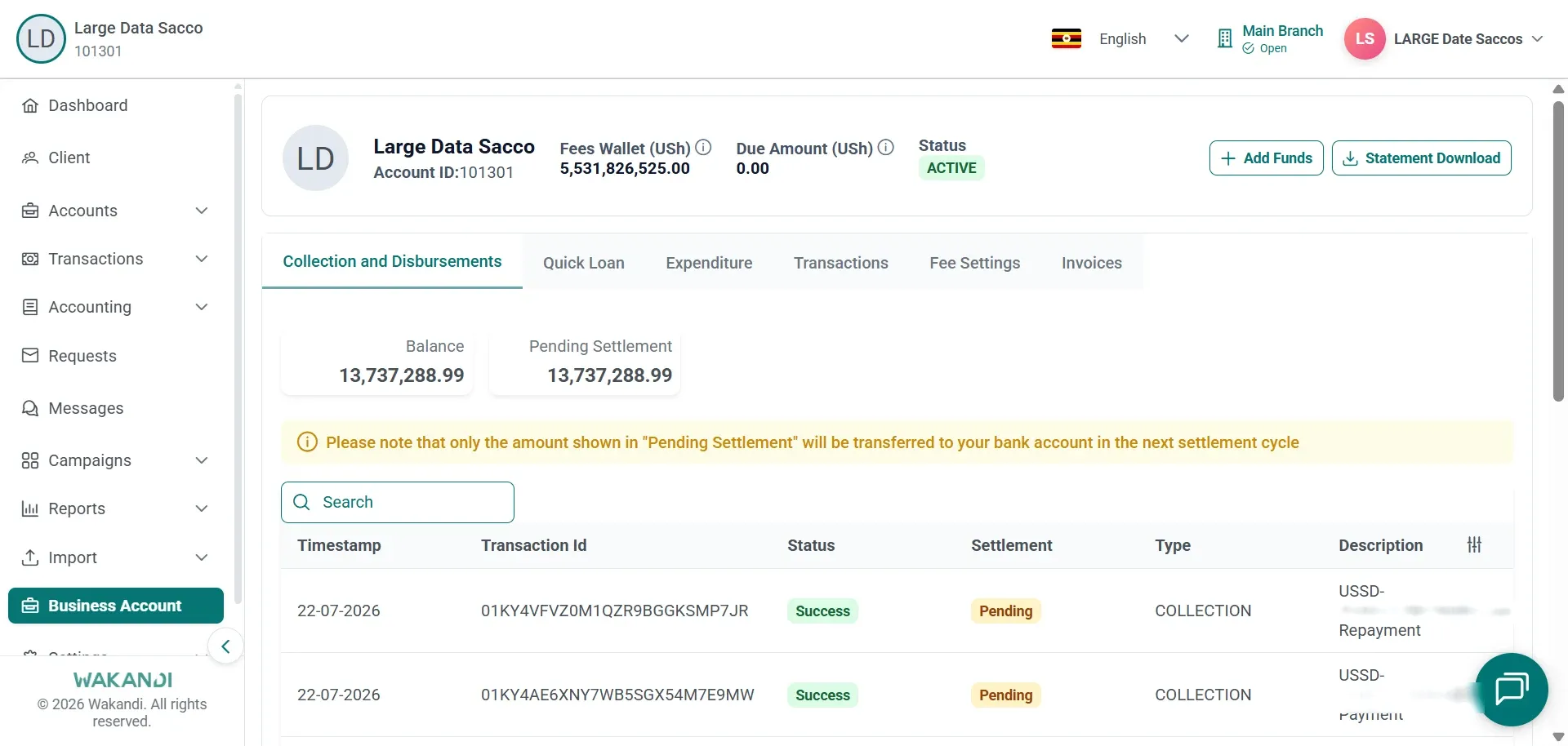
Figure 1: Collection and Disbursements tab with Balance and Pending Settlement cards above the settlement note and collection rows Work down the list. Check Timestamp, Transaction Id, Status, Settlement (Pending or Completed), Type (for example COLLECTION), Description and Amount. Use the search box to find one row.
Click Transactions. This tab combines types such as COLLECTION, SERVICE_FEE and MARK_UP. Use Search and Add Filters to separate them. Read Type and Description together.
Click Expenditure to see charges against the account. Check Status, Type, Client/Member, Description and Amount. Turn the Convenience Fee switch on to narrow to those rows, and off to go back.
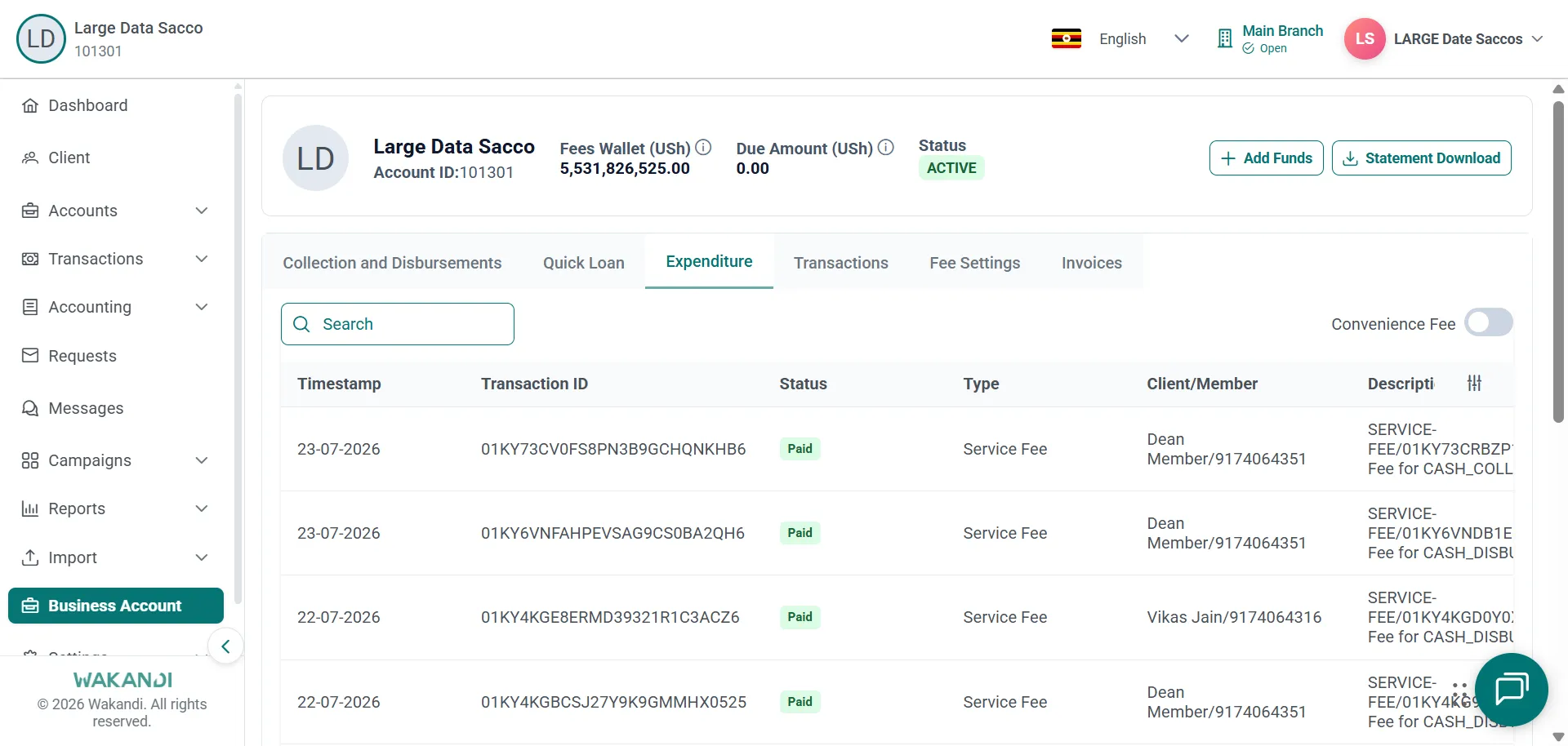
Figure 2: Expenditure tab listing paid service fee charges per member, with the Convenience Fee toggle switched off In the page header, click Statement Download. Set From Date and To Date to your reconciliation period, then click Download. Open the Excel file and tie it against the bank statement.
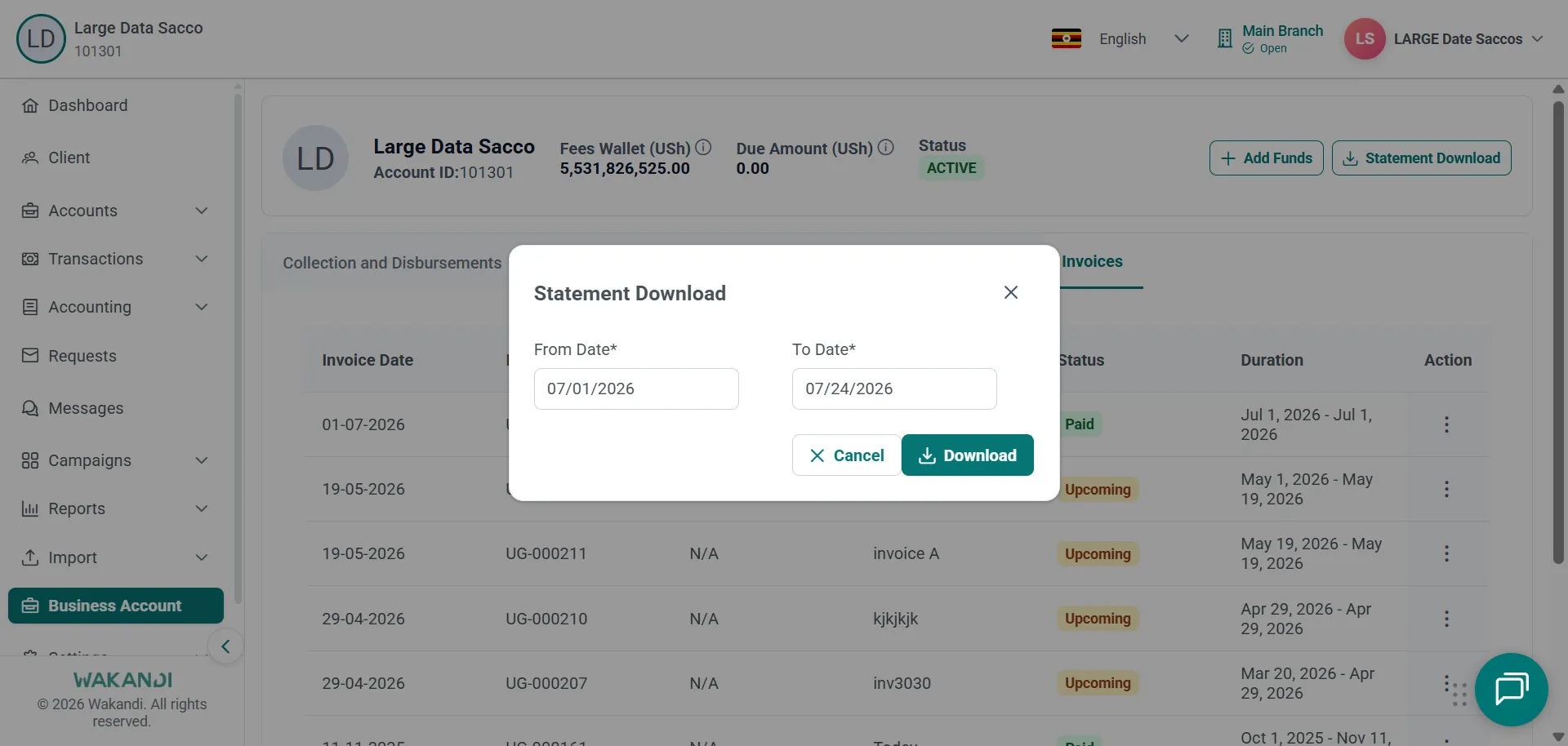
Figure 3: Statement Download dialog with From Date and To Date filled in and the Download button active
Common pitfalls & FAQ
- The wallet balance does not equal the bank deposit. That is expected. Only Pending Settlement moves in the next cycle. Do not treat Balance on its own as banked cash.
- Pending Settlement looks high. Recent successful collections may not have reached your bank yet. Wait for the settlement cycle before chasing the transfer.
- Where did this fee come from? Start on Transactions, which spans products, then check Expenditure for the member on that row.
- The amount is negative. A negative amount usually means money left the fees wallet as a charge. Compare it with Fees Wallet in the header.
- Download stays greyed out. It is disabled until both From Date and To Date are set.
- Fee Settings and Invoices are missing. Those tabs appear only when your role includes the required permissions.
- The figures shift while you filter. Wait for each list to finish loading before you filter or change tab.