How to add and manage administrators
Summary
Add an administrator, give them the right role, and keep admin access up to date on the User Management screen.
About 4 minutes · 8 steps. Also called: users, admin accounts, staff access, manage admins, roles, permissions.
This lesson opens the CAMS Administration course; everything here lives under Settings. Next come the SACCO policy, holidays, fees and penalties, interest rates, and savings and share products, then money-laundering monitoring and sign-in security.
Sign in with your email to read the rest of this article, track what you have finished, and earn your certificate.
Sign inPrerequisites
- A CAMS sign-in whose role can open Settings and Users.
- The new admin's work email, full name, and phone number.
- The role to give them, set up under Settings → Roles.
Step-by-step
- Sign in to CAMS Admin. New to it? See How to sign in and navigate CAMS Admin.
- In the left menu, click Settings. The Settings items open underneath. An item shows only when your role carries its permission — true for every screen in this course.
- Click Users. The User Management screen lists every admin with their Email Address, Full Name, Phone Number, Status and Role Name.
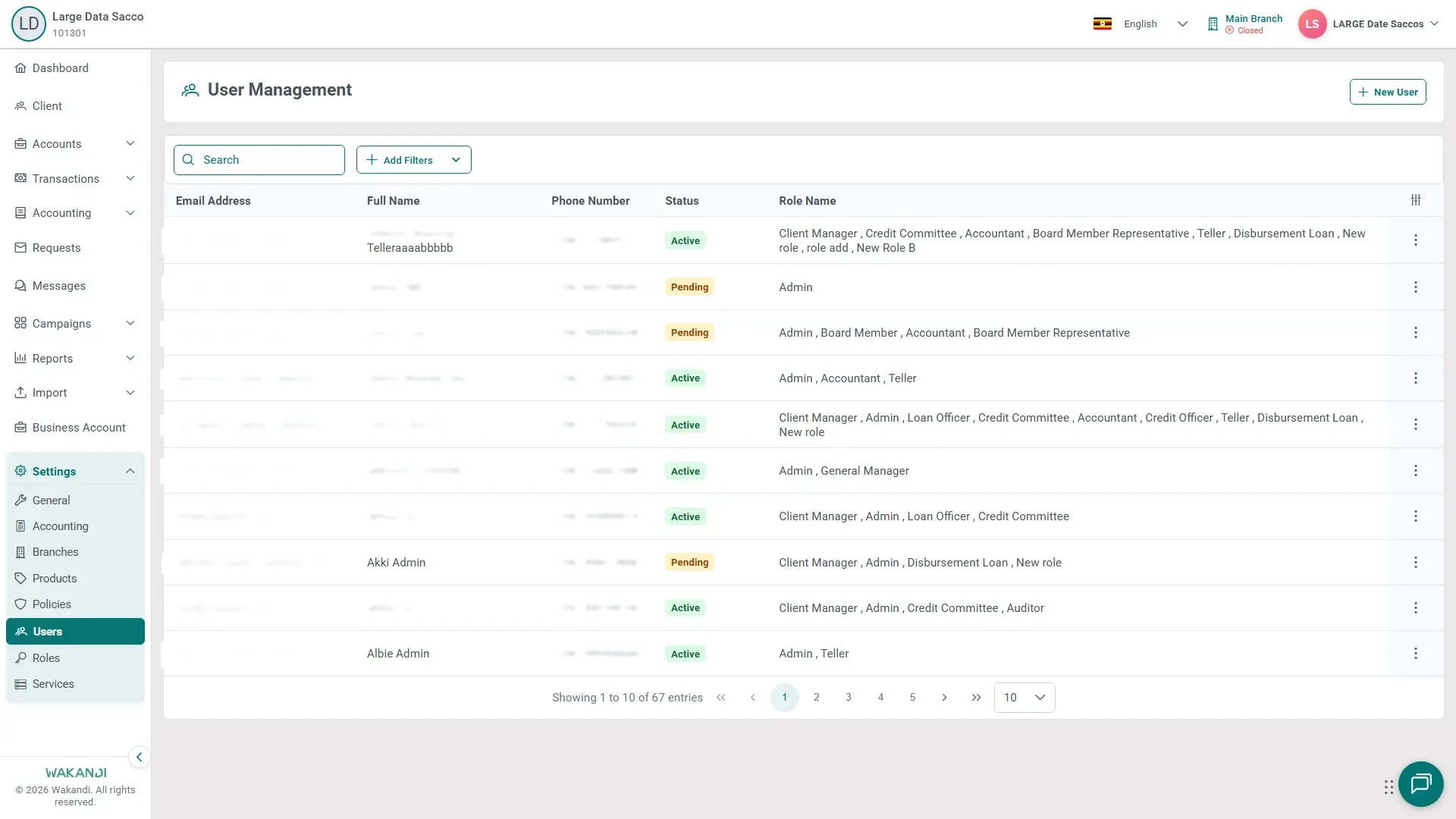
- Search the list first — the person may already have an account. Then click New User.
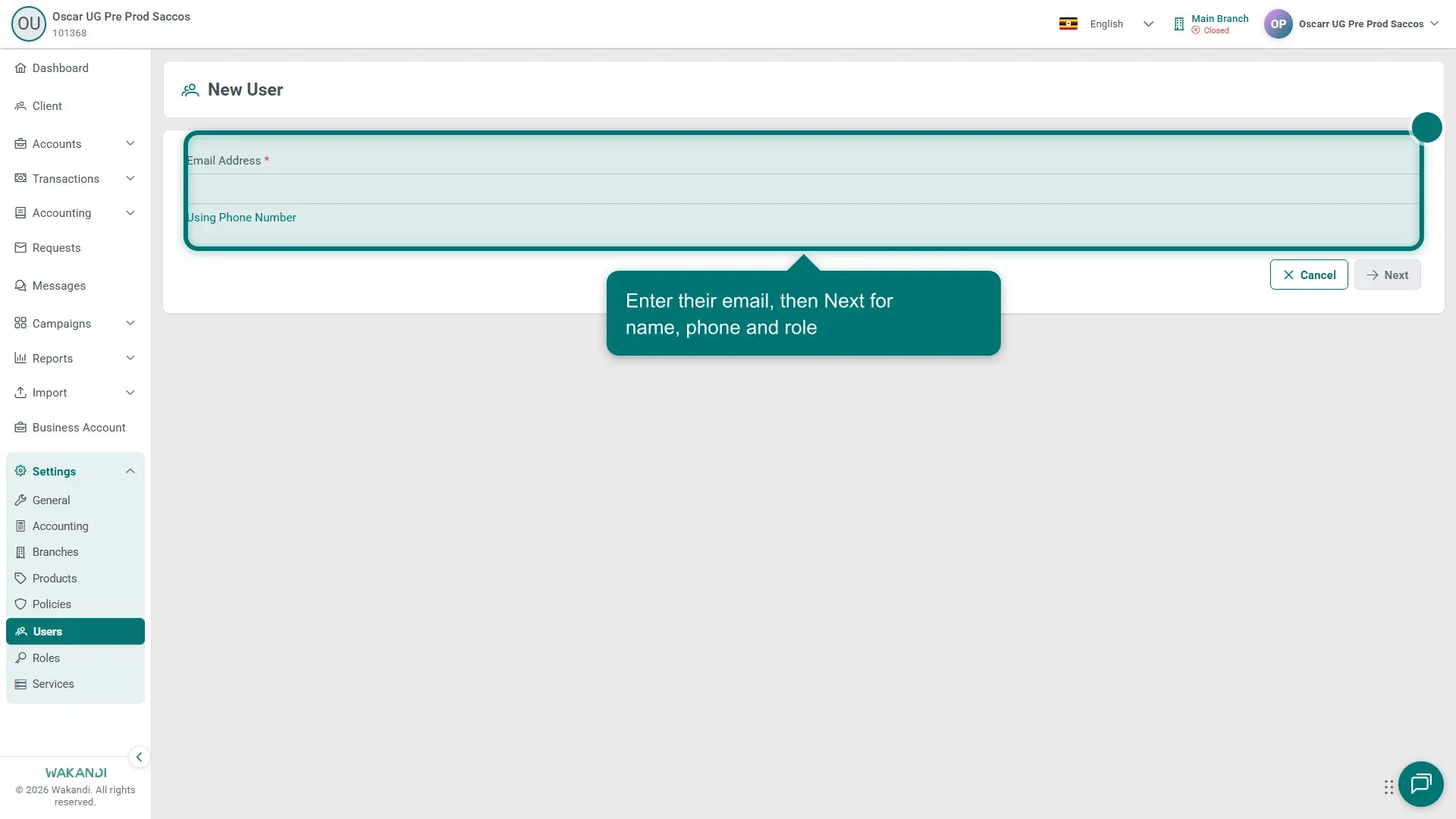
- Fill in the Email Address, full name and phone number, plus any branch or access options the form shows. Each admin needs their own work email — the invitation and any later password reset go there.
- Pick the Role. It decides what this person can see and change, so give the smallest role that fits the job.
- Click Save. The new admin appears on the list.
- To change someone later, find their row and open Edit. Update their details, role or Status, then save. If a new admin's invitation never arrived, correct their Email Address the same way.
Warning: Taking a role away can lock someone out of their daily work. Check what the role covers under Settings → Roles first.
Note: Create forms across Settings often run past one screenful. Scroll the whole form before saving — required fields can sit out of view.
Common pitfalls & FAQ
- I don't see Users under Settings. Your own role lacks the permission. Ask another administrator to widen it.
- How do I remove someone who has left? Open Edit on their row and set Status to inactive. They can no longer sign in, and their record stays.
- I changed a role and nothing changed for that user. Ask them to sign out and back in. Permissions do not always refresh mid-session.
- Where do password and PIN rules live? Organisation-wide controls sit under Settings → General → Security.