Map your Cash Flow Statement lines to ledger categories
Summary
Map each operating, investing and financing line to a ledger category so your Cash Flow Statement reports real figures.
About 4 minutes · 7 steps. Also called: cash flow setting, edit cash flow statement, cash flow mapping.
Sign in with your email to read the rest of this article, track what you have finished, and earn your certificate.
Sign inPrerequisites
- A CAMS sign-in that can open Accounting > Reports.
- The ledger categories you need, already listed under Settings > Accounting > Manage categories.
- An agreed note of which category belongs on which line, approved by whoever signs off your accounts.
Step-by-step
Sign in to CAMS Admin.
In the header, open the branch control and select All Branches. Cash Flow Setting appears only in that view.
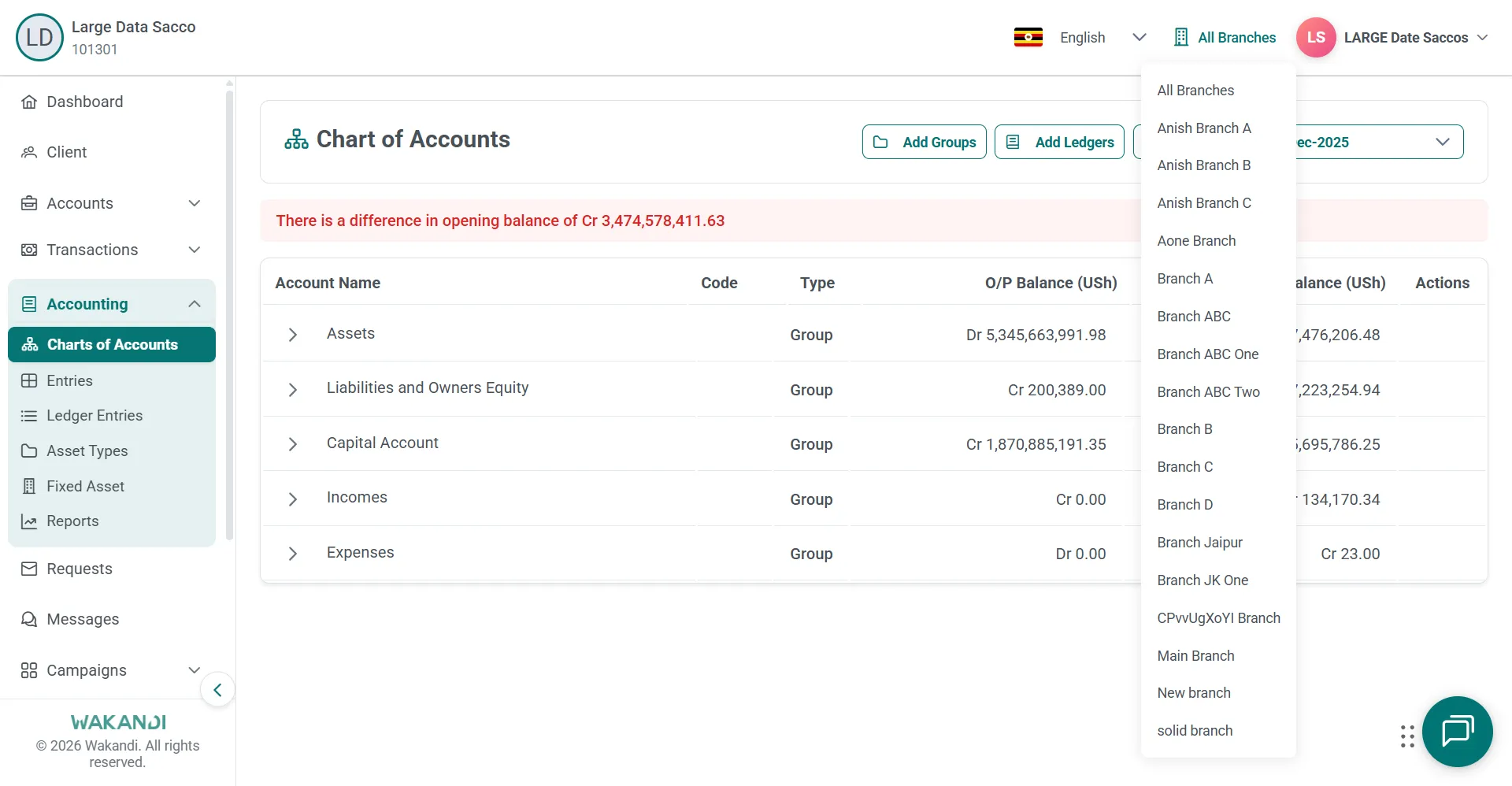
Figure 1: The header branch control open on an Accounting page, with All Branches listed above the individual branches In the left menu, expand Accounting and click Reports, then click the Cash Flow Statement card. Wait for the report to load.
Click Cash Flow Setting. The Edit Cash Flow Statement page opens.
Work down each section in turn: A. Cash Flow From Operating Activities, then B. Cash Flow to Investing Activities, then C. Cash flow from Financing Activities.
For every line that needs a mapping, use Search category... in the Category column and choose the ledger category. Fill NOTE and Amount only where those fields are enabled.
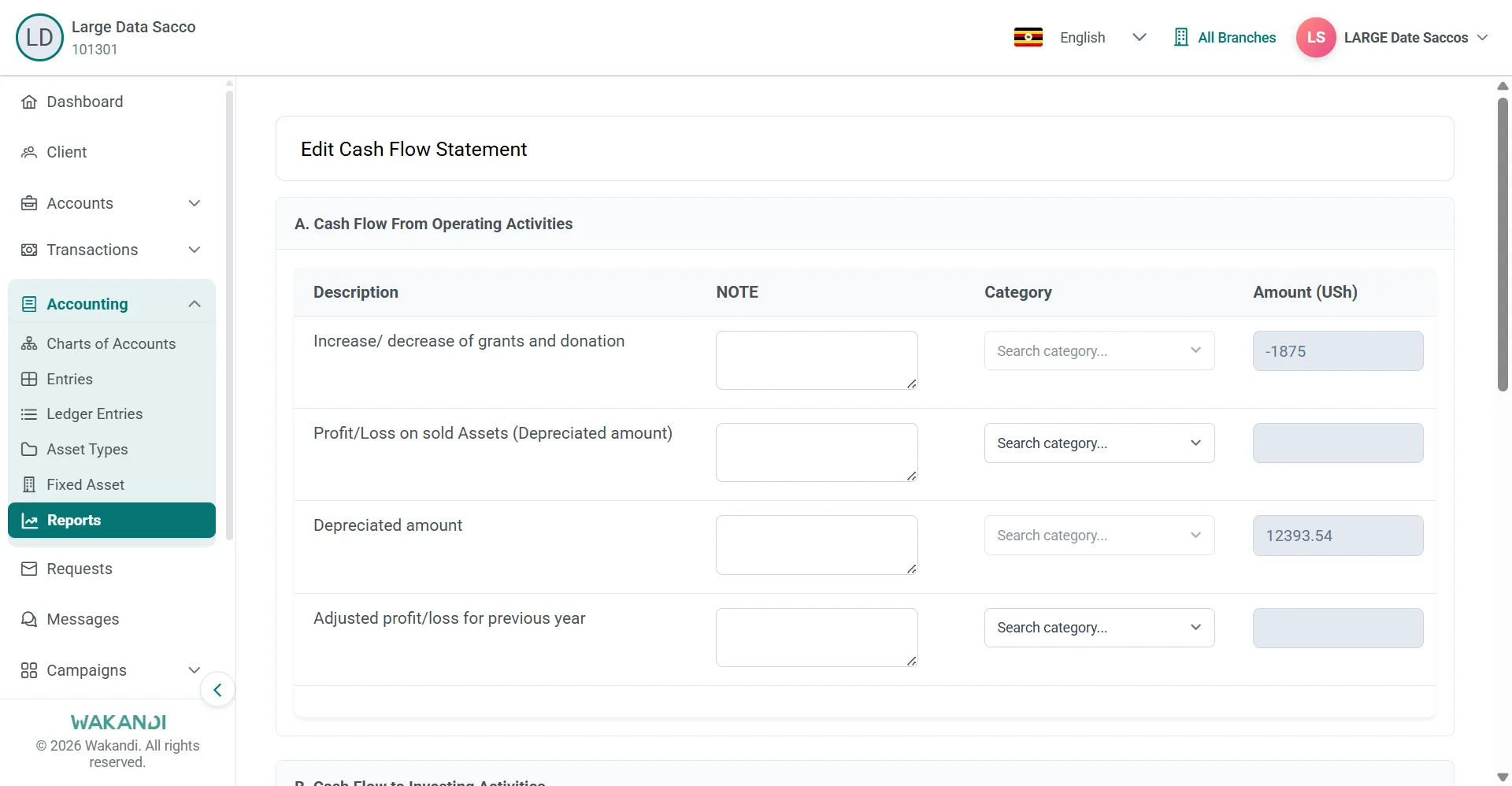
Figure 2: The Edit Cash Flow Statement page with NOTE, Search category and Amount fields beside each operating activity line Click Submit, then return to Cash Flow Statement and read the lines for your period. The statement shows Amount and Previous Year Amount side by side, and stays empty until the mappings are finished and entries exist for the period.
Common pitfalls & FAQ
- The Cash Flow Setting button is missing. The branch control is on a single branch. Switch it to All Branches and reopen the report. Owner's-Equity behaves the same way.
- The category I want is not in the search. Check it exists under Settings > Accounting > Manage categories, and note its parent category. Check the effect before renaming one, because live reports read from the same list.
- Some rows will not let me type. Summary and calculated rows can have their category, note and amount fields disabled.
- I am not sure about a mapping. Click Cancel and ask. Half-finished trial mappings in a live period distort the totals your board sees.