Check whether a member's mobile money payment went through
Summary
Look up a member's mobile money payment in the CAMS online transactions list and tell them whether it went through.
About 4 minutes - 7 steps.
Also called: money left my phone, payment not reflecting, MTN payment missing, online transaction status.
Sign in with your email to read the rest of this article, track what you have finished, and earn your certificate.
Sign inPrerequisites
- A Wakandi Admin Portal sign-in with access to Transactions > Online.
- The member's name or account number.
- The date the member says they paid, and the amount.
Step-by-step
Open the Wakandi Admin Portal and sign in.
In the left sidebar, expand Transactions, then click Online. Wait until the Online Transactions list finishes loading.
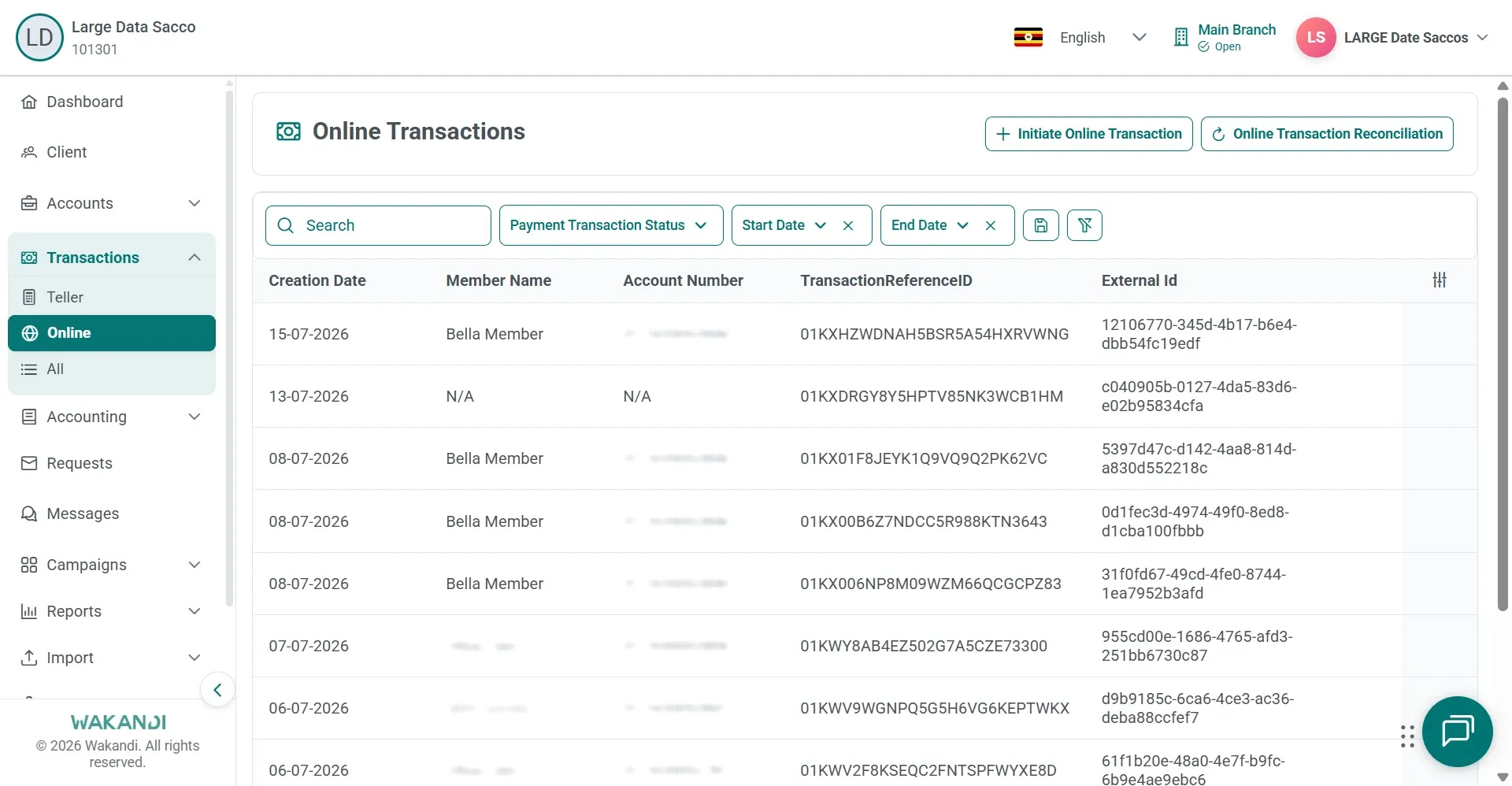
Figure 1: Online Transactions list with search, status and date filters above member rows and transaction reference IDs Set Start Date and End Date around the time the member paid. Keep the range tight at first, then widen it if you find nothing.
Find the member's row. Check Member Name, Account Number, Payment Provider and Amount against what the member told you.
Read the Status column on that row. It shows values such as Success or Failed. If your branch process uses the Payment Transaction Status action, click it and work from the same list.
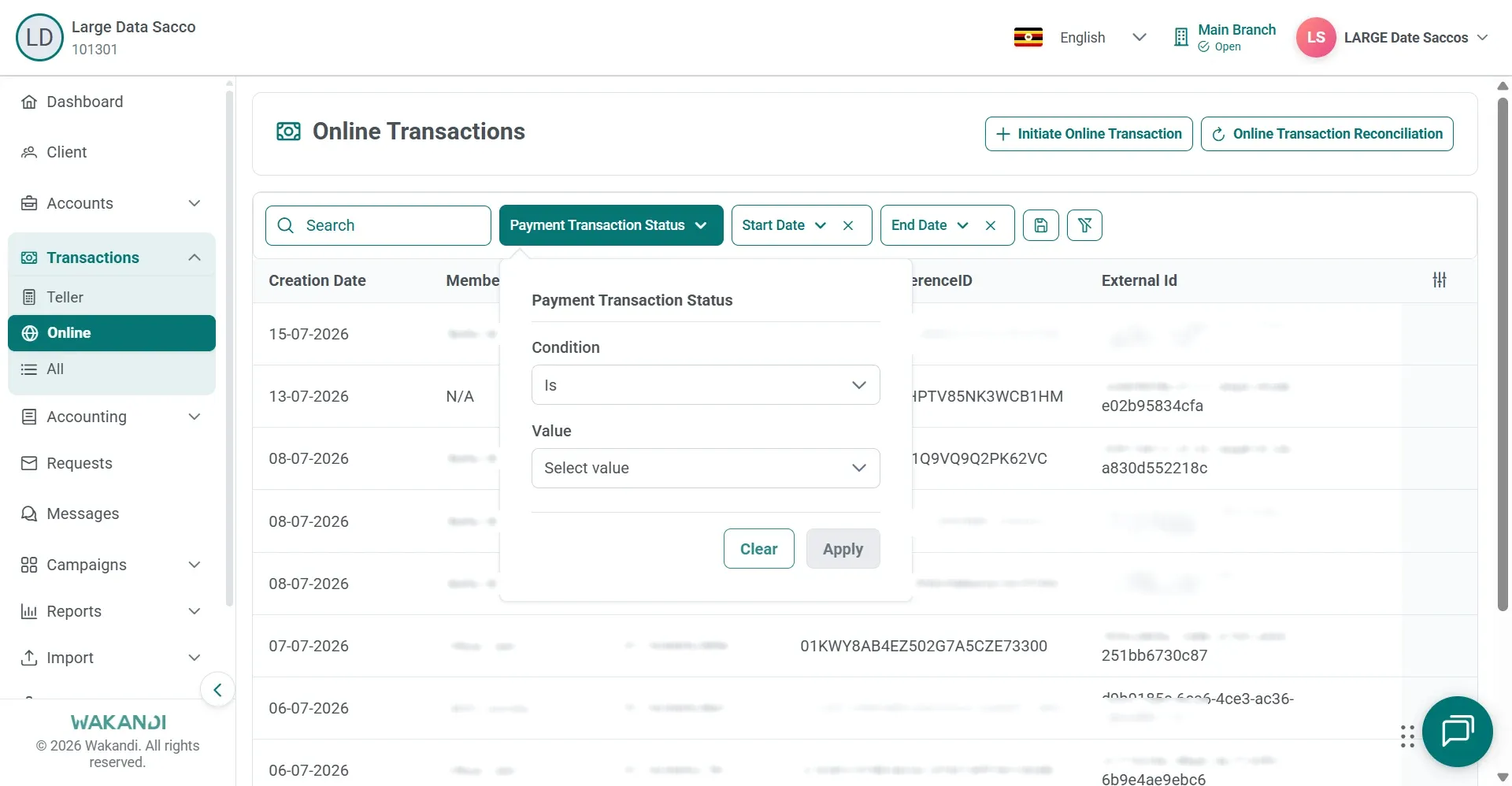
Figure 2: Payment Transaction Status filter open over the Online Transactions list with condition and value pickers Read the Reconciled column on the same row. A payment can show Success and still not be reconciled.
Copy the TransactionReferenceID and the External Id. Take those to your escalation or retry process.
Common pitfalls & FAQ
- Status is Success but the row is not reconciled. A successful payment that is not reconciled may still need the reconciliation workflow, under Transactions > Online > Online Transaction Reconciliation.
- Status is Failed. Failed online payments should be investigated before anyone retries the same amount for the same member. Copy the reference IDs before you escalate.
- The payment is not in the list at all. Widen Start Date and End Date first. If it is still missing, open Transactions > All and filter by Date and Transaction Status.
- The All page shows a banner about transactions not posted. Read the banner before you act. Use Resubmit only when your process allows it, and confirm with a supervisor if a large number of items are incomplete.
- Who matches the provider statement? Whoever runs reconciliation. On Online Transaction Reconciliation they select the provider and click Submit, then work through the uploaded statement files.
- What does support need from me? The TransactionReferenceID and the External Id from the Online list. If you found the payment on All, give the Transaction Number and the Transaction Reference ID as well.