Create an asset type and point it at the right ledgers
Summary
You will create an asset type in CAMS and link it to the correct asset ledger and depreciation ledger.
About 4 minutes - 7 steps. Also called: asset class setup, depreciation rate setup, add asset type.
Sign in with your email to read the rest of this article, track what you have finished, and earn your certificate.
Sign inPrerequisites
- A CAMS sign-in that can open Accounting.
- Both ledgers already created in Accounting → Charts of Accounts. You cannot pick a ledger that does not exist yet.
- The depreciation rate and residual value your accountant has agreed for this class of asset.
Step-by-step
Sign in to the Wakandi Admin Portal.
In the left menu, expand Accounting and click Asset Types. Wait for the Assets heading and its tabs to finish loading.
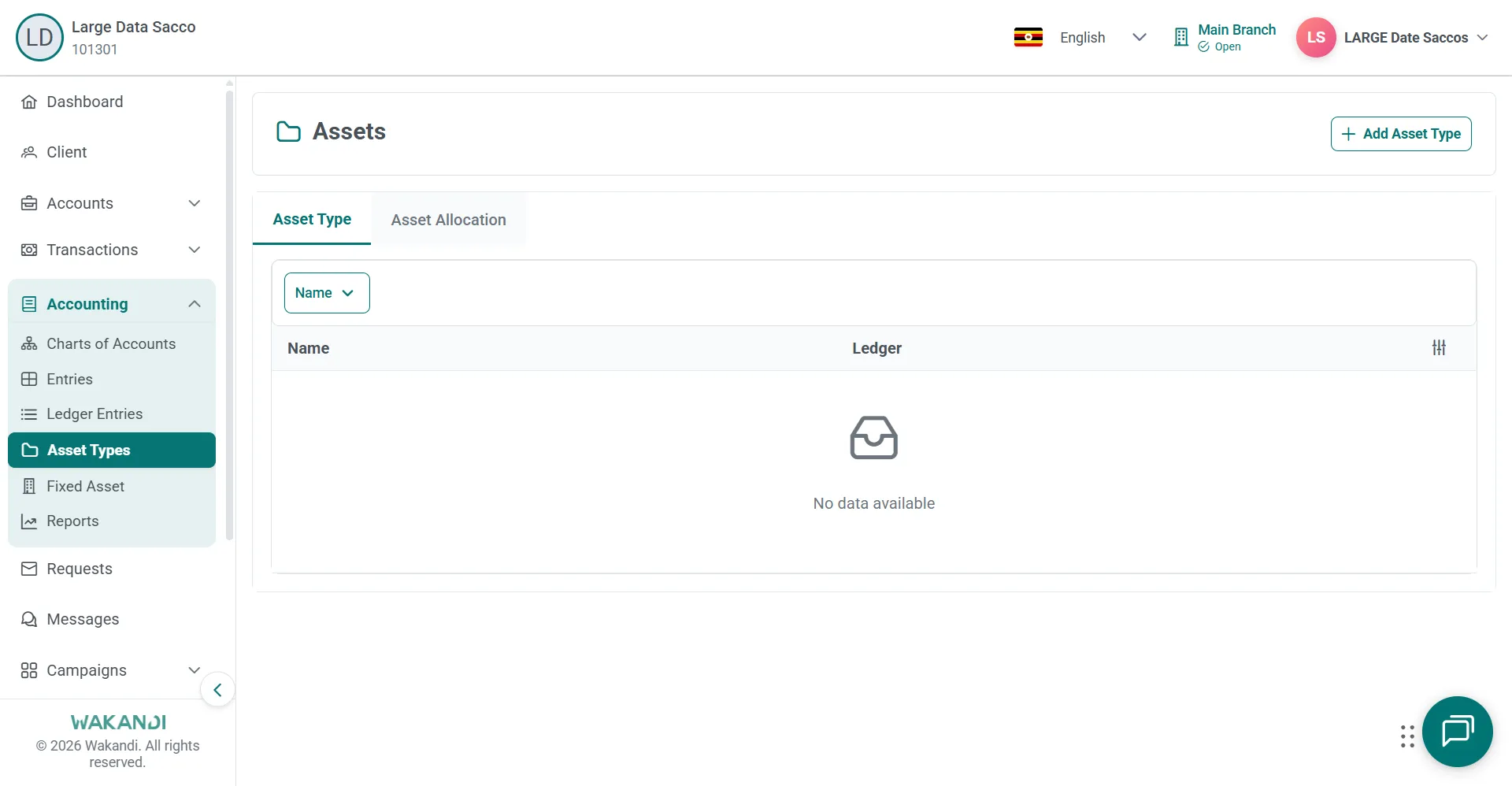
Figure 1: Assets page loaded on the Asset Type tab with Add Asset Type button and an empty ledger list Click the Asset Type tab. The list shows Name and Ledger. Check whether your type already exists.
Click Add Asset Type and wait for the Details form to appear.
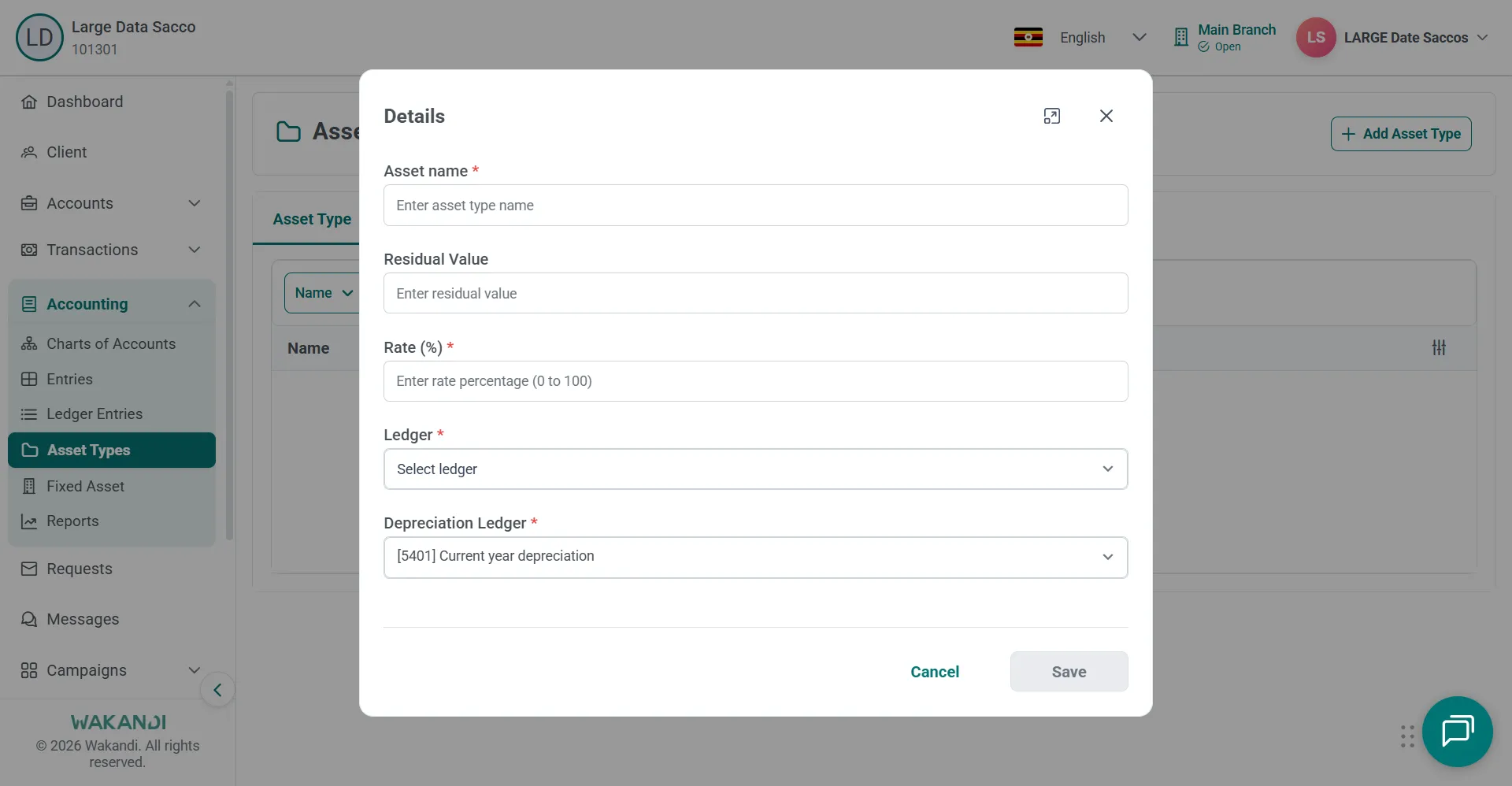
Figure 2: Details dialog for a new asset type with name, residual value, rate, ledger and depreciation ledger Enter the Asset name, then Residual Value and Rate (%).
Select Ledger and Depreciation Ledger. Read both labels twice before you move on.
Click Save. Confirm the new row appears on the Asset Type tab with the ledger you chose.
Common pitfalls & FAQ
- Which fields must I fill in? Asset name, Rate (%), Ledger and Depreciation Ledger are marked as required. Residual Value is not.
- The ledger I want is missing from the list. It has to exist first. Open Accounting → Charts of Accounts, use Add Ledgers, then come back to this form.
- How do I choose the depreciation ledger? Pick the ledger your chart of accounts uses for the depreciation charge, such as current-year depreciation. A wrong mapping distorts your asset and expense reports later.
- There is already a type with a similar name. Use the existing one. Two types for one class of asset split your reporting in half.
- My new type is not in the list. Check that you are on the Asset Type tab and not Asset Allocation.
- Where do I see the effect? Open Accounting → Reports → Assets, confirm the period shown at the top, and review the results. If nothing appears, widen the date range.
- Do I need this before adding assets? Yes. Create the asset type before you register any fixed asset that depends on it.