Set up loan provisioning bands for risk classification
Summary
Create the provisioning criteria that CAMS uses to classify loan risk and drive your provisioning figures.
About 6 minutes - 8 steps. Also called: provisioning criteria, loan loss provision, aging bands, risk classification setup.
Sign in with your email to read the rest of this article, track what you have finished, and earn your certificate.
Sign inPrerequisites
- A CAMS sign-in for the Admin Portal with access to Settings and Products.
- Your SACCO's approved provisioning policy, with the bands and the percentage for each band. CAMS does not decide these figures for you.
- Agreement from your accounting staff, because changing bands changes the provisions in your accounts.
Step-by-step
Sign in to the Wakandi Admin Portal.
Expand Settings in the left sidebar and click Products. The page opens on Loan Product. Wait for the list to load.
Click the Loan Provisioning tab.
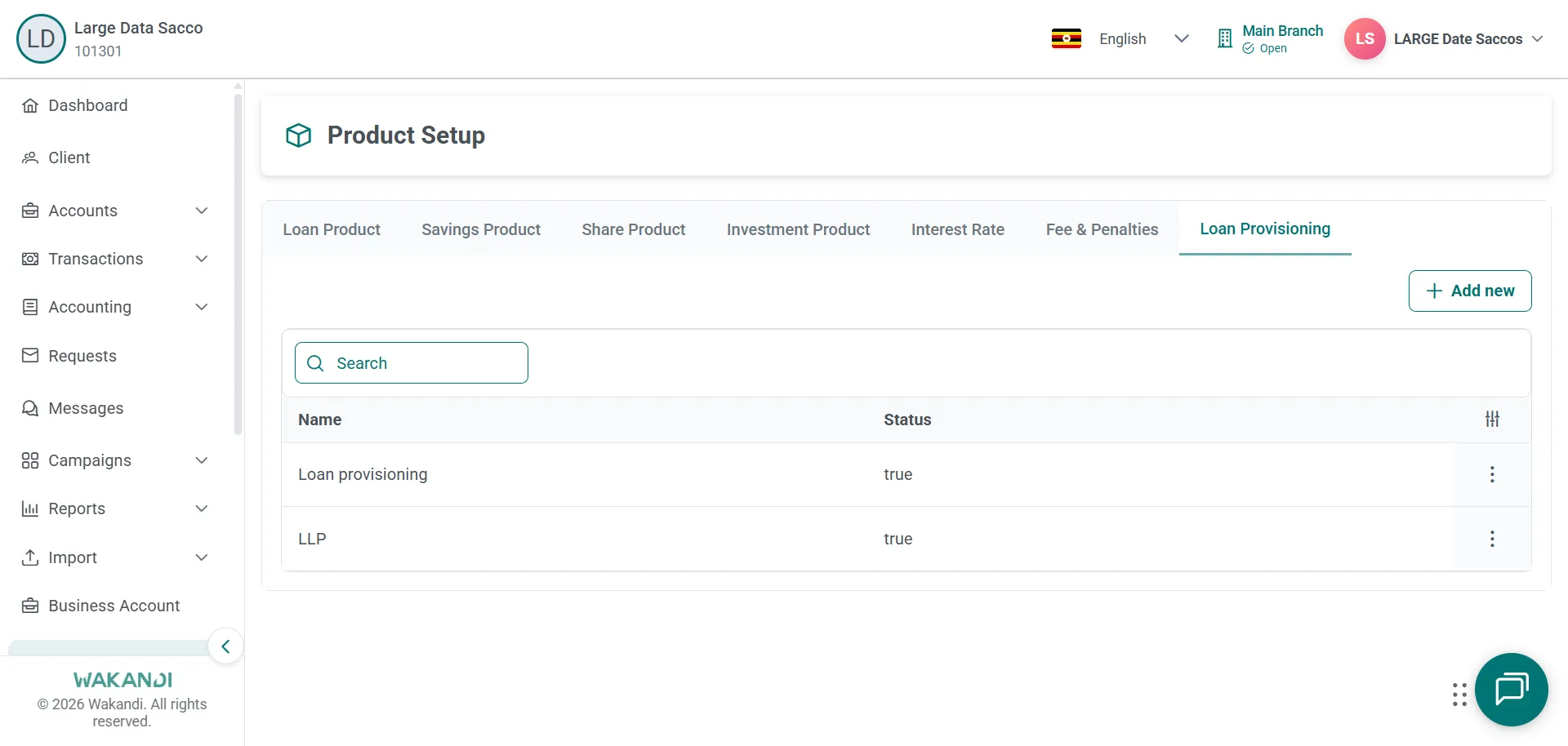
Figure 1: Product Setup open on the Loan Provisioning tab, listing existing criteria with an Add new button Read the provisioning criteria already listed there. Edit an existing entry only when your policy has changed.
Click create to open the Loan Provisioning Criteria form.
Enter the criteria name and the required bands and percentages.
Click Save, then confirm the new criteria appears on the Loan Provisioning list.
Validate the reports. Expand Reports, click Loan, then click the Risk Classification of Assets card. Set your filters and click Submit.
Common pitfalls & FAQ
- Where do these bands show up? In the Provisioning Status column on Accounts, Loans, Active. Also in the Risk Classification of Assets report, and in SASRA Form 2D Risk Classification of Assets and Provisioning.
- I cannot create or edit criteria. Create, view and edit actions appear only when your role permits them. Ask your administrator.
- The Risk Classification of Assets report looks empty. Check the filters and your branch access, then click Submit again. On a large loan book, narrow the date range so the run finishes faster.
- Where is the SASRA return? Expand Reports and click SASRA, then open the Form 2D Risk Classification of Assets and Provisioning card. Confirm the financial year and quarter before you click Save, because saved snapshots are period-specific.
- Should I guess a band? No. These figures reach your accounts and a regulatory return. Take every band and percentage from your approved policy.
- When do I revisit this? After any policy change, and whenever a report or return does not agree with your loan book.