How to appraise a loan application
Summary
Read a loan application end to end — the header, the panels and the history — before anyone decides it.
About 3 minutes · 6 steps. Also called: loan appraisal, assess a loan application, credit decision, loan stages.
Sign in with your email to read the rest of this article, track what you have finished, and earn your certificate.
Sign inPrerequisites
- A CAMS sign-in with a role that can open applications.
- An application waiting for review, and the member's name.
Step-by-step
Sign in to CAMS.
In the left menu, click Accounts, then Applications. Type the member's name in Search, or narrow the list with Loan Officer or Add Filters.
Click the row. The application opens on stage 1 Application.
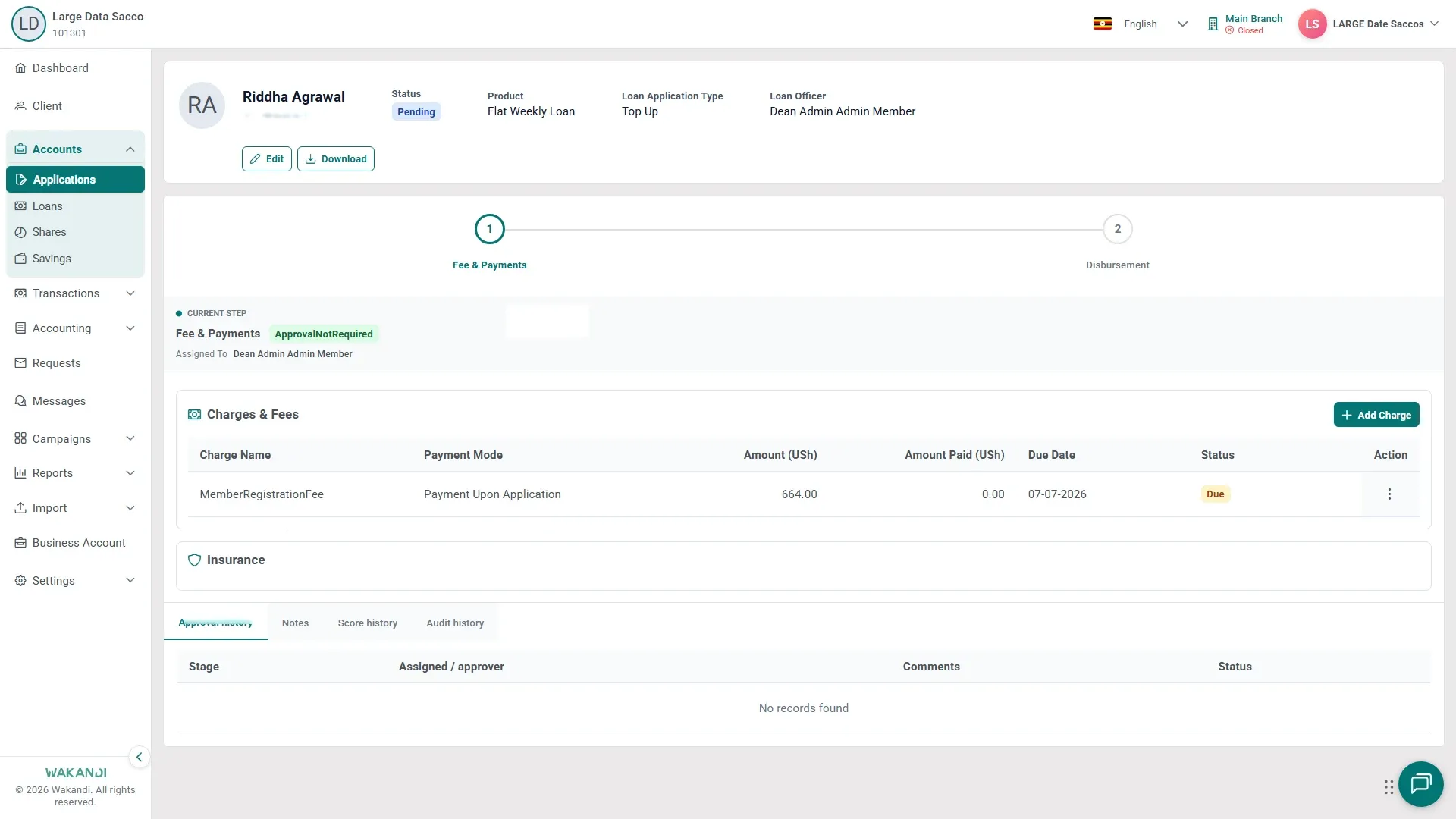
Figure 1: An open loan application: the member and status header at the top, the numbered workflow stages across the screen, and the loan and member detail panels you read before you decide Read the header — member name and ID, Status, Product, Loan Officer — then the three panels. Application Summary holds the type, dates, purpose, economic sector and debt capacity. Financial Details holds Loan Amount, Tenure, Nominal Interest Rate and the calculation method. Member Details counts the member's active, outstanding and badstanding loans.
Open the tabs at the bottom. Approval history lists earlier stage decisions and comments, Notes holds staff comments, Score history shows scoring results, and Audit history records who changed what.
Check Current Step and Assigned To, the officer who owns this stage. The stepper runs 1 Application, 2 KYC & Documentation, 3 Fee & Payments, 4 Sanctions & Approval and 5 Disbursement, in that order.
Warning: Do not wave a stage through unread. If a document, fee or sanction check is missing, write it on the Notes tab so the next officer knows what is outstanding.
Common pitfalls & FAQ
- I can't find the application. Pending holds only applications not yet approved. Look on Approved, or All, which lists every status.
- Two rows look almost the same. Read Stage and Status together before you act — the All tab mixes pending and approved applications.
- Score history is empty. Scores appear only where scoring is set up for your organisation. An empty tab is neither approval nor rejection — follow your credit policy.
- Appraisal or approval? Appraisal is reading and weighing what you see here. The decision at each stage comes next, in How to approve loan applications.