How to record a loan repayment
Summary
Record a member's loan repayment at the teller, then check it landed on the loan.
About 4 minutes · 9 steps. Also called: loan payment, pay back a loan, instalment, repay.
Sign in with your email to read the rest of this article, track what you have finished, and earn your certificate.
Sign inPrerequisites
- A CAMS sign-in with teller access, and an open till.
- The member's name or loan account number, and the amount paid.
Step-by-step
Sign in to CAMS.
In the left menu, click Transactions, then Teller. The Teller Transaction page opens.
Check the till shows Open. Never post a member's cash on a closed till.
Click the New Transaction tab, then the Client Transaction card.
Click Loan Repayment and wait for the Enter Transaction Details form to load.
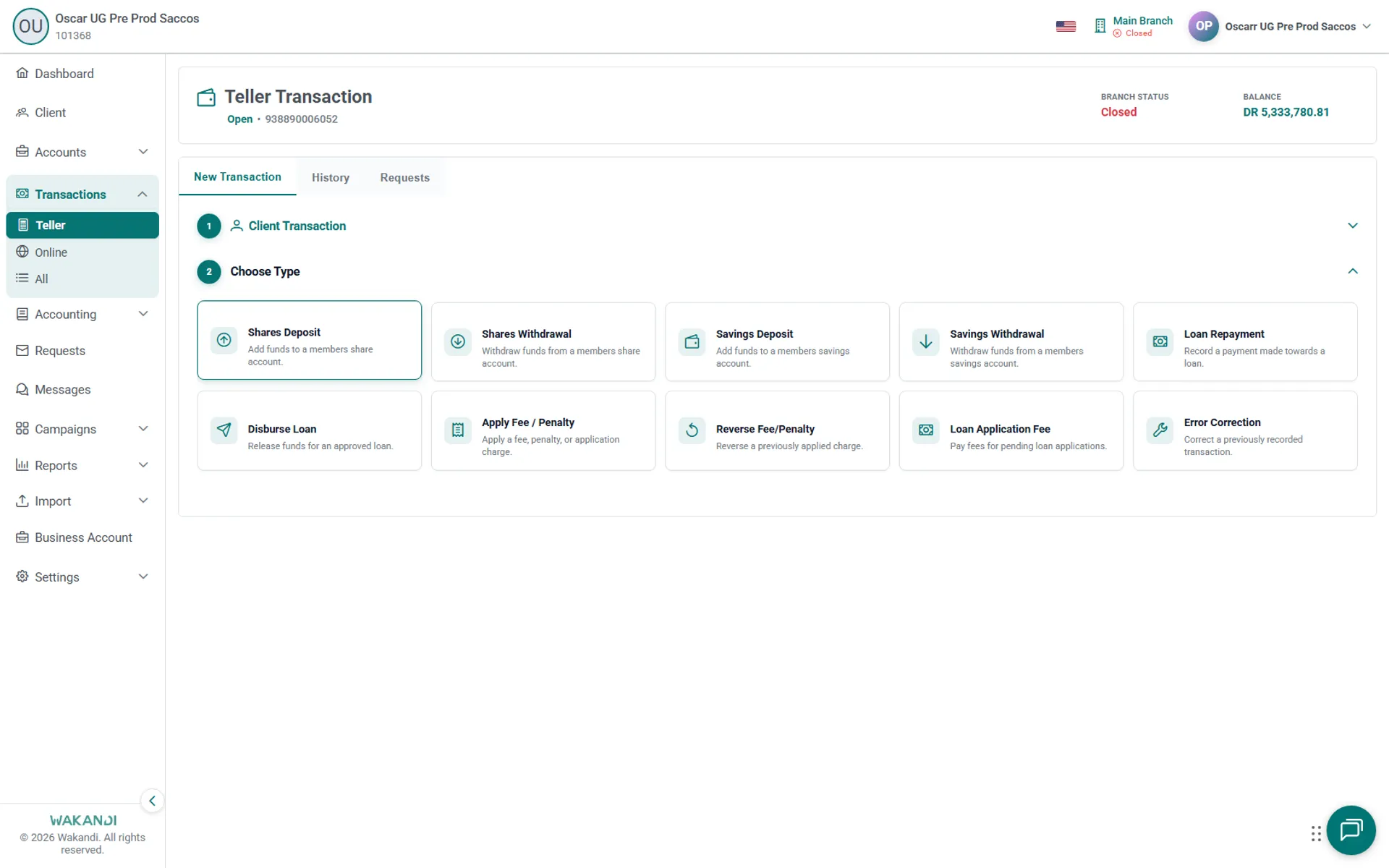
Figure 1: The Choose Type step after Client Transaction, where you click Loan Repayment In Search Account, find and select the member's loan account. The client and loan information appear underneath.
Enter the amount paid, then read the allocation on screen: how much goes to principal, interest and charges.
Click Submit.
Click the History tab, set Start Date and End Date around now, and find the member's Repayment row with the status Posted. To see it on the loan, open it under Accounts > Loans and read the Schedule tab.
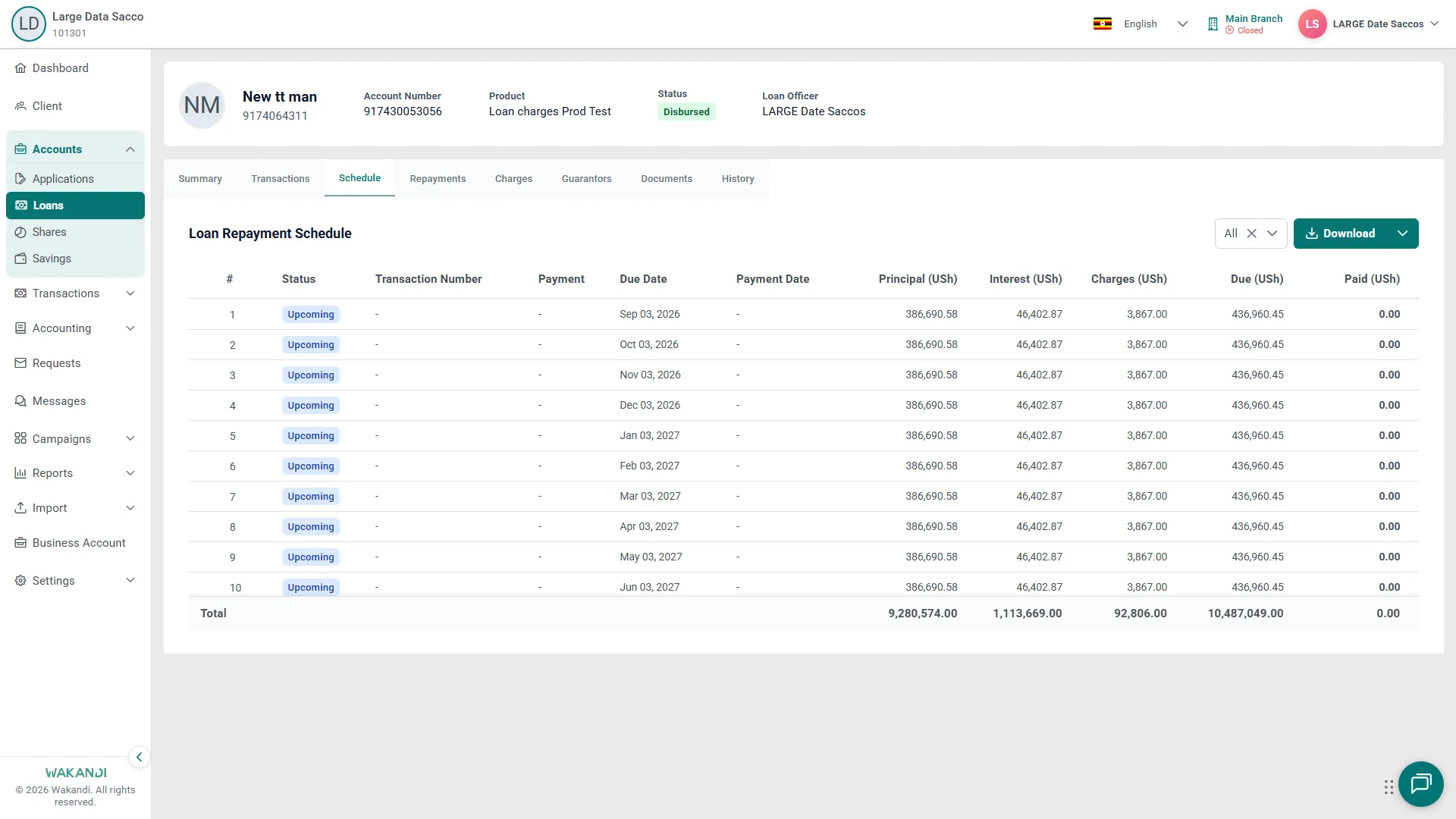
Figure 2: The loan Schedule tab, showing each installment with its due date, amounts and running balance
Note: If the row is missing from History, widen the dates and check Viewing Teller. A posting that needs approval waits on the Requests tab until it is approved.
Common pitfalls & FAQ
- The till shows closed. Open it from New Transaction > Till Administration > Till Opening, then start again.
- The member paid, but the loan still shows a balance. Compare the loan's Schedule tab with its Repayments tab. Repayments shows what was actually received, split into Loan Amount, Interest Amount and Charges.
- Does the member have to come to the branch? No. Members can check a balance and repay over USSD from any phone; any fees your SACCO sets show before they confirm. Staff can start one from Transactions > Online > Initiate Online Transaction, and a loan's Summary tab carries an Online repayment action.
- Can another app post repayments for us? Yes. CAMS has an API that reads a loan and posts a repayment. A partner app or your own front end can pay a loan that way, and it lands like any teller payment. Ask your Wakandi contact.