Write off a loan you cannot recover
Summary
Write off a loan your institution has accepted it will not recover, then confirm the result.
About 3 minutes · 6 steps. Also called: bad debt write-off, loan write off, Written Off status.
Sign in with your email to read the rest of this article, track what you have finished, and earn your certificate.
Sign inPrerequisites
- A CAMS sign-in with access to Accounts and Reports.
- Approval under your institution's rules.
- The loan account number and the member's name.
Step-by-step
- Sign in to CAMS.
- In the left menu, click Accounts, then Loans. Stay on the Active tab, type the account number into Search, and open the matching row.
- Check the member name, account number and product in the header, then read Balance Summary before you go on.
Warning: A write-off is a high-impact action and follows your internal approval rules. Ask your manager before you click anything here.
- Click Write Off and complete the steps shown on screen. Take care: Interest Waive Off and Close loan sit beside it and do something different.
Note: The write-off is posted with an effective date. Keep it inside the loan's own activity year unless your accountant has told you otherwise. Until build 26.09.02, a date in a different year could be rejected outright, which is what blocked write-offs on loans belonging to members who had died in an earlier year.
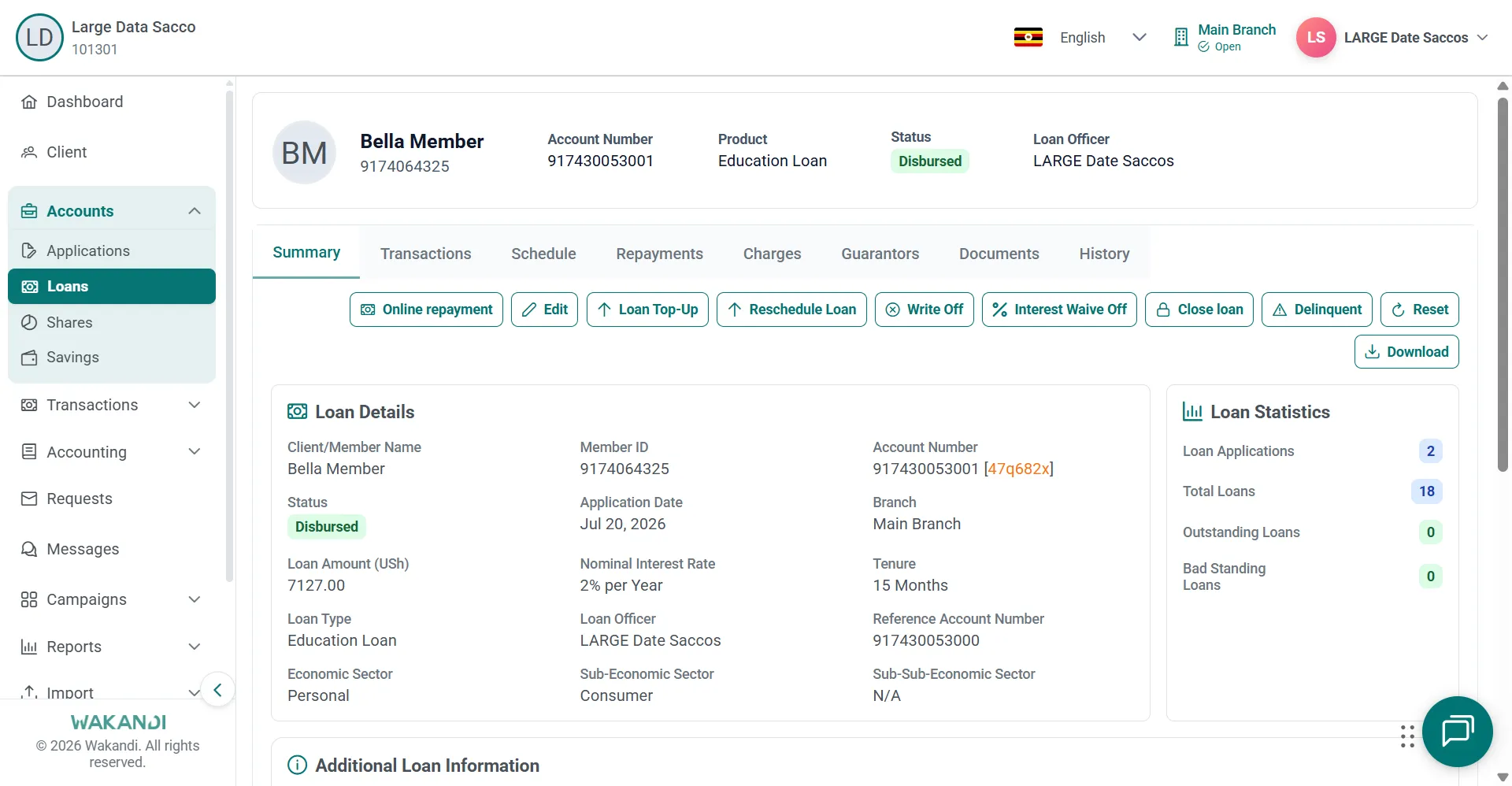
Go back to Accounts > Loans, click the Closed tab, and confirm the Status reads Written Off. The loan's History tab records who wrote it off and when.
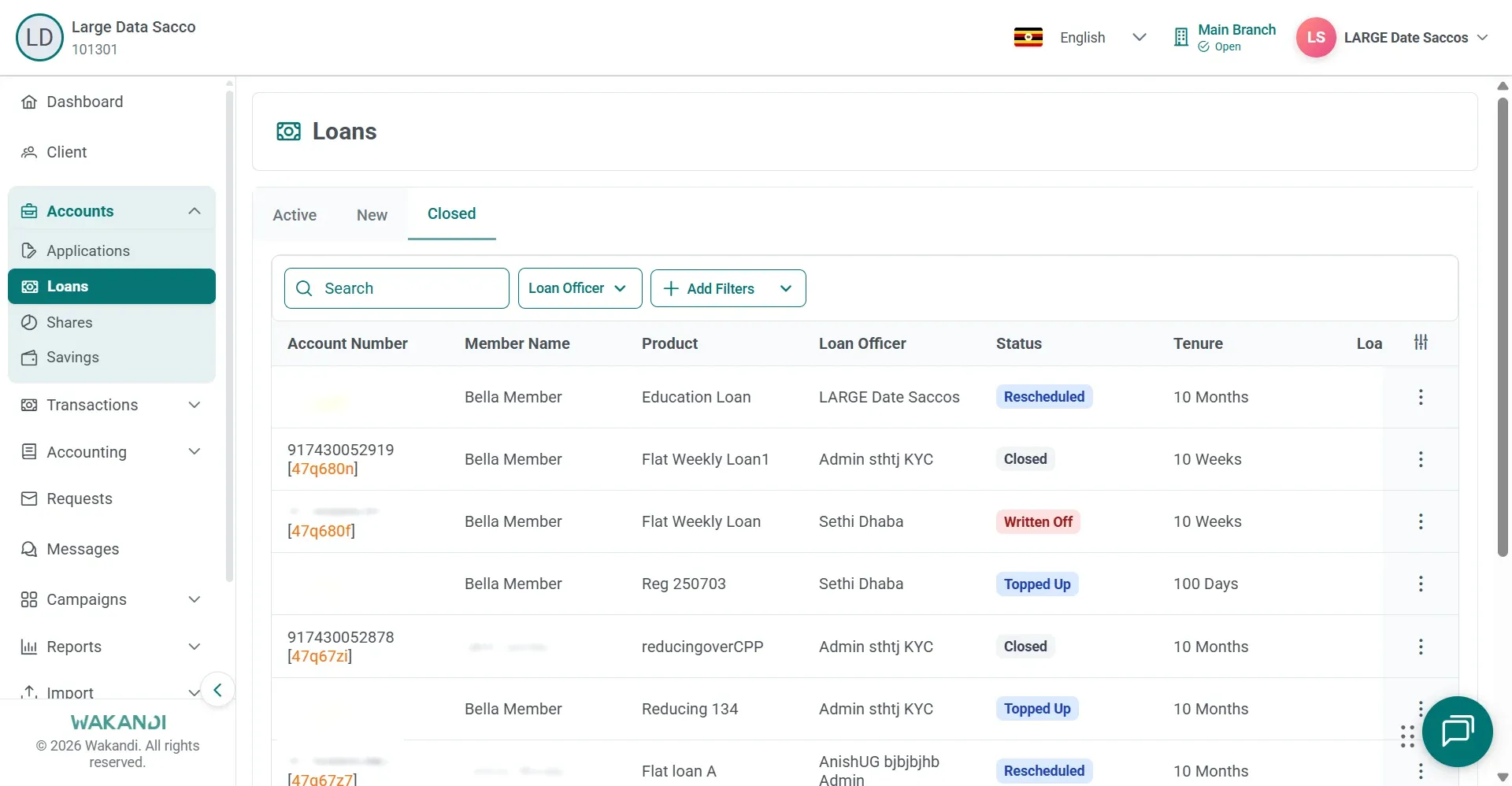
Figure 2: Loans Closed tab listing closed accounts, one row showing the status Written Off Expand Reports, click Loan, and open the Written Off Loan Report card. Set your filters, click Submit, then Download for Excel, CSV or PDF.
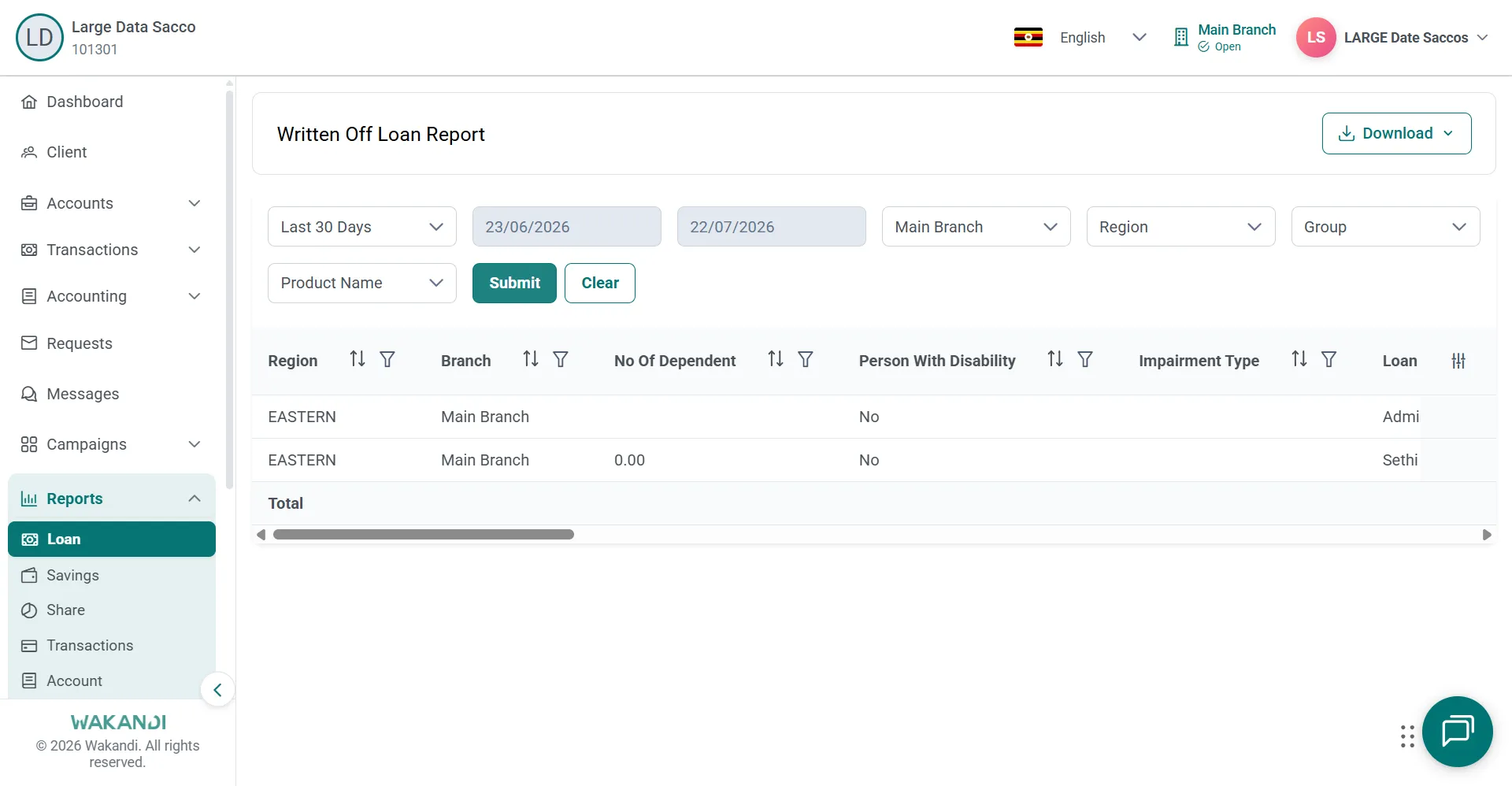
Figure 3: Written Off Loan Report with date and branch filters, result rows and the Download button
Common pitfalls & FAQ
- The member is late but still paying. A write-off is the last resort. How to reschedule a loan restructures the plan instead, when that is permitted.
- I cannot see Write Off. The actions on Summary depend on the loan status and on what your role allows. Ask your supervisor to check.
- The write-off is rejected and mentions the year or the effective date. The date you are writing off on is being compared against the year the loan was last active. Set the effective date inside the loan's activity year, or ask your accountant which year the entry belongs in. This check used to reject some valid write-offs, and it was corrected in build 26.09.02.
- The member has died. Can I still write the loan off? Yes. Follow the same steps, with your institution's approval and whatever the deceased-estate rules require. If it is rejected, check the effective date first, as above.
- The loan is not on the Closed tab. Wait for the list to finish loading and search again. If it still does not appear, check the Active and New tabs.
- The Written Off Loan Report is empty. Check your filters and your branch access, then click Submit again. Narrow the date range on a large portfolio.