Check share capital before you pay dividends
Summary
Produce a point-in-time report of member share positions and download it as your evidence. About 5 minutes - 6 steps. Also called: share capital report, share snapshot, dividend basis.
Sign in with your email to read the rest of this article, track what you have finished, and earn your certificate.
Sign inPrerequisites
- A Wakandi Admin Portal sign-in with access to Reports.
- The cut-off date your board has approved.
- The branches and share products the payout covers. Results follow your filters and your branch access.
Step-by-step
Sign in to the Wakandi Admin Portal.
In the left sidebar, expand Reports, then click Share. Wait for the report cards to load.
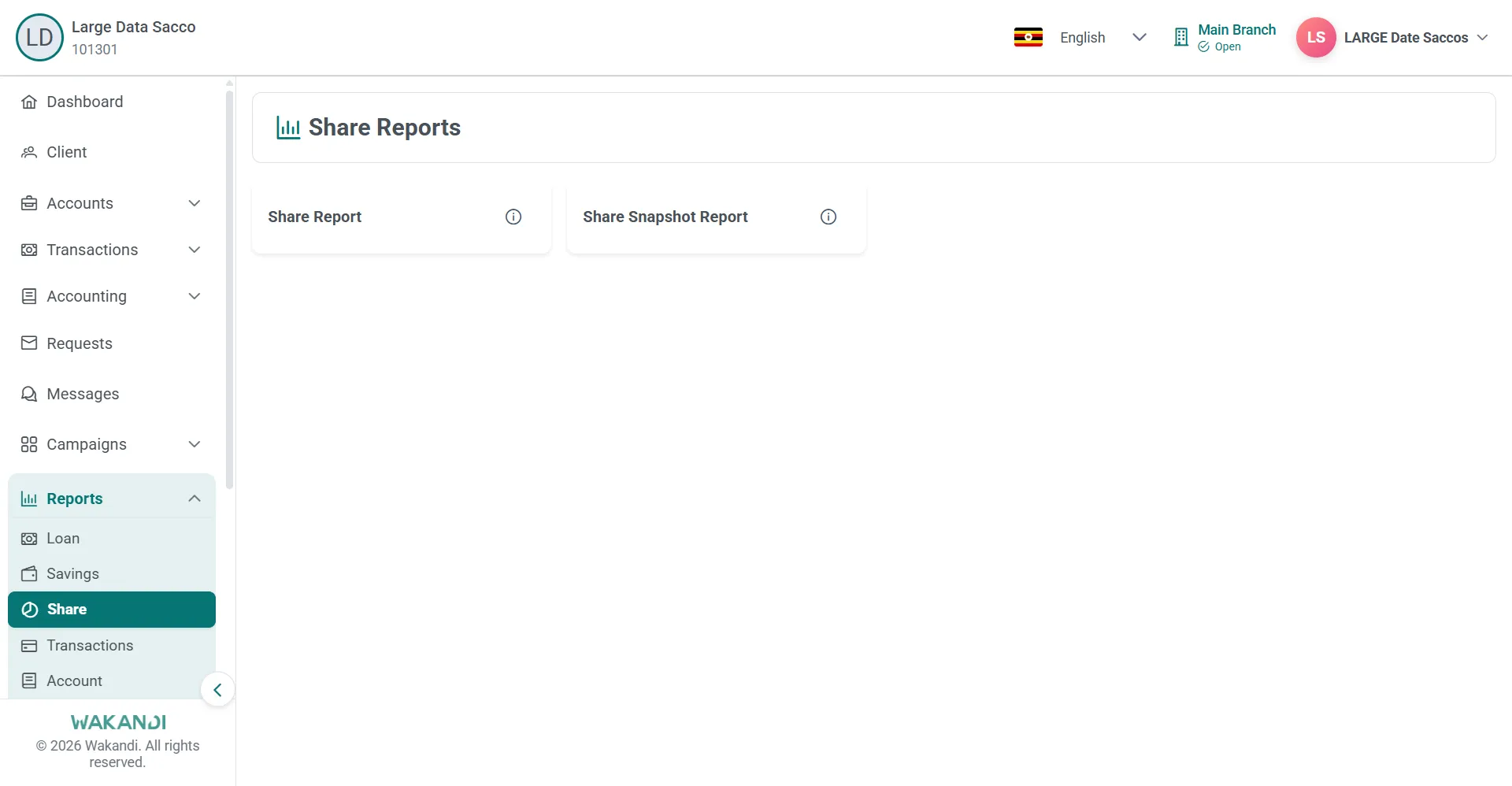
Figure 1: Share Reports hub showing the Share Report and Share Snapshot Report cards with Share selected in the sidebar Click the Share Snapshot Report card. This report produces a point-in-time snapshot of share positions.
Wait until the filters finish loading. Set the filters you need, such as dates, branch and product.
Click Submit. Wait until the results have fully loaded.
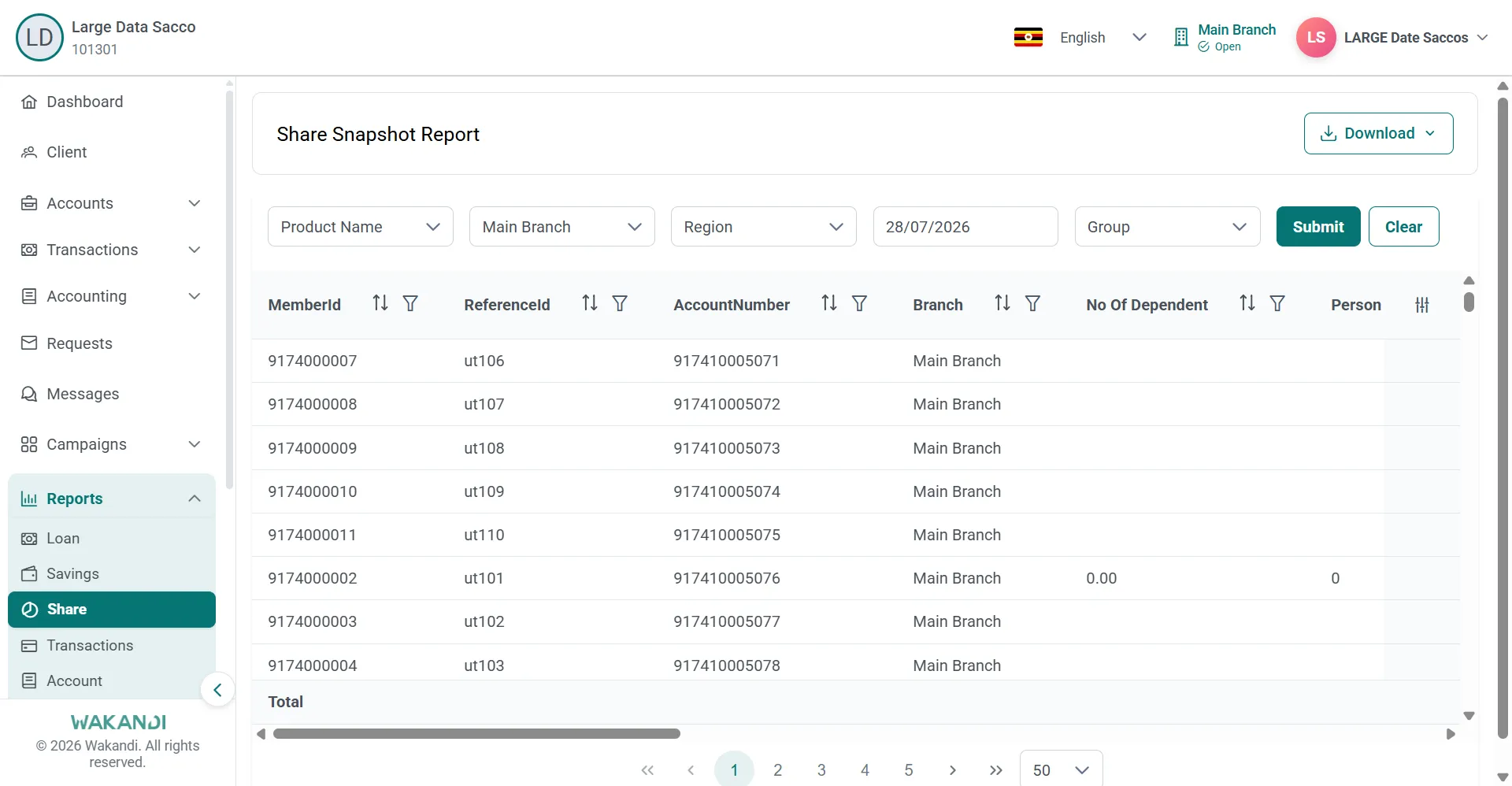
Figure 2: Share Snapshot Report results after Submit, with filter row, member rows, totals and the Download button Click Download and choose Excel, CSV or PDF. Open the file from your browser downloads folder and keep it with your payout papers.
Common pitfalls & FAQ
- Which of the two share reports do I run? Share Snapshot Report is for as-of share capital reporting, so every member is measured on one date. Share Report lists share holdings and related share account information under your filters, which suits a general review.
- I need one member's share statement. Open the Shares Account Statement Report. It is published on the Loan reports hub, not the Share hub. Expand Reports and click Loan.
- The report comes back empty. Check your filters and your branch access, then click Submit again. Narrow the date range on a large portfolio.
- The download does not match the figures on screen. Wait for the results to finish loading before you click Download. After changing a filter, click Submit again so the file matches.
- I want to check one member's shares on screen. Click Accounts, then Shares, search for the member and open the account. The Summary tab shows Balance Summary and Account Information, including Amount Per Share and Total Shares.
- I need to run it again with new dates. Click Clear to reset the filters, then enter new criteria and click Submit.
- Where do I declare and post the dividend? That is outside this article. These reports give you the share position only.