Check that account balances match the ledger
Summary
Run the CAMS account balance reports and match them against your ledger figures before you close a period.
About 8 minutes - 7 steps.
Also called: control account tie-out, month-end reconciliation, proving savings and loan balances.
Sign in with your email to read the rest of this article, track what you have finished, and earn your certificate.
Sign inPrerequisites
- A Wakandi Admin Portal sign-in with access to Reports and the Account category.
- Branch access for every branch you are reconciling.
- The closing date of the period you are working on.
- The financial year start and end dates, from Settings > Accounting > Financial Year.
Step-by-step
Open the Wakandi Admin Portal and sign in.
In the left sidebar, expand Reports, then click Account. Wait until all the report cards finish loading.
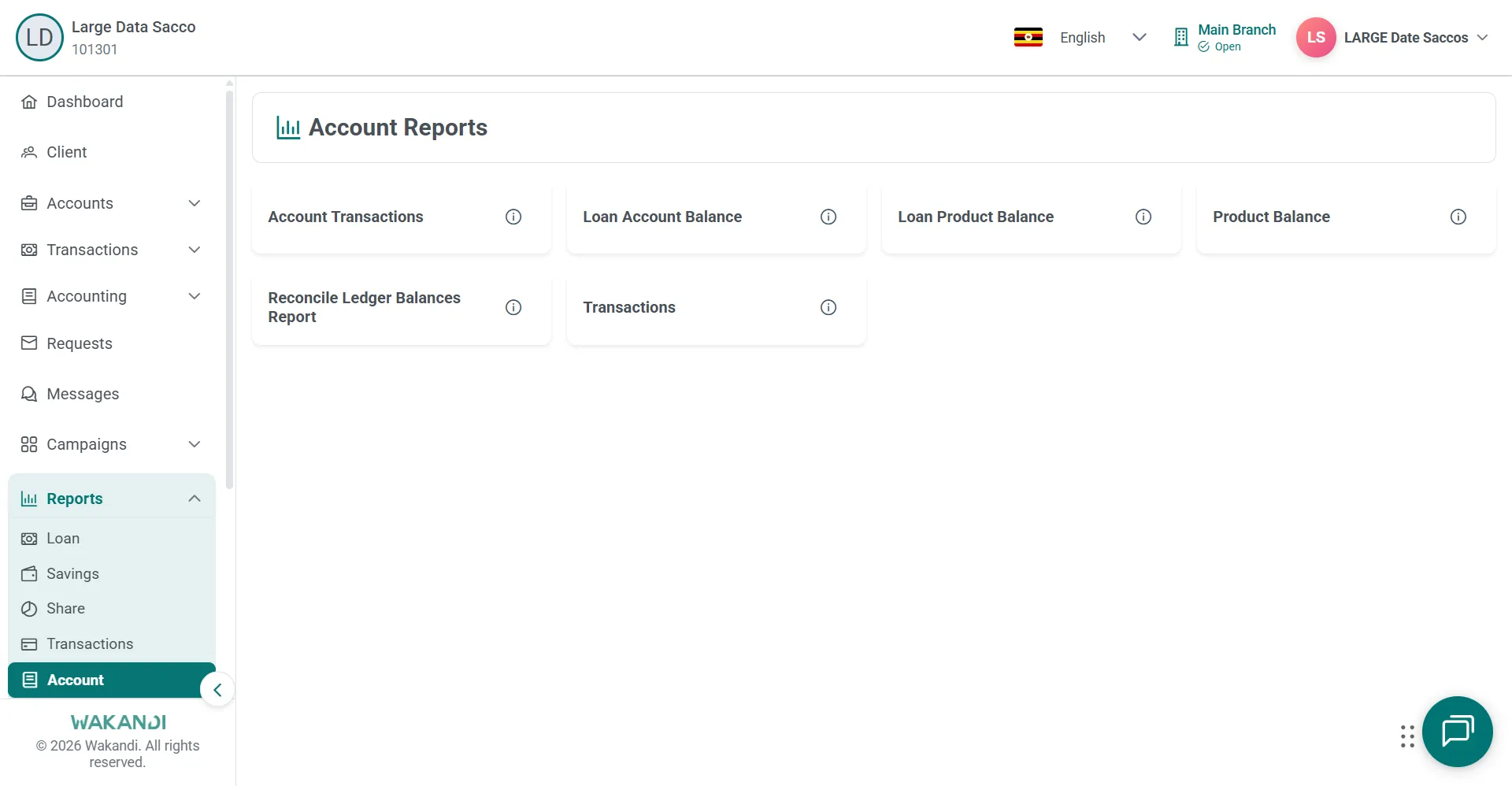
Figure 1: Account Reports hub with cards for Product Balance, Loan Product Balance and Reconcile Ledger Balances Report Click the Product Balance card. Wait for the filters to load. Set the filters you need, such as date range and branch, then click Submit. Wait for the results, then note the balance for each product.
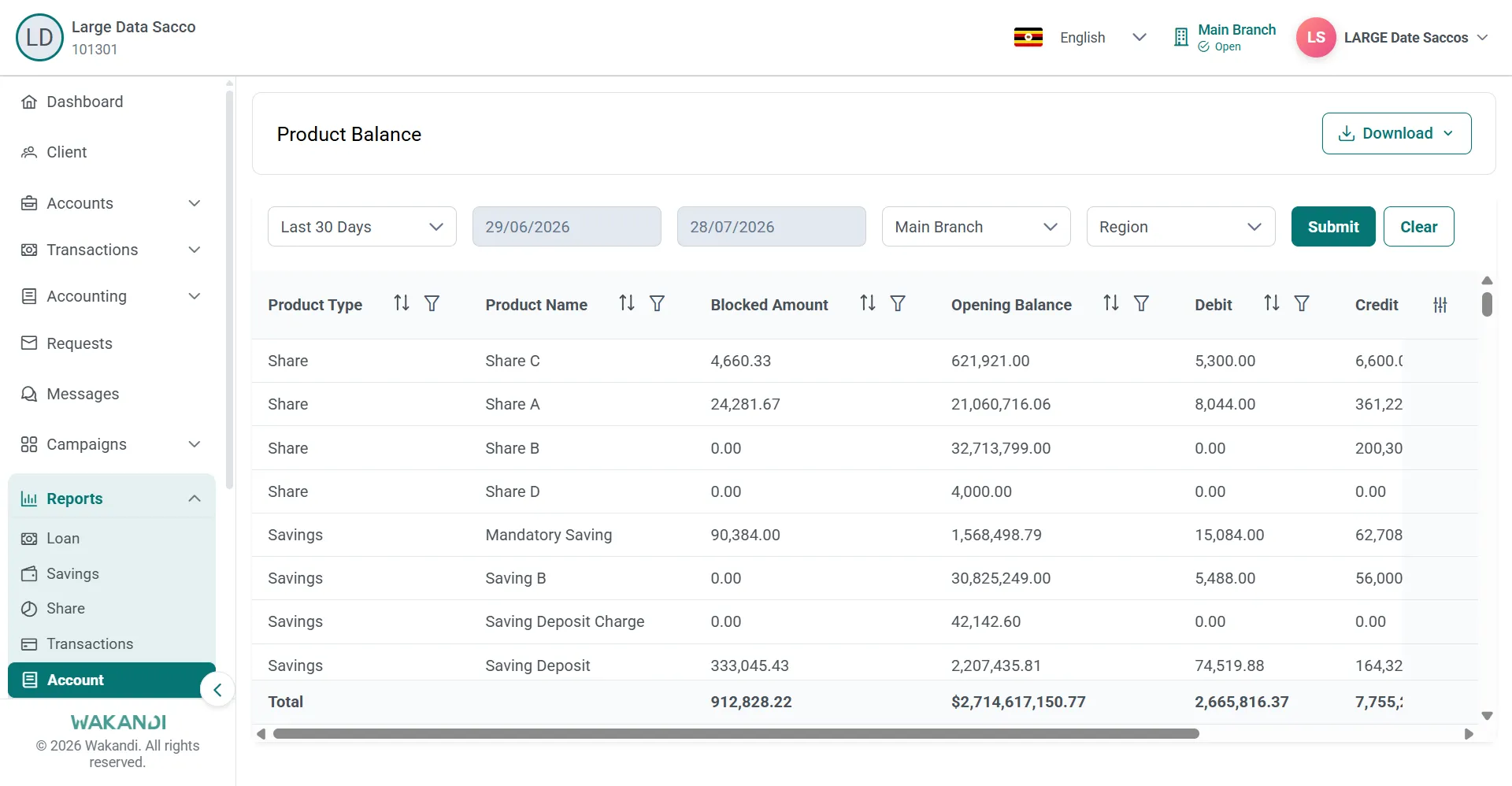
Figure 2: Product Balance report with date range and branch filters above balances for each share and savings product Return to the Account hub from the sidebar or your browser back control. Click Loan Product Balance, set the same filters, then click Submit. This gives you balances by loan product.
Return to the hub again and click the Reconcile Ledger Balances Report card. Use the same date range, then click Submit. Use this report when matching operational balances to ledger figures.
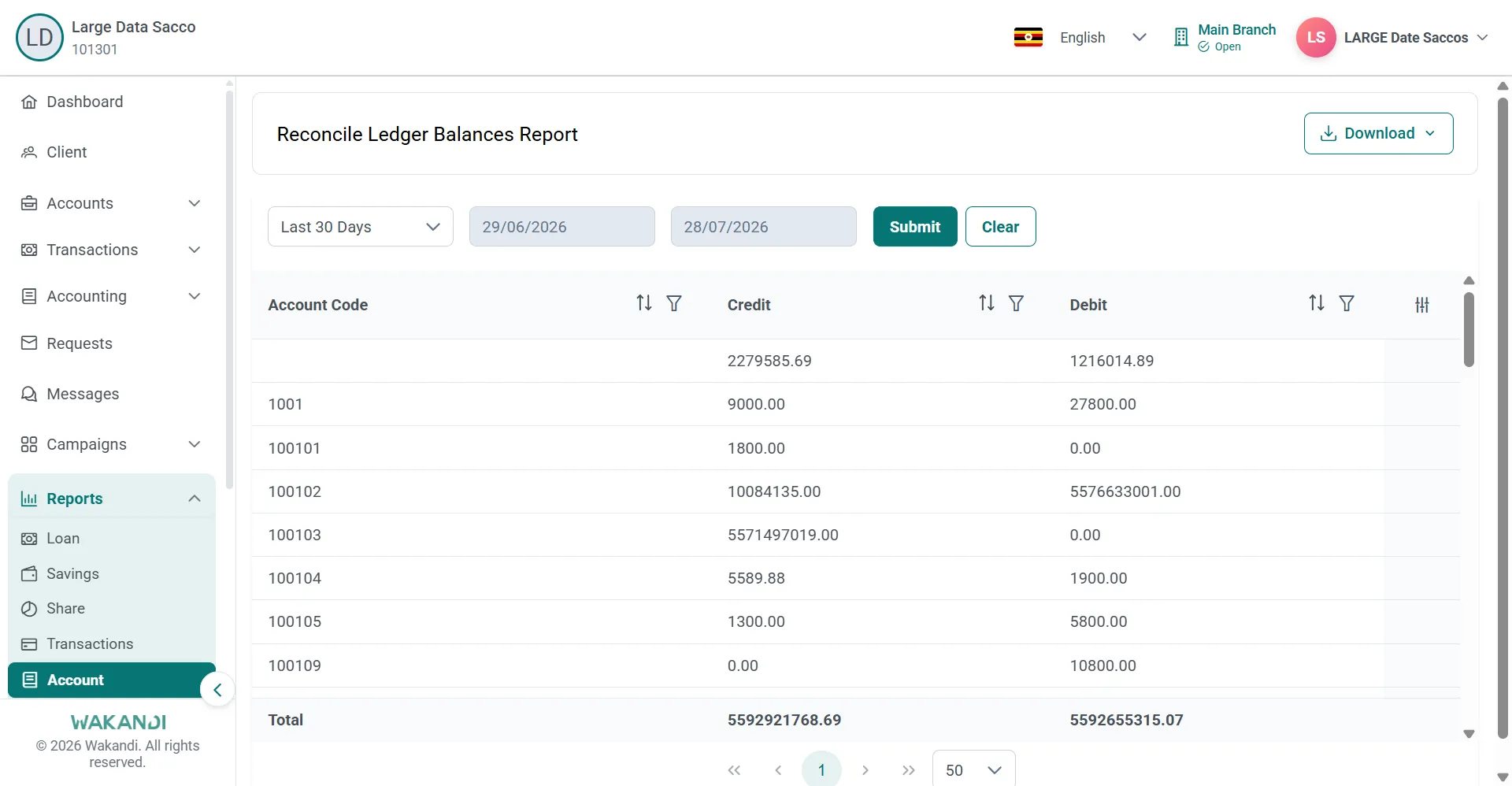
Figure 3: Reconcile Ledger Balances Report listing credit and debit per account code with totals for the period If one product does not agree, open Loan Account Balance for balances on the loan accounts behind it. Open Account Transactions to inspect movements on an account.
Once the results have finished loading, click Download and choose Excel, CSV or PDF. File the export with your month-end pack.
Common pitfalls & FAQ
- The report comes back empty. Check your filters and your branch access, then click Submit again.
- The run is very slow. Narrow the date range. Large portfolios take longer over long periods.
- My download is missing rows. Wait until the results finish loading before you click Download. After you change a filter, click Submit again so the file matches what you see.
- I want a fresh run. Click Clear to reset the filters, then click Submit again.
- I think I opened the wrong report. Several card titles are close in wording. Use the exact name on the card, because similar titles produce different layouts.
- The totals do not tie and I cannot see why. Confirm your date range sits inside one financial year. Settings > Accounting > Financial Year shows the start and end dates to align to.
- Which report do I use against the ledger? The Reconcile Ledger Balances Report. The two product balance reports give you the figures to compare with it.