How to reschedule a loan
Summary
Rebuild a loan's repayment plan so it matches what the borrower can now pay — after their circumstances change, or to restructure arrears.
About 3 minutes · 6 steps. Also called: restructure loan, reschedule repayment, change loan terms, extend loan.
Sign in with your email to read the rest of this article, track what you have finished, and earn your certificate.
Sign inPrerequisites
- A CAMS sign-in that can act on loan accounts.
- The go-ahead under your institution's approval rules — rescheduling reshapes an agreed plan.
- The new terms you plan to set, such as a longer tenure or a new instalment amount.
Step-by-step
Sign in to CAMS.
In the left menu, click Accounts, then Loans, and search the member's name or account number.
Click the row and check the member, product and Status in the header.
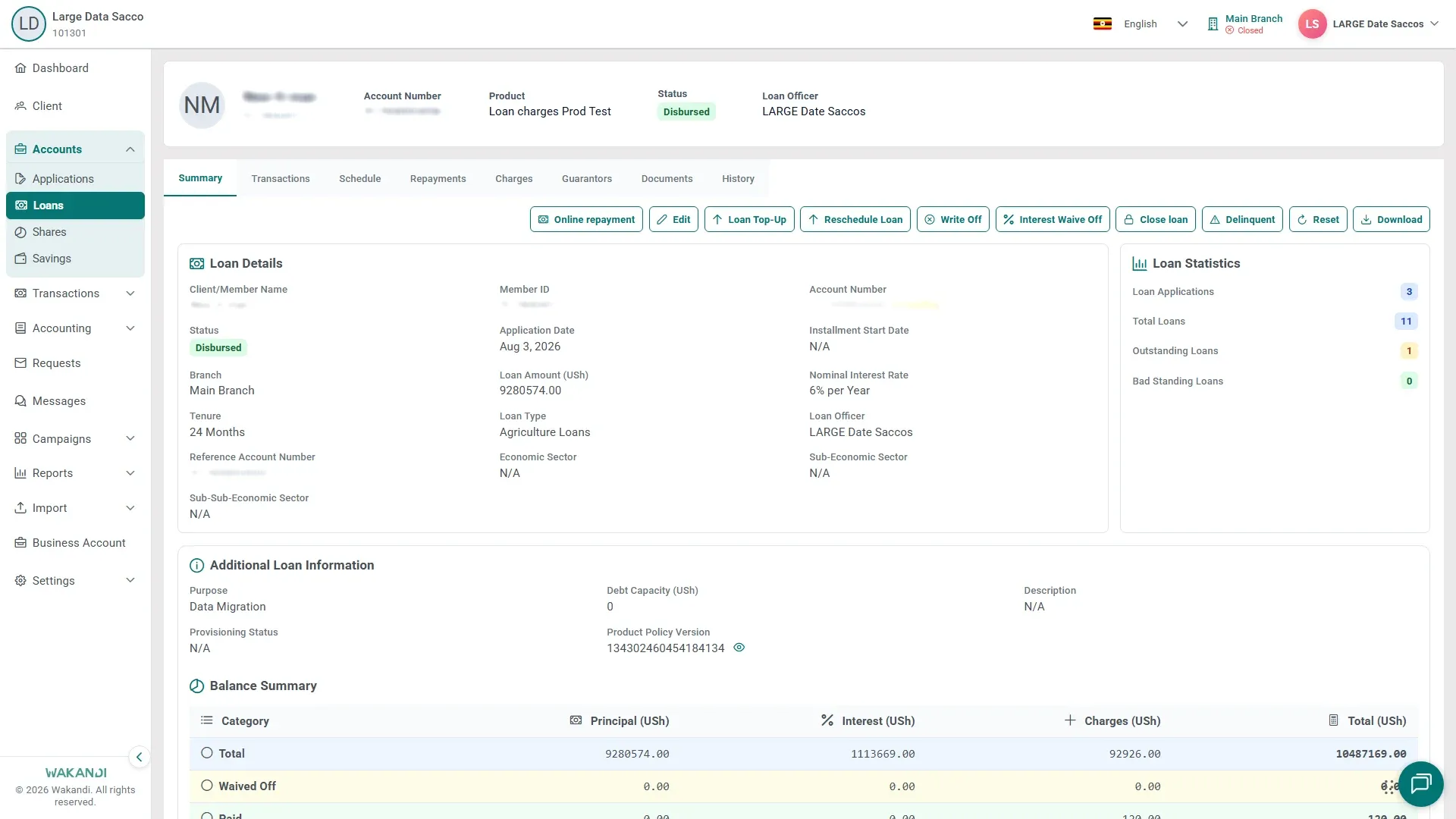
Figure 1: The loan detail screen on the Summary tab, with the Reschedule Loan button among the loan actions Click Reschedule Loan in the row of actions on Summary. The reschedule form opens.

Figure 2: The Reschedule Loan form, where you set the new repayment terms for the loan Set the new repayment terms — the tenure, the instalment amount or the start date — then save the form.
Click the Schedule tab. CAMS rebuilds the plan, so read the new Due Date and amounts per instalment before you tell the member.
Note: After a reschedule the loan can move to the Closed tab with the Status Rescheduled. Look there if it leaves Active.
Common pitfalls & FAQ
- Does rescheduling clear the arrears? No. It builds a new plan around the balance owed — the member still owes the money, on new dates and amounts.
- I cannot see the Reschedule Loan button. The loan's status may not allow it, or your login may not have the rights. It sits with the other Summary actions, described in How to top up a loan.
- The schedule looks unchanged. Open the Schedule tab again to reload it. If the dates and instalments still look wrong, check what you entered on the form.
- Who rescheduled this loan, and when? The loan's History tab lists each change with the user and the time.