How to disburse a loan (cash and mobile money)
Summary
Pay out an approved loan, as cash at the teller or straight to the member's mobile-money wallet.
About 4 minutes · 8 steps. Also called: pay out a loan, loan payout, mobile money disbursement.
Sign in with your email to read the rest of this article, track what you have finished, and earn your certificate.
Sign inPrerequisites
- A CAMS sign-in with the right to disburse loans.
- A loan account with the status New.
- For cash, an open till. For mobile money, the member's wallet registered with their provider.
Step-by-step
Sign in to CAMS.
In the left menu, click Accounts, then Loans. The page keeps three tabs: New awaits payout, Active holds running loans, Closed holds finished ones.
Click the New tab.
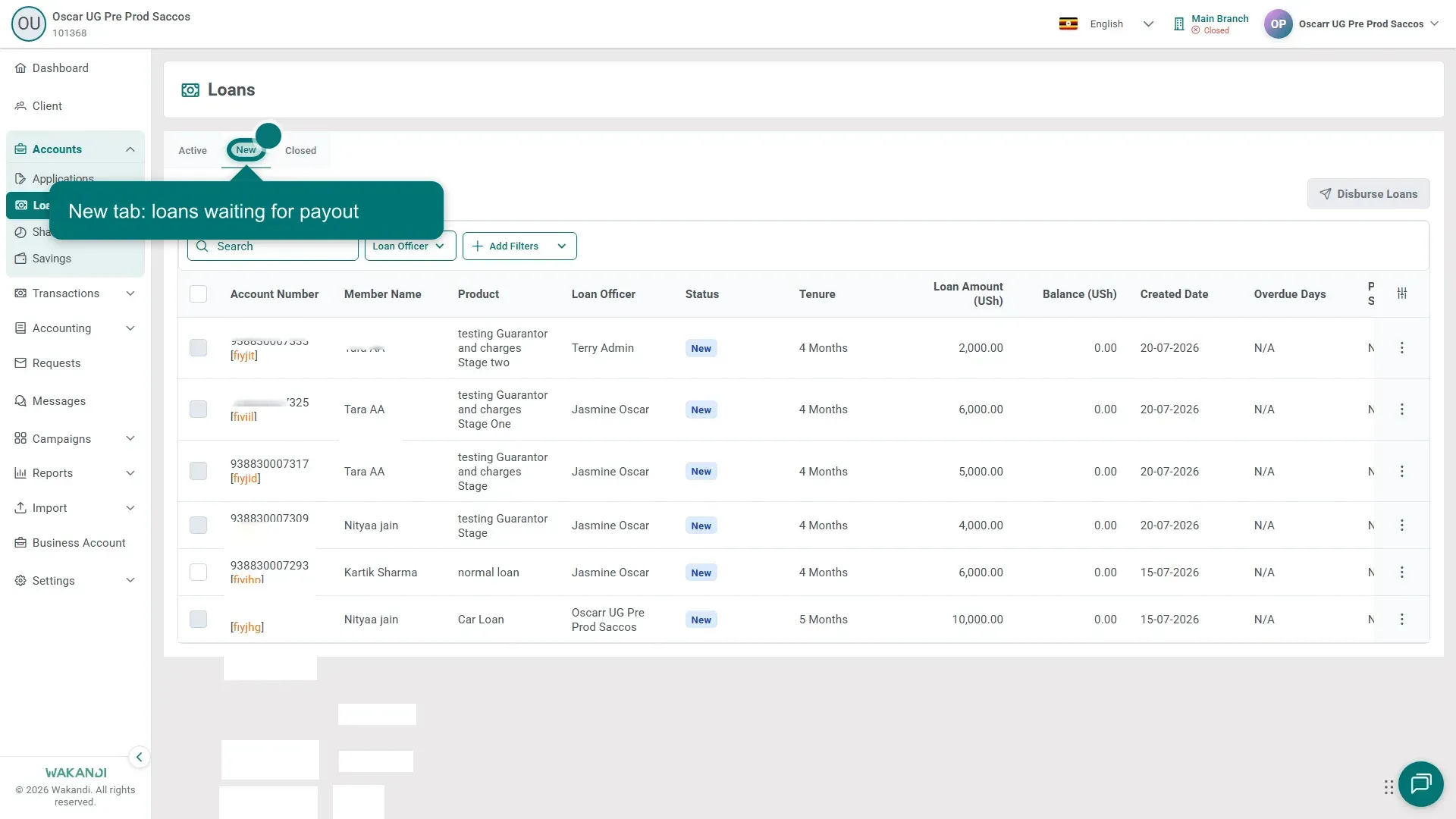
Figure 1: The Loans page on the New tab, listing loan accounts with status New that are waiting for payout Search the member's name or account number, then check Member Name and Status on the row.
Click the row and read Loan Details and Disbursement Details on the Summary tab, confirming the amount and destination.
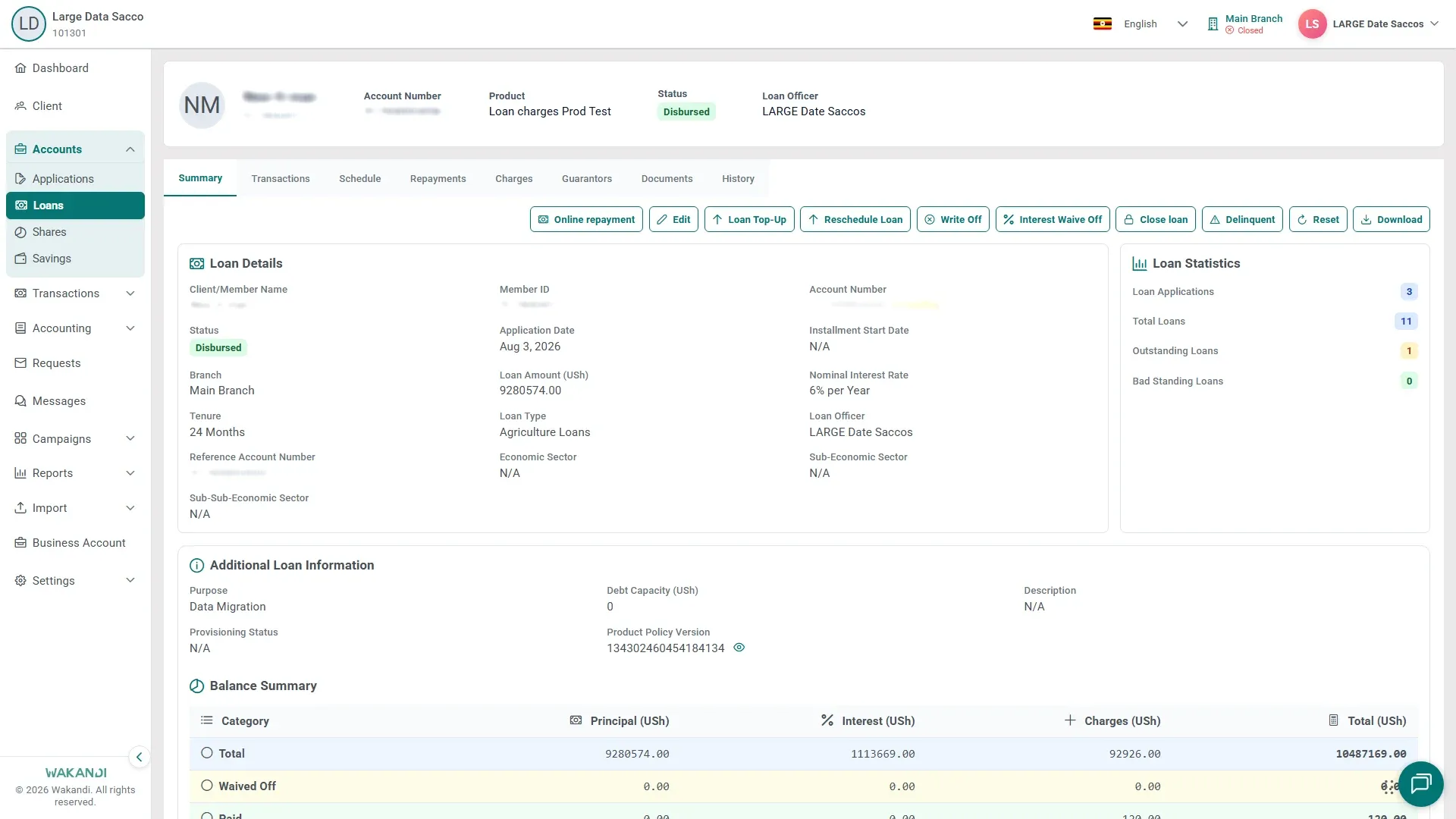
Figure 2: The loan Summary tab, where Loan Details and Disbursement Details confirm the amount and payout method before you disburse Go back to the New tab and tick the checkbox on each loan you are paying out.
Warning: Disbursing releases the money and creates the repayment schedule. You cannot undo it here, so check the member, amount and destination first.
- Click Disburse Loans, confirm the amount and destination, and pick Cash for a teller payout or Mobile Money for the member's wallet.
- Open the Active tab and find the loan. It now shows the status Disbursed, and its Schedule tab holds the repayment plan.
Common pitfalls & FAQ
- I cannot find the loan. The page opens on Active, so click New first. If it is on neither tab, it is still an application — finish it under Accounts > Applications.
- Disburse Loans is greyed out. Tick at least one eligible row. If it stays unavailable, ask an administrator about your permissions.
- Can I pay out from the till instead? Yes: Transactions > Teller > New Transaction > Client Transaction > Disburse Loan, with the till Open. A batch runs through Bulk Transaction > Bulk New Loan Disbursement. An authorised user reverses a wrong payout with Error Correction, under Client Transaction.
- Did the mobile-money payout arrive? Open Transactions > Online, set the dates around the payout, and read the member's row for Payment Provider and Status. A payout waiting for approval sits under Teller > Requests with the status Pending.