How to approve loan applications
Summary
Decide an application at your stage: approve it forward, hold it for more information, or reject it.
About 4 minutes · 7 steps. Also called: loan approval, sign off a loan, pending loans, committee decision.
Sign in with your email to read the rest of this article, track what you have finished, and earn your certificate.
Sign inPrerequisites
- A CAMS sign-in with rights to act at your stage.
- The application read first. See How to appraise a loan application.
Step-by-step
Sign in to CAMS.
In the left menu, click Accounts, then Applications. Pick your tab: Pending awaits decisions, Approved holds decided ones, All shows everything.
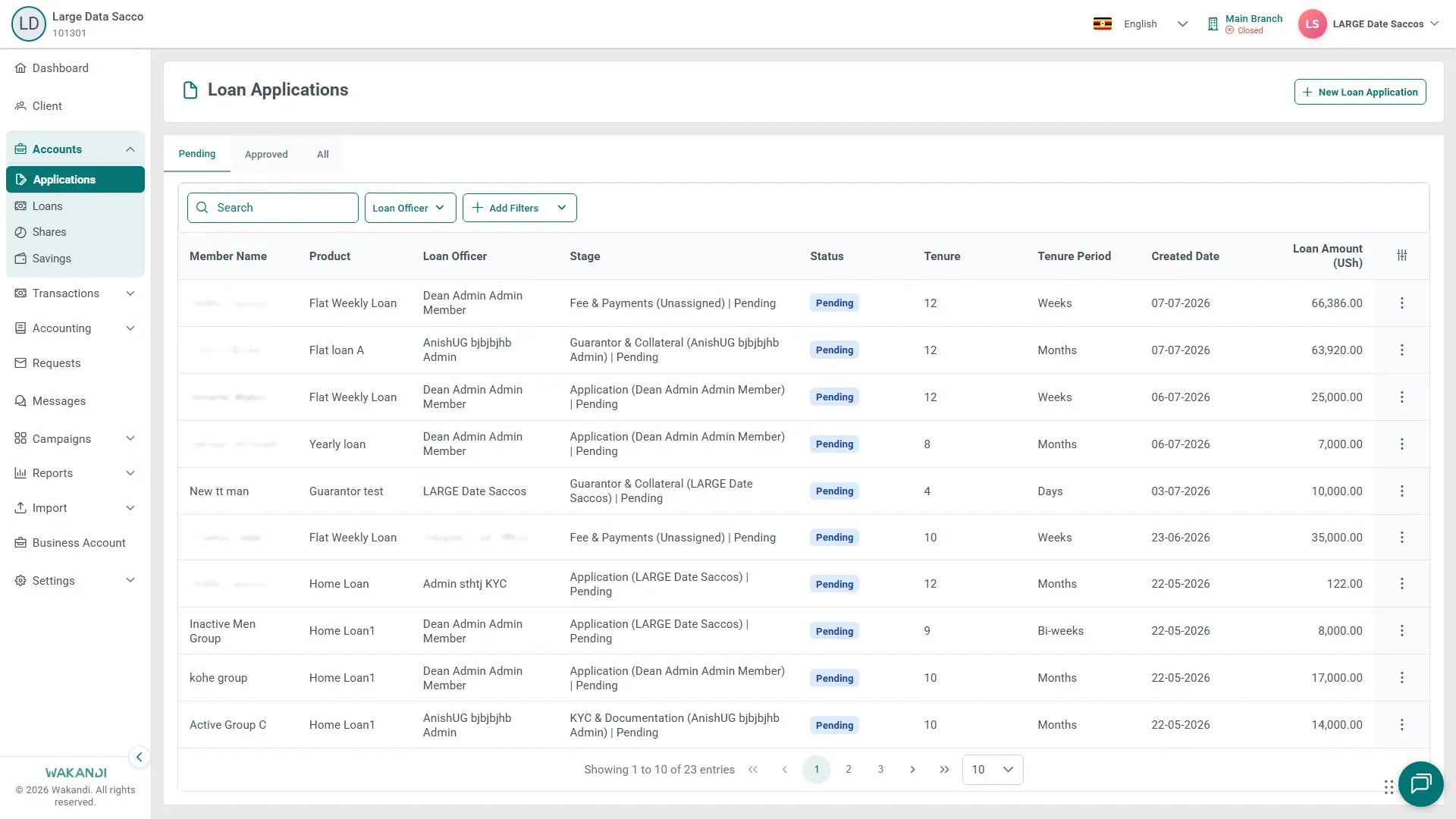
Figure 1: The Loan Applications page on the Pending tab, with the Pending, Approved and All tabs above the list and columns for Member Name, Product, Loan Officer, Stage, Status and Loan Amount Search the member's name and click the row.
Check Current Step and Assigned To. The decision buttons show only at the stage you own.
Click Approve to move the stage forward, Hold to pause for more information, or Reject to stop it. Complete the confirmation prompt if one shows.
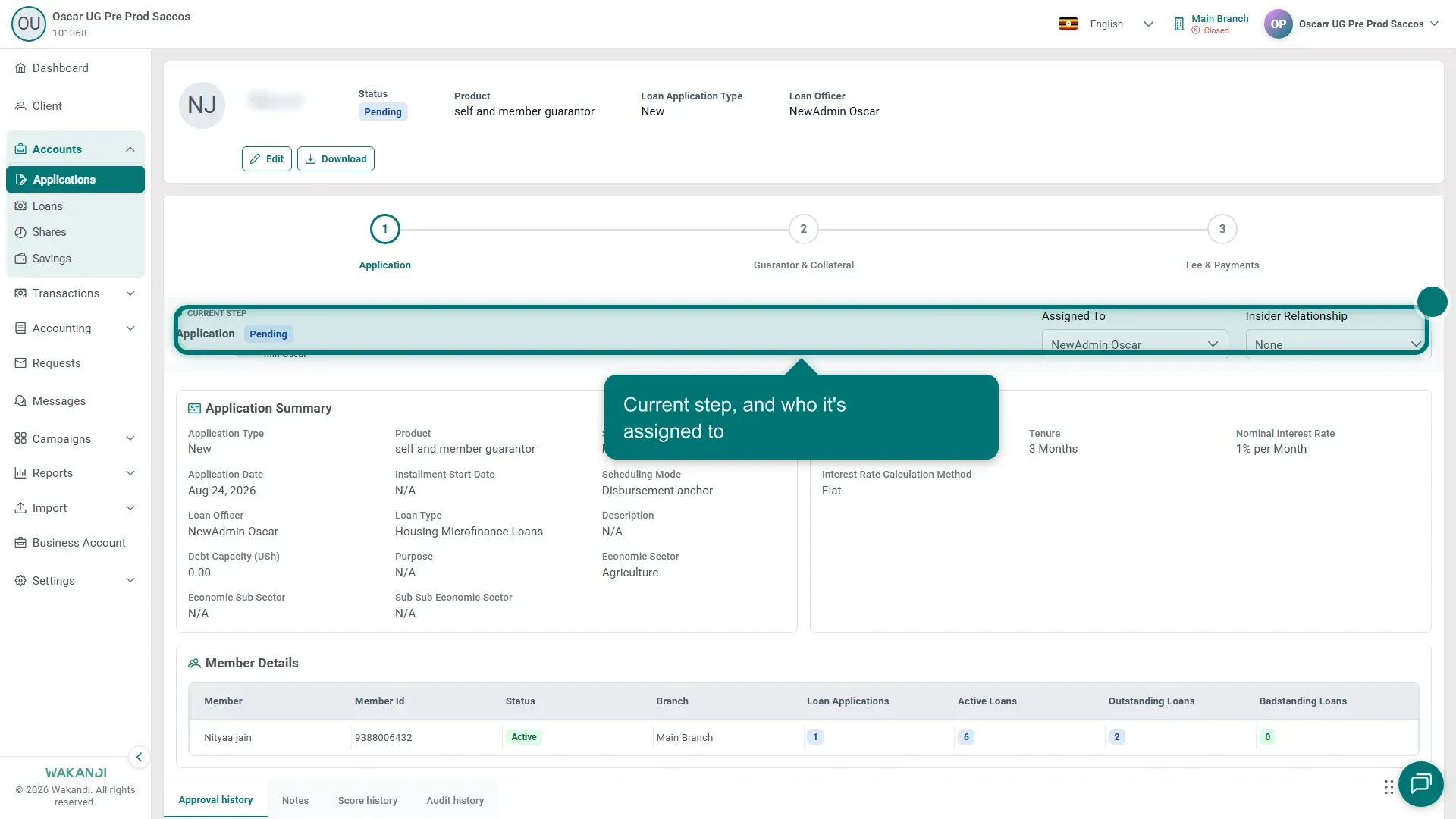
Figure 2: The Application step of an open loan application, showing Application Summary, Financial Details and Member Details Click Add Note on the Notes tab whenever you hold or hand a stage on, so the next reviewer knows why. Your decision lands in Approval history and Audit history.
Repeat the same decision at each later stage. 2 KYC & Documentation covers documents and next of kin. 3 Fee & Payments covers charges and insurance; Add Charge adds a missing fee. 4 Sanctions & Approval is the final check before 5 Disbursement.
Warning: You cannot reverse an approval from this screen. Read Loan Amount and Financial Details once more before you decide.
Common pitfalls & FAQ
- Approve is greyed out, or no buttons show. They appear only at the stage you may act. Check Assigned To, hand the stage over, or ask an administrator.
- I approved it but still see it. Approval is per stage, so read the Stage column. A row awaiting a decision sits under Pending, not Approved — use All when unsure.
- Hold or Reject? Hold pauses the application and it stays in the list. Reject stops it for good, though it stays in history for audit.
- Which rules apply at Sanctions & Approval? The Credit Product Policy on the product, at the version stored on the loan as Product Policy Version. Sanction fields differ by product, so read every section.