How to sign in and navigate CAMS Admin
Summary
Sign in to CAMS Admin and find your way around the top bar and the main menu. About 3 minutes · 5 steps. Also called: log in, open CAMS, the main menu, the sidebar.
Sign in with your email to read the rest of this article, track what you have finished, and earn your certificate.
Sign inPrerequisites
- A CAMS sign-in (your email and password). Ask an administrator if you don't have one.
- The web address for your CAMS Admin, from your administrator.
Step-by-step
CAMS Admin is the staff side of CAMS, where your SACCO's team manages members, accounts, money and settings. Members later see what you record here in their app or by USSD.
Open your CAMS Admin web address. The sign-in screen appears.
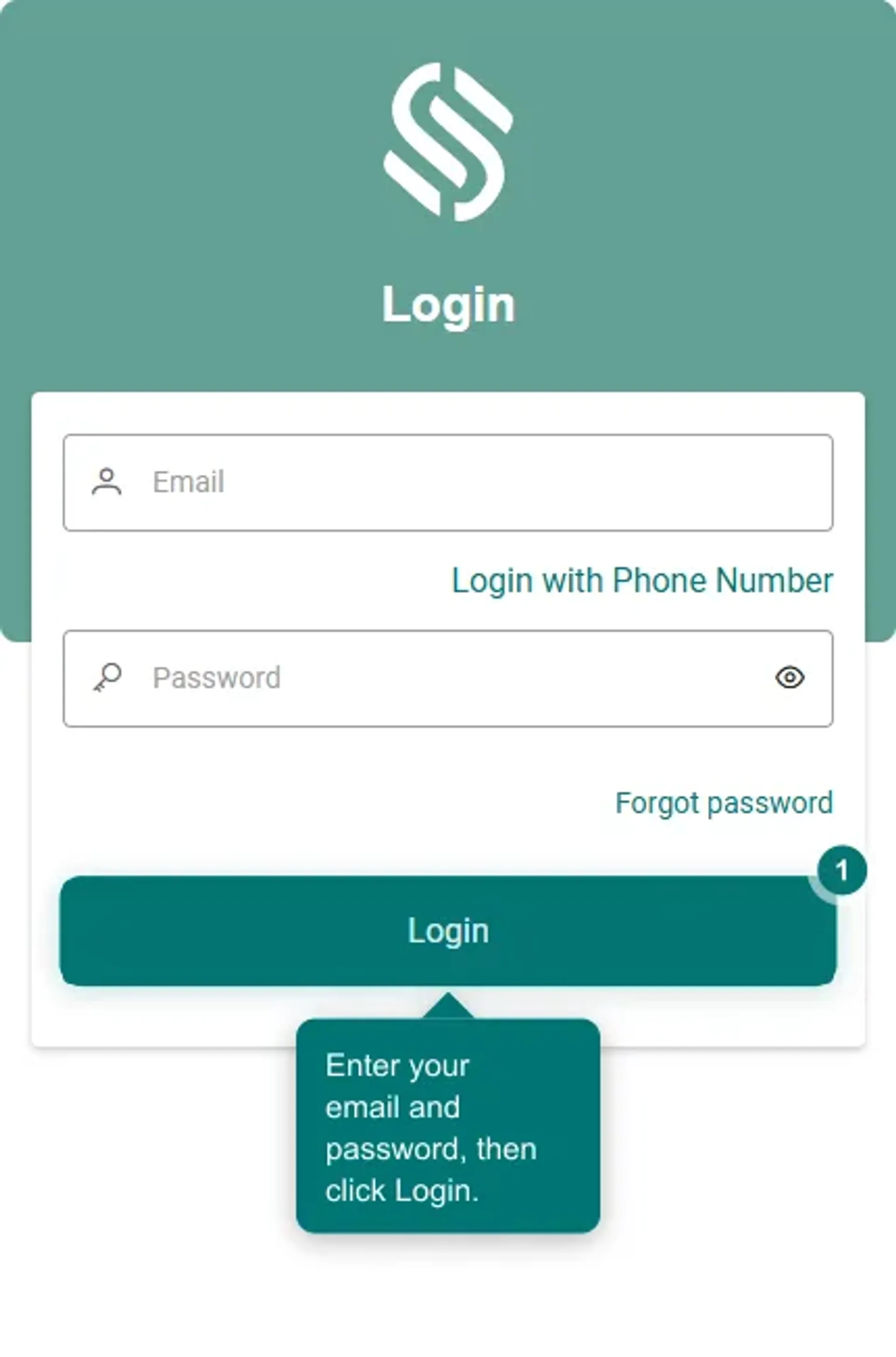
Figure 1: The CAMS sign-in screen, where you type your email and password Type your email and password, then click Login. You land on the Dashboard, with the main menu down the left.
Check the bar across the top: your organisation name, your branch and its status (for example Main Branch, Open), and your signed-in profile.
Read the left menu. Each section is one area of CAMS:
- Client: member and group records.
- Accounts: applications, loans, savings and shares.
- Transactions: teller, online and the register.
- Accounting: chart of accounts, entries and reports.
- Requests: approvals waiting for you.
- Messages and Campaigns: SMS, email and campaigns.
- Reports: loan, saving, share, client and more.
- Import: bulk member, account and transaction uploads.
- Business Account: your Wakandi wallets.
- Settings: branches, products, policies, users and roles.
Click a section such as Accounts or Settings; it expands, then click the item inside.
Note: Your role decides what you see. A shorter menu means your role does not include those items, not that something is broken.
The course from here: the Dashboard, then the sign-in security checks. After that, the member work — find, add, approve KYC, open savings and shares, change a phone number — and topping up the Business Account.
Common pitfalls & FAQ
- I land back on the sign-in screen. Your session ended, or the email or password was wrong. Sign in again.
- My sign-in is refused with the right password. A security check stopped it, usually location. See Security checks when you sign in to CAMS.
- A menu item is missing. Ask an administrator to check your role, then sign out and back in if it changed.