The CAMS Dashboard
Summary
Read the Dashboard: the cards and charts that open every time you sign in to CAMS Admin. About 2 minutes · 4 steps. Also called: home screen, overview, charts, statistics.
Sign in with your email to read the rest of this article, track what you have finished, and earn your certificate.
Sign inPrerequisites
- Your CAMS sign-in. New to the menu? Start with How to sign in and navigate CAMS Admin.
Step-by-step
Sign in to CAMS Admin. The Dashboard is the first screen you see, and Dashboard at the top of the left menu brings you back any time.
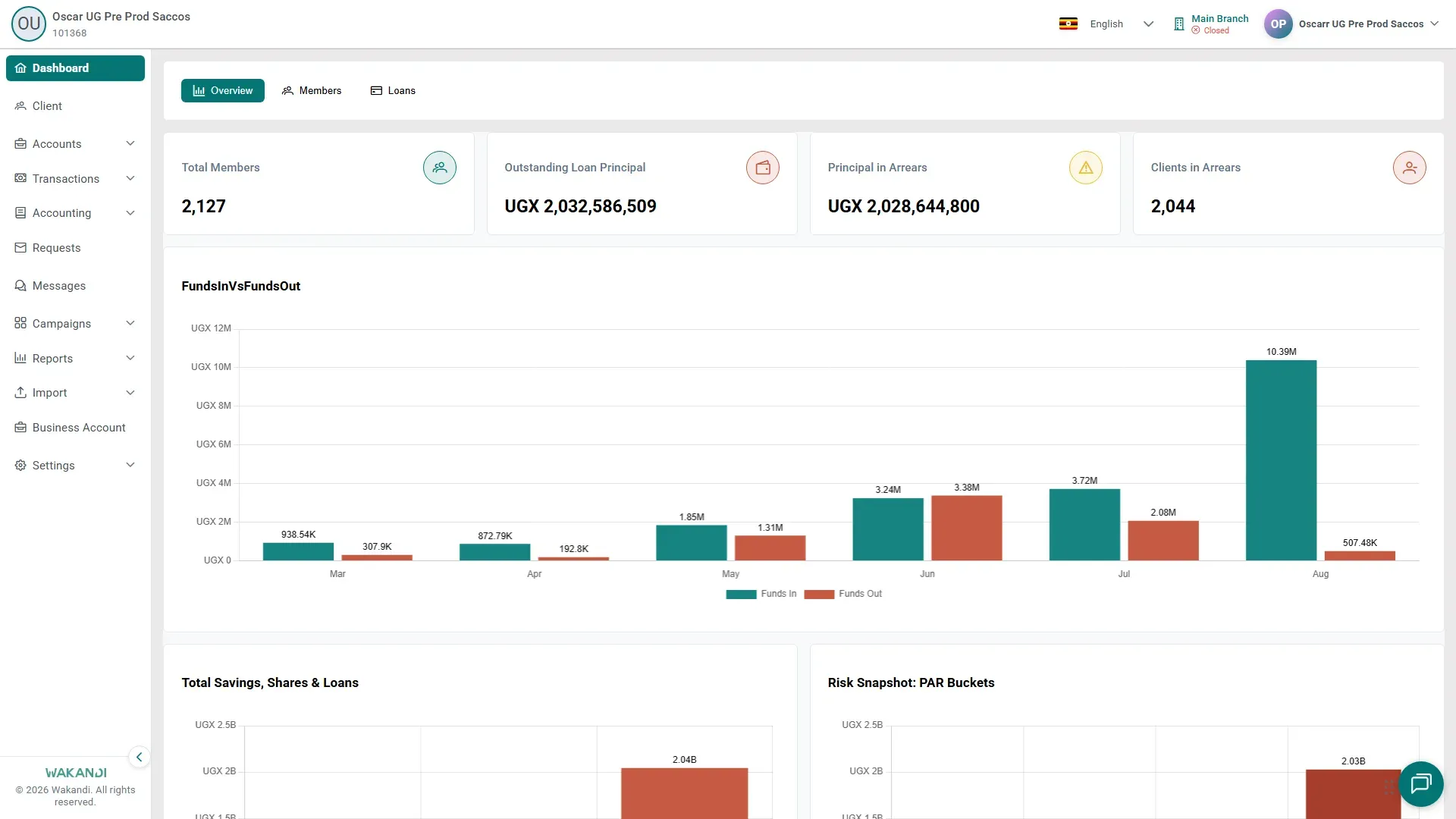
Figure 1: The CAMS Dashboard, with summary cards and charts in the middle and the main menu down the left Read the Overview tab, which opens by default. Its cards carry the headline numbers: Total Members, Outstanding Loan Principal, Principal in Arrears, and Clients in Arrears. Give them a few seconds to fill in.
Click Members or Loans above the charts for a closer look at that side of the business.
On those two tabs, narrow the charts with the filter bar: Branch, Gender, Age, Client Type, Product, and Date. The charts reload after each change.
Common pitfalls & FAQ
- The cards or charts look empty. Wait for them to load, then refresh the page. A large organisation takes longer.
- My filters change nothing. The filter bar works on the Members and Loans tabs only. Overview ignores it.
- A chart title reads like FundsInVsFundsOut. Some language packs show the translation key instead of the name. The figures underneath are still your live numbers.