How to find a member
Summary
Find one member on the Clients screen by searching their name, Member Id, reference number or phone number. About 2 minutes · 5 steps. Also called: search for a member, look up a client.
Sign in with your email to read the rest of this article, track what you have finished, and earn your certificate.
Sign inPrerequisites
- Your CAMS sign-in.
- Something to search by: the member's name, Member Id, reference number or phone number.
Step-by-step
Sign in to CAMS.
In the left menu, click Client. The Clients screen lists your members and groups; wait until real rows and the "Showing … entries" line appear.
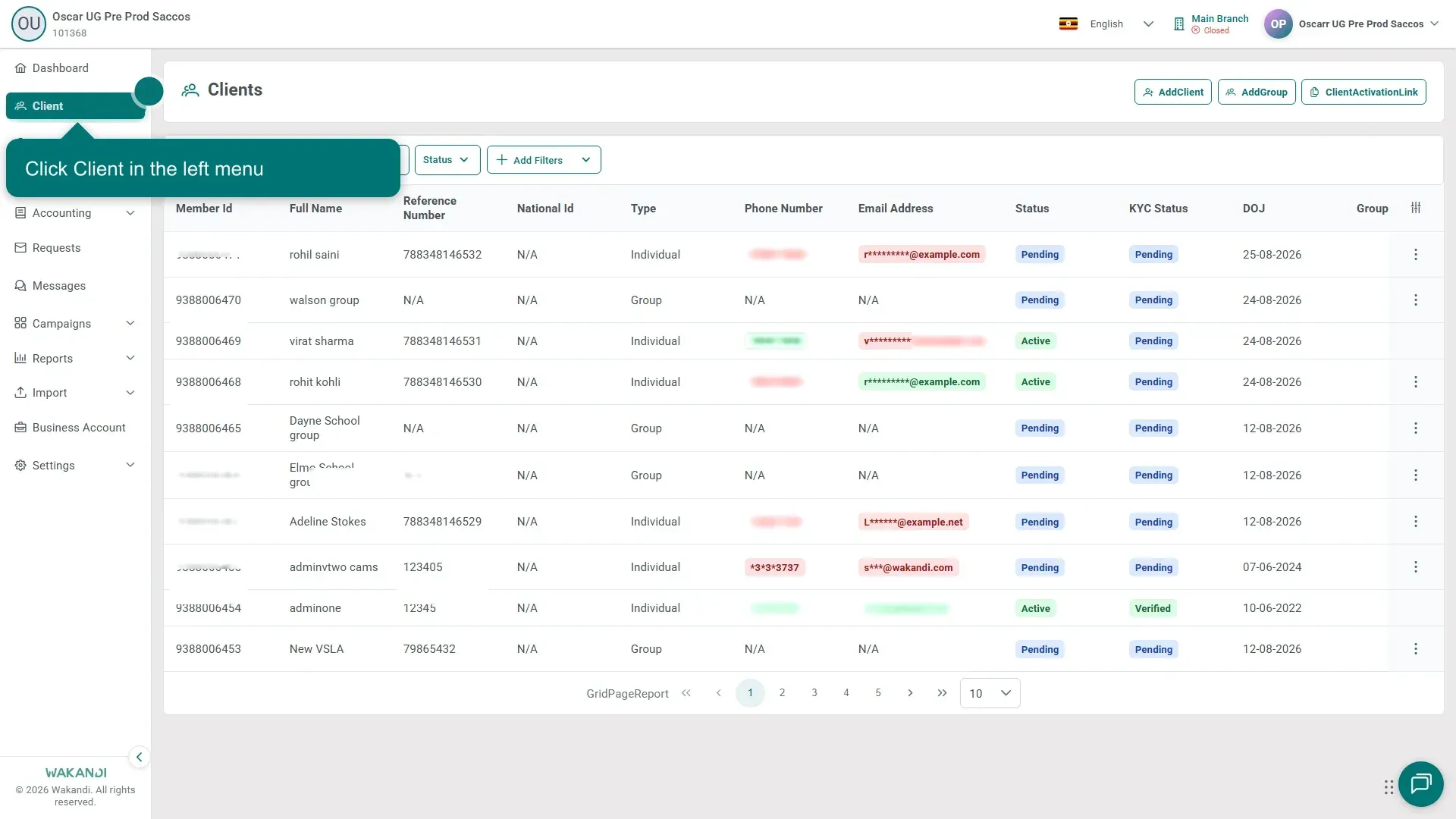
Figure 1: The Clients screen, with Client highlighted in the left menu Click in the Search box above the list and type what you know: part of the name, the Member Id, reference number or phone number.

Figure 2: The Clients screen with the Search box highlighted above the member list Press Enter. The list now shows only the members that match.
Click the member's row. The profile opens on the Summary tab; the header shows their name, Member ID, Status, KYC Status, Phone Number and Type. The tabs below lead to their Accounts, KYC and more.
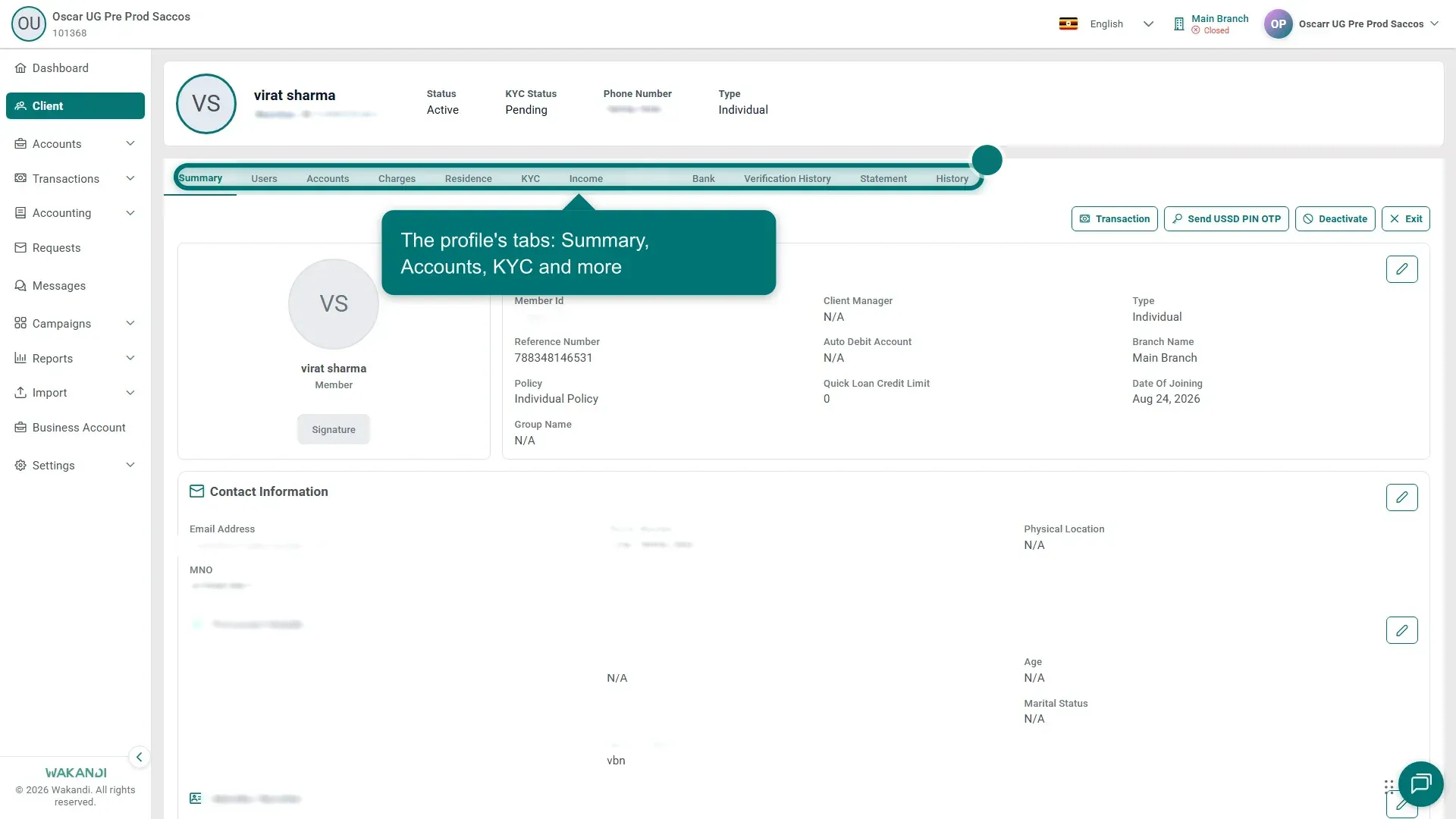
Figure 3: The member profile open on the Summary tab, with the tab strip highlighted
Tip: The Member Id is the most reliable match in a large register. Phone numbers and emails can appear partly hidden on the list for privacy; the full values show on the profile if your role allows it.
Note: To browse or print the register instead, use the page controls at the bottom of the list, or Reports → Client → Client List Report.
Common pitfalls & FAQ
- Nothing comes back. Check the spelling, or search by Member Id or phone number instead. Then clear Type, Status and anything under Add Filters — one of them may be hiding the member.
- Too many results. Type more of the name or ID, or narrow the list with those same filters.
- I opened the wrong person. Click Exit on the profile to return to the Clients list, then search again.
- The member isn't there at all. They may not be registered yet — see How to add a new member.