Open your till, top it up, and close it
Summary
Open your till with a float at the start of the day, move cash in or out during it, and close it at the end.
About 3 minutes · 6 steps. Also called: till opening, till closing, till top up, teller pick up, float.
Sign in with your email to read the rest of this article, track what you have finished, and earn your certificate.
Sign inPrerequisites
- Your CAMS sign-in, on a user with Is Teller ticked. See Make someone a teller and set what they can post.
- Your opening float counted and ready.
Step-by-step
Sign in to CAMS.
In the left menu, expand Transactions and click Teller. The header shows whether your till is Open and its current Balance.
On the New Transaction tab, click Till Administration.
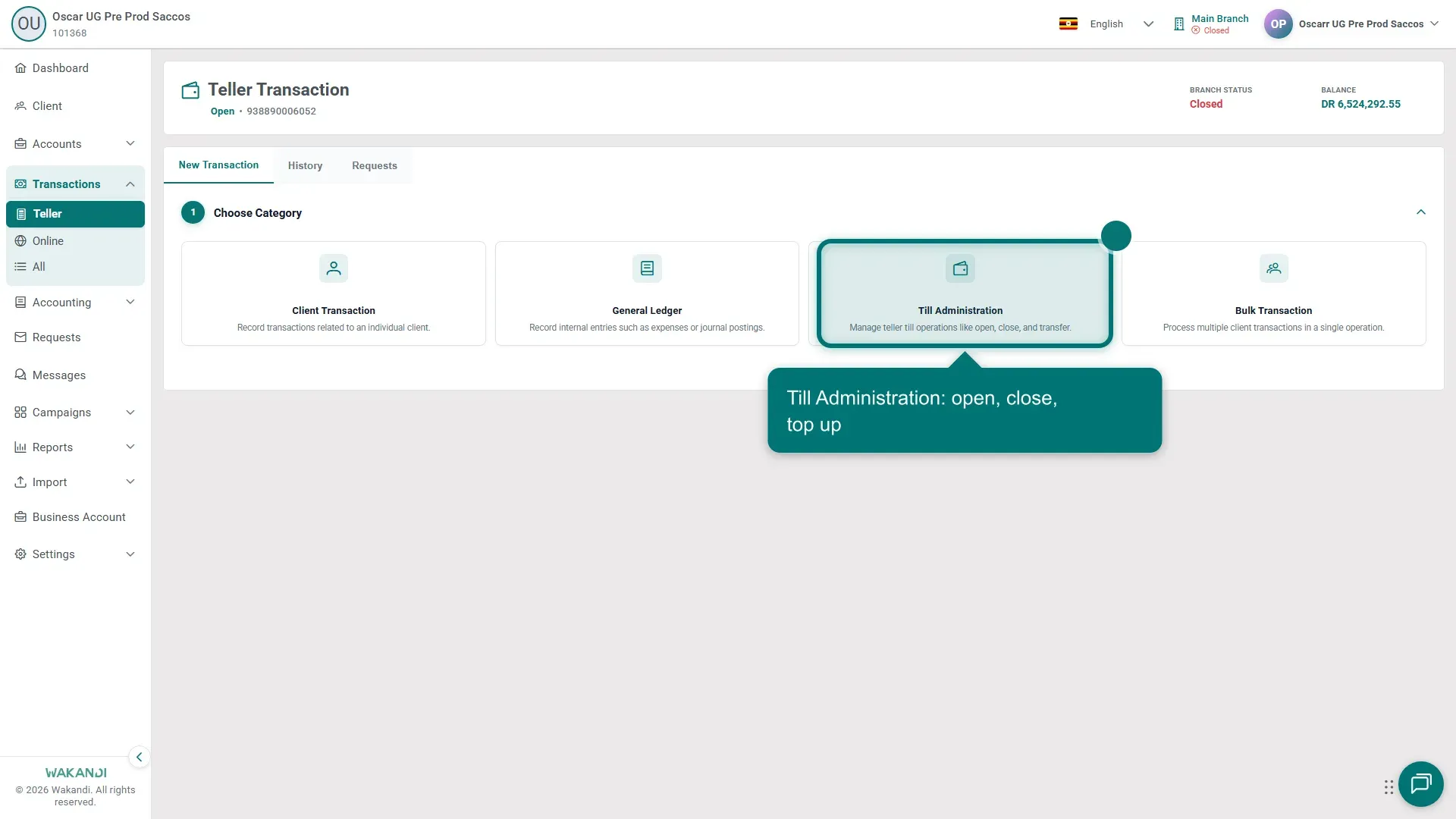
Figure 1: The Choose Category cards on the Teller Transaction screen, with Till Administration highlighted The Choose Type cards appear: Till Opening, Till Closing, Till Top-Up, Teller Pick-Up and Till Balance. Click Till Opening, enter the float you counted, and submit. The header now shows the till as Open.
During the day, use Till Top-Up when the drawer runs low, and Teller Pick-Up when it holds more cash than you want at the counter.
At the end of your shift, click Till Closing. To see every till at once, click Till Balance: each row shows the Teller, Account Number, Account Code, Status and Balance, with a View action.
Note: The Balance is what CAMS holds, not what is in the drawer. Count and compare before you close — see How to reconcile the teller.
Common pitfalls & FAQ
- A card says "Till must be open first". Till Closing, Till Top-Up and Teller Pick-Up work only on an open till. Open it first.
- Till Opening is greyed out. The till is probably open already. Check the header.
- I cannot post a member transaction. The till must be Open before anything can be posted against it.
- The drawer and the system disagree. Do not close on the difference. Reconcile first and find the cause.